Authenticator app admin guide
Intended audience: Administrators
Welcome to the Workforce Authority Mobile app! The mobile app connects with the Workforce Authority multi-factor authentication (MFA) service to make logins more secure. Aruclix Mobile sends push notifications for one-tap authentication and can generate login passcodes on your mobile device.
As an Workforce Authority administrator for your organization, you can set some Workforce Authority Mobile configurations to meet your organization needs. For example, you can force the use of App Lock, set the passcode (PIN) length, enable workstation pairing for Endpoint Trust, and so on.
Supported authenticators include push, symbol push, time-based one-time passcode (TOTP), security keys (like YubiKey, RFID, etc.), biometrics, SMS, email, security questions, FIDO authenticators, and passwords.
To learn more about all the end user features and functions in the Workforce Authority Mobile app, see the Workforce Authority Mobile app user guide. The remainder of this topic will focus on the administrative settings in Workforce Authority that defines the user experience and security settings for your organization as it relates to Workforce Authority Mobile.
Push notification view
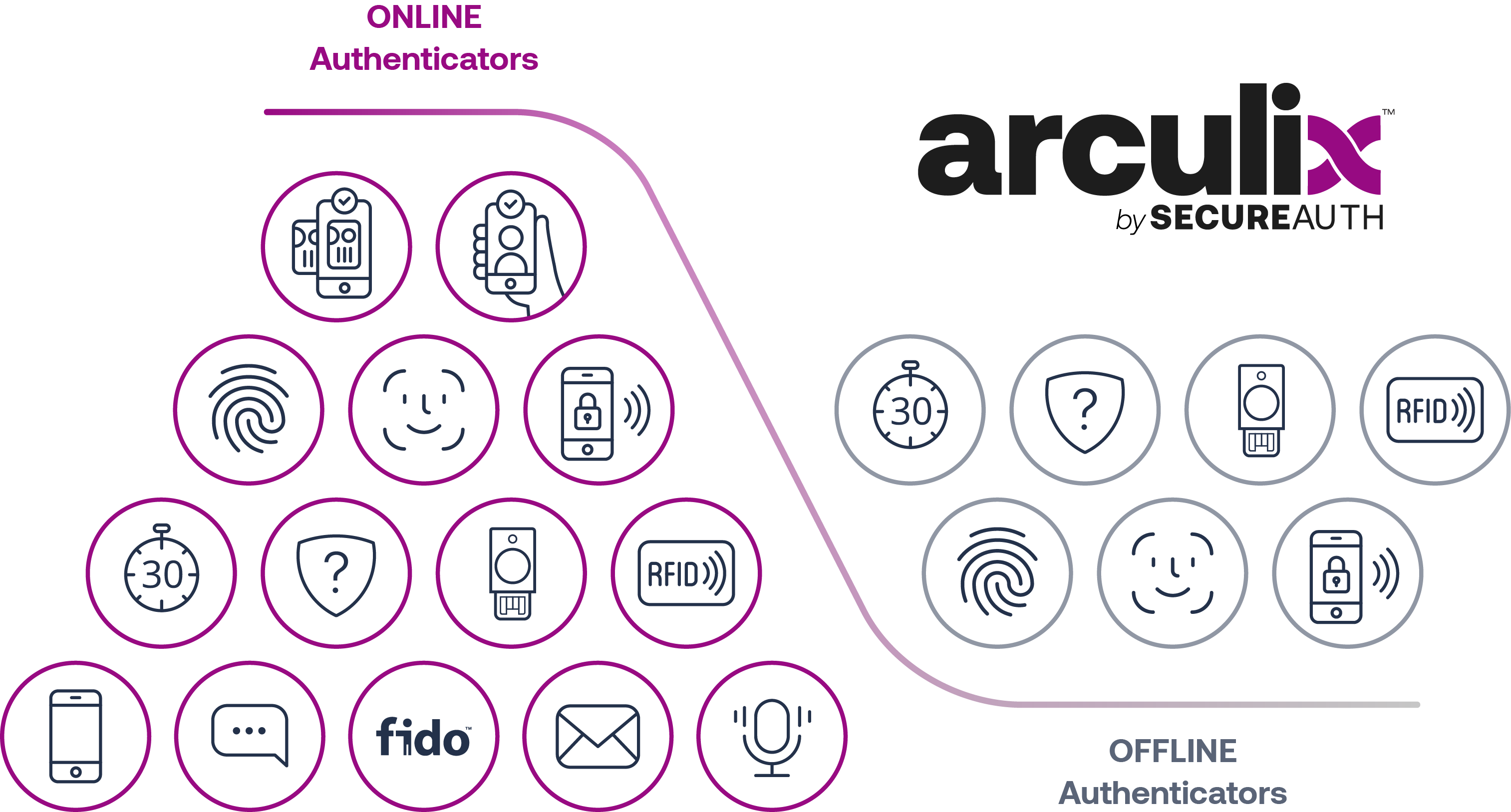
Workforce Authority Mobile configurations
You can set some Workforce Authority Mobile configurations specific to your organization, like forcing an App Lock or not allowing rooted or jailbroken devices to pair, and so on.
All of these configurations are done in Workforce Authority Core.
-
Log in to Workforce Authority and go to Settings.
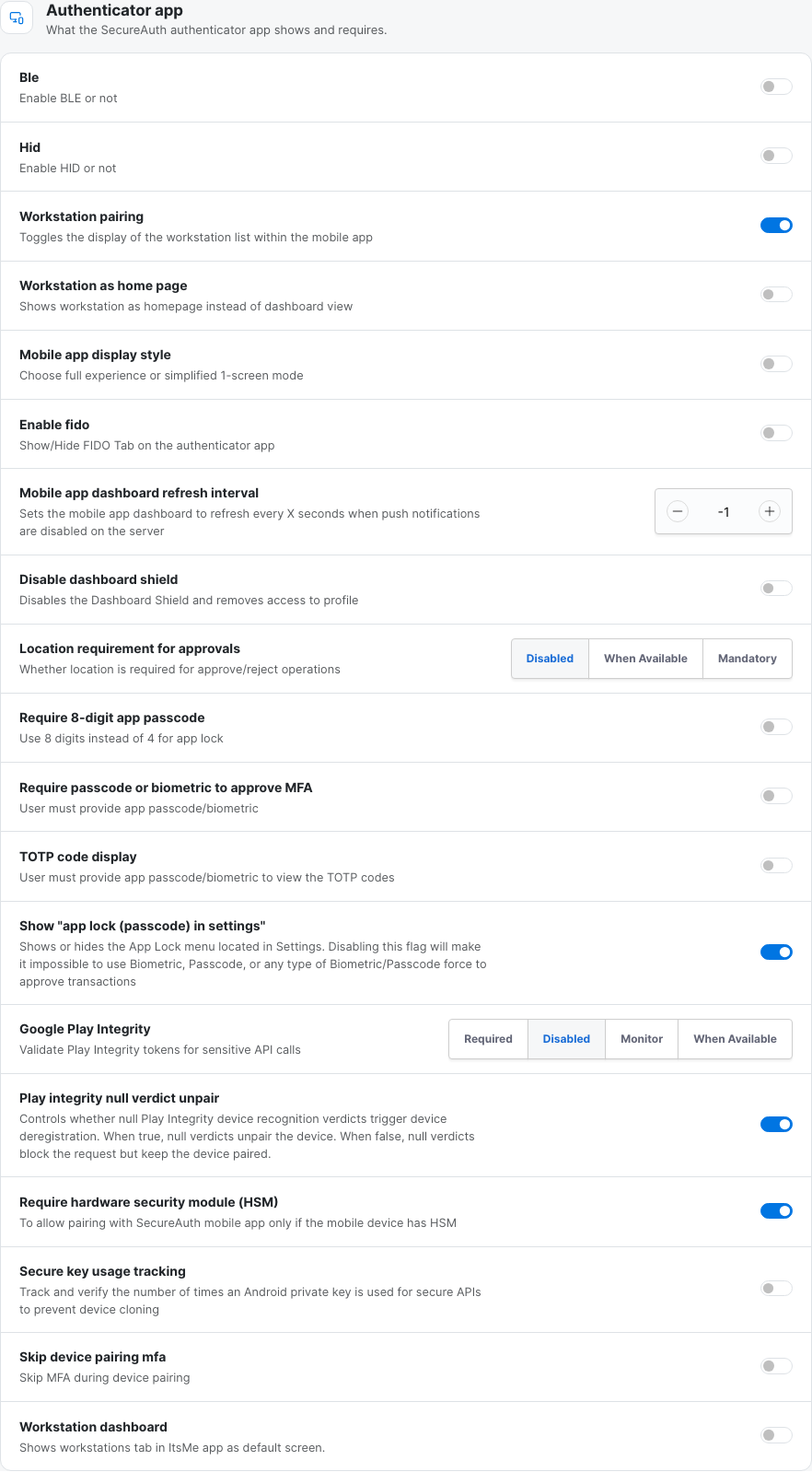
-
Go to the Authenticator app section.
-
Set the applicable configuration.
See the sections below in this topic for certain functions of Workforce Authority Mobile that you want to apply.
Endpoint Trust
If your organization uses Endpoint Trust on workstations, you will need to set the following configuration.
Enable workstation pairing
To use Endpoint Trust, you need to enable the setting to allow end users to pair their workstation with their account in Workforce Authority Mobile app.
In Settings > Authenticator app section, turn on Workstation pairing.
More security
You can add another layer of security in Workforce Authority Mobile to approve login requests.
Turn on App Lock
You can show or hide the App Lock feature in Workforce Authority Mobile app. With this feature, end users can go to Settings in Workforce Authority Mobile app and turn on App Lock and create a passcode (PIN). This allows them use a PIN to unlock Workforce Authority Mobile app to approve login requests. After they create a PIN, they can optionally turn on biometric MFA.
In Settings > Authenticator app section, turn on Show "app lock (passcode) in settings".
Enforce App Lock
You can require end users to provide passcode (PIN) or biometric MFA to unlock the Workforce Authority Mobile app to approve login requests. End users cannot approve login requests until they create a PIN. After they create a PIN, they can optionally turn on biometric MFA like Face ID.
Prerequisite: You must have this setting turned on: Show "app lock (passcode) in settings".
In Settings > Authenticator app section, turn on Require passcode or biometric to approve MFA.
Enforce App Lock for offline codes
You can require end users to provide passcode (PIN) or biometric MFA to unlock the Workforce Authority Mobile app to view offline codes (TOTP).
Prerequisite: You must have this setting turned on: Show "app lock (passcode) in settings".
In Settings > Authenticator app section, turn on TOTP code display.
Specify passcode (PIN) length
Requires Workforce Authority Mobile app version 5.0.5 or later
By default, the passcode (PIN) length for the App Lock in Workforce Authority Mobile is 4-digits. You can change this setting to require users to create an 8-digit PIN.
Prerequisite: You must have this setting turned on: Show "app lock (passcode) in settings".
In Settings > Authenticator app section, turn on Require 8-digit app passcode.
This setting impacts existing users who have set up a passcode (PIN) in Workforce Authority Mobile. If you change this policy, it will ask users to update their passcode to match the policy from 4-digits to 8-digits or vice versa.
With multi-accounts, described in the Workforce Authority Mobile app user guide, the 8-digit policy will override any account that only requires 4-digits.
If end users forget their passcode (PIN), they will need to pair their account again.
Require hardware security module checks
Requires Workforce Authority Mobile app version 5.0.5 or later
For mobile authenticator devices, there is a hardware security module check setting that prevents pairing of mobile devices that do not have Secure Enclave (iOS) and TPM 2.0 (Windows).
When this policy setting is enabled, the server will check for TPM or Secure Enclave on the mobile device, and reject the pairing process as applicable to the policy.
In Settings > Authenticator app section, turn on Require hardware security module (HSM).
Be sure to enable this configuration in Workforce Authority before end users pair their mobile devices.
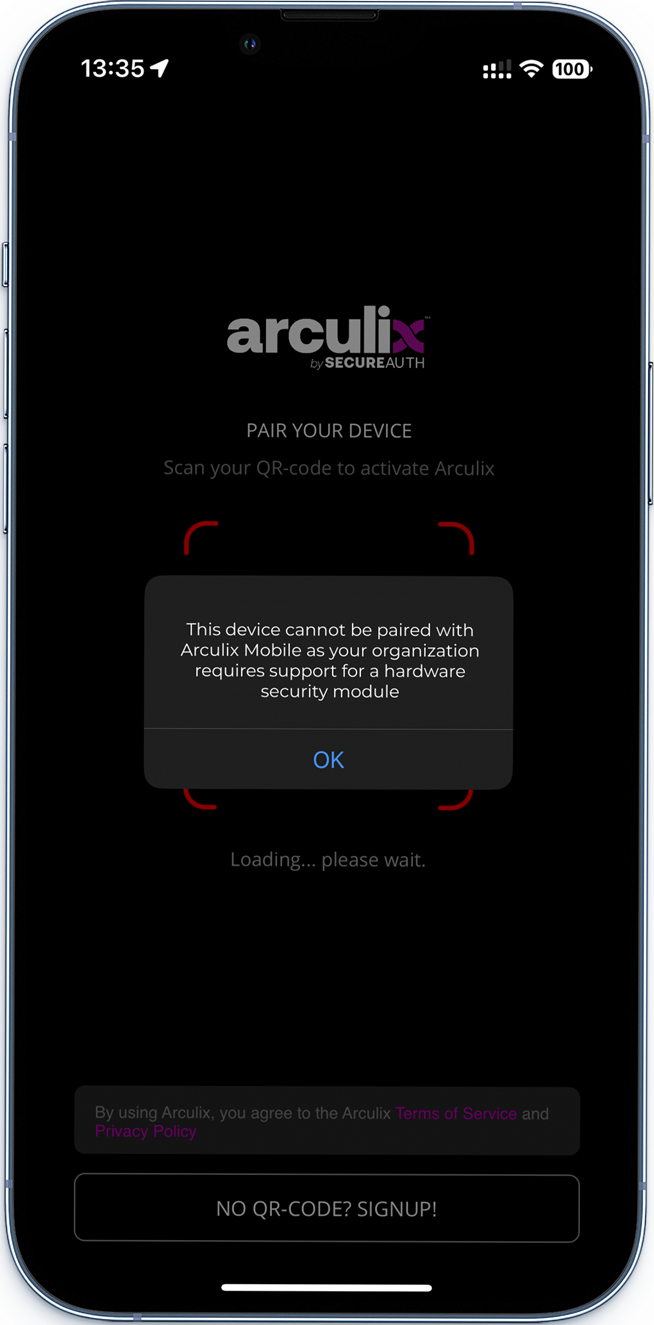
Warning message displays when trying to pair a device that does not have TPM or Secure Enclave
Reject rooted or jailbroken devices
There is a security check in the Workforce Authority Mobile app for rooted or jailbroken devices. When the Workforce Authority Mobile app opens and detects that the mobile device is rooted or jailbroken, the app will not work at all.
This setting works at the app level, and does not require a flag or configuration setting in Workforce Authority Core.
Device settings
The following configurations relate to pairing and use of Workforce Authority Mobile app on devices.
FIDO devices
You can indicate whether to show the FIDO tab in the Workforce Authority Mobile app under Settings. This setting allows end users to register FIDO-compliant security keys and devices.
In Settings > Authenticator app section, turn on Enable fido.
Workforce Authority Mobile app functions
The following configurations relate to the functions of the Workforce Authority Mobile app on devices.
Open on Workstations view
In the Workforce Authority Mobile app, automatically open the Workstations view instead of the Dashboard view.
In Settings > Authenticator app section, turn on Workstation as home page.
Dashboard refresh
In the Workforce Authority Mobile app, periodically refresh the Dashboard for any pending transactions of login requests. This setting is for organizations who do not want to use push notifications.
In Settings > Authenticator app section, set the number of seconds between Dashboard refreshes in Mobile app dashboard refresh interval.
The default setting of -1 indicates no polling.
Other key features
This section describes some other key features in the Workforce Authority Mobile app that do not require any special configurations.
Detect biometric changes
Requires Workforce Authority Mobile app version 5.0.7 or later
Workforce Authority Mobile has a setting called App Lock. It lets you use biometrics like Face ID or fingerprint to approve an authentication request.
When this option is turned on and the app detects a change in biometrics, like adding or removing a fingerprint on the mobile device, it will unpair all accounts.
Be careful when changing biometric settings on shared devices. For example, Alice and Bob share a mobile device, and only Alice has paired accounts in Workforce Authority Mobile. If Bob adds or removes a fingerprint, Workforce Authority Mobile unpairs all of Alice's accounts, and she has to pair the device again.
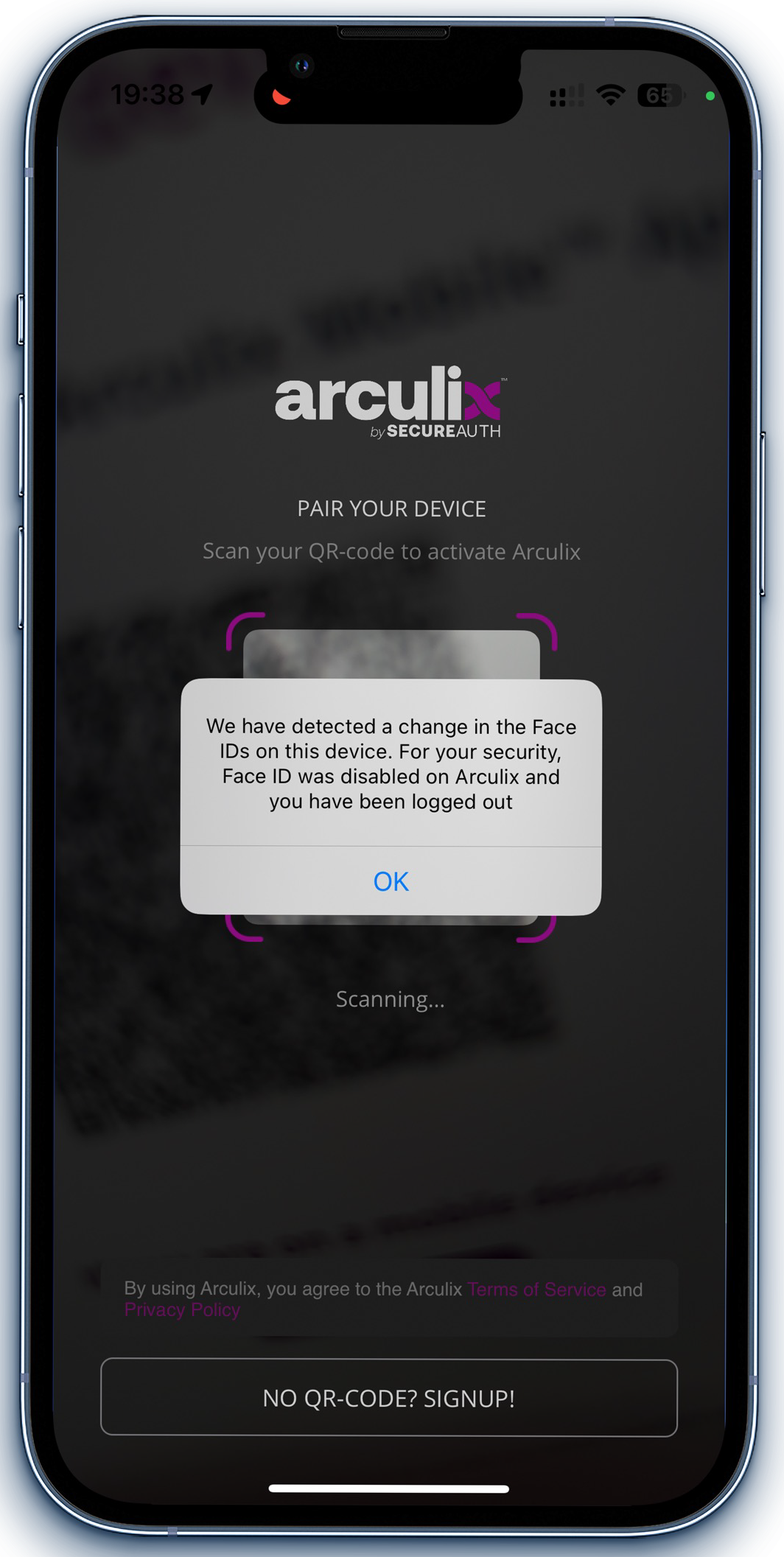
Biometric change detected; Workforce Authority Mobile unpairs all accounts
Workstation offline codes
Requires Workforce Authority Mobile app version 5.0.7 in iOS and 5.0.8 in Android
Workforce Authority Core stores offline code seeds securely. Users can switch devices or reinstall the Workforce Authority Mobile app and still keep their offline codes.
VDI workstation suppor
Requires Workforce Authority Mobile app version 5.0.7 or later
Coming soon! Configuration support for SSO to VDI workstations in Workforce Authority Core.
Workforce Authority Mobile supports passwordless logins to Virtual Desktop Infrastructure (VDI) workstations. Users can easily log in to the VDI desktop through Citrix SSO without any interference from Endpoint Trust.
The Workstations tab in Workforce Authority Mobile will show VDI workstations with commands specific to VDI.
Take note that VDI workstations paired with Workforce Authority Mobile have these limitations:
-
VDI workstations will not have Offline Codes
-
Logout button for a VDI workstation in the app is optional and configurable using the Organization setting
-
Lock button for a VDI workstation is always visible in the app
-
End user cannot unpair a VDI workstation in Workforce Authority Mobile
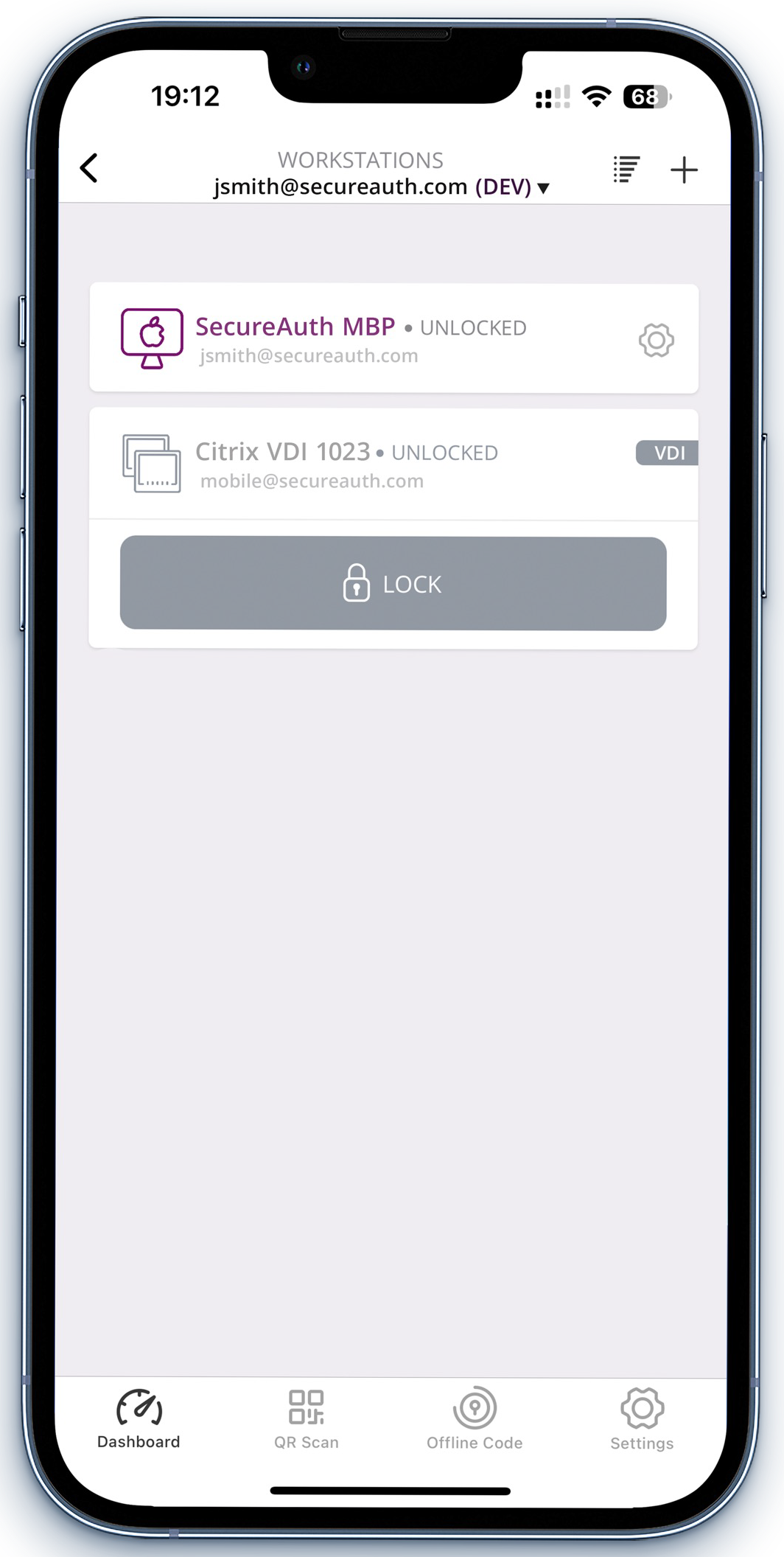
VDI in Workstations view
Use device camera
Requires Workforce Authority Mobile app version 5.0.5 or later
Coming soon! A new feature allows you to scan Workforce Authority QR codes using the camera on your mobile device without first opening the Workforce Authority Mobile app.
When you scan an Workforce Authority QR code using your device camera, it will suggest opening the Workforce Authority Mobile app. After the Workforce Authority Mobile app opens, it automatically switches to the QR scan view in the app and seamlessly processes the QR code.
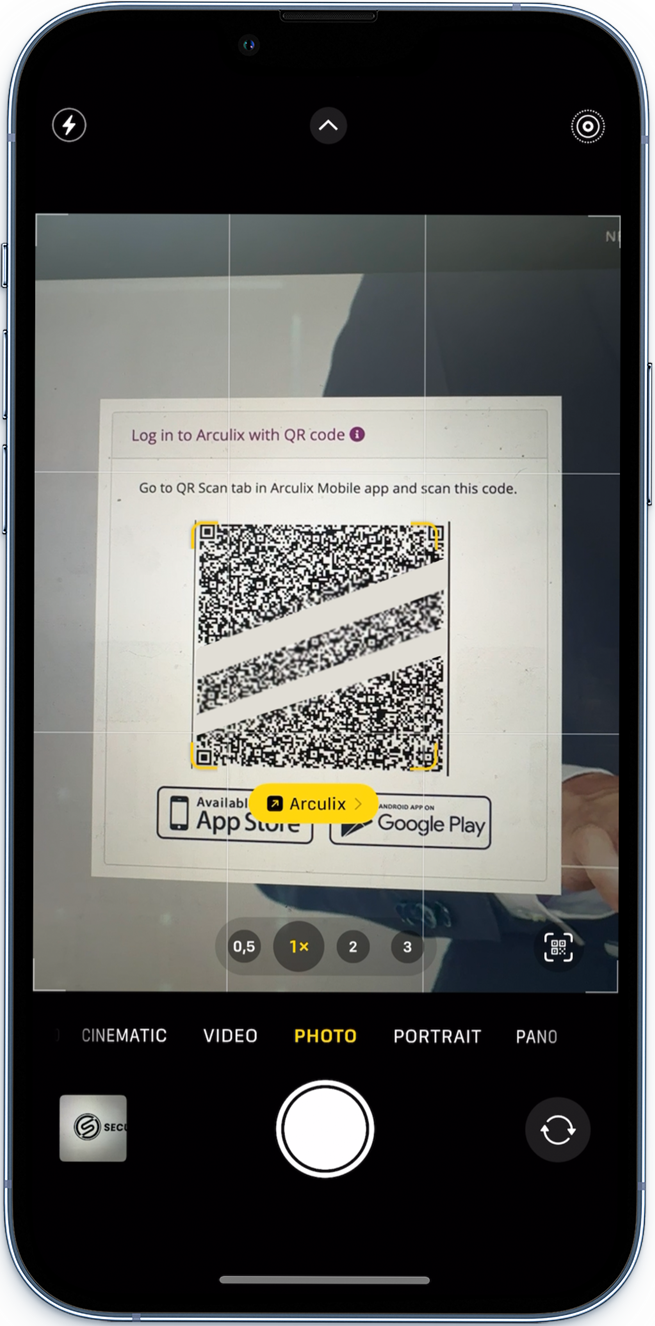
Use device camera to scan Workforce Authority QR code
This feature will work with the following QR codes:
-
Workforce Authority pairing QR code
-
Workforce Authority web SSO QR code
-
Endpoint Trust QR code