Audit logs
In Workforce Authority, you can view real-time audit logs: who signed in, from where, how each request was decided, and what changed in your organization.
Audit log summary
-
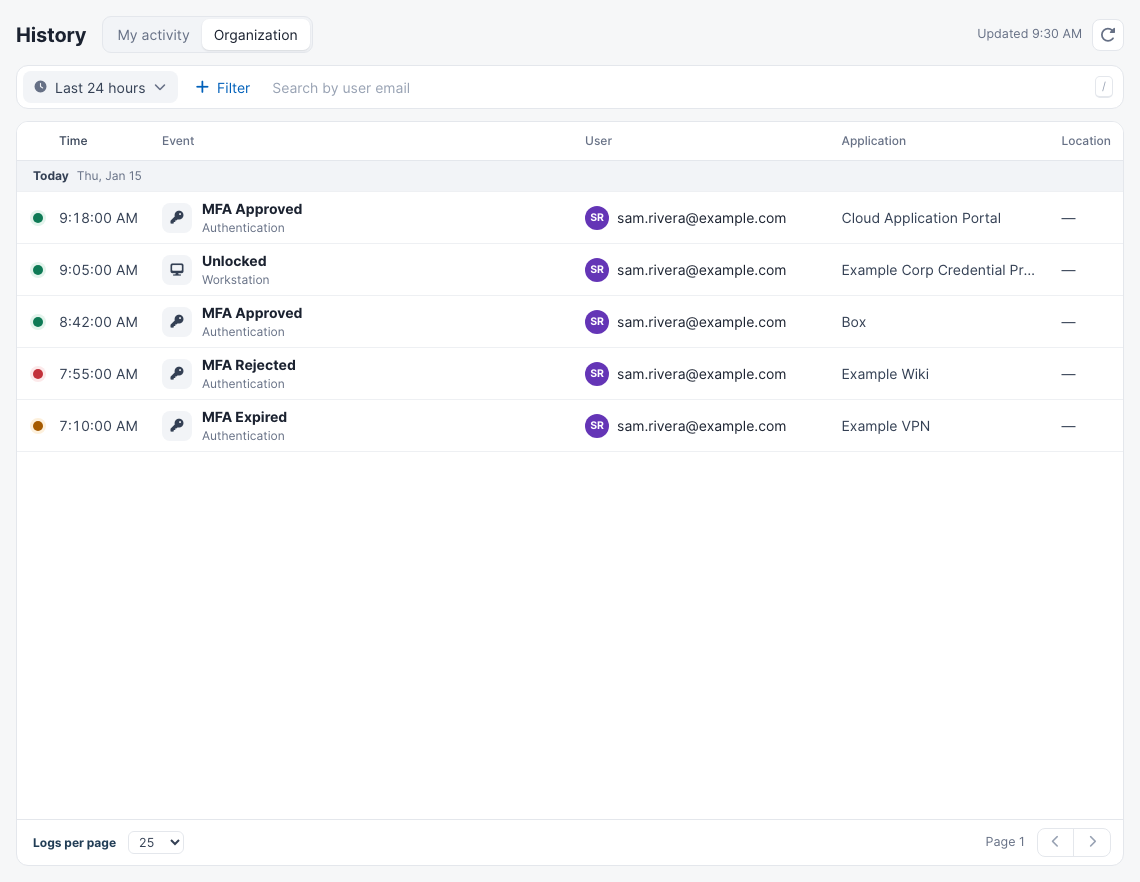
Log in to Workforce Authority and from the left navigation, click History.
-
Beside the page title, choose whose events to show.
My activity Your own events as the signed-in user. Organization Every event in your organization. Only administrators who can read audit logs see this option, and it opens first for them. 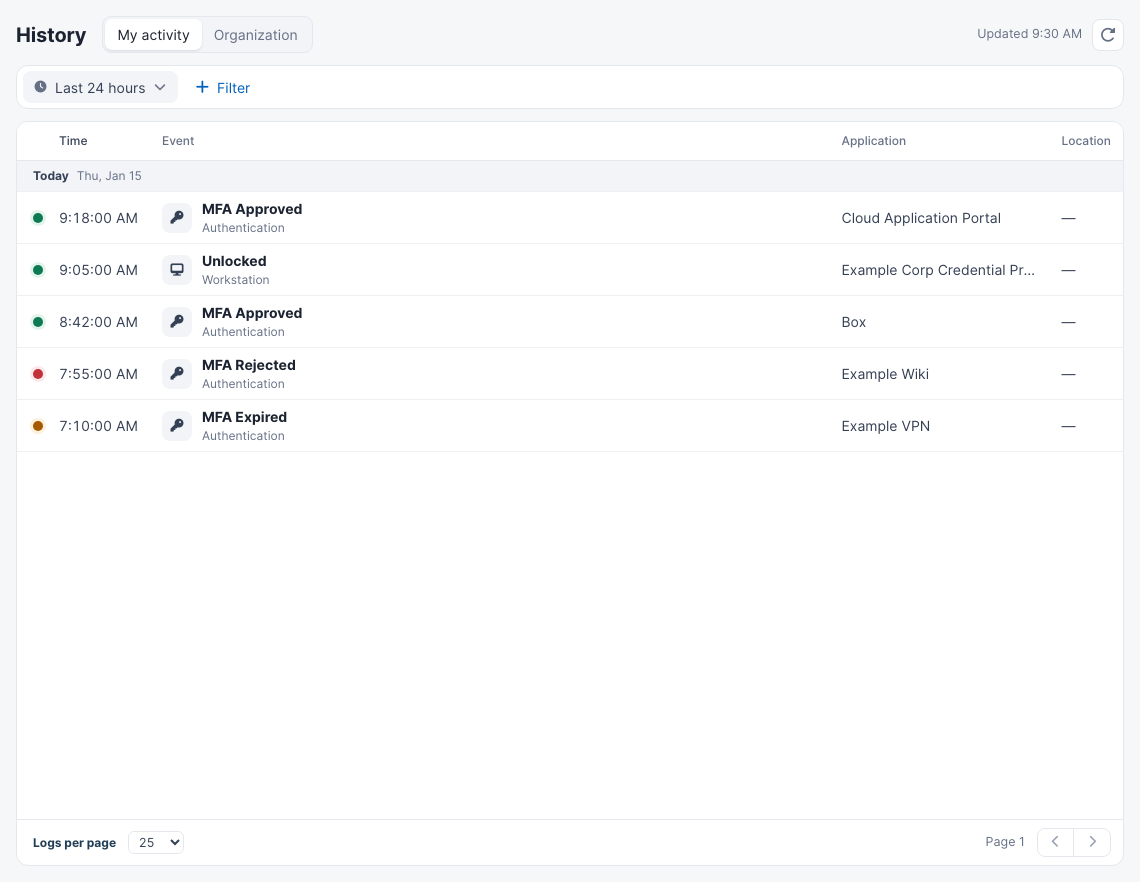
-
Read the list.
Events are grouped by day, newest first. Each row shows:
- Outcome – a colored dot. Green means approved, allowed or succeeded. Amber means expired or a step-up was required. Red means rejected, denied, failed or an error. Grey means pending, or an event that only records what happened.
- Time – when the event happened, in your browser's time zone.
- Event – what happened, with the sign-in type, the security event or the event type beneath it.
- User – the account that triggered the event, in the Organization view only. Hover over the email to copy it.
- Application and Location – where the event came from, on wider screens.
-
To see the full detail of an event, click it. See Audit log details.
Use the arrows at the bottom of the list to page through older events, and Logs per page to change how many each page holds. The refresh button at the top right reloads the list and shows when it last did.
Filter the list
The bar above the list holds every filter as a chip, so adding one never pushes the list down the page.
- Time range – the first chip, set to Last 24 hours when the page opens. Pick a preset from 30 minutes to 3 months, or choose Custom range and set From and To.
- Event type – click Filter, then Event type, and tick one or more types. The list shows only events of those types.
- Application – click Filter, then Application, and tick one or more applications. Available in the Organization view.
- User – type in Search by user email and press Enter. A full address matches that user only; part of an address matches every email that contains it. Click is or contains on the chip to switch between the two. Press
/anywhere on the page to jump to the search. Available in the Organization view.
To change a filter, click its chip. To remove one, click the × on its chip, or click Clear all to remove them all.
The filters are part of the page's address. Bookmark the page or share the link, and it opens with the same filters and time range.
When nothing matches, the list offers Clear filters when a filter is set, and Widen the range when the time range is a preset shorter than 3 months. Widening steps the range to the next preset, and to at least the last 7 days. When the list can't load, it says so instead and offers Try again.
Event types
The Event type filter and the side panel use these names.
| Event type | What it records |
|---|---|
| Sign-in | Login requests to web apps, Credential Provider, RADIUS and others, with the MFA result. |
| Continuous authentication | Access to additional resources during a signed-in SSO session, and the policy decision for each. |
| Risk evaluation | A risk score requested for a user, and the analyzers behind it. |
| Security event | Failed or blocked sign-ins, password changes, passkey registrations and AI agent detections. |
| Data change | Changes to your organization's data, such as an application created or a permission removed. |
| Workstation | Workstation events such as locked, unlocked, paired and logged out. |
| Endpoint Trust token | A token issued to a workstation's Endpoint Trust agent. The workstation proved its paired key, or the user signed in with a QR code or a passkey. Organization view only. |
| Agent event | Events reported by a device's agent. Organization view only. |
| Agent certificate | An agent's certificate issued, renewed or revoked. Organization view only. |
| Messaging template | Changes to your organization's messaging templates. Organization view only. |
| System error | An error Workforce Authority recorded while handling a request. |
During an upgrade, or after a rollback, the earlier release of Workforce Authority shows an event of a type only a later release has as Event type not recognized, with the type's name beneath it, in the Organization view only. Click it to see everything it recorded.
Audit log details
-
In the History list, click an event.
A panel opens beside the list with everything recorded about the event, and stays open while you move through the list. On a narrow screen, the panel covers the list.
-
Move between events without closing the panel.
Press the up and down arrow keys, or use the arrows at the top of the panel. Press Esc, or click ×, to close it.
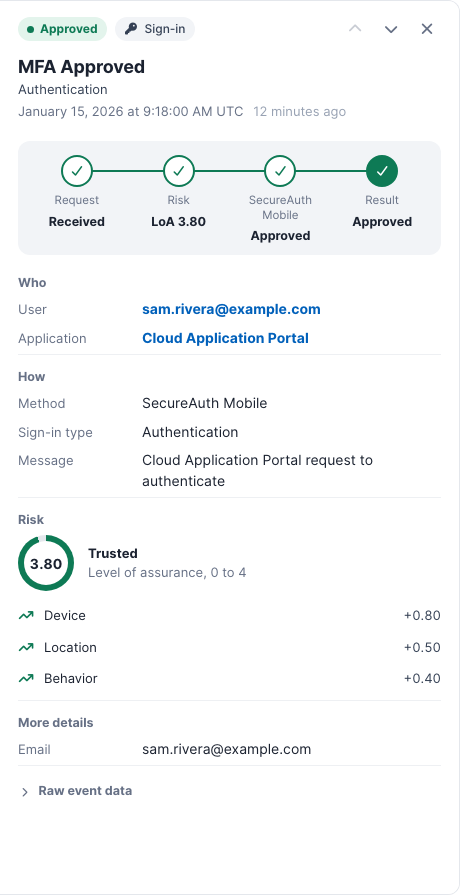
Sign-in event details
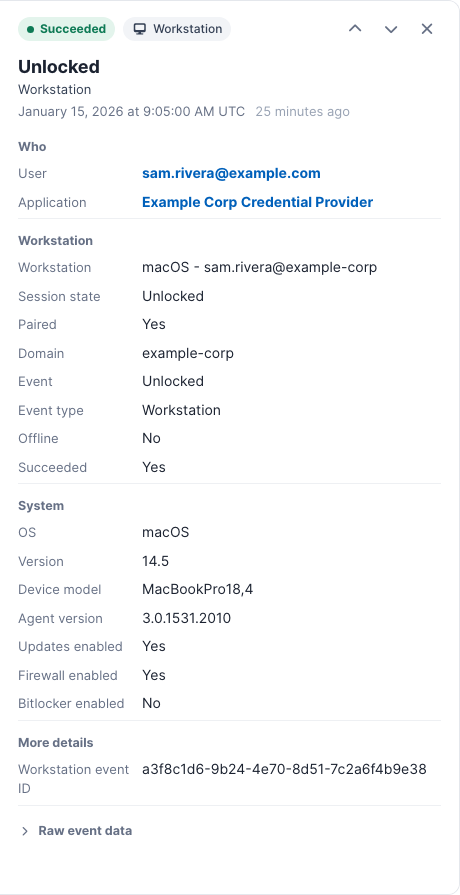
Workstation event details
Event details
The top of the panel names the event, its outcome, its event type and when it happened.
For a sign-in or a continuous authentication, a row of steps shows how the request was decided: the request or session, its risk score, the MFA method or policy that applied, and the result. A sign-in judged by DBFP's AI agent detection adds an AI agent step. A check marks a step that passed, an exclamation mark one that needed more, and a cross one that failed.
Below the steps, the panel groups the event's details into sections. A section appears only when the event carries its information.
| Section | What it shows |
|---|---|
| Who | The user and the application. Click the user to open their account, or your own profile for your own events. Click the application to open its settings, if you manage applications. Hover over the email to copy it. |
| Where | The location and IP address. Hover over the IP address to copy it. |
| How | For a sign-in, the authentication method, the sign-in type, the device and the message sent to the user. Click the device to open the user's devices. |
| Event | The fields particular to the event type, such as a data change's action and who made it. |
| Risk | The LOA score and the risk analyzers behind it. |
| AI agent | The verdict DBFP gave, a score ring, the signals behind it and the DBFP run ID. When DBFP identified the agent, its name and provider. |
| Browser | The browser, operating system and device. Whether the browser is headless, out of date or spoofed. |
| Policies | Each policy that applied and its action. Click a policy to open it. |
| Changes | For a data change, each changed field with its old and new value. |
| Workstation and System | For a workstation event, the workstation's session state and pairing, and its operating system, agent version and security settings. |
| More details | Anything else the event recorded. |
Raw event data, at the bottom of the panel, expands the event exactly as recorded. Click Copy JSON to copy it, for example to attach to a support request.
AI agent detected
When AI agent detection is on, Workforce Authority records an AI agent detected security event for every sign-in DBFP judged an agent, and for every sign-in an AI agent policy on the Authentication event decided. It is never recorded on a page load.
| Result | What it means |
|---|---|
| blocked | A policy rejected the sign-in. |
| stepped_up | A policy asked for more proof. |
| detected | No policy blocked the sign-in or stepped it up. |
The event's origin is authentication or continuous_authentication. It records the verdict, the browser facts and the policies that decided it, and it reaches audit log webhooks.
LOA Score
The LOA score is a number between 0.0 and 4.0. The higher the LOA, the more likely the user is who they claim to be. The overall LOA score is calculated from the confidence and risk scores generated by the risk analyzers.
The panel shows the score in a ring with its level: Trusted, Elevated risk or Low assurance.
Active Risk Analyzers
Risk analyzers fetch data from different sources and calculate a score from what they collect. Each risk analyzer focuses on one area. For example, the IP risk analyzer gets information about the user's IP address and scores that address.
Beneath the LOA score, the panel lists each analyzer with how much it raised or lowered assurance, and the reasons it gave.
This is a non-inclusive list of built-in risk analyzers:
-
AIML: Provides a score based on the user contextual information provided to the AI/ML engine in Workforce Authority.
-
Auth method: Provides a score based on the authenticator used for the last MFA.
-
DBFP: Provides a score based on the user's browser fingerprint.
-
IP: Provides a score based on the user's IP address.
-
Location: Provides a score based on the user's obtained location. The location will be obtained from the phone or browser and if not provided, falls back to the IP-based location.