Endpoint Trust end user guide
This topic describes how Endpoint Trust works on your workstation and the various authentication methods for workstation access. We'll provide an overview of the available multi-factor authentication (MFA) methods, which include push, SMS, email, and biometrics.
You might ask, what is Endpoint Trust? Endpoint Trust is an application your organization has installed on your workstation that allows you to authenticate or deny access to your workstation using the Workforce Authority Mobile app.
Depending on how your organization configures Endpoint Trust in Workforce Authority, you can have passwordless access to your workstation by simply accepting a push notification request in the Workforce Authority Mobile app.
Other ways of authenticating access, locking, and logging out of your workstation are described in this topic.
Prerequisites
-
Workforce Authority Mobile app installed on your mobile device and registered with Workforce Authority via an email account.
-
Endpoint Trust installed on your workstation. This is usually done by your IT administrator.
Pairing your workstation
Pair your workstation online
After Endpoint Trust is installed on your machine, you will need to pair your workstation to your account using the Workforce Authority Mobile app.
If your workstation is offline, see Pair your workstation offline.
-
Log in to your workstation with your password.
-
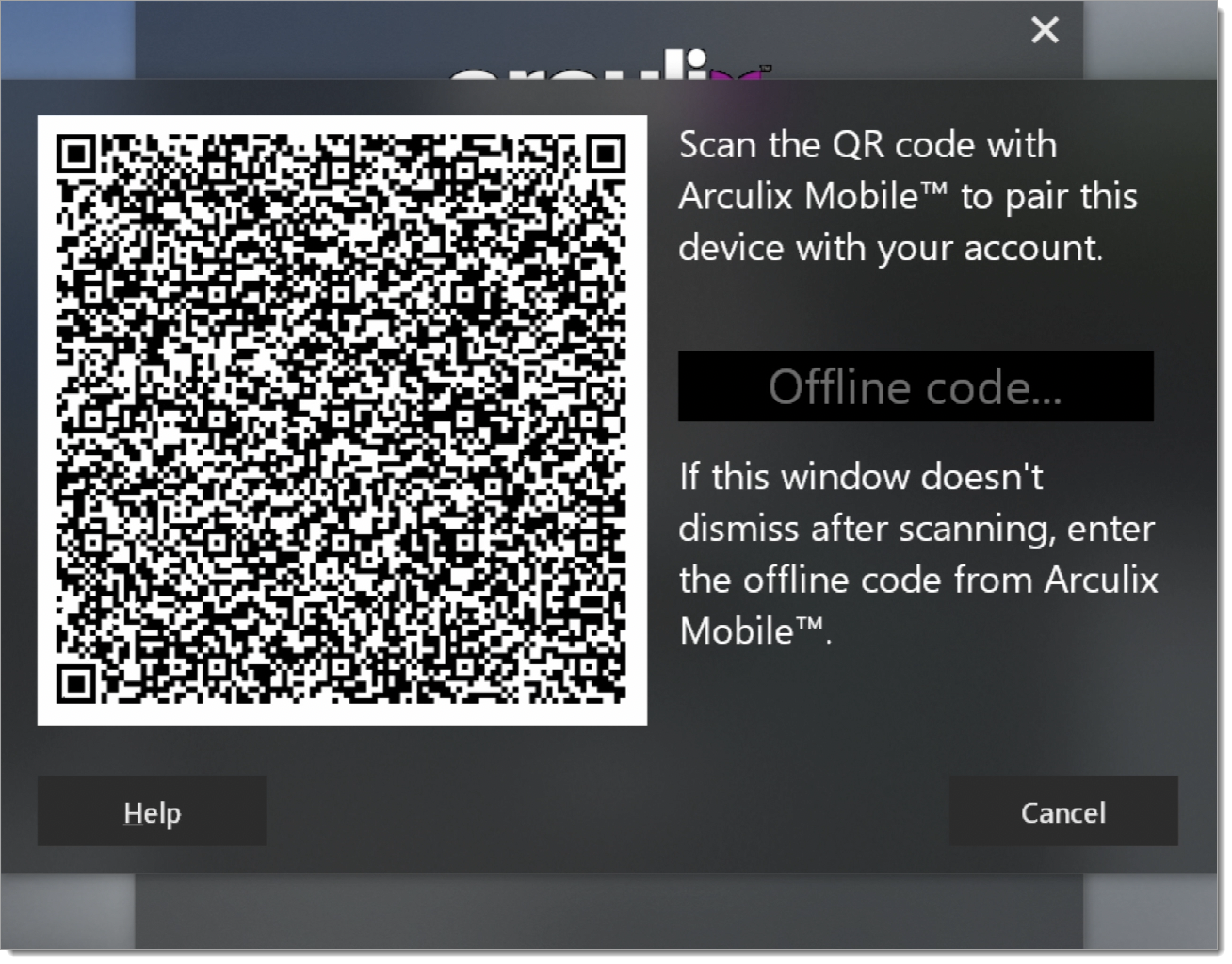
Using the Workforce Authority Mobile app, scan the QR code shown on your workstation screen.
-
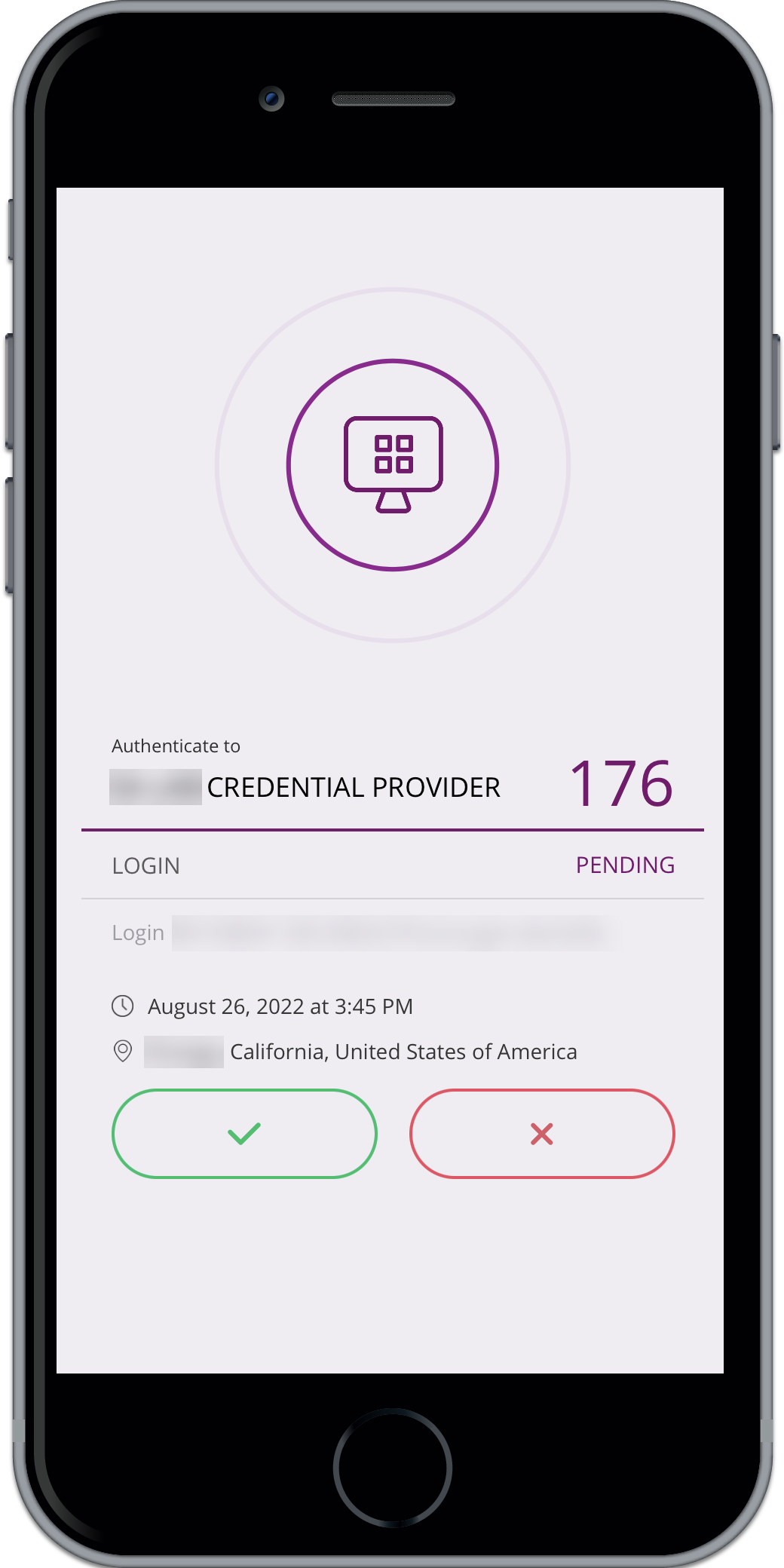
A push notification request is sent to the Workforce Authority Mobile app on your device.
-
In the Workforce Authority Mobile app, accept the pairing request.
Pair your workstation offline
If your workstation is offline, you can still pair your workstation to your account using the Workforce Authority Mobile app.
-
Log in to your workstation with your password.
-
Using the Workforce Authority Mobile app, scan the QR code shown on your workstation screen.
-
In the Workforce Authority Mobile app, go to Workstations.
-
Find the workstation name you are pairing and tap it to reveal the TOTP.
-
On the workstation, enter the TOTP.
The Endpoint Trust MFA dialog appears.
-
Click More Options and enter the TOTP to log in.
Unpair your workstation
You can unpair your workstation from the Workforce Authority Mobile app.
-
Before you begin, make sure you are logged in to your workstation and it is unlocked.
-
Open the Workforce Authority Mobile app and find your workstation.
-
Tap the gear icon and tap Unpair.
-
Verify the following:
-
Workstation is removed from the Workforce Authority Mobile app.
-
You are redirected to the login screen if you are currently logged in to your workstation.
-
Endpoint Trust screenshots
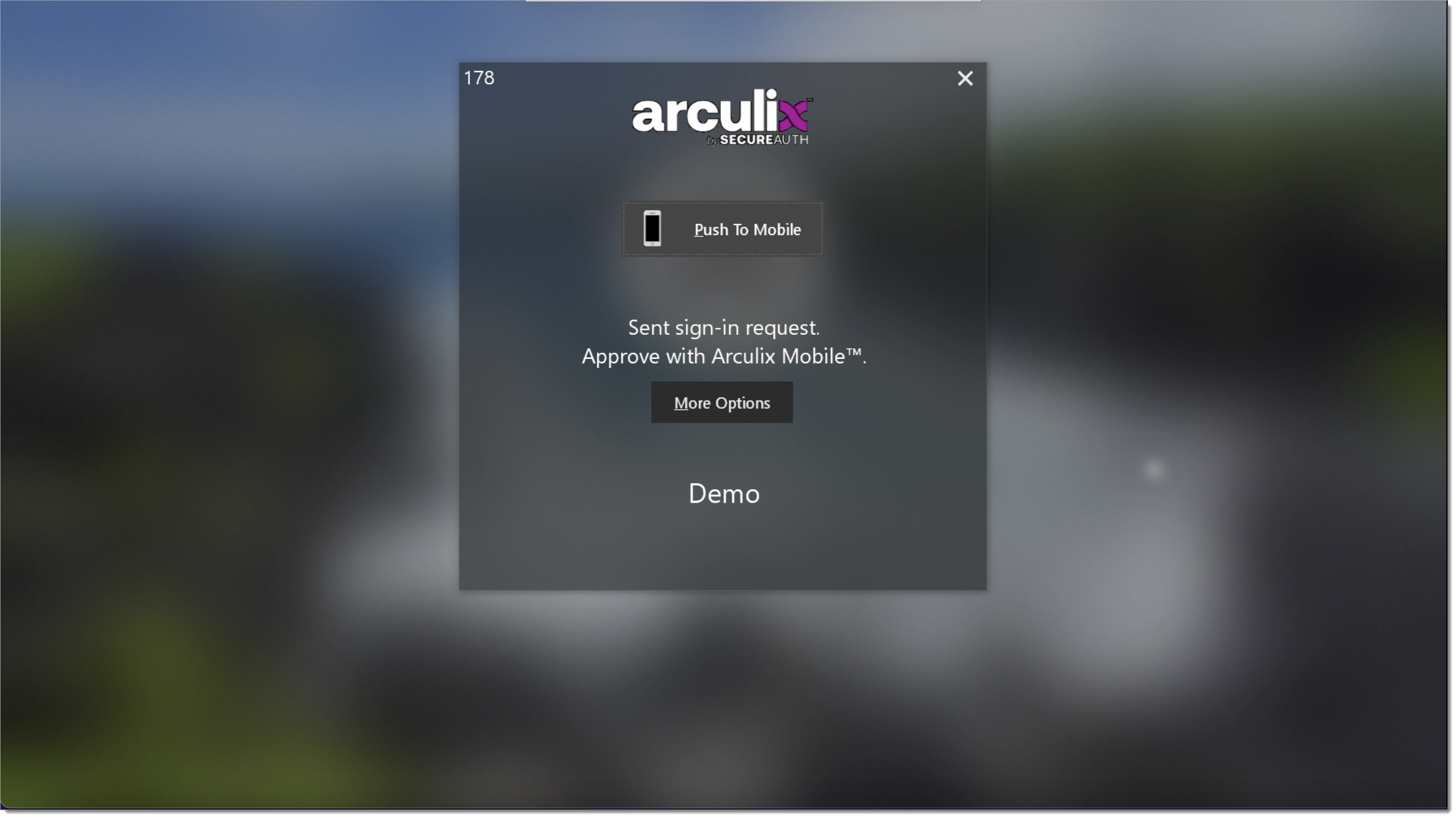
Push to Mobile. The following screenshot is an example of the Endpoint Trust screen on a workstation. Depending on your organization settings, it might automatically send a push notification to your Workforce Authority Mobile app, or you will need to click Push to Mobile to send a push notification to your Workforce Authority Mobile app.
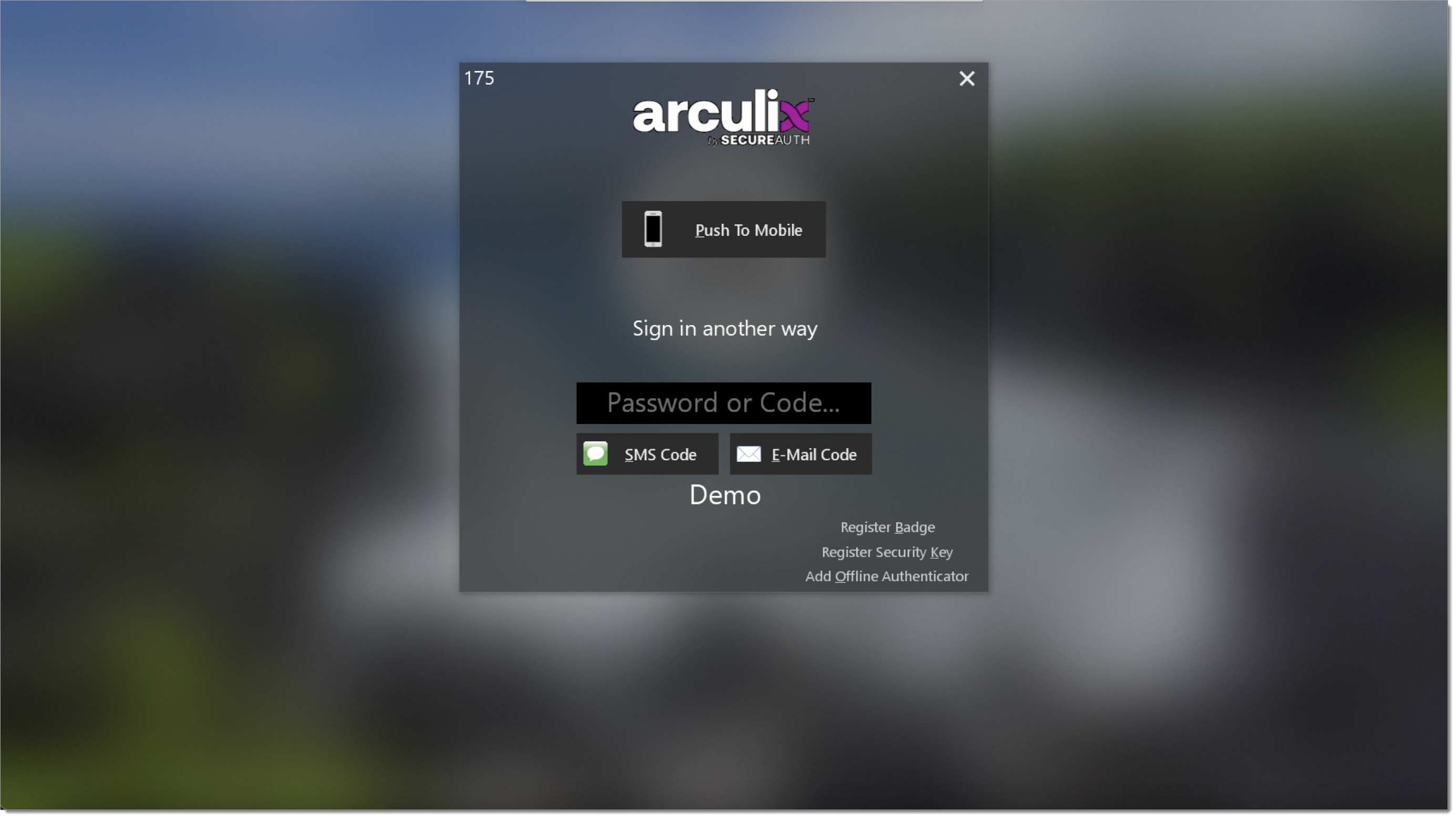
More Options. To log in another way, click More Options. The following Endpoint Trust screen shows other login methods like the following:
-
Password or Code. Enter your password or the offline code from your Workforce Authority Mobile app.
-
SMS Code. Click to send a passcode in a text message to your mobile device.
-
Email Code. Click to send a passcode to your email.
Login methods
Push notification
Use a push notification to authenticate access to your workstation.
-
On the Endpoint Trust screen, click Push to Mobile.
Alternatively, your organization settings might have auto-push enabled, so it automatically sends a push notification.
-
In the Workforce Authority Mobile app, Accept the notification request to access to your workstation.
-
Verify that you are logged in.
Symbol Push
Tap the matching symbol to authenticate access to your workstation.
-
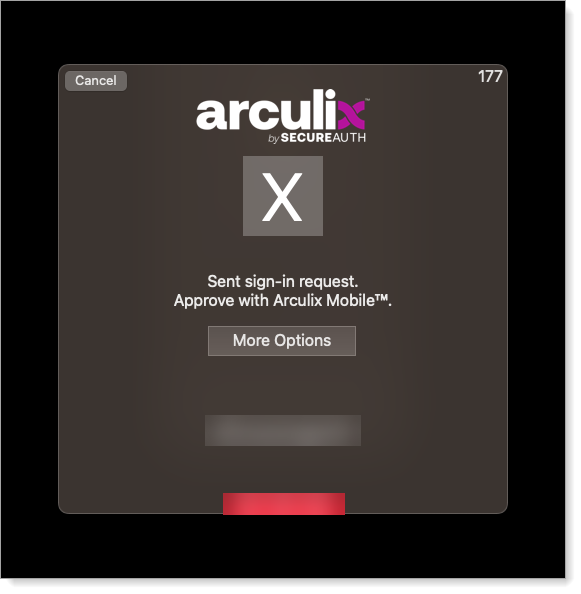
On the Endpoint Trust screen, view the symbol.
For example, the screen shows the symbol as X.
-
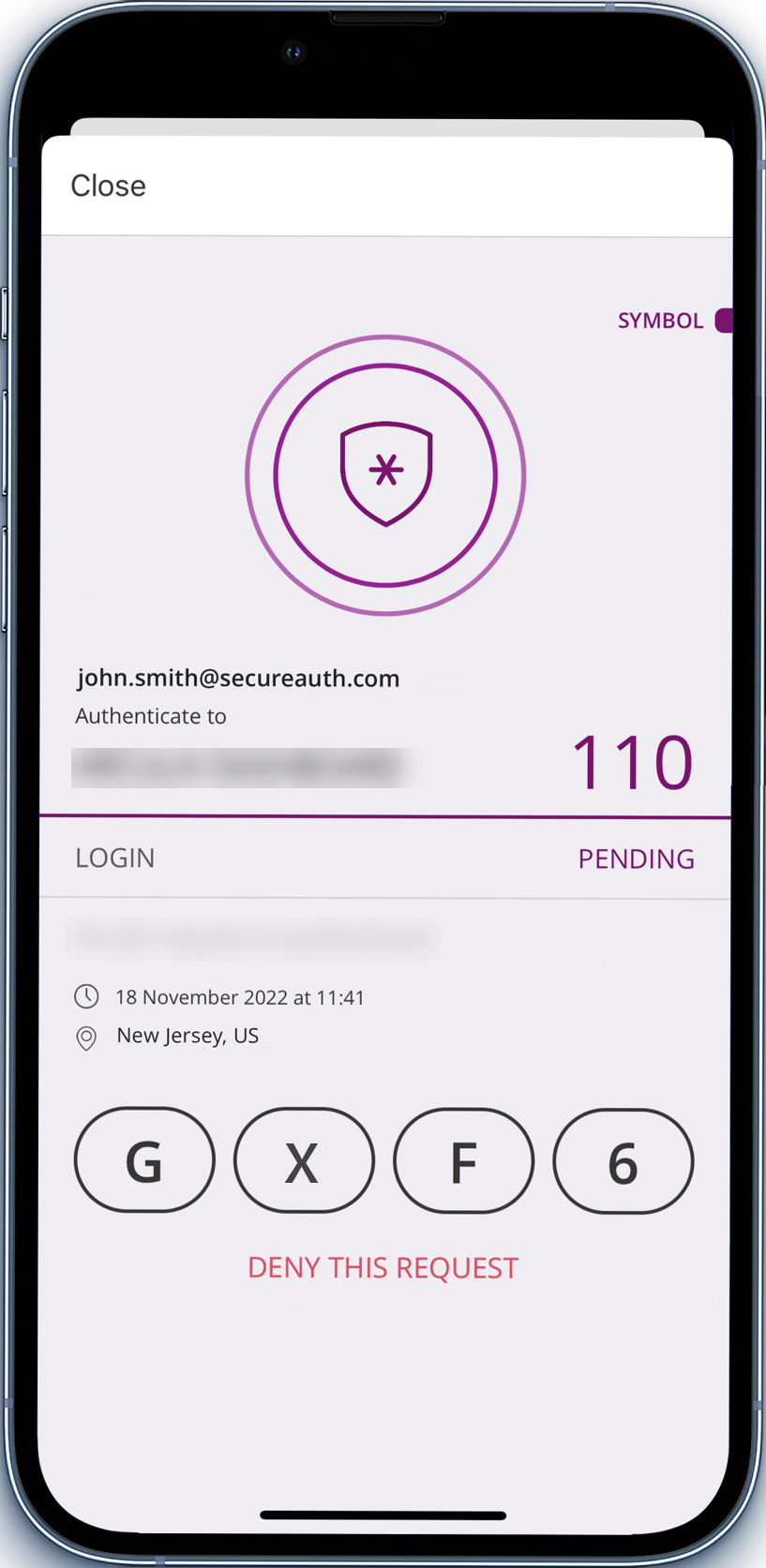
In the Workforce Authority Mobile app, tap the matching symbol.
For example, in the row of symbols, tap X.
-
Verify that you are logged in.
Lock
Remotely lock your workstation using the Workforce Authority Mobile app.
-
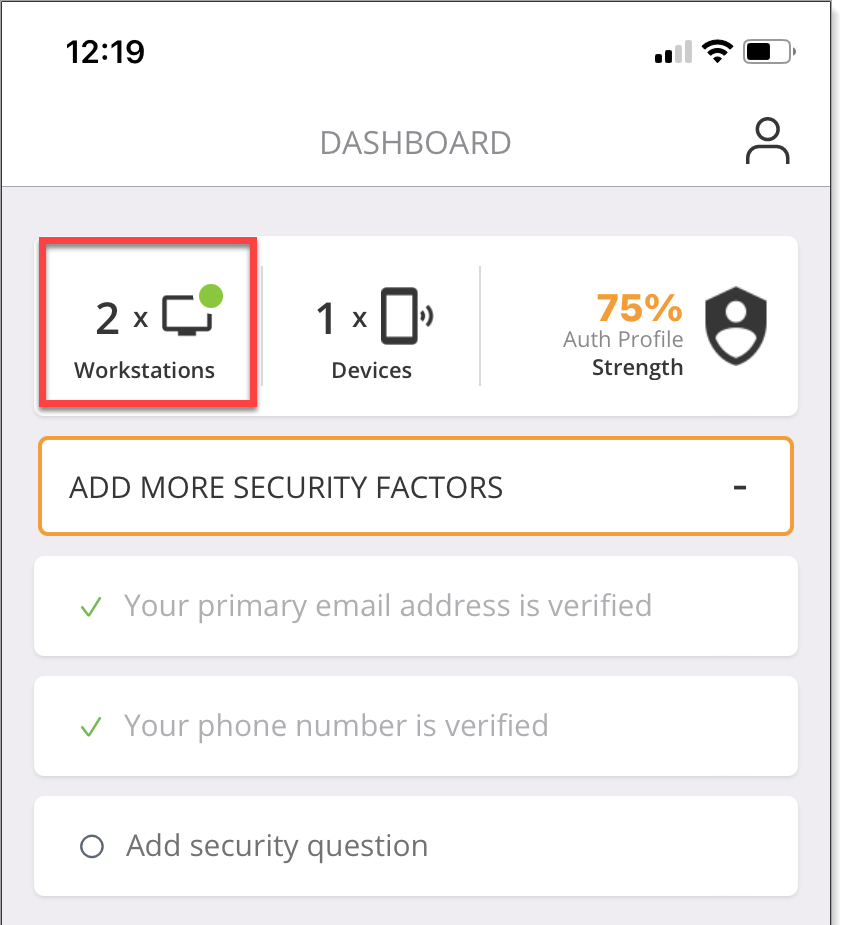
In the Workforce Authority Mobile app, on the Dashboard, tap Workstations.
-
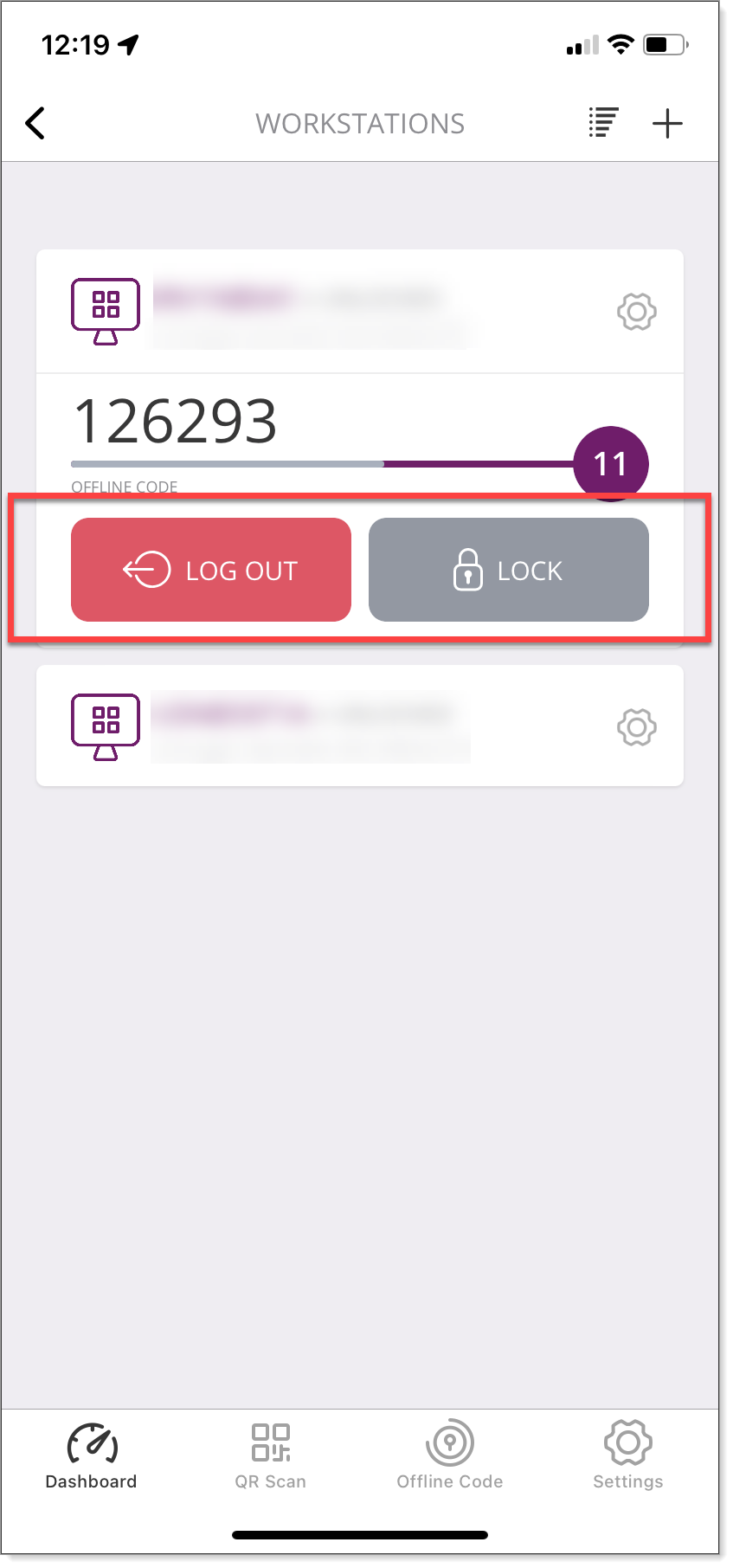
Find your workstation and tap the workstation name.
-
Tap Lock.
Logout
Remotely logout of your workstation using the Workforce Authority Mobile app.
-
In the Workforce Authority Mobile app, go to Workstations.
-
Find your workstation and tap the workstation name.
-
Tap Log Out.
Offline login when Workforce Authority Mobile is online
Use offline code login to your workstation, and when Workforce Authority Mobile is online. The offline code is a time-based one-time passcode (TOTP).
-
Log in to your workstation and click More Options.
-
In the Workforce Authority Mobile app, tap Workstations.
-
Tap the workstation name in the list to reveal the offline code.
-
On the workstation screen, in the Endpoint Trust offline code field, enter the offline code.
Offline login when Workforce Authority Mobile is offline
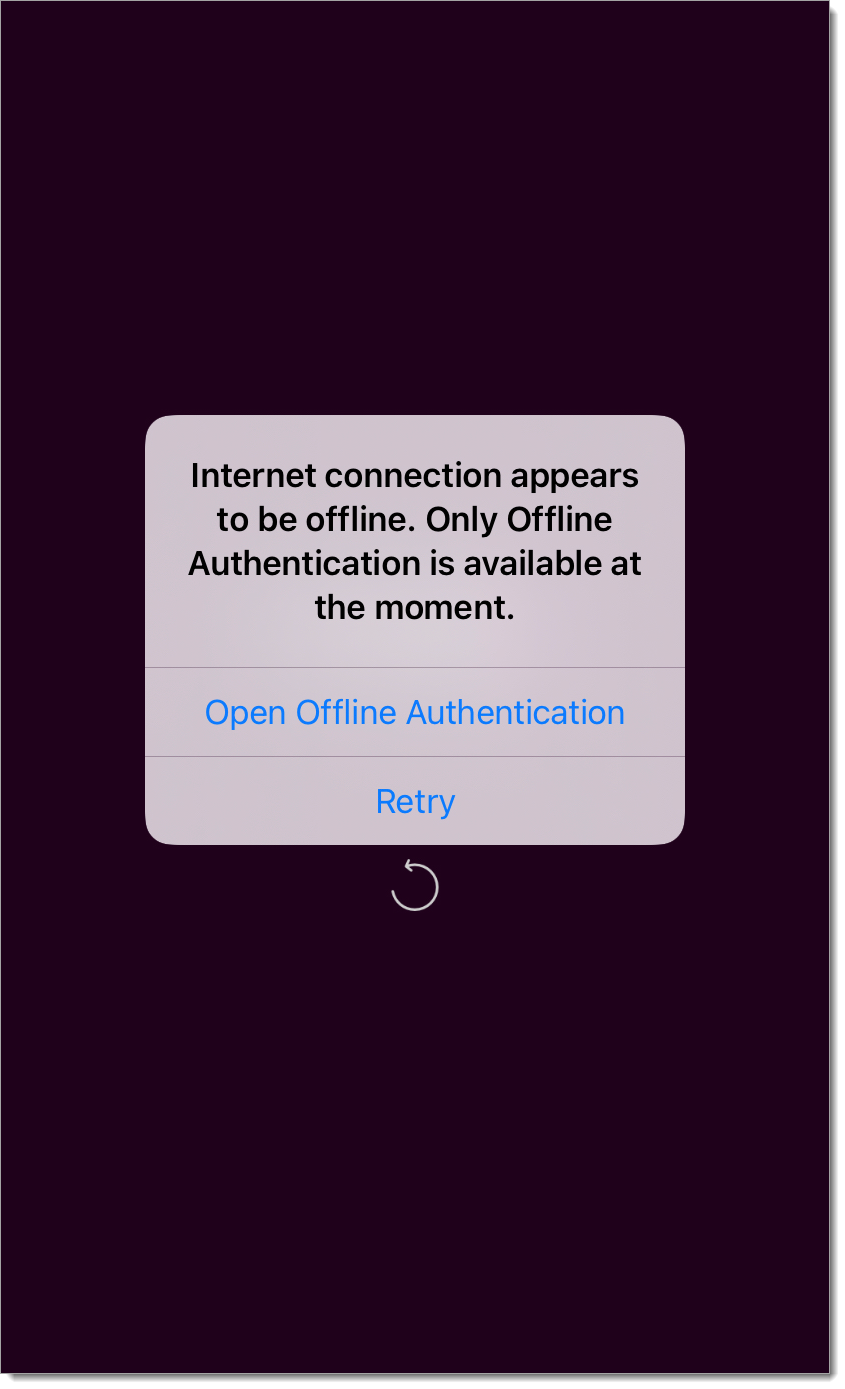
Use offline code login to your workstation, and when Workforce Authority Mobile is offline. That is, your mobile device is in airplane mode, or there is no network connection on your mobile device. The offline code is a time-based one-time passcode (TOTP).
-
In the Workforce Authority Mobile app, tap Open Offline Authentication.
-
Find the workstation in the list and view the offline code.
-
On the workstation screen, in the Endpoint Trust offline code field, enter the offline code.
Auto-accept next workstation login attempt
Quickly unlock your workstation and log in without needing to complete any form of MFA.
-
On your mobile device, go to the home screen where the Workforce Authority Mobile app icon exists.
-
Press and hold the Workforce Authority Mobile app icon for a few seconds until a list of shortcuts appear.
-
Tap Unlock Workstation (once).
-
You should be able to log in to your workstation without needing to complete any form of MFA.
Passwordless
Use a passwordless login to your workstation.
-
Log in to your workstation, on the Endpoint Trust screen, select the Go Passwordless check box.
-
Complete the log in to your workstation.
Security key
Use a security key to access your workstation.
-
Make sure you have a FIDO2-compliant security key (like YubiKey) set up and connected to your workstation.
If you are using a YubiKey 5 series with OTP support, be careful NOT to touch the key button before starting the registration process.
-
Lock or log out of the workstation and log in again.
-
On the Endpoint Trust screen, click More Options and then Register Security Key.
-
Approve the push request in Workforce Authority Mobile to change settings.
-
You will be prompted to complete a user gesture in any of the following ways:
-
If your security key supports a biometric fingerprint, make sure you complete the user gesture by touching the security key with the correct finger.
-
Again, if you are using a YubiKey 5 series with OTP support, be careful NOT to touch the key button before starting the registration process. Wait until you are prompted to proceed with the touch gesture.
-
Security keys with PIN set up are supported.
YubiKey limitations:
-
You must register and pair the YubiKey for each workstation (it is paired by workstation, not by user account).
For example, you can have one YubiKey and two workstations. You register and pair the one YubiKey to each workstation. You cannot use two YubiKeys on one workstation.
-
One-time passcode (OTP) slots on the security key must be blank.
You can use other available authenticators like RFID and Bluetooth (BLE) tap to unlock / lock a workstation.
Use a passcode sent to your email to log in to your workstation.
-
Log in to your workstation, on the Endpoint Trust screen, click More Options and select Email.
-
Enter the code you received in your email.
SMS
Use a passcode sent to your SMS to log in to your workstation.
-
In the Workforce Authority Mobile app, go to your user profile and verify that you have a phone number associated with your account . If not, add a phone number.
-
Log in to your workstation, on the Endpoint Trust screen, click More Options and select SMS.
-
Enter the code you received by SMS.
Password
Log in to your workstation with a password.
-
Log in to your workstation, on the Endpoint Trust screen, click More Options.
-
Enter your password and complete the log in to your workstation.
Change password (Windows)
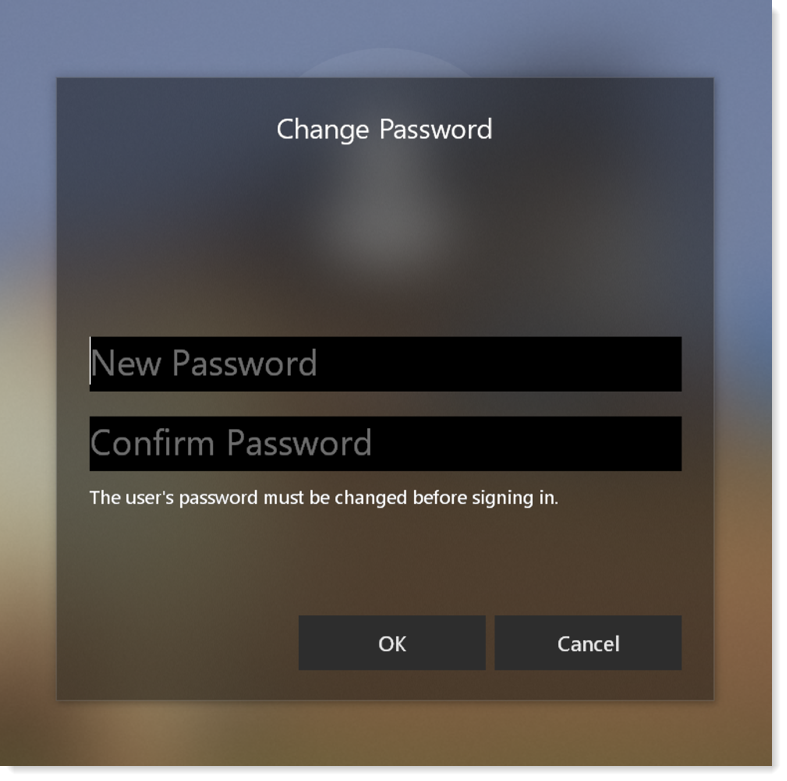
Your organization might have an administrative setting that requires you to change your password at the next login to your workstation.
The Endpoint Trust dialog will prompt you to change your password.
-
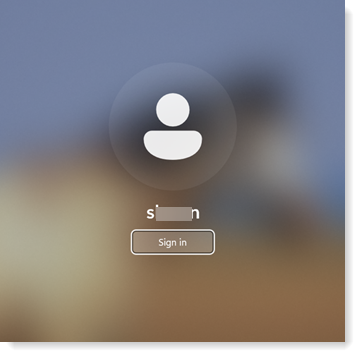
On the Endpoint Trust screen, click Sign in.
-
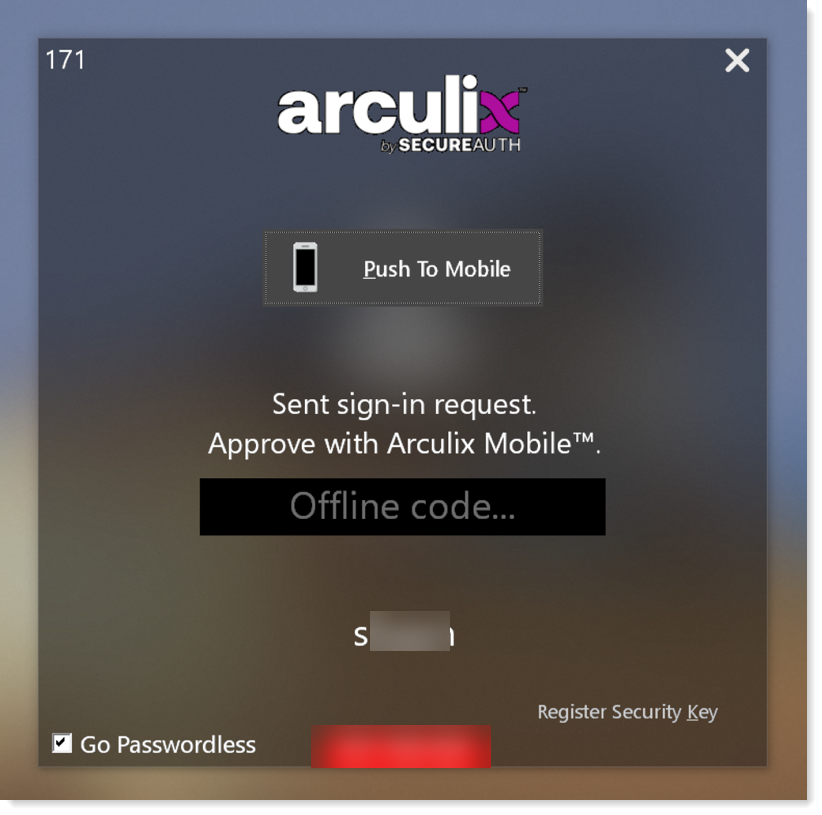
Click Push to Mobile or choose another authentication method like entering an Offline Code.
NoteEven if you try to select the password method, it will be inactive. You should authenticate using a different method.
-
On the next screen, change your password.
Biometric fingerprint (Windows)
Use a biometric fingerprint to authenticate access to your workstation.
-
Make sure you have biometrics with a fingerprint properly configured in Windows Hello.
-
Log in to your workstation and use the fingerprint scanner to authenticate.
Biometric face (Windows)
Use a biometric face ID to authenticate access to your workstation.
-
Make sure you have biometrics with facial recognition properly configured in Windows Hello.
-
Log in to your workstation and use facial recognition to authenticate.
RFID badge
Use an RFID badge to authenticate access to your workstation.
-
Verify that you have a RFID badge reader configured and plugged in to the workstation.
-
On the workstation Endpoint Trust screen, click Register Badge.
This will send a Change Settings push notification to Workforce Authority Mobile.
-
Accept the Change Settings request.
-
Tap your badge to the RFID badge reader to complete the set up process and log in.
-
While logged in, tap your badge to the RFID badge reader to lock your workstation.
QR code over Bluetooth
Scan a QR code on the workstation screen to login.
-
Log in to your paired workstation with your mobile device near the workstation for the Bluetooth signal.
-
Use Workforce Authority Mobile to scan the QR code on the workstation Endpoint Trust screen.
Use biometrics in Workforce Authority Mobile
In this mode, you'll be forced to use biometric verification before you can complete the MFA request.
-
In the Workforce Authority Mobile app, go to Settings.
-
Tap the App Lock setting and follow the prompts to set up Passcode (PIN) and Face ID.
-
Log in to your workstation, click Push to Mobile.
-
In the Workforce Authority Mobile app, accept the notification request, and use biometric verification on your mobile device to complete MFA.