Audit log webhooks
A webhook sends your organization's audit logs to a receiver you run, such as a SIEM, a log forwarder or your own application. Workforce Authority posts each new audit log to the receiver over HTTPS, usually within a minute, in batches, and signs every post with your organization's key.
An organization can have up to five webhooks. Each one has its own receiver URL, log types, payload format and headers.
Before you start
- SecureAuth turns webhooks on for your organization. If Webhooks is missing from the left navigation although your role can manage webhooks, contact SecureAuth support.
- Your role needs to manage webhooks and read audit logs. The Organization admin role can do both.
- Your receiver needs a public HTTPS address with a valid TLS certificate. See Allow deliveries through your firewall.
Add a webhook
-
Log in to Workforce Authority and from the left navigation, click Webhooks.
-
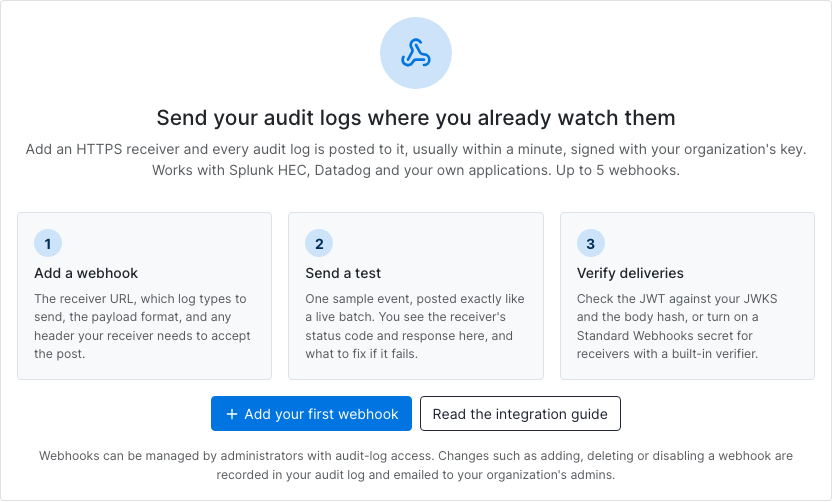
Click Add your first webhook, or Add webhook when the organization already has one.
-
Fill in the form.
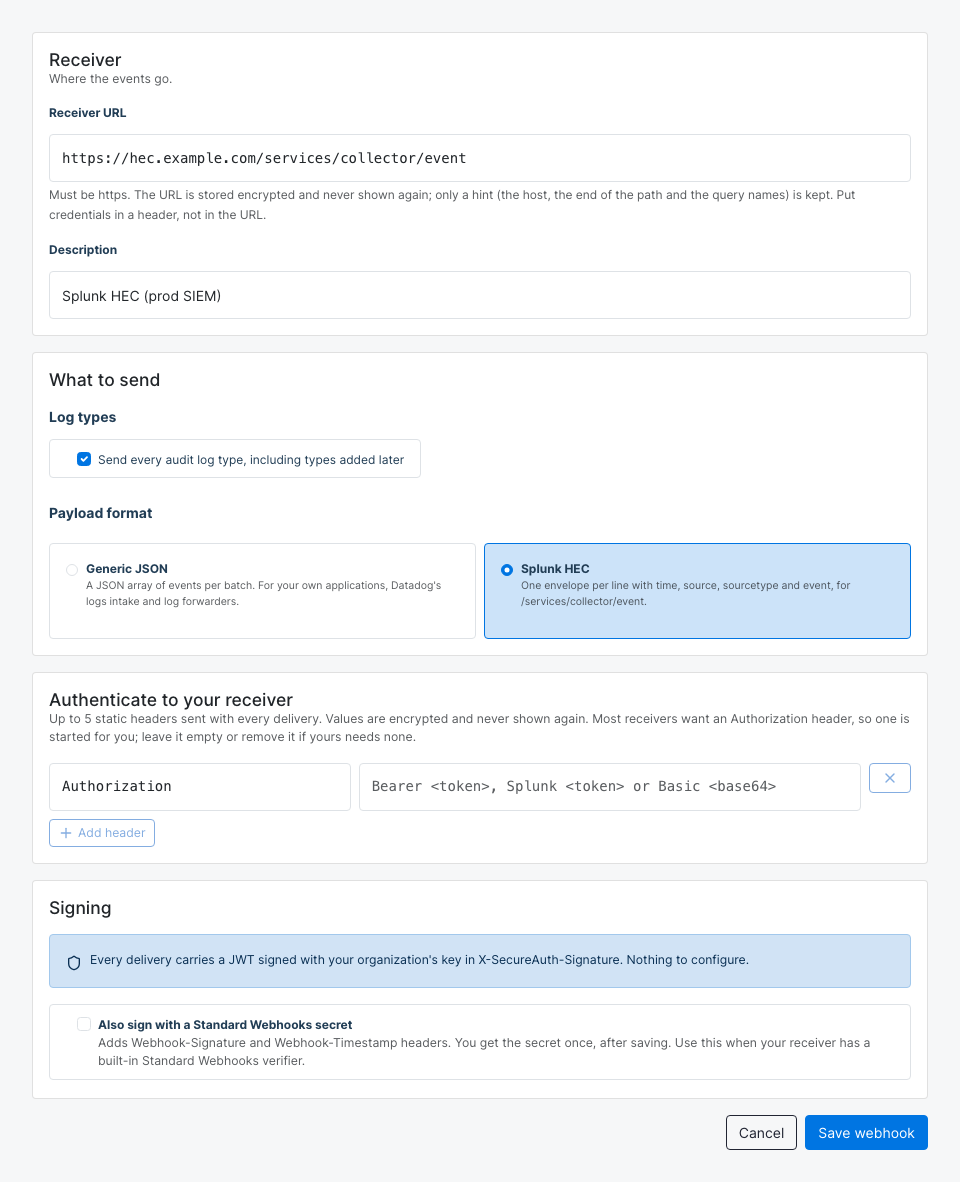
Field What to enter Receiver URL The address your receiver accepts posts on. It must start with https://. Don't put credentials in the URL; use a header instead. The URL is stored encrypted, and the page shows only its host, the end of its path and its query parameter names afterwards. When you edit a webhook, leave the field empty to keep the current URL; its placeholder shows that shortened form.Description A name that tells your admins where the logs go, such as the SIEM and its environment. Log types Leave Send every audit log type, including types added later checked, or clear it and pick the types to send. Payload format Generic JSON for your own applications, Datadog's logs intake and log forwarders. Splunk HEC for a Splunk HTTP Event Collector. See Payload formats. Authenticate to your receiver Up to five headers sent with every post, such as Authorization: Bearer <token>. Values are stored encrypted and never shown again.Also sign with a Standard Webhooks secret Check this when your receiver has a built-in Standard Webhooks verifier. See Verify deliveries. -
Click Save webhook.
If you turned on the Standard Webhooks secret, Workforce Authority shows it once. Copy it into your receiver before you click Done. If you lose it, click Rotate secret on the webhook's page to get a new one.
The webhook's page opens. To come back to it later, click the webhook's Details button on the Webhooks page.
The Webhooks page lists each webhook with its log types, format, signing and, for each region, how many events are Buffered (waiting to be sent) and Dropped. Until a region delivers its first batch of audit logs, it shows Waiting for the first audit event.

Your organization's admins are emailed, and the audit log records it, when a webhook is created, deleted, disabled or turned back on, when its URL or log types change, or when its signing secret is rotated.
Send a test
A test posts one sample event to the receiver, with the same headers and signatures as a live batch. The sample event has the log type WebhookTest.
-
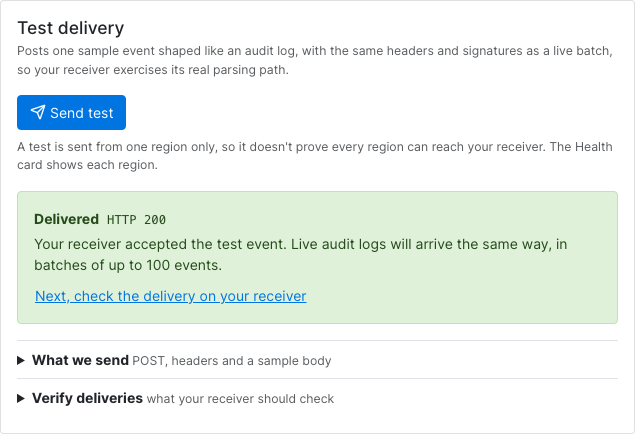
On the webhook's page, under Test delivery, click Send test. The webhook's Send test button on the Webhooks page does the same.
-
Read the result. It shows the receiver's HTTP status code and, when the receiver refused the post, the first 1 KB of its response with secrets masked.
| Result | What it means |
|---|---|
| Delivered | The receiver accepted the test. Live audit logs arrive the same way. A test does not change a region's status or its Last batch delivered time; only live batches do. |
| Rejected by your receiver | The receiver answered but refused the post. On a 401 or 403, check the Authorization header and edit the webhook to enter it again. |
| Path not found | The receiver answered, but not at this path. Check the URL. |
| Redirected | The receiver answered with a redirect. Redirects are not followed, so enter the final URL. |
| Too large for your receiver | The receiver refused the body as too large. Live batches are halved until they fit. |
| Your receiver is pacing deliveries | The receiver asked Workforce Authority to slow down. Live batches retry on their own. |
| Your receiver failed | The receiver answered with a server error. Check its logs. |
| Still running | The test has not finished after 30 seconds. Refresh the delivery list in a minute. |
| Not sent | The test was not sent, because deliveries were paused or the test waited too long to start. Send another test. |
| No response | No answer came back: the address was blocked or did not resolve, the connection or TLS failed, or the receiver took longer than 20 seconds. See Allow deliveries through your firewall. |
A test is sent from one region only. The Health card shows whether each region is delivering.
Verify deliveries
Every post carries a JSON Web Token (JWT) signed with your organization's key. Your receiver can also check a Standard Webhooks signature, when the webhook has a secret.
Headers
| Header | Value |
|---|---|
Content-Type |
application/json |
Webhook-Id |
The batch's ID. It stays the same on every retry of that batch, so use it to discard duplicate posts. |
Webhook-Endpoint-Id |
The webhook's ID. |
X-SecureAuth-Signature |
The JWT. |
Webhook-Timestamp |
Only with a Standard Webhooks secret: the time of the post, in Unix seconds. |
Webhook-Signature |
Only with a Standard Webhooks secret: the signature. |
Your own headers from the webhook's form are sent too.
Check the JWT
The JWT is signed with RS256, and its header has typ set to webhook+jwt and a kid naming the signing key. To check it:
- Fetch your organization's signing keys. The OpenID configuration at
https://OIDC_SERVER_URL/TENANT/oauth2/v1/.well-known/openid-configurationnames them injwks_uri. ReplaceOIDC_SERVER_URLandTENANTas in Get an access token. - Verify the JWT's signature with the key whose ID matches
kid. - Check that
issishttps://OIDC_SERVER_URL/TENANT/oauth2/v1and that the token has not expired. A token is valid for five minutes. - Check that
body_sha256is the hex SHA-256 digest of the raw request body.
The token also carries iat and exp, when it was issued and when it expires; jti, a unique ID for the token; webhook_id, the batch's ID from the Webhook-Id header; and endpoint_id, the webhook's ID.
Check the Standard Webhooks signature
When the webhook has a secret, Webhook-Signature follows the Standard Webhooks specification. Most Standard Webhooks libraries verify it with the secret alone.
To check it yourself, sign <Webhook-Id>.<Webhook-Timestamp>.<body> with HMAC-SHA256. The key is the secret with its whsec_ prefix removed, then base64-decoded. The header holds one or more space-separated signatures of the form v1,<base64 signature>; accept the post when any of them matches. After a rotation, the header carries a signature for each secret for 24 hours, so update your receiver within that time.
Reject a post whose timestamp is more than a few minutes from your receiver's clock.
Example receiver
This Python example checks both signatures with Flask and PyJWT. Replace OIDC_SERVER_URL and TENANT, and read the webhook's secret from your own secret store.
import base64
import hashlib
import hmac
import os
import time

import jwt
from flask import Flask, abort, request

ISSUER = "https://OIDC_SERVER_URL/TENANT/oauth2/v1"
keys = jwt.PyJWKClient(ISSUER + "/jwks")
signing_key = base64.b64decode(os.environ["WEBHOOK_SECRET"].removeprefix("whsec_"))

app = Flask(__name__)


def check_jwt(body):
    signed = request.headers.get("x-secureauth-signature")
    if not signed:
        abort(401)
    try:
        claims = jwt.decode(signed, keys.get_signing_key_from_jwt(signed).key,
                            algorithms=["RS256"], issuer=ISSUER, leeway=30)
    except jwt.PyJWTError:
        abort(401)
    if claims["body_sha256"] != hashlib.sha256(body).hexdigest():
        abort(401)


def check_hmac(body):
    sent_at = request.headers.get("webhook-timestamp", "")
    if not sent_at.isdigit() or abs(time.time() - int(sent_at)) > 300:
        abort(401)
    message = f"{request.headers.get('webhook-id', '')}.{sent_at}.".encode() + body
    expected = base64.b64encode(hmac.new(signing_key, message, hashlib.sha256).digest()).decode()
    sent = [part[3:] for part in request.headers.get("webhook-signature", "").split() if part.startswith("v1,")]
    if not any(hmac.compare_digest(expected, candidate) for candidate in sent):
        abort(401)


@app.post("/audit-logs")
def receive():
    body = request.get_data()
    check_jwt(body)
    check_hmac(body)
    for event in request.get_json():
        print(event["id"], event["log_type"], event["time"])
    return "", 204
When the webhook has no Standard Webhooks secret, leave out check_hmac and the signing_key line. For the Splunk HEC format, split the body into lines before parsing it.
How deliveries work
- At least once. A batch can arrive more than once, for example when your receiver accepted it but the answer was lost. A retried batch keeps its
Webhook-Id, so use that to discard repeated posts. An authentication can also arrive again under the sameidwhen its result changes, for example fromexpiredtoapproved; keep the latest one. - Order. Events inside a batch are in the order they were queued; an authentication is queued when it finishes. Batches can arrive out of order, so sort by each event's
time. - Authentications. An authentication is sent once it has a final result: approved, rejected or expired. One that never reaches a final result is not sent, but it stays in your audit log.
- Regions. If your organization runs in more than one region, each region delivers its own events. The Health card on the webhook's page shows one row per region.
- Batches. A batch holds up to 100 events and about 1 MB. When your receiver answers that a batch is too large, the batch is halved until it fits; a single event your receiver still refuses is dropped.
- Time limit. The connection must open within 5 seconds, and your receiver must answer within 20 seconds. A 2xx answer means delivered. Redirects are not followed.
- Retries. A failed batch is retried after 30 seconds, 2 minutes, 10 minutes and 30 minutes, then every hour. When your receiver sends a
Retry-Afterheader with a 408, 429 or 5xx answer, Workforce Authority waits as long as it asks, up to one hour. - Disabling. When deliveries from any region have failed for 24 hours, the webhook is disabled and every admin in your organization is emailed. A
429 Too Many Requestsanswer never disables a webhook. A410 Goneanswer disables it at once. - Dropped events. Events that wait longer than 72 hours are dropped from the webhook. They stay in your audit log.
- Delivery history. The webhook's page lists its tests and batches from the last 7 days.
While a webhook is disabled, no new events are queued for it. To turn it back on, fix the receiver, send a test, then use the switch at the top of the webhook's page. Turning it back on starts a fresh 24-hour clock, which the Health card shows as Enabled since. Events that were already waiting are sent if they are under 72 hours old.
To fill a gap, such as events dropped while your receiver was down, read them from your audit log with the Workforce Authority API or on the History page.
Payload formats
Generic JSON
The body is a JSON array of events. This is the body of a test:
[
  {
    "id": "7c2e0f3a-5b1d-4c8e-9a6f-2d4b8e1c3f50",
    "time": "2026-10-26T18:02:11.412Z",
    "log_type": "WebhookTest",
    "event": "Webhook test",
    "result": "test",
    "description": "Test delivery for https://hec.example.com/…vent",
    "details": {}
  }
]
A live event has more fields, depending on its log type:
| Field | Description |
|---|---|
id |
The audit log's ID. An authentication's ID can arrive again with a newer result. |
time |
When the event happened. |
log_type |
The kind of audit log, such as TfaLog or SecurityEventLog. A test sends WebhookTest. |
event |
The log type's display name, such as Authentication. Unknown Event when a release that predates the log type sends it, during an upgrade or after a rollback; log_type still names the type. |
result |
The event's outcome. |
description |
A readable summary of the event. Event type not recognized when event is Unknown Event. |
username |
The user's username. |
user_email |
The user's email address, when usernames are email addresses in your organization. |
user_id |
The user's ID. |
is_user_deleted |
Whether the user has since been deleted. |
application |
The application the event happened in. |
application_type |
The application's type. |
location |
For an authentication, the city, region and country the request came from. Empty for other log types. |
details |
More data about the event; its fields depend on the log type. |
tfa |
For an authentication, the authenticator used. |
workstation |
For a workstation event, the workstation. |
The fields are the same as when you read a single audit log with the API. A field that does not apply to an event is null, empty or left out.
Splunk HEC
The body holds one JSON envelope per line, for Splunk's /services/collector/event endpoint. Each envelope wraps one event in the generic format above.
{"time": 1793037731.412, "source": "<source>", "sourcetype": "<sourcetype>", "event": {"id": "7c2e0f3a-5b1d-4c8e-9a6f-2d4b8e1c3f50", "log_type": "WebhookTest", ...}}
| Envelope field | Value |
|---|---|
time |
When the event happened, in Unix seconds. |
source |
secureauth:eguardian |
sourcetype |
secureauth:audit_log |
event |
The event. |
Use the HEC token in the webhook's Authorization header, as Splunk <token>.
Allow deliveries through your firewall
Deliveries come from SecureAuth's egress addresses, which differ per region. SecureAuth does not publish the list yet; contact SecureAuth support for the addresses of your organization's regions, and allow all of them.
Your receiver must also:
- Have a public host name. Deliveries to private, loopback, link-local, cloud metadata and other non-public addresses are blocked, and names that resolve to them fail too. Put a forwarder with a public address in front of an internal receiver.
- Listen on port 443, or on a port from 1024 to 65535.
- Present a TLS certificate that is valid for the host name. Self-signed certificates are refused.
- Accept the connection within 5 seconds, and answer at the URL directly, without a redirect, within 20 seconds.
When a test shows No response, check these first.