Create temporary PIN
As a help desk administrator in Workforce Authority, you can generate a temporary static PIN that lets an end user access a specific endpoint.
For example, an end user cannot authenticate with Workforce Authority Mobile because they do not physcially have their paired device with them. The end user can contact their Help Desk for a temporary PIN as a backup method of authentication.
You can set a time limit for the temporary PIN to expire and decide if it can be reused. You can also revoke the PIN at any time.
Enable temporary PIN
Use the following instructions to enable the temporary PIN feature in Workforce Authority.
-
Log in to Workforce Authority and from the left navigation, click Settings.
-
In the General tab, turn on Temporary PIN.
-
Set the maximum number of days 1-7 that the temporary PIN is valid for.
The default is 3.
-
Click Save.
Generate temporary PIN
Once you enable the temporary PIN feature, you can create and set up a temporary PIN for a specific user.
-
Log in to Workforce Authority and from the left navigation, click Users.
-
Click the row of the user account that needs a temporary PIN.
-
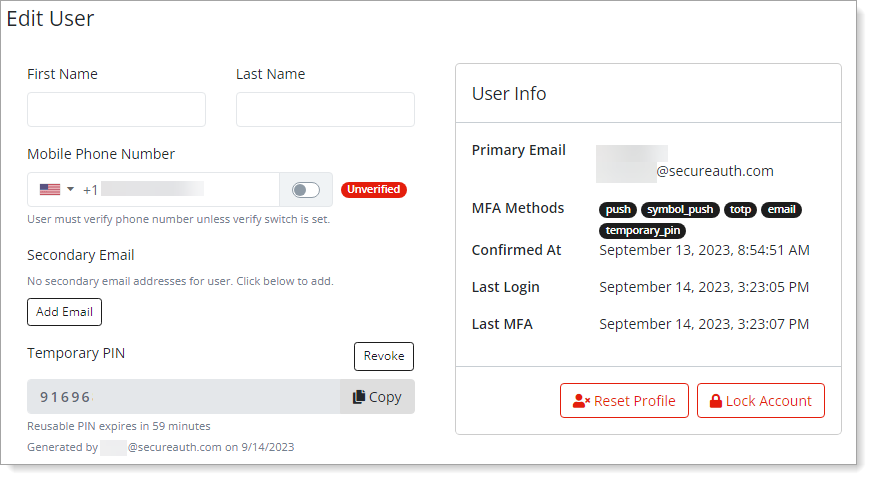
In the Temporary PIN section, set the following:
Reusable Set whether or not the PIN is reusable. Selection options: Yes – The end user can use the same PIN more than once before it expires. No – It requires the generation of a new temporary PIN for each endpoint the user needs access to. Expires in Set the PIN's expiration in Days, Hours, or Minutes. For example, 0 Days : 1 Hour : 15 Minutes. The maximum number of days for the temporary PIN is set in Settings > General. You cannot exceed this value. -
Click Generate to create a new temporary PIN.
Click OK to confirm.
-
Click the Click to Reveal button to show the temporary PIN.
Under the PIN, it displays details about the temporary PIN: who generated it, when, if it's reusable, and when it expires.
-
To revoke the temporary PIN, click Revoke.
Click OK to confirm.
-
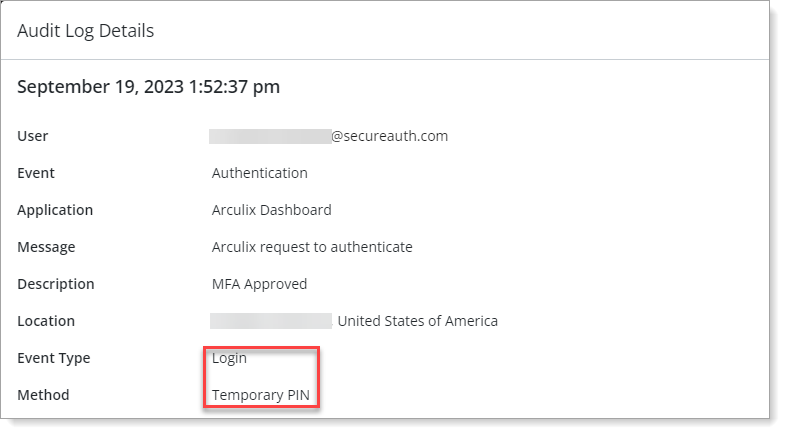
To check if a user logged in with a temporary PIN, click History in the left navigation.
Click the user's authentication event. The Audit Log Details dialog appears.
End user experience
In this section, we will describe how users log in using a temporary PIN if they don't have their paired mobile device.
The following occurs:
-
The end user calls their organization's help desk and verifies their identity. The end user requests a temporary PIN for authentication.
-
The help desk user logs in to Workforce Authority, generates a temporary PIN for the end user, and tells it to them over the phone.
-
The end user logs in to their chosen endpoint with their username and password.
-
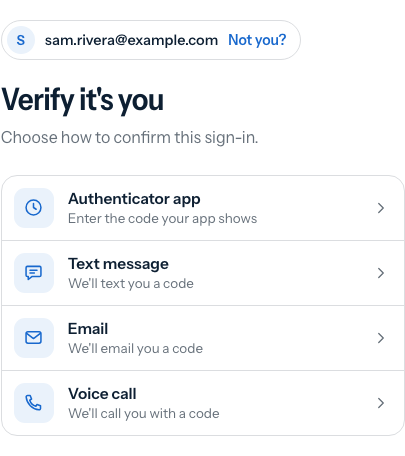
When the Verify it's you page appears, the end user selects Authenticator app.
-
On the Enter your app code page, the end user selects Use a different code, enters the temporary PIN, and selects Verify to gain access to the endpoint. Pasting the whole PIN works too.
The page's six boxes submit a code as soon as the sixth digit goes in. A temporary PIN is eight digits, so typing it straight into the boxes can cost up to two of the end user's tries, out of three by default. The first six digits are submitted and refused. Any digits typed after the refusal land in the emptied boxes, and Verify or Enter submits them as a second wrong code. To recover, the end user selects Use a different code, which empties the boxes, and enters the whole PIN.
NoteIf the temporary PIN is reusable, the end user can use the same PIN to access multiple endpoints before its expiration. If it is not reusable, the end user repeats this procedure for each endpoint they require access to.