Offline authenticator guide
This guide will walk you through how to use the Workforce Authority Offline Authenticator feature. This feature allows a user to use a time-based one-time passcode (TOTP) for offline authentication. TOTPs act as an authentication factor to protect your accounts when your mobile device is offline and other authentication factors, like Push or SMS, are not available.
Prerequisites
- Mobile device with Workforce Authority Mobile installed and paired to an account
Offline authenticator
In Workforce Authority, from the left navigation, click Offline Authenticator.
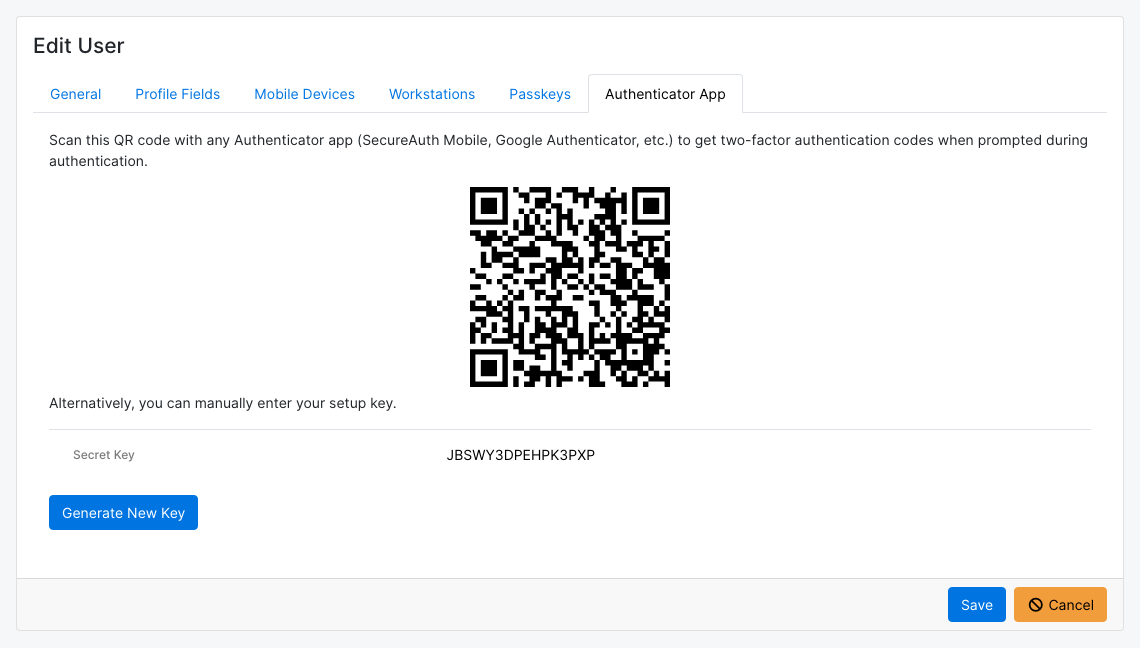
Add a key to the Workforce Authority Mobile app
-
Open the Workforce Authority Mobile app and tap Offline Code at the bottom of the app.
-
To add a new TOTP, tap the plus (+) icon in the top right of the app, then tap QR Scan.
-
Use your mobile device camera in the app to scan the QR code.
If successful, you will see a new code shown on the Offline Authenticator screen in the Workforce Authority Mobile app.
Generate a new key
If you believe your Offline Authenticator key has been compromised, you can generate a new key by clicking Generate New Key. A new secret key will be generated which can be added to the Workforce Authority Mobile app by following the steps above.
Clicking Generate New Key will invalidate your existing key and you must follow the directions above to add the newly generated key.