Getting started
Start with a pilot of one: you, your computer and your phone. By the end, you sign in to the computer without a password, and an app opens from it with one click.
Each step ends with a check, so you know it worked before you move on. New to SecureAuth? Read the overview first.
Before you begin
- Your SecureAuth console address and an admin account. SecureAuth sends both when it sets up your organization.
- Admin rights in your user directory.
- A Windows or Mac computer you can install software on.
- An iPhone or Android phone.
A FIDO2 security key, such as a YubiKey, is optional.
Step 1: Connect your directory
SecureAuth reads your users and groups from the directory you already run.
- Active Directory: install the LDAP Agent on a server inside your network. It connects out to SecureAuth. See Connect an Active Directory.
- Microsoft Entra ID: see Connect a Microsoft Entra ID directory.
- Google Workspace: connect the directory and sign users in with Google over SAML. See Google Workspace.
With no directory to connect, a pilot can use the built-in directory.
You're done when your users are listed under Users in the console.
Step 2: Pair your phone
Install the authenticator app on your phone from the App Store or Google Play, and pair it with your account. See Pairing your device.
You're done when you can sign out of the console and sign back in with a push to your phone.
Step 3: Sign in to your computer without a password
- Check the prerequisites. On a Mac, the login screen must show the list of users.
- Download the Endpoint Trust agent from Downloads in the console, and install it. See Deploy Endpoint Trust.
- Pair the computer with your account. See Pairing your workstation.
- Lock the computer, and sign back in with a push to your phone.
- Turn off the network, and sign in with an offline code from the app.
Have a security key? Register it on the computer before you use it there. On the sign-in screen, choose More Options, then Register Security Key. The computer accepts only a key registered on it, so a passkey you register in the console doesn't work there. See Security key.
You're done when your sign-in shows in History in the console.
Step 4: Open an app with one click
Connect one app to SecureAuth SSO:
- Any OAuth or OIDC app connects through one general guide.
- SAML apps and VPNs: Integrations has step-by-step guides for more than 70.
Then turn on SSO with Endpoint Trust, in the SSO section of Settings. It is off by default.
You're done when the app opens from your paired computer with one click on the SSO sign-in page. No password, and no push.
Step 5: Add a passkey
A passkey signs you in to the console and to your apps without your phone.
In the console, open My Profile, then Passkeys, and register one.
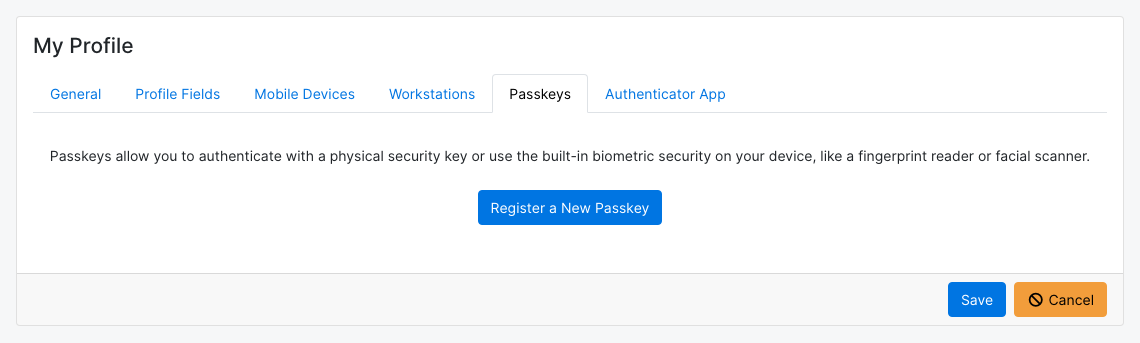
You're done when you can sign out and sign back in with the passkey.
Step 6: Set your defaults and first policies
Settings sets the defaults for everyone. Four of its sections shape a pilot:
- Endpoint Trust: how people sign in to their computers, and what happens when a computer goes offline.
- Authenticator app: what the app requires before it approves a sign-in, such as a passcode or biometric.
- SSO: what the SSO sign-in page offers, such as an automatic push to the app.
- Passkey: whether the browser asks a passkey to check a PIN or biometric, and whether new passkeys are accepted by default.
See Manage settings. A settings policy can change some of these for one group.
A policy changes what happens at sign-in, for the users and conditions it matches. Three are worth setting up first:
- Skip MFA in the office while a computer is unlocked. Use the Paired Desktop Workstation condition with Workstation State set to Unlocked, the Network condition with your office IP addresses, and the Automatically Approve action. The workstation condition checks the person's paired computer, not the device they sign in from. The Network condition keeps MFA on sign-ins from anywhere else.
- Ask for MFA from abroad. Use the Country condition for countries where you have no staff, and the Force Out Of Band action.
- Allow approved passkeys only. In the Passkey section of Settings, set Default enrollment policy to Reject. Then add a Passkey Enrollment policy with the Passkey Device Type condition, the models you approve, and the Automatically Approve action. Reject applies to the whole organization, and it also turns away a passkey that reports no model. It covers passkeys registered for apps. A key registered at a computer stays on that computer, so no policy sees it.
See Manage policies.
Roll out
When the pilot works, widen it.
- Install Endpoint Trust everywhere. The agent installs silently, so your device management tool can push it: Intune, Jamf or Configuration Manager, for example. See Push installation.
- Send your users their steps. They're below.
- Prepare the help desk. Give support staff the help desk role. Turn on temporary PINs for users who are without their phone.
- Add apps. Connect them one at a time, with the guides in Integrations.
- Stream audit logs to your SIEM. SecureAuth posts each one to your receiver over HTTPS, signed, in a generic format or as Splunk HEC. Streaming is turned on per organization. Contact SecureAuth to turn it on.
Add Presence Authority
Some teams need more than a strong sign-in: shared desks, regulated data, screens that others can see. Presence Authority checks that the person at the computer is still the person who signed in. When they step away, it covers the screen. When they stay away, it locks the computer.
Presence Authority is turned on per organization. If the console has no Endpoints > Presence Authority page, contact SecureAuth. It needs a directory that holds user photos: Active Directory, Microsoft Entra ID or Google Workspace.
Start with Get started with Presence Authority.
Already run an identity provider?
Keep it, and add SecureAuth as its MFA:
Apps behind that IdP then get SecureAuth MFA. The one-click sign-in from a paired computer still needs apps that sign in through SecureAuth SSO.
For your users
Send your users these steps:
- Install the authenticator app on their phone, and pair it. See Pairing your device.
- Pair their computer, then sign in to it with their phone. See the Endpoint Trust end user guide.
- To use a security key at the computer, register it there: More Options, then Register Security Key. See Security key.
- Register a passkey for apps in My Profile, under Passkeys.