Manage agents
Each computer where a user finished setup is an agent. Agents are listed on the Instances tab, and everything they report lands in History.
View agents
Go to Endpoints > Presence Authority and select the Instances tab.
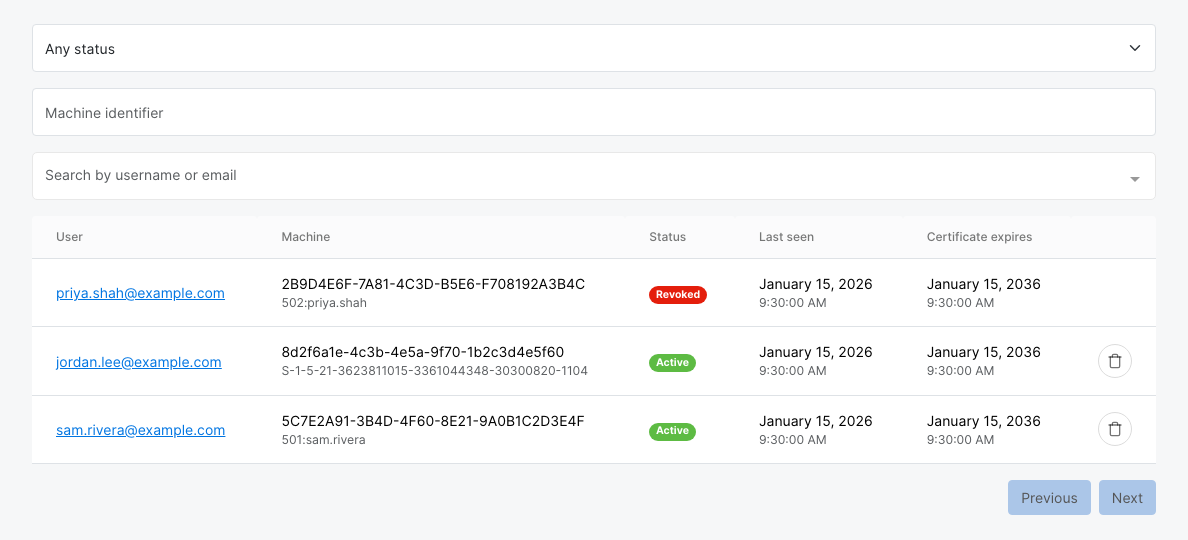
| Column | What it shows |
|---|---|
| User | The user who set up the agent. |
| Machine | The computer's hardware identifier, and below it the user's account on that computer. |
| Status | One of the statuses below. |
| Last seen | When the agent last reached SecureAuth. |
| Certificate expires | When the agent's certificate runs out. |
To narrow the list, pick a status, enter a machine identifier, or search by username or email.
| Status | Meaning |
|---|---|
| Active | The agent is enrolled and its certificate is valid. This doesn't show whether protection is on right now. |
| Certificate expired | The certificate ran out before the agent renewed it. |
| Revoked | An administrator revoked the agent. |
| Deregistered | The user removed their enrollment from the computer. |
Revoke an agent
Revoke an agent when a computer is lost, stolen or handed to someone else.
- On the Instances tab, find the agent.
- At the end of its row, select Revoke, then confirm. The button shows a bin icon.
The agent can no longer report to SecureAuth or receive setting changes. Revoking doesn't turn off protection on the computer or delete the user's face template there. To retire the computer, uninstall the agent.
The row stays in the list with the status Revoked. If the user sets up again on that computer, the agent becomes Active again.
When you offboard or delete a user, all of their agents are revoked. A locked user can't set up an agent.
Certificates
Each agent holds a certificate that proves who it is. The agent renews it on its own, starting 30 days before it expires. For a certificate that lasts less than 90 days, it starts when a third of the lifetime remains. SecureAuth accepts a renewal only inside the renewal window, so a window shorter than that delays renewal.
A computer that was off when its certificate expired can still renew within 90 days. After that, the user must run setup again.
To change the lifetime or the renewal window, see Agent certificates. The 90 days can't be changed.
Follow events in History
Go to History. Agent entries have one of two types:
- Agent Certificate: an agent was issued, renewed, revoked or re-enrolled.
- Agent Event: something the agent saw or did.
Common agent events:
| Event | Meaning |
|---|---|
| Presence state changed | The agent's view of the desk changed. For example, the user left, came back, or someone else appeared. |
| Step-up authentication requested | The agent asked the user to prove who they are again. |
| Session lock reported | The agent locked the computer. |
| Presence monitoring disarmed | The user or the agent stopped protection. |
| Camera lost | The camera disconnected or stopped working. |
| Camera in use by another application | Another app held the camera. |
| Camera not allowed by policy | The agent refused a camera, such as a software camera. |
| Screen capture permission granted | A Windows user allowed screen sharing. |
| Agent started | The agent started on the computer. |
| Agent enrollment deleted | The user deleted their enrollment. |
Events show no camera images. The agent never sends any.
Presence reports
If your organization has analytics, go to Analytics and select the Presence tab. It shows:
- Presence figures
- Presence events over time
- Events by type
- Users by event count
- Daily alerts by user
Reports cover up to about the last 90 days. If you don't see the Presence tab, contact SecureAuth.