Configure Presence Authority
Settings decide how the agent responds to what it sees. They apply to every computer in your organization.
Open the settings
Go to Endpoints > Presence Authority and select the Settings tab. Change what you need, then select Save.
The same settings appear in the Presence Authority section of the Settings page.
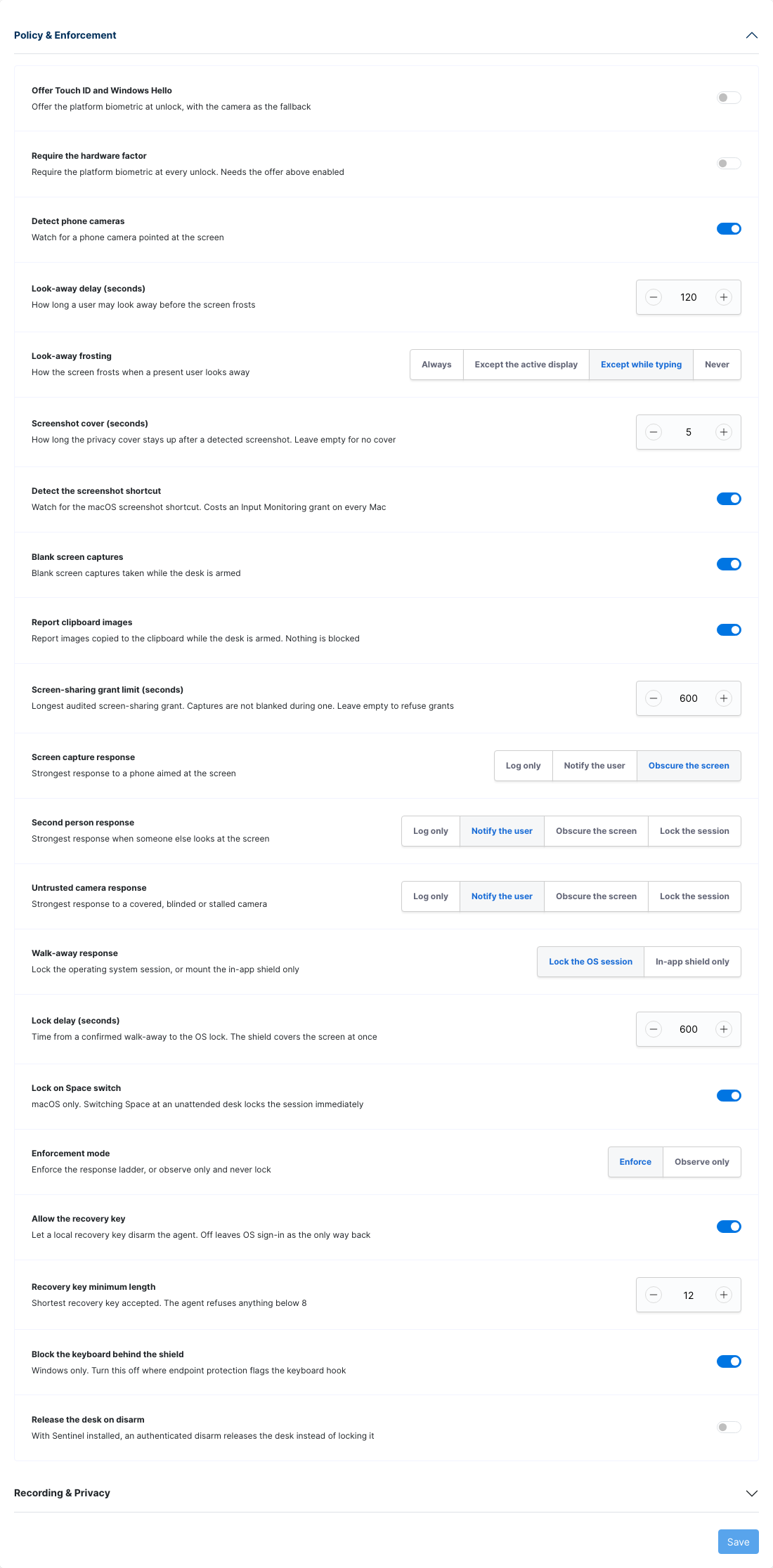
To give some users different values, create a settings policy for their groups. For example, set Enforcement mode to Observe only for a pilot group.
When changes take effect
Each computer checks for new settings about every 15 minutes. What happens next depends on the setting.
| Takes effect | Settings |
|---|---|
| At once | Second person response, Untrusted camera response, Screen capture response, Look-away frosting, Look-away delay, Screenshot cover, Blank screen captures and Forensic watermark |
| When the agent next starts | Allow the recovery key, Virtual camera, Block the keyboard behind the shield, Record perception metadata and Metadata retention |
| When the user next starts protection, or the computer next locks | All other settings |
Policy & Enforcement
What happens when the user walks away
| Setting | What it does | Default |
|---|---|---|
| Enforcement mode | Enforce responds to what the agent sees. Observe only stops the agent locking the computer or blocking the keyboard and mouse. The screen is still covered when the user walks away, and frosted when they look away. With Sentinel installed, the computer can still lock, as Does protection turn back on by itself? explains. For a trial, use the installer without Sentinel. | Enforce |
| Walk-away response | Lock the OS session locks the computer after the lock delay. In-app shield only covers the screen, and the agent never locks the computer. With Sentinel installed, the computer can still lock, as Does protection turn back on by itself? explains. | Lock the OS session |
| Lock delay (seconds) | Time from a confirmed walk-away to the lock. The screen is covered at once either way. From 0 to 3600. | 600 |
| Lock on Space switch | Mac only. Switching to another Space while nobody is at the desk locks the computer at once. | On |
What happens when the user looks away
| Setting | What it does | Default |
|---|---|---|
| Look-away frosting | Frosts the screen when the user looks away. Always frosts every display. Except the active display leaves the display in use clear. Except while typing also holds off while the user types. Never turns frosting off. | Except while typing |
| Look-away delay (seconds) | How long the user may look away before the screen frosts. From 0 to 180. | 120 |
What happens when something is wrong
Each of these sets the strongest response the agent may use.
| Setting | When it applies | Default |
|---|---|---|
| Second person response | Someone else looks at the screen. | Notify the user |
| Untrusted camera response | The camera is covered, blinded or stalls. | Notify the user |
| Screen capture response | A phone camera is aimed at the screen. | Obscure the screen |
| Detect phone cameras | Watches for a phone camera aimed at the screen. | On |
The responses, from lightest to strongest, are Log only, Notify the user, Obscure the screen and Lock the session. Screen capture response stops at Obscure the screen.
Whatever Untrusted camera response is set to, the screen frosts while the camera can't see. If nobody types or moves the mouse for about 20 seconds meanwhile, the agent treats the user as away. It covers the screen, then locks the computer after the lock delay.
A camera that disconnects is different. If the agent can't reopen it while nobody is using the keyboard or mouse, it locks the computer within seconds, with no lock delay. This happens with Enforce and Lock the OS session, the defaults.
Screenshots and screen sharing
| Setting | What it does | Default |
|---|---|---|
| Screenshot cover (seconds) | Mac only. How long a privacy cover stays up after a screenshot. Leave it empty for no cover. | 5 |
| Detect the screenshot shortcut | Mac only. Watches for the screenshot keys. Each Mac must grant Input Monitoring. | On |
| Blank screen captures | Windows only. Blanks screen captures taken while protection is on. | On |
| Report clipboard images | Windows only. Reports images copied to the clipboard while protection is on. Nothing is blocked. | On |
| Screen-sharing grant limit (seconds) | Windows only. The longest time a user may allow screen sharing. Captures aren't blanked during a grant. Leave it empty to refuse grants. From 60 to 3600. | 600 |
Unlocking and recovery
| Setting | What it does | Default |
|---|---|---|
| Offer Touch ID and Windows Hello | The current agent doesn't support Touch ID or Windows Hello, so this does nothing. Leave it off. | Off |
| Require the hardware factor | The current agent doesn't support it. Leave it off: while it's on, users can't unlock with their face. | Off |
| Allow the recovery key | Lets users stop protection with their recovery passphrase. Off leaves signing in to the computer as the only way back. | On |
| Recovery key minimum length | Shortest recovery passphrase allowed. From 8 to 128. | 12 |
| Release the desk on disarm | Applies with Sentinel installed. On lets users stop protection or quit the agent with their recovery passphrase, so it needs Allow the recovery key. Off makes stopping or quitting lock the computer, and Sentinel starts protection again, so even the recovery passphrase can't stop it. | Off |
| Block the keyboard behind the shield | Windows only. Blocks the keyboard while the screen is covered. Turn it off if your endpoint protection flags it. | On |
Recording & Privacy
| Setting | What it does | Default |
|---|---|---|
| Virtual camera | Windows only. Lets users join video calls through the Presence Authority camera while protection runs. Needs Windows 11. | Off |
| Forensic watermark | Places an invisible watermark on the screen that identifies the user, so a photo of the screen can be traced. Turning it off doesn't hide the username, network address and time shown on a covered or frosted screen. Those are hidden only while a second person is looking, or while the screen is covered from a phone camera. | On |
| Record perception metadata | Keeps scores, verdicts and timings on the computer. Camera images are never stored. | On |
| Metadata retention (days) | How long that metadata is kept. From 1 to 365. | 14 |
Detection Tuning
Detection Tuning holds the face recognition and liveness thresholds. SecureAuth manages them. Contact SecureAuth if users are often not recognized.
Agent certificates
Each computer gets a certificate when its user finishes setup. Two settings in the General section of the Settings page control it:
| Setting | What it does | Default |
|---|---|---|
| Agent certificate lifetime in days | How long a certificate stays valid. | 365 |
| Agent certificate renewal window in days | How many days before expiry SecureAuth accepts a renewal. The agent asks from 30 days before expiry. For a certificate that lasts less than 90 days, it waits until a third of the lifetime remains. A window shorter than that delays renewal. | 30 |