Workforce Authority
SecureAuth secures how your workforce signs in, starting at the computer each person works on.
People sign in to their work computer once, without a password. From that computer, apps connected to SecureAuth open with one click. No password, and no second factor.
What sets it apart
- The computer is the root of trust. Endpoint Trust pairs each work computer with its user and reports the computer's health.
- Passwordless on Windows and macOS, even offline. People sign in with their phone, a security key, a fingerprint or their face. With no network, offline codes and security keys still work.
- Protection continues after sign-in. Presence Authority covers the screen when the user steps away, and locks the computer when they stay away.
- A phone controls the computer. From the authenticator app, a user can lock or log out their computers.
- Your IdP, or ours. Use SecureAuth as the identity provider for your SAML and OIDC apps. Or keep the IdP you run, and add SecureAuth as its MFA.
How it fits together
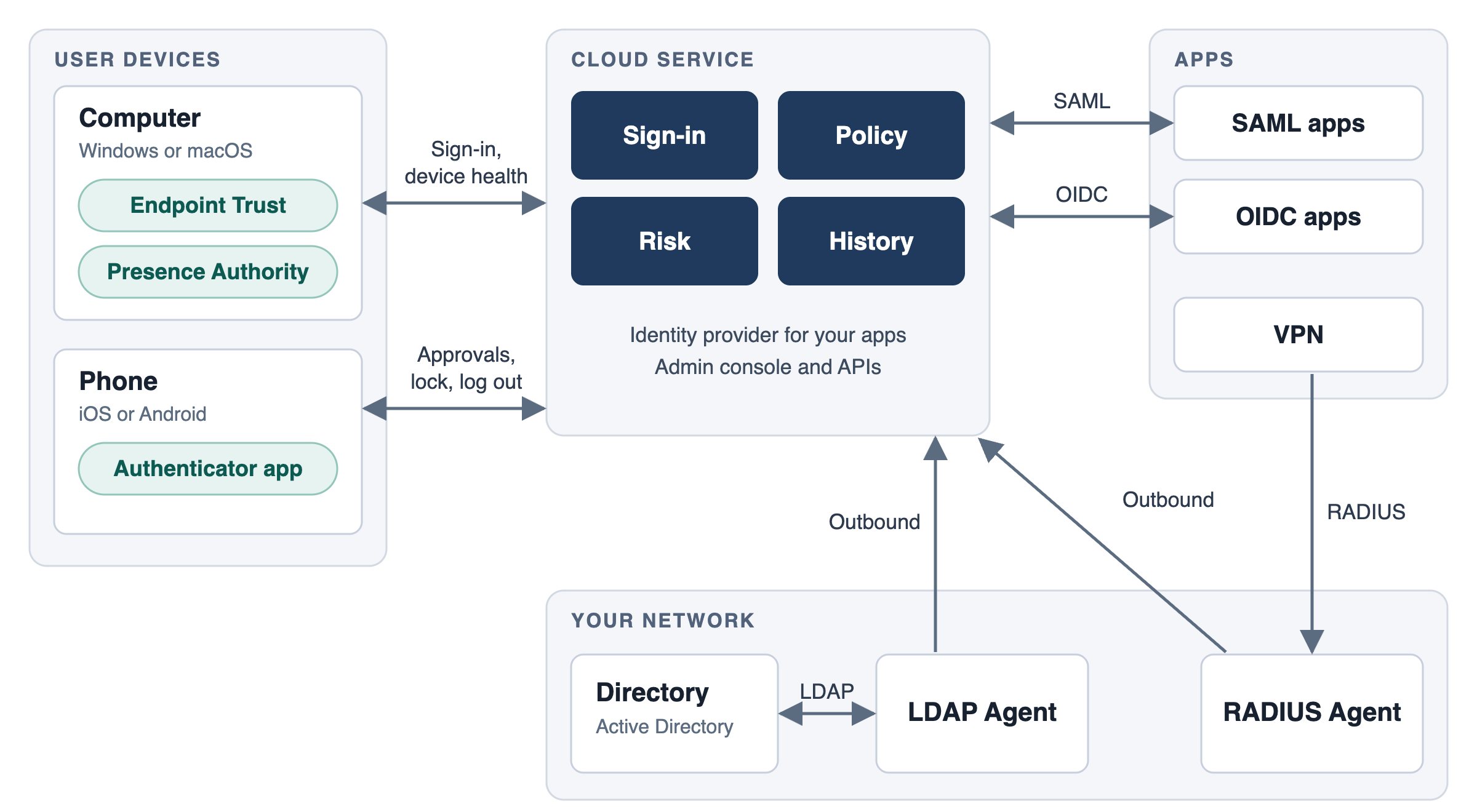
The computer and the phone talk to the cloud service. SAML and OIDC apps trust it for sign-in. A VPN asks the RADIUS Agent, which runs inside your network. The LDAP Agent and the RADIUS Agent both connect out to the cloud service.
Sign in once, at a trusted computer
Endpoint Trust runs on Windows and macOS. Each user pairs their computer with their account, and from then on SecureAuth knows the computer and its state.
At the sign-in screen, people choose how to prove who they are:
- a push or symbol push to the authenticator app on their phone;
- a security key registered on that computer;
- Windows Hello face or fingerprint, or Touch ID on a Mac;
- a smart card or RFID badge.
On Windows, the screen can show a QR code instead, which the authenticator app scans on a phone within Bluetooth range. It replaces push, security keys, badges and offline codes on that computer.
A password is optional. You decide whether people type one at all.
The computer keeps working without a network. People sign in with offline codes from the authenticator app, Windows biometrics or a security key. You can also lock a computer a set time after it loses its internet connection. In a Windows domain, certificate-based login signs people in without the domain password.
Then every app opens without a prompt
Once a person has signed in to their paired computer, the apps that sign in through SecureAuth SSO ask for nothing more. On the SSO sign-in page, one click signs them in. The computer vouches for them, so there is no password and no MFA.
This covers every SAML and OIDC app connected to SecureAuth SSO. Turn it on with SSO with Endpoint Trust in the SSO section of Settings. It is off by default.
The computer in your policies
A policy can skip MFA while the user's paired computer is unlocked. Others can check the computer before they allow a sign-in: BitLocker, firewall, Secure Boot, automatic updates, the operating system, the network, or the computer's name.
Admins can unpair a computer from the console or through the API. Users can lock or log out their own computers from their phone.
Read more in Endpoint Trust.
One authenticator app
The SecureAuth authenticator app runs on iPhone and Android. Apps for macOS and Windows are on the way.
The app:
- approves sign-ins with a push, or with a symbol push, where the user taps the symbol the sign-in page shows;
- shows offline codes when the phone has no signal;
- locks behind the phone's biometrics;
- refuses to run on rooted or jailbroken phones;
- detects when the phone's enrolled biometrics change;
- locks or logs out the user's paired computers.
Read more in Authenticator Apps.
Passkeys
People register passkeys and FIDO2 security keys in My Profile, then use them to sign in to apps.
A computer accepts a security key registered on it, from its own sign-in screen. A key used for both apps and the computer is registered in each place.
In the Passkey section of Settings, you choose whether the browser asks a passkey to check the person's PIN or biometric. It applies on SecureAuth's own sign-in and registration pages, not at the computer. A policy can limit registration to the passkey models you approve, by their AAGUID. It can also check each new passkey's attestation against the FIDO Metadata Service. The check applies only to models the FIDO Metadata Service lists. Other models a policy names, such as SecureAuth's authenticator apps and password-manager passkeys, pass without it. A policy that names no models checks every passkey. Both apply to passkeys registered for apps. A key registered at a computer stays on that computer, so no policy sees it.
Still the same person
Sign-in proves who sat down. Presence Authority checks who is still there.
It checks the user's face once, against the photo in your directory, then follows them on the camera. When they step away, the screen is covered. When they stay away, the computer locks. When they sit back down, the cover clears.
All of this runs on the computer. No camera image or face data leaves it.
Presence Authority is turned on per organization. Read more in Presence Authority.
Every app
SecureAuth SSO speaks SAML 2.0, OpenID Connect and OAuth 2.0. VPNs and network devices connect through the RADIUS Agent, over RADIUS. Linux servers use PAM for Linux.
Any OAuth or OIDC app connects through one general guide. Step-by-step guides also cover more than 70 apps and VPNs, among them Microsoft 365, AWS IAM Identity Center, GitHub, Box, Cisco ASA and Palo Alto GlobalProtect. See Integrations.
Already run an identity provider? Keep it, and add SecureAuth as its MFA:
- Microsoft Entra ID, as an external authentication method;
- AD FS, through a plugin;
- PingFederate, as an IdP factor.
The one-click sign-in from a trusted computer needs apps that sign in through SecureAuth SSO. Apps behind another IdP get SecureAuth MFA, not that click.
Policy and risk
Every sign-in runs through your policies. A policy matches on the user's groups, network, country, time of day, paired computer or passkey model. Then it approves the sign-in, rejects it, demands MFA, or adjusts its LOA score, the level of assurance that this is the right person.
The risk engine scores each sign-in. Its signals include known IP addresses, the browser's fingerprint, the distance from the user's phone, impossible travel and IP reputation.
A policy can also change settings for one group of users and leave everyone else alone.
Read more in Policies and Risk engine.
Your directory, where it lives
- Active Directory connects through the LDAP Agent, which runs inside your network and connects out to SecureAuth.
- Microsoft Entra ID and Google Workspace connect directly.
- The built-in directory holds users when you have no directory, or for a pilot.
Read more in User directories.
Help desk, audit and SIEM
The help desk role lets support staff help users without admin rights. They can issue a temporary PIN to someone who lost their phone. Users can reset their own password, where the directory allows it.
History records each sign-in and its outcome, with the LOA score, the analyzers that fired and the computer's details. See Audit logs.
The same audit logs can stream to your SIEM. SecureAuth posts each one over HTTPS to your receiver, signed, in a generic format or as Splunk HEC. Each organization can have up to five receivers. Streaming is turned on per organization. Contact SecureAuth to turn it on.
Where to go next
- Getting started: plan and run a first rollout.
- Endpoint Trust: deploy the agent and pair computers.
- Authenticator Apps: configure the app for your organization.
- Presence Authority: protect computers after sign-in.
- Compatibility guide: supported Windows, macOS, phone and browser versions.