Messaging templates
A Messaging template is the text Workforce Authority sends with an SMS verification code. A template has one or more languages, and each language has numbered versions. A language can be any language code, alone or with a country, such as fr or pt-BR. A version sends only once SecureAuth has approved it and someone publishes it.
Countries
Each version lists the countries it sends to. SecureAuth approves the version for each listed country. Until it does, the country shows Awaiting approval.
Any country the version doesn't list sends under Other countries. That covers a pending country too, once SecureAuth has approved the version for Other countries. Two kinds of country are the exception: regulated countries, such as the US and India, and any country SecureAuth rejected or put on hold on any version of the language. They never send under Other countries, so the language sends there only once SecureAuth approves it there. Until then, another language may send in its place. See When a language can't send to a country.
The SecureAuth SMS Provider decides which countries are regulated, and the list can change. The template pages tag them Regulated from the provider's current list.
Templates are under Messaging while SecureAuth has turned Messaging on for your organization. See Messaging section.
When a language can't send to a country
A send asks for a language. One that names none asks for the default language. When the requested language can't send to the recipient's country, another live version goes out instead. Workforce Authority takes the first of these that can send there:
-
The requested language's own version for the country, such as English (India) for an English send to India. It goes first even when English itself is approved for India.
-
The requested language. If it has nothing live, the default language takes its place here.
-
Another language's version for the country, such as English (India) for a Spanish send to India. SecureAuth must have approved it for that country itself, not just for Other countries. The default language's version goes first, then the rest in order of their language codes.
-
The default language.
When none of the four can send, the send is refused, even when another language is live and could send there.
So when the default language has no live version, step 4 never applies: a send goes out only when one of the first three steps can send there. For a send that asks for a language with no live version, that leaves steps 1 and 3, the versions for the recipient's country. The template's page warns about this on every tab until it's fixed: publish a version in the default language, or make a live language the default. See Change the default language.
The version that goes out fills in the variables its own text uses. The send must give each of them a value that version allows, or the send is refused. The exception is a time of sending, which SecureAuth fills in. A value for a variable only another language uses is ignored.
The template's page follows the same order. A tag beside a country names the language that sends there in place of the open one. Before you publish, a table lists each country the version lists or leaves out, with its approval and the language its texts go out in once the version is live. A note names the countries where that language sends under its own Other countries approval. That approval leaves out any country where SecureAuth rejected the language or put the country on hold.
Open a template
From the left navigation, click Messaging, then Templates, and select a template.
To find a template, type in the search box above the list. It matches part of a template's name, a language or a country, by code or by name: es or Spanish, IN or India. Names match in your dashboard's language and in English. A country matches only when the Countries column lists it, so a template that reaches India only under Other countries doesn't match India. A language's name counts too, so India also finds a template with an English (India) language. Type more than one word, and a template must match them all.
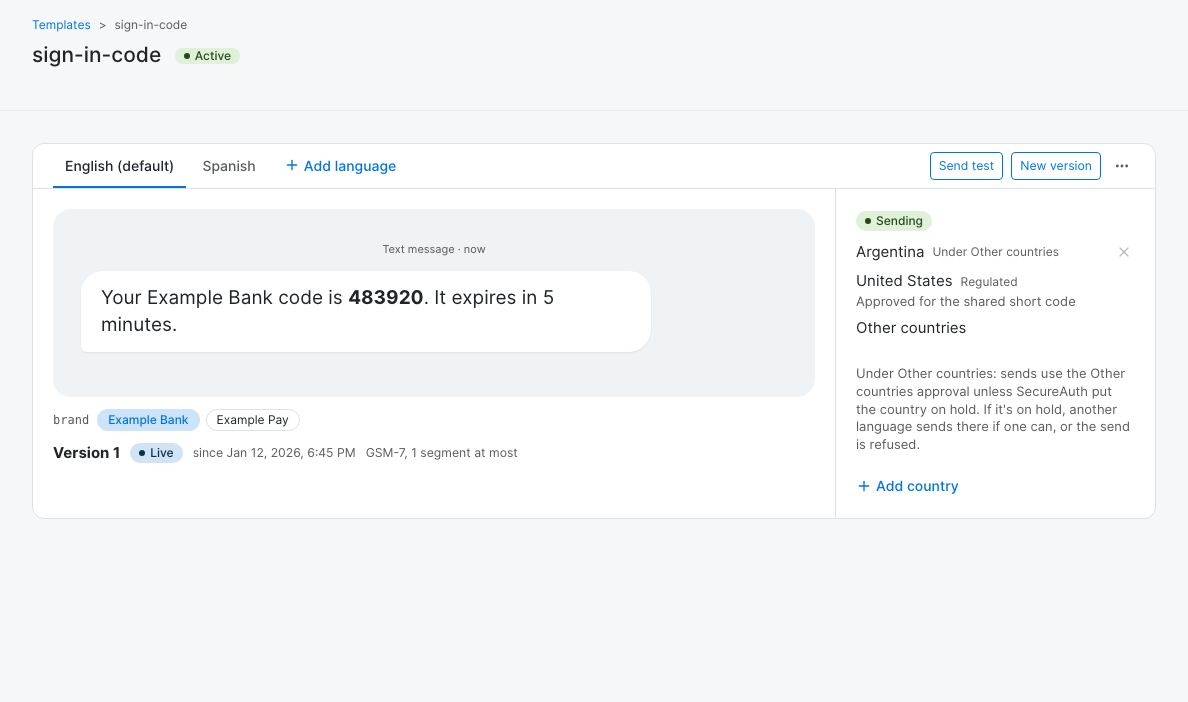
Each language has a tab, and the default language says so on its tab. The open tab shows the live text as a recipient reads it, with a sample code. Beside the text, its countries are grouped by what happens to a send there: Sending, Awaiting approval or Rejected. On a version that isn't live, Approved replaces Sending, because nothing sends from it yet. When another language's text goes out to a country instead, a tag beside the country names that language. The tag says "for now" when SecureAuth's approval alone would send the open language there, and "instead" otherwise.
When a language has more than one version, they're listed under the text. Select one to see its text and countries, and to publish it or roll back to it.
What a variable accepts
Each variable has a card under Variable values. Its Accepts setting says what fills it in.
| Accepts | What fills it in |
|---|---|
| List of values | One of the values listed on the card. |
| Number | A number the caller sends, of up to 3 digits: 0 to 999. Choose 1, 2 or 3 digits beside up to. |
| Time | A time the caller sends, in 24-hour HH:MM, from 00:00 to 23:59. |
| Time of sending | The time the text goes out, in HH:MM. SecureAuth fills it in. Pick its zone from Choose a time zone. A send that gives it a value is refused. |
A text has one time zone. When a message has two times of sending, both use the same zone.
Neither kind of time is converted to the recipient's zone. A time the caller sends goes out exactly as sent. A time of sending uses the zone picked on the version that goes out. That can be a version for the recipient's country, such as English (India), with a zone of its own.
No setting takes free text. A caller can send only a listed value, a number or a time.
A number or a time needs a space or punctuation on each side in the message. for the next {{duration}} minutes. works. for {{duration}}min is refused, because the number touches a letter.
Before it, only a space or one of ( [ " ' may come. After it, only a space or one of . , ; ! ? ) ] " '. It may also start or end the message. The editor marks a number or a time that breaks this, and won't save until you fix it.
Segments count a number at its longest, in nines: 999 for 3 digits. They count a time as 23:59. The Segments card lists these under Counted as, and the preview shows them in place of the variable.
Add a language
Adding a language needs permission to create templates. Organization administrators have it.
-
On the template's page, click Add language after the last language tab.
-
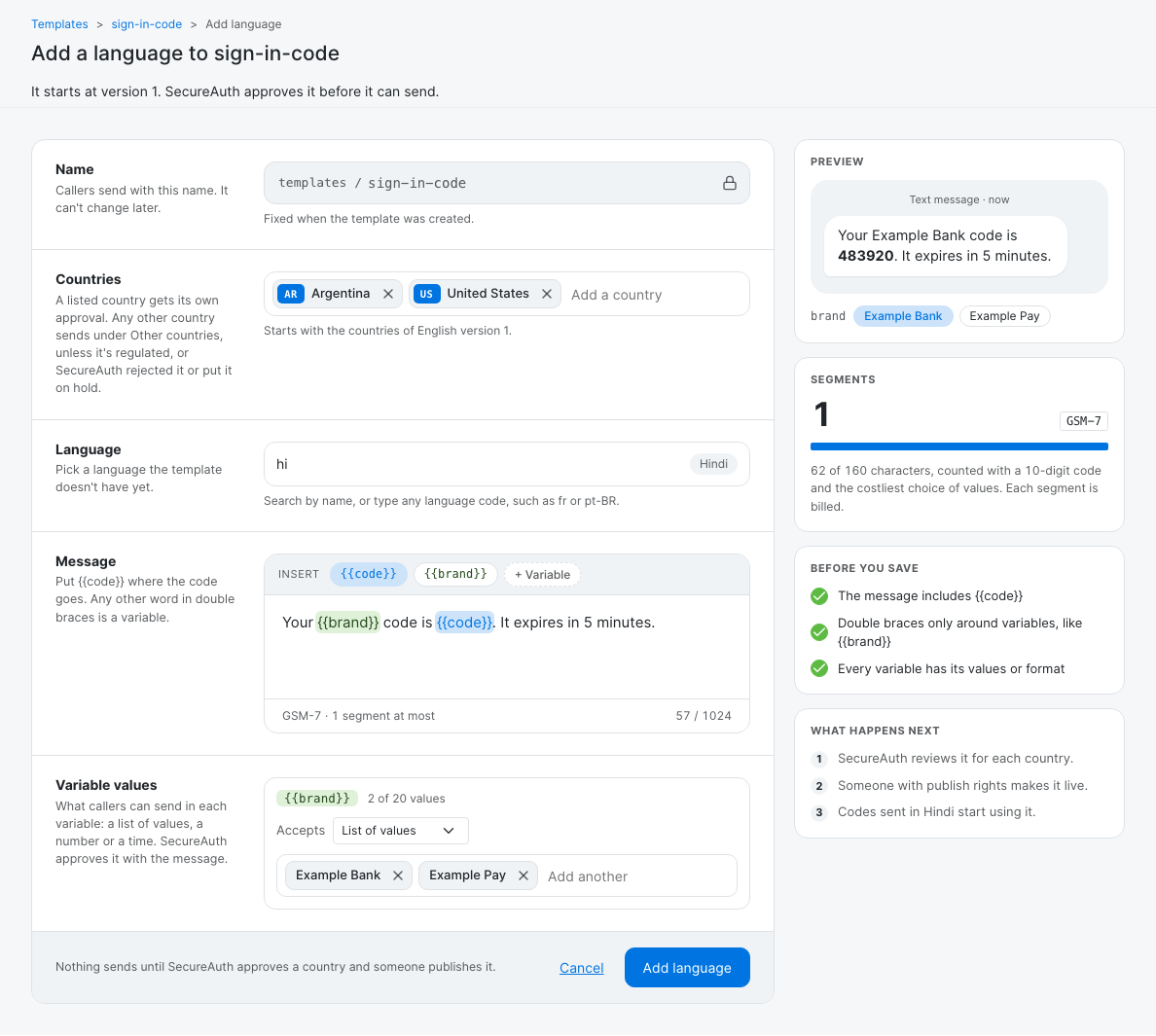
Under Countries, choose the countries for the new language. It starts with the countries of the default language's latest version. Remove any, or search for others.
-
In Language, search by name or type any language code, such as
frorpt-BR. The suggestions leave out the template's languages. A code the template already has can't be added, nor another code for one of its languages, such asspawhen it hases. The reverse works: a template withspacan still addes. A note under the field flags another code for a language, such asspafores, and a code it finds no name for. A half-typed name can read as either:Freisfre. For such a code, the first click on Add language saves nothing, and a warning above the button says why. Click again to add the code as typed. -
In Message, write the text in that language. It starts as the latest version of the default language. Keep every variable in double braces, including the one for the code.
-
Under Variable values, change the values, or what a variable accepts, if this language needs it. See What a variable accepts.
-
Click Add language.
The name stays as it is. The new language starts at version 1, and the page opens on its tab. It sends once SecureAuth approves it and someone publishes it. A removed language can't be added again. Restore it instead.
Choose a version's countries
Saving a version needs permission to update templates. Organization administrators have it.
-
On the template's page, open the language's tab and click New version.
-
Under Countries, the list starts with the countries of that language's latest version. Remove any, or search for others. A Regulated tag marks the countries that need their own approval.
-
Write the message, then click Save version.
The version carries exactly the countries you chose. It starts unapproved, and sends keep using the live version until someone publishes the new one.
Add a country to the live text
Adding a country needs permission to publish templates. Organization administrators have it.
-
On the template's page, open the language's tab. Under its countries, click Add country. It shows on the live version, or on the latest version when nothing is live.
-
Search for the country and select it.
-
Click Add country.
The country goes on the live version and every newer one, and shows Awaiting approval until SecureAuth approves it. Until then, the language's own version for the country sends there if it can, such as English (India) for English. Failing that, the country sends under Other countries if the version is approved for them, and its tag says so. A regulated country doesn't, nor does one SecureAuth rejected or put on hold. Failing both, another language sends there if one can, and the tag names it. Otherwise sends wait.
Withdraw a country
Withdrawing needs permission to update or to publish templates. Organization administrators have both.
-
On the template's page, open the language's tab. Click the × beside the country.
-
Click Withdraw to confirm.
SecureAuth stops reviewing the country, and new versions won't include it. What sends today doesn't change. The × appears only while every approval for the country is still pending and SecureAuth hasn't acted on it. Countries that sit only on other versions are listed apart, with the versions that hold them, and you can withdraw those too.
Change the default language
Changing the default language needs permission to publish templates. Organization administrators have it.
-
On the template's page, open the tab of a language that isn't the default. The tab needs a live version.
-
Click More actions (the three dots), then Make default, then Make default again to confirm.
A send that names no language uses the default language from now on. It also stands in when the requested language has nothing live or can't send to the country. Either way, a version written for the country can go first. See When a language can't send to a country.
Remove a language
Removing a language needs permission to disable templates. Organization administrators have it.
-
On the template's page, open the language's tab.
-
Click More actions (the three dots), then Remove and the language.
-
Check where the language's sends go instead, then confirm.
The language stops sending within a minute, because servers cache templates for up to a minute. Its tab stays, tagged Removed, and its versions and countries stay readable. It can't be changed, nor added again; restore it first. Approvals still pending for it leave SecureAuth's queue. A send that asks for it goes out as described in When a language can't send to a country. To bring it back, see Restore a language.
The default language can't be removed. Make another language the default first. A template's only language can't be removed either. Disable the template instead.
You can remove the last language that has a live version. The dialog warns that every send of the template fails until you restore a language or publish a version of another.
Restore a language
Restoring a language needs permission to publish templates, since it puts a version back live. Organization administrators have it.
-
On the template's page, open the tab tagged Removed.
-
Click More actions (the three dots), then Restore and the language.
-
Check what comes back, then confirm.
The version that was live when you removed the language goes live again within a minute, without a new approval. A country SecureAuth rejected meanwhile stays unsendable. If SecureAuth disabled that version, or the language never had a live version, the language comes back with nothing live. When every version of a removed language is disabled, whether by SecureAuth or by disabling the template, there's nothing to restore, and its menu offers no Restore.
To change its text, restore the language, then save a new version.
Send a test text
Send test texts a real code from the open language's live version. It needs permission to send verifications and to read them. Organization administrators have both.
-
On the template's page, open the language's tab and click Send test. The button appears only while that language has a live version.
-
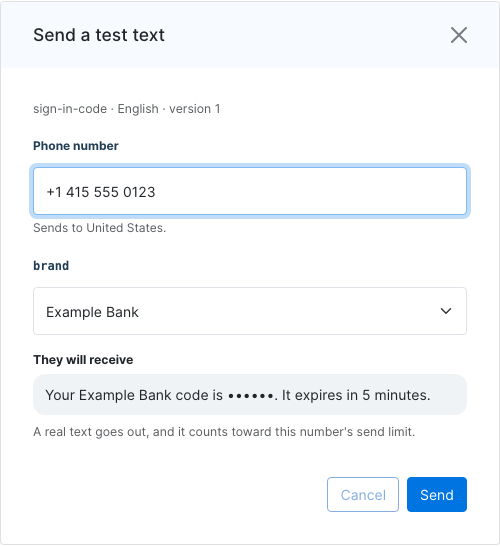
In Phone number, enter the number, starting with + and the country code. The country shown under it is the one the text goes to.
-
Select a value for each variable that takes a list. Type a number or a time for the others, as the hint under each field says. A time of sending needs nothing. SecureAuth fills it in when the text goes out. They will receive shows the text with the code hidden. It shows a time of sending as the time now in its zone.
-
Click Send. A real text goes out, and it counts toward the number's send limit.
-
Enter the code from the text and click Check.
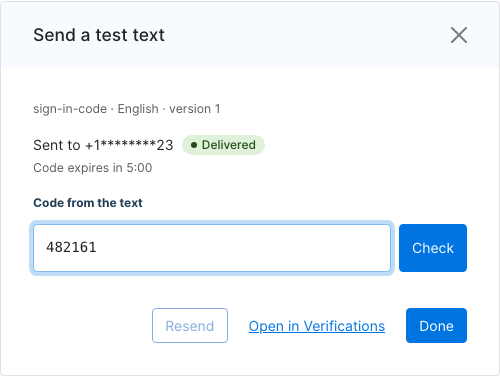
The dialog shows the masked number, the delivery status and roughly how long the code has left. Resend sends the code again. Open in Verifications opens the verification's own page.
A country the version doesn't list sends under Other countries if the version is approved for them, unless it's regulated, or SecureAuth rejected it or put it on hold. When the open language can't send to the number's country, the text goes out in another language that can, in the order under When a language can't send to a country. That language's version must allow the value you gave each variable its text uses, or the send is refused. When no language can send, nothing is sent, and the dialog names the country.