User schema
The user schema lists the attributes a user profile in Workforce Authority can hold. It starts with seven built-in attributes, such as first name and email addresses. You add your own, such as a department or a cost center.
Directories fill these attributes when they sync users, and applications read them. To edit the schema, you need permission to manage it. Without that permission you can see every attribute but change none.
To open the page, log in to Workforce Authority and click Users, then User Schema.
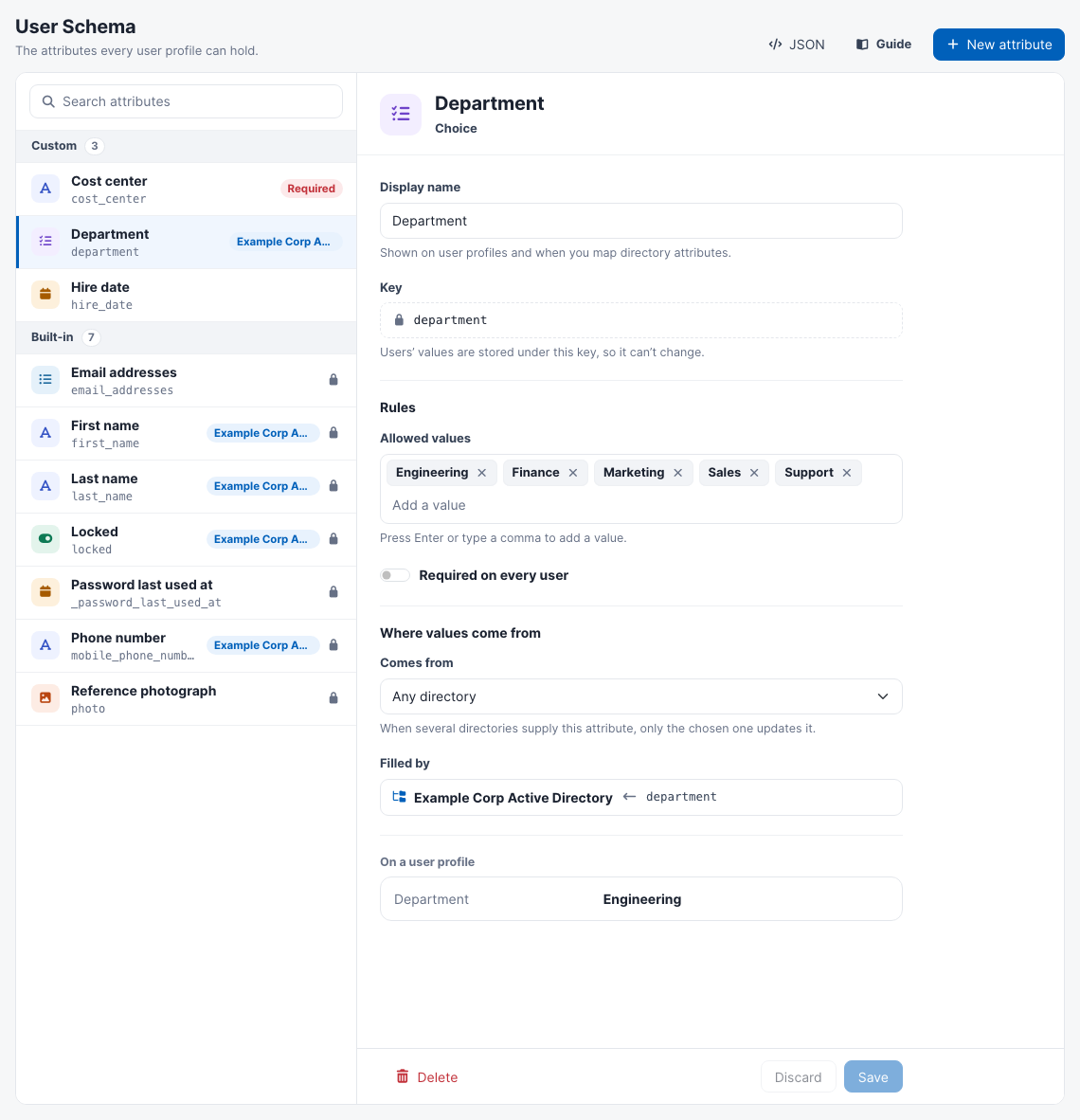
The list on the left groups attributes under Custom and Built-in. Select an attribute to open it on the right. Use the search box to filter by display name or key.
Built-in attributes
Every tenant has these attributes. You can't delete them, and you can't change their key or kind.
| Display name | Key | Kind | What you can change |
|---|---|---|---|
| First name | first_name |
Text | Display name, Required, Comes from |
| Last name | last_name |
Text | Display name, Required, Comes from |
| Locked | locked |
Yes / No | Display name, Required, Comes from |
| Phone number | mobile_phone_number |
Text | Display name, Required, Comes from |
| Email addresses | email_addresses |
List | Display name, Comes from |
| Reference photograph | photo |
Photo | Display name, Comes from |
| Password last used at | _password_last_used_at |
Date & time | Nothing |
Workforce Authority manages Password last used at, so the form shows it read-only.
Add an attribute
-
Click Users, then User Schema.
-
Click New attribute.
-
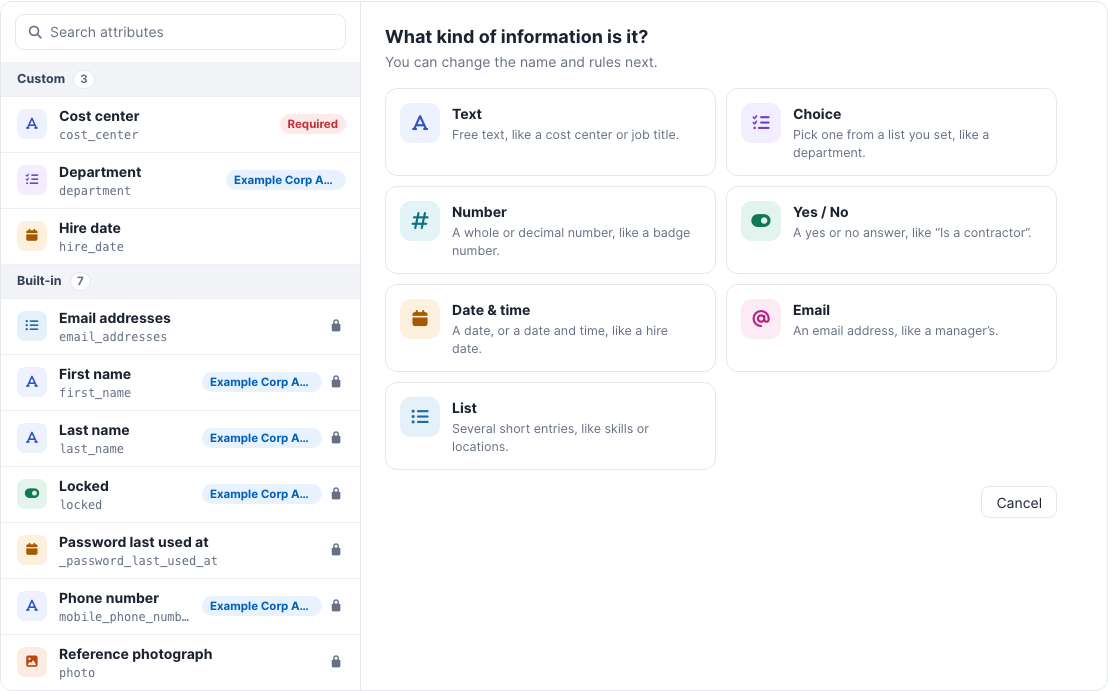
Choose the kind of information. A tile describes each kind.
-
Enter a Display name. Workforce Authority builds the Key from it. Edit the key if you want a different one. If the name has no letters A to Z or digits, enter the key yourself.
-
Set the rules for the kind. See Kinds and rules.
-
Turn on Required on every user if every user must have a value. See Required.
-
If the page shows Comes from, choose the directory that supplies the value. See Comes from.
-
Click Add attribute.
To pick a different kind before you save, click Change kind.
Key rules
The key is the name Workforce Authority stores users' values under. It follows these rules:
- It starts with a letter, then uses only letters, numbers and underscores.
- It is 64 characters or fewer.
- It can't match another key, ignoring case.
- It can't start with an underscore. Those keys belong to the system.
- It can't be
roles. Directory sync reserves that key.
The key and the kind are fixed after you save. To change either, add a new attribute and delete the old one.
Kinds and rules
| Kind | Use it for | Rules |
|---|---|---|
| Text | Free text, such as a job title | Minimum length, Maximum length, Pattern (a regular expression every value must match) |
| Choice | One value from a list, such as a department | Allowed values. Add at least one. Each value can appear once. |
| Number | A badge number or a score | Whole numbers only, Minimum, Maximum |
| Yes / No | A true or false answer | None |
| Date & time | A hire date | None |
| One email address | None | |
| List | Several short entries, such as skills | Each item is an email |
Patterns use Ruby regular expression syntax. The form also needs a pattern JavaScript accepts, so enter Ruby-only syntax, such as (?i), in the JSON view. Workforce Authority refuses a pattern Ruby can't compile.
The form shows the rules of Photo and Advanced attributes read-only. Edit them in the JSON view. An attribute shows as Advanced when its rules use JSON Schema keywords the form can't write, such as oneOf.
Required
Turn on Required on every user to make an attribute mandatory.
Email addresses and Photo attributes can't be required. Directory sync and the dashboard keep their values out of the schema check, so requiring one would fail every user they create or update.
Users without a value can't be created or synced from a directory. Check that your directories supply the value before you turn this on.
Comes from
Under Where values come from, Comes from sets which directory may update the attribute. The section shows only if your role can view directories. The Comes from list shows only if the tenant has at least one directory.
| Choice | Effect |
|---|---|
| Any directory | Any directory that maps the attribute can update it. |
| One directory | Only that directory updates it. |
If you delete the chosen directory, the list shows A deleted directory until you pick another.
Directory mappings
Filled by lists the directory mappings that store a value in the attribute, such as Example Corp Active Directory ← department. It is read-only here.
It leaves out two kinds of mapping:
- Read through mappings. They fetch a value when it's needed and store nothing.
- Other directories' Inbound and Provision only mappings, when Comes from names one directory. Sync ignores them.
You create and edit mappings on the directory's own page, in its Attribute Mappings section. See User directories. When nothing fills the attribute yet, Map it from a directory takes you to the directory list.
Edit or delete an attribute
Select the attribute, change what you need and click Save. Click Discard to drop your changes. If you leave the page with unsaved changes, Workforce Authority asks you to confirm.
To delete a custom attribute, click Delete. The confirmation names what changes:
- Directory mappings that target the attribute stop working, Read through ones included. The confirmation lists them.
- If the attribute is required, that rule goes with it.
Values already stored on users are kept. Built-in attributes can't be deleted.
SA Connect-managed tenants
SA Connect can manage a tenant's user schema. Workforce Authority treats a tenant as managed when any attribute carries SA Connect usage information. A banner on the page says so.
SA Connect replaces the whole schema each time it syncs. After a sync, the schema holds only the attributes SA Connect sent. A Comes from setting you made survives only on those attributes. So the page limits what you can change.
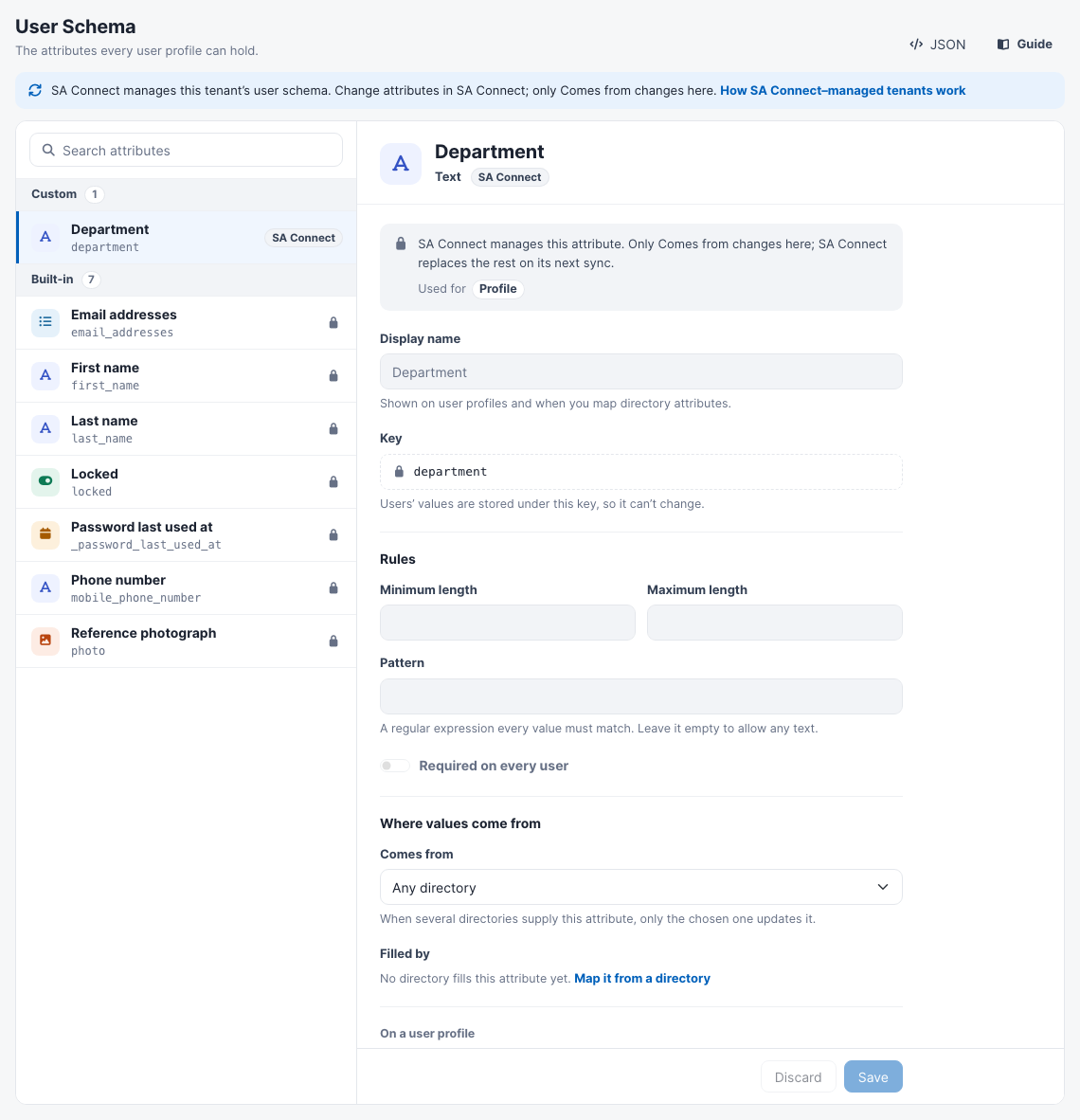
| Part of the page | In a managed tenant |
|---|---|
| Attributes SA Connect sends | Marked with an SA Connect badge. Only Comes from is editable. |
| Every other attribute | Read-only. |
| New attribute and Delete | Hidden. |
| JSON view | Opens, but can't save. |
Change attributes in SA Connect. Changes made there arrive with its next sync.
JSON view
Click JSON to see and edit the whole schema as JSON Schema. Workforce Authority checks it against the draft-06 specification as you type. Save stays disabled while the JSON is invalid.
Use the JSON view for what the form can't edit: Photo and Advanced attributes, and keywords the form doesn't write.
The form writes these keywords:
| Keyword | Written for |
|---|---|
type |
Every custom attribute the form can edit. A whole-numbers Number uses integer. |
format |
Date & time (date-time) and Email (email) |
enum |
Choice |
items |
List |
minLength, maxLength, pattern |
Text |
minimum, maximum |
Number |
description |
The display name |
source |
Comes from |
required |
A top-level list of the required keys |
When you save through the form, every other keyword on an attribute stays as it is.