Revoke user workstation
As an administrator in Workforce Authority, you can revoke user ownership of a workstation.
For example, you can revoke a workstation from a user account so that another user can pair the same workstation (with the same local user account). An administrator with Help desk permissions (at minimum), can revoke workstations.
Another example is your organization has some laptops that were already paired and they want to give them to new users. Find each laptop by its workstation ID on the Workstations tab and revoke its users there.
As a side note, to completely offboard a user instead of using the revoke workstation option, use the Offboard User API.
Revoke from the Workstations tab
The Workstations tab lists every workstation in your organization, one entry per machine, with the users paired to it.
-
Log in to Workforce Authority and from the left navigation, click Endpoints > Endpoint Trust, then the Workstations tab.
-
To find a workstation by its ID, click User contains in the search bar and choose Workstation ID is. Type the ID and press Enter. To find a user's workstations instead, type part of their username and press Enter.
-
Select the workstation in the list. Its users appear beside it.
-
For the user, click the ⋯ menu and then Revoke Ownership.
Revoke from the user's profile
-
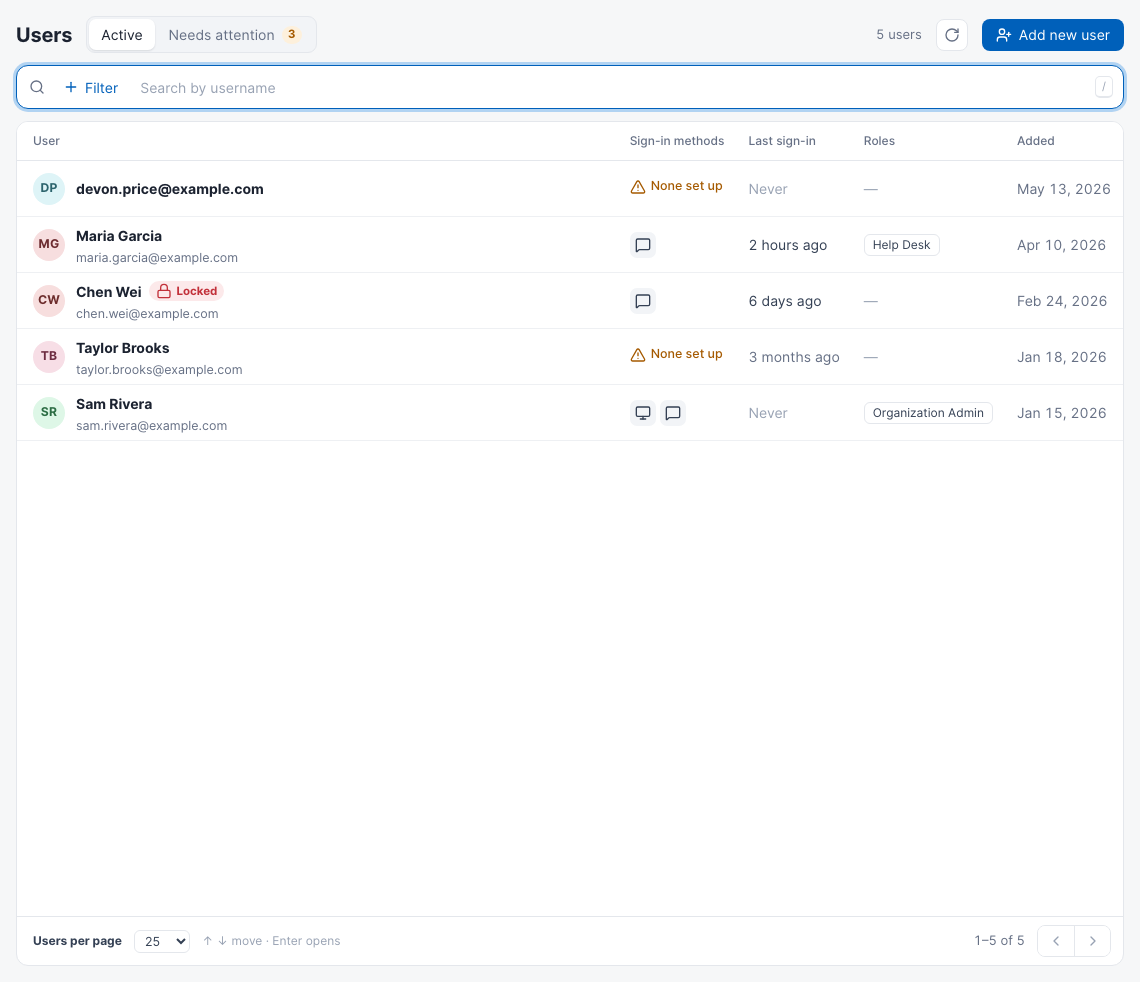
Log in to Workforce Authority and from the left navigation, click Users.
-
In the list, for the user account whose workstation you want to revoke, click the user's row.
-
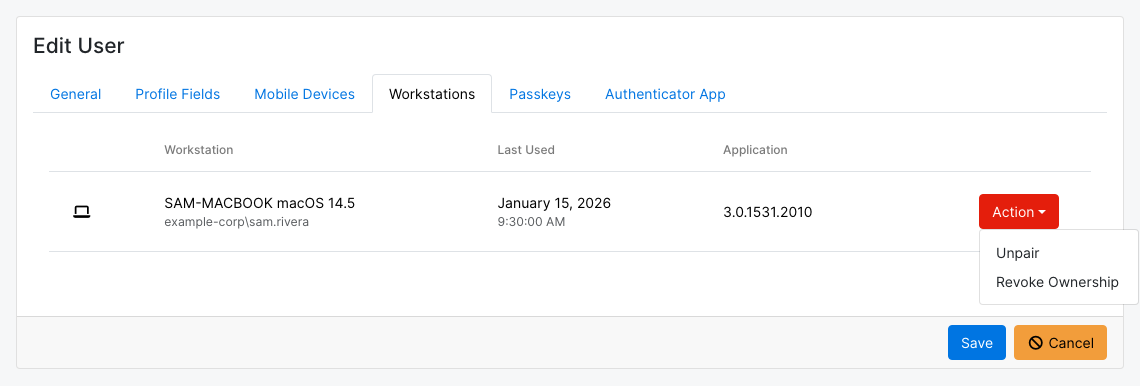
On the Edit user page, scroll down to the Workstations section, find the workstation and click Action > Revoke Ownership.