Configure password reset policy
This guide shows how to enable the password reset flow, configure MFA options, and control which verification methods users can use during password reset.
Prerequisite for Active Directory environments
If you're using Active Directory as your user directory, complete the following before proceeding:
-
Update the LDAP Agent: Ensure the latest version of the LDAP Agent is installed to support password reset capabilities.
Requires LDAP Agent version 4.0.0 or later
-
Configure YAML settings: Add the
LDAPResetPasswordBindUserandLDAPResetPasswordBindPasskeys to enable password reset functionality. For details, see Optional configuration options in the Workforce Authority LDAP Agent deployment guide.
Step 1: Enable password reset in the directory
-
In Workforce Authority Core, go to User Directories.
-
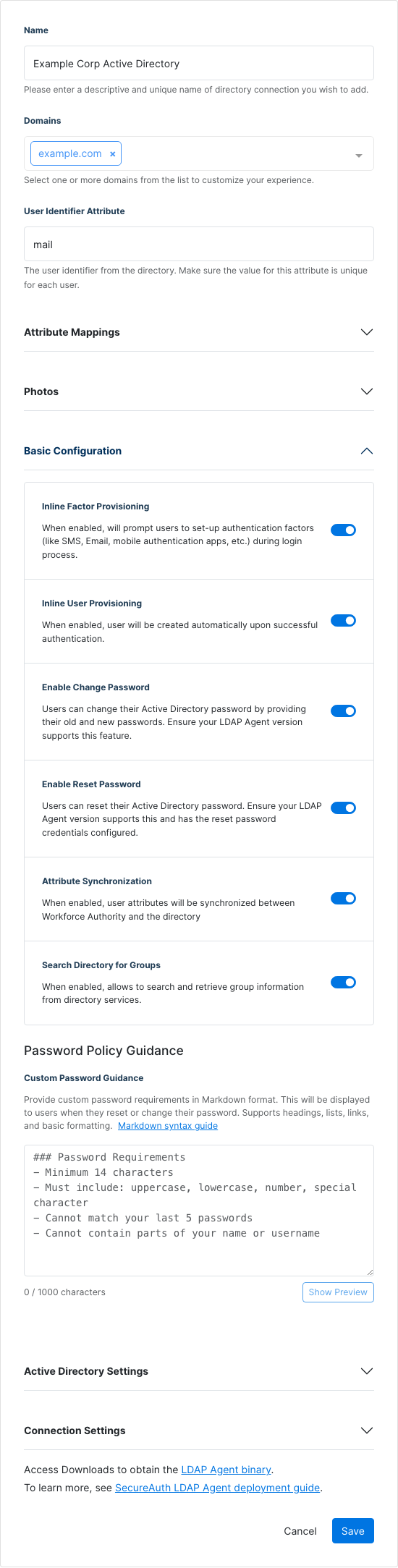
Edit the directory, expand Basic Configuration, and enable:
-
Enable Reset Password
-
Enable Change Password
NoteOnly directories that support reset functionality will show these options.
-
-
Save your changes.
Step 2: Create a reset password policy
-
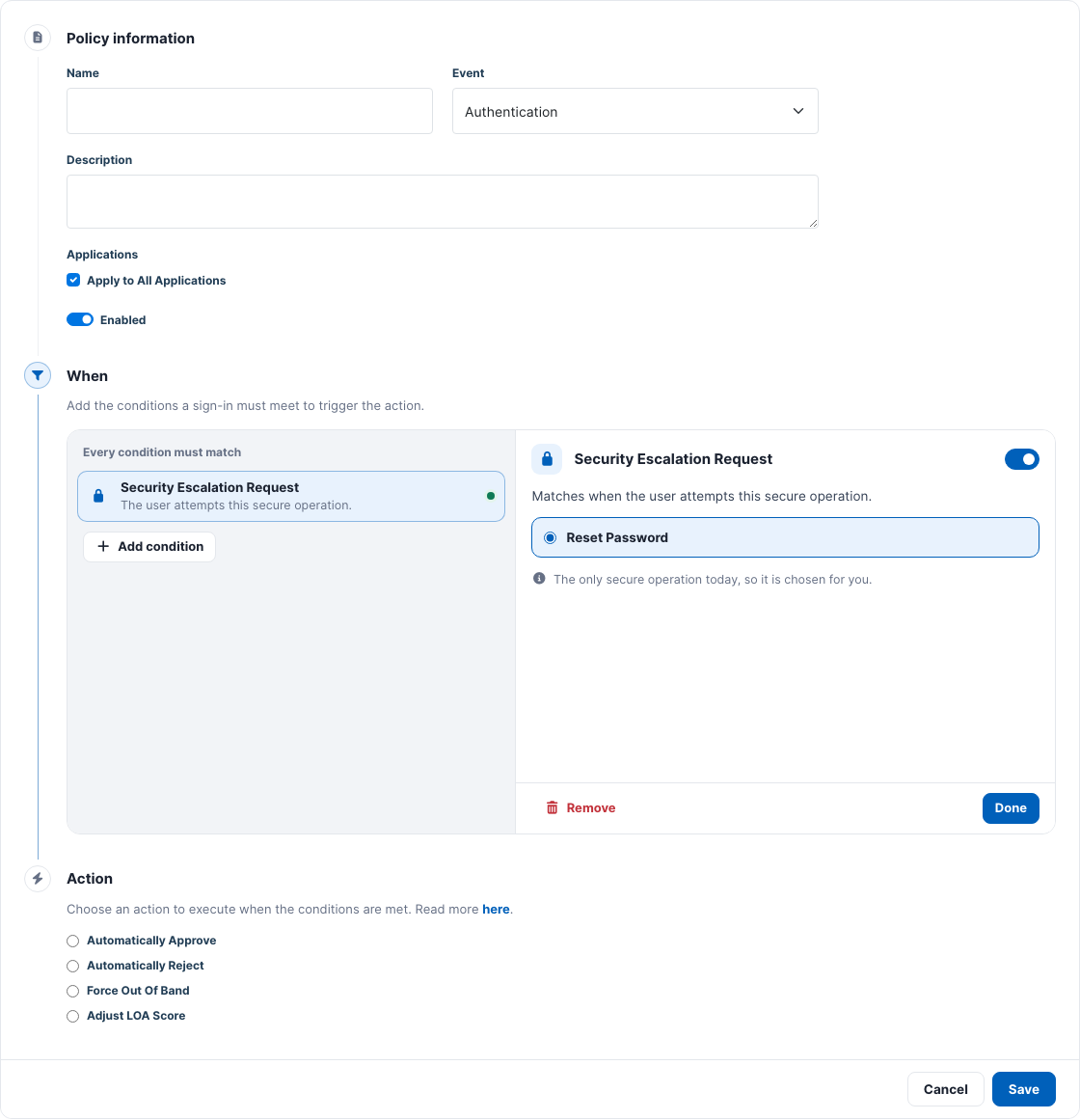
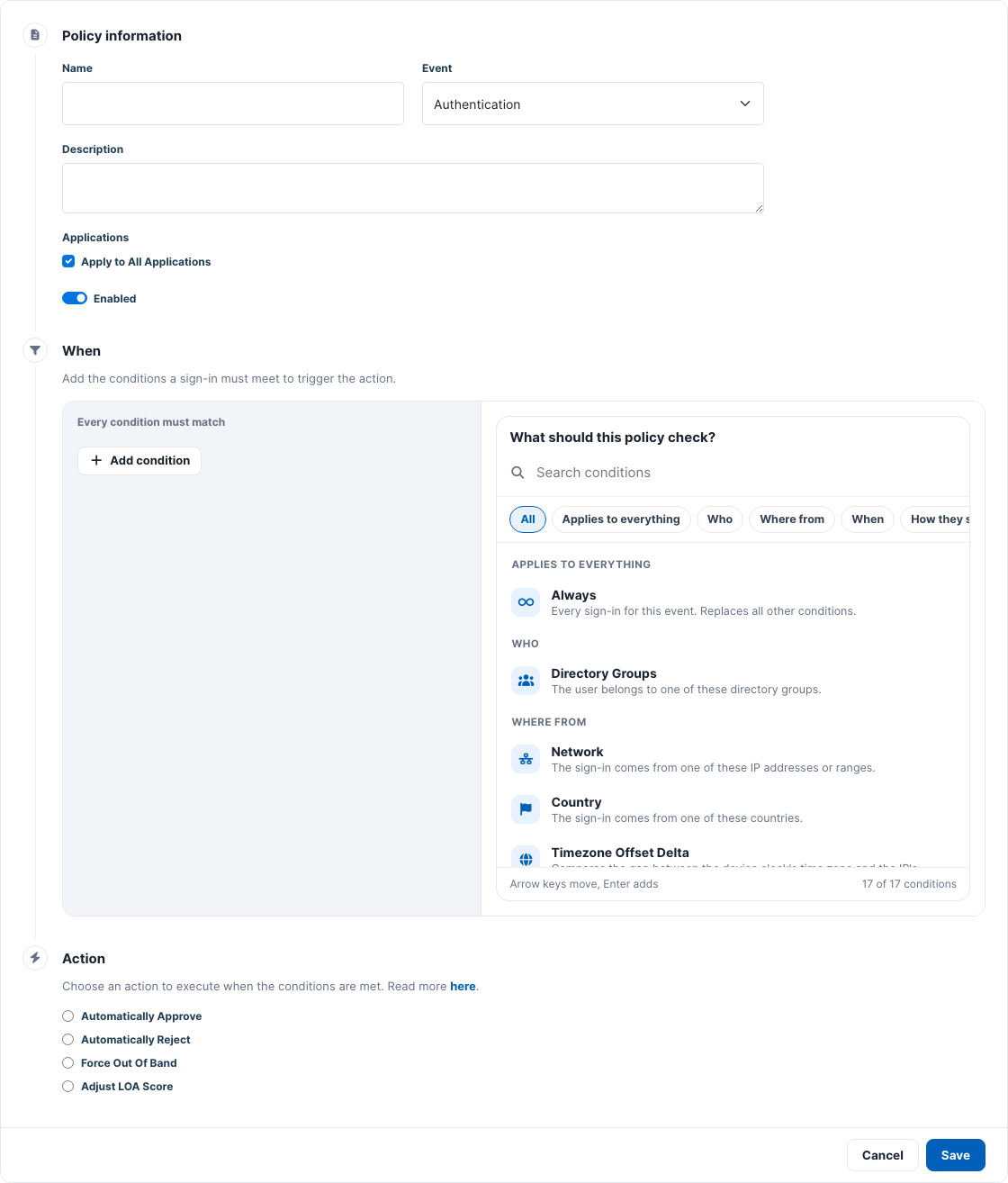
Go to Policies and click Create New Policy.
-
Name the policy appropriately, like
Reset Password MFA Controls. -
In the When section, select Add condition, then Security Escalation Request. Reset Password is the only operation, so it is chosen for you.
Step 3: Define authentication factors for password reset
-
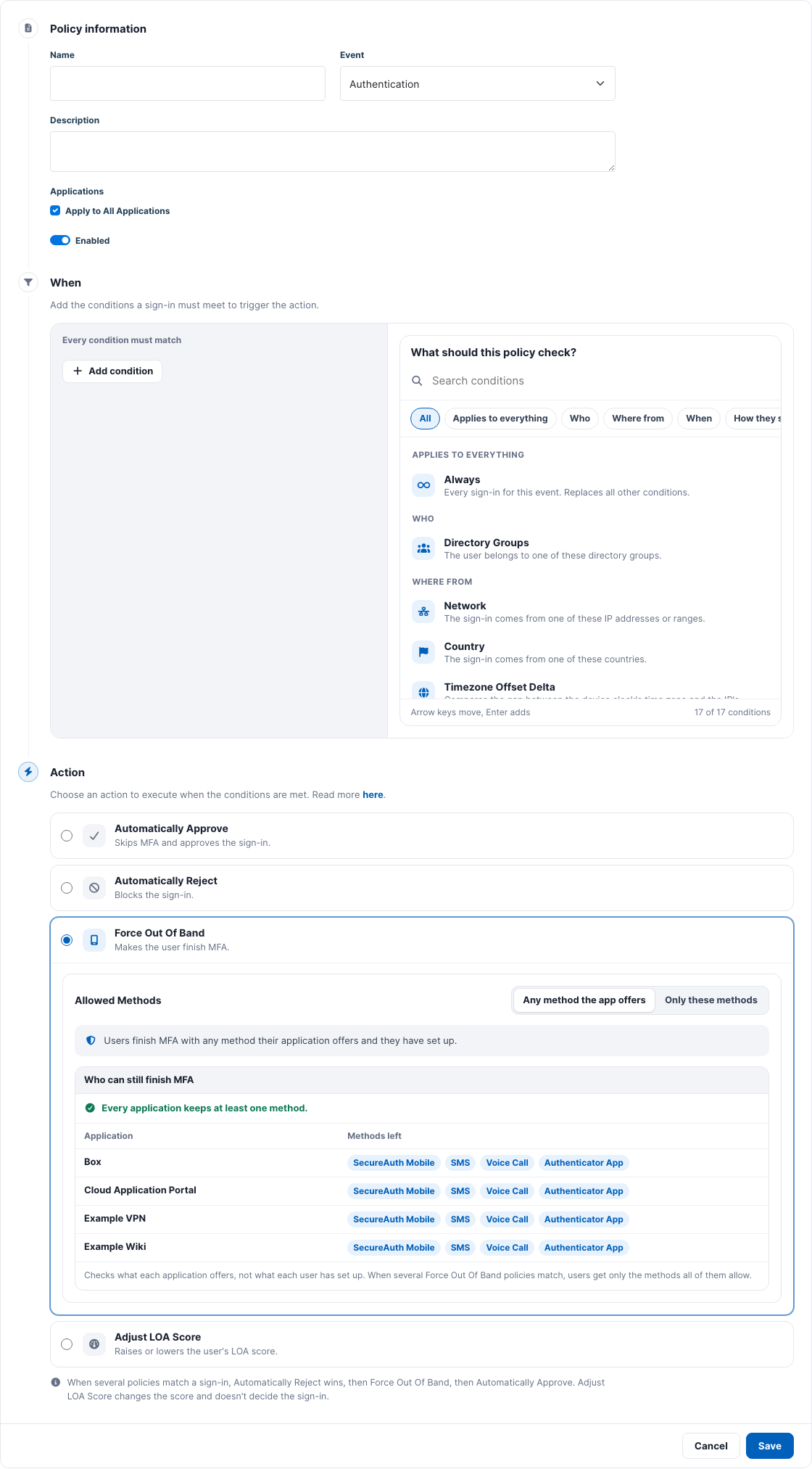
In the Action section of the policy, use the Force Out Of Band setting to override default behavior and require users to complete MFA using only the specific factors you select for password reset.
-
Under Allowed Methods, choose Only these methods and pick the factors you trust, like Email, Passkey and SecureAuth Mobile Symbol.
For example, do not use SMS if it's not considered secure.
Step 4: Apply the policy
-
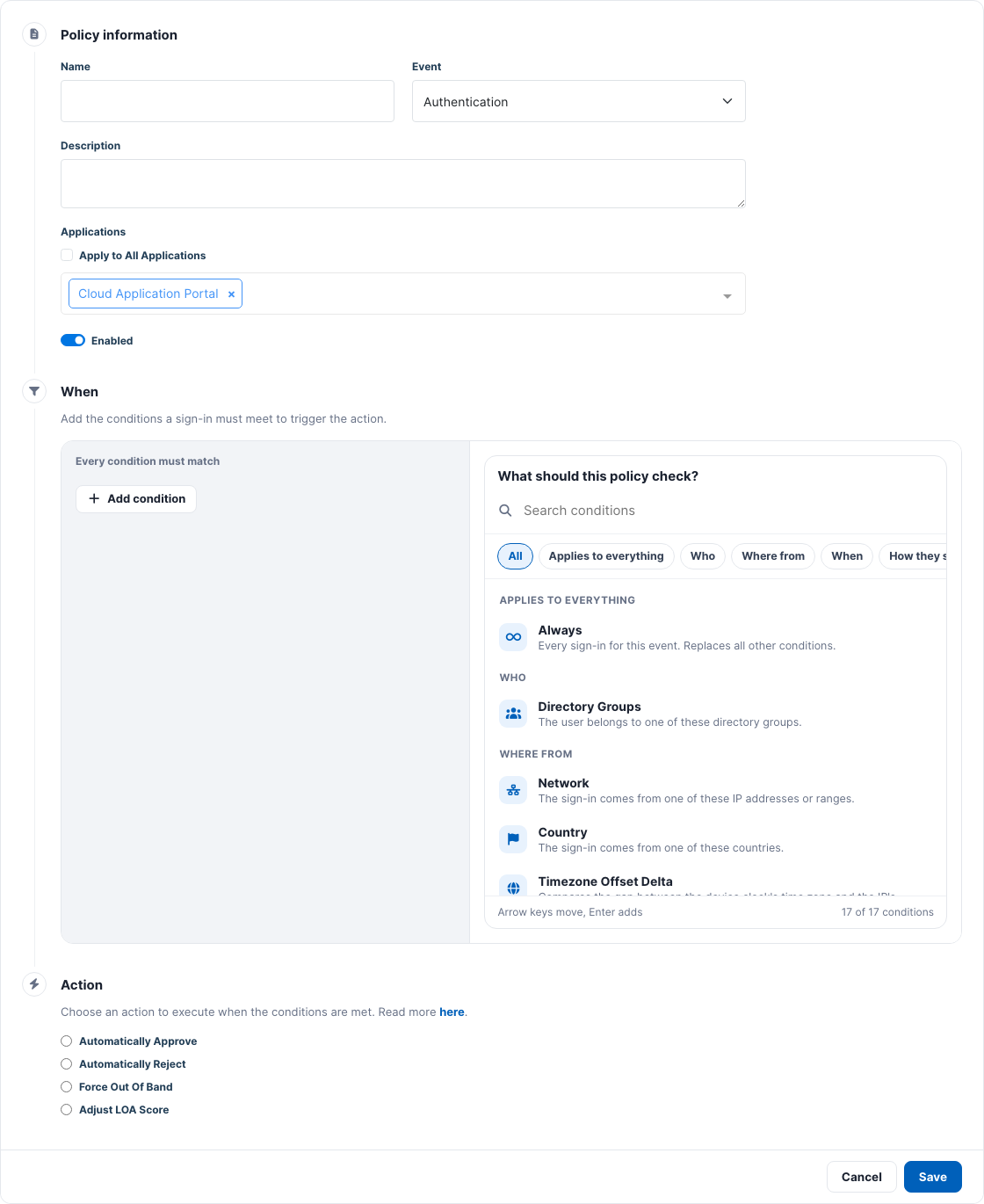
Scroll up to the top of the policy and assign the policy to the relevant application (typically Dashboard Core).
-
Optionally, apply it across all applications.
-
Save your changes.
Result
When a user clicks Forgot password? on the SSO sign-in page, only the allowed MFA methods appear in the reset flow. Users complete identity verification, then reset their password securely.
For the end user password reset flow, see How to reset your password.