ForgeRock Access Management RADIUS integration
Multi-Factor Authentication (MFA) is an extra layer of security used when logging into websites or apps. Individuals are authenticated through more than one required security and validation procedure that only they know or have access to.
Remote Authentication Dial-In User Service (RADIUS) is a protocol commonly used to authenticate, authorize, and account for user access and actions.
Workforce Authority by SecureAuth offers a simple method for adding MFA to ForgeRock Access Management via its Radius solution. This instruction illustrates how to configure ForgeRock OpenAM and Workforce Authority RADIUS MFA authentication solution.
Prerequisites
-
Workforce Authority RADIUS Agent that is configured and connected to your user directory. For example, Microsoft Active Directory (AD).
For more information, see the Workforce Authority RADIUS Agent deployment guide.
-
User account with administrative privileges for the ForgeRock Access Management admin panel.
Workforce Authority RADIUS Agent configuration
To integrate Workforce Authority with your ForgeRock AM, you will need to install an Workforce Authority RADIUS Agent on a machine within your network. This server will receive RADIUS requests from your ForgeRock AM, check with LDAP server to perform primary authentication, and then contact Workforce Authority cloud service for secondary authentication.
Follow these steps to configure the Workforce Authority RADIUS Agent.
-
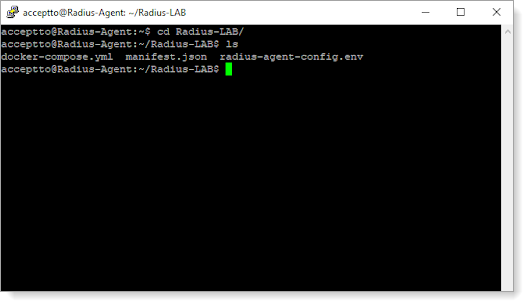
Log in to the Workforce Authority RADIUS Agent as an administrator.
-
Open the radius-agent-config.env file with an editor.
The file is located in the installed directory of RADIUS Agent. RADIUS clients are configured in this setting.
-
At the end of the radius-agent-config.env file, set the following configuration for the ARA_CLIENTS attribute:
NoteThe values should be separated by semicolons (;).
ARA_CLIENTS = <An optional name for your AM>; <Internal IP address of your AM>; <a shared secret>For example, set:
ARA_CLIENTS = AM;203.0.113.50/32;testing12345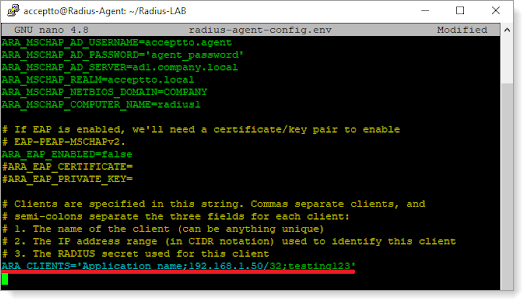
-
Save the file.
-
Run the following command to apply the changes:
docker-compose down && docker-compose up -d
ForgeRock Access Management configuration
-
Log in to the ForgeRock AM admin portal with an administrative user account.
-
Select the Realm to set MFA up for.
-
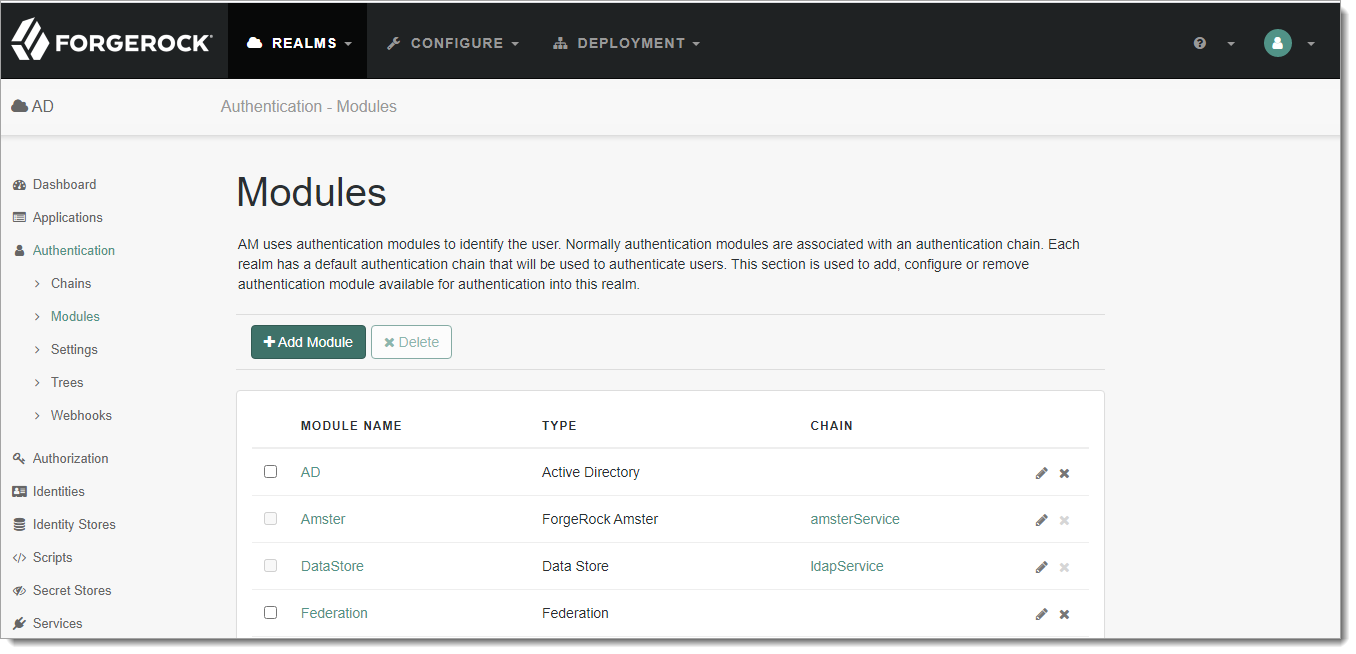
Go to the Authentication section and select Modules.
-
Click Add Module to create a new authentication module.
-
In the New Module section, set the following:
Name Enter a unique name. For example, RADIUS. Type Select RADIUS. 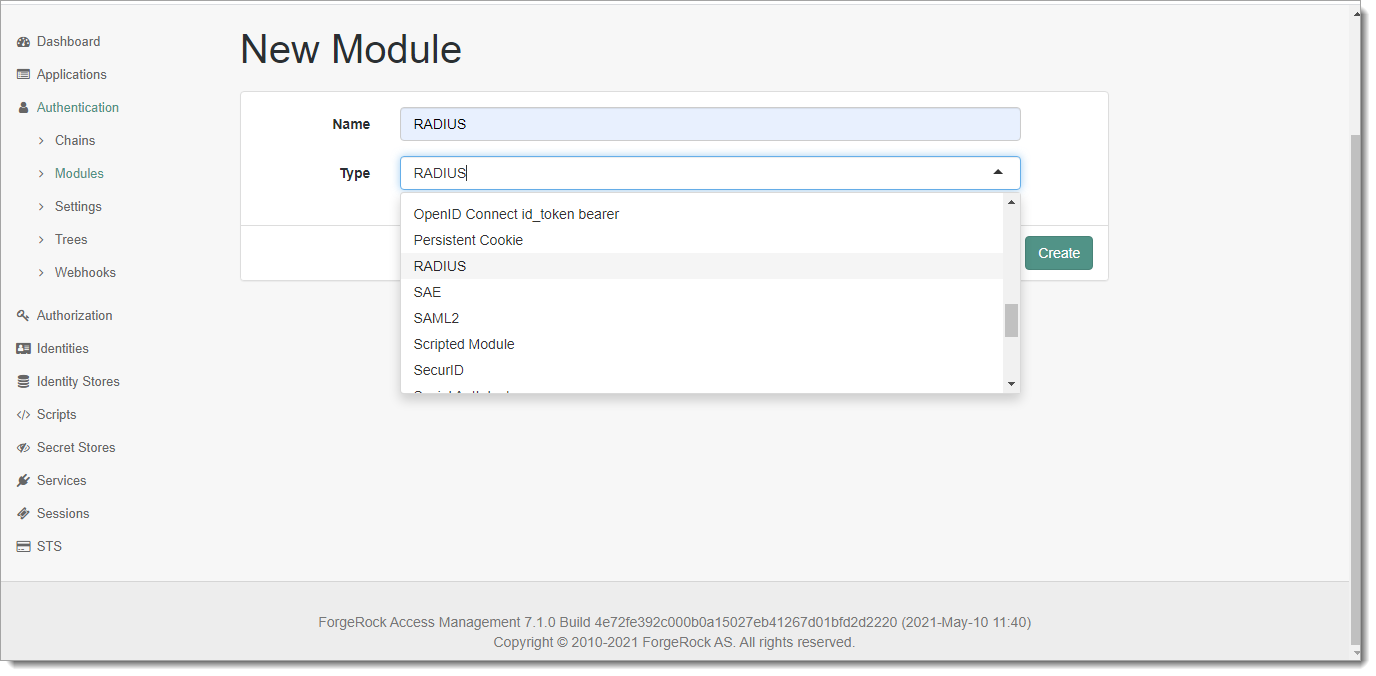
-
Click Create.
-
Select the Servers tab and click ADD.
-
In the RADIUS section, set the following:
Primary Radius Servers Enter the IP Address of your Workforce Authority RADIUS Agent. Shared Secret Enter the Shared Secret set in the Workforce Authority RADIUS Agent. Time Set to 90 Seconds (recommended). Port Number Set to 1812. TimeOut Set to 60. Health check interval Set to 5. Authentication Level Set to 0. 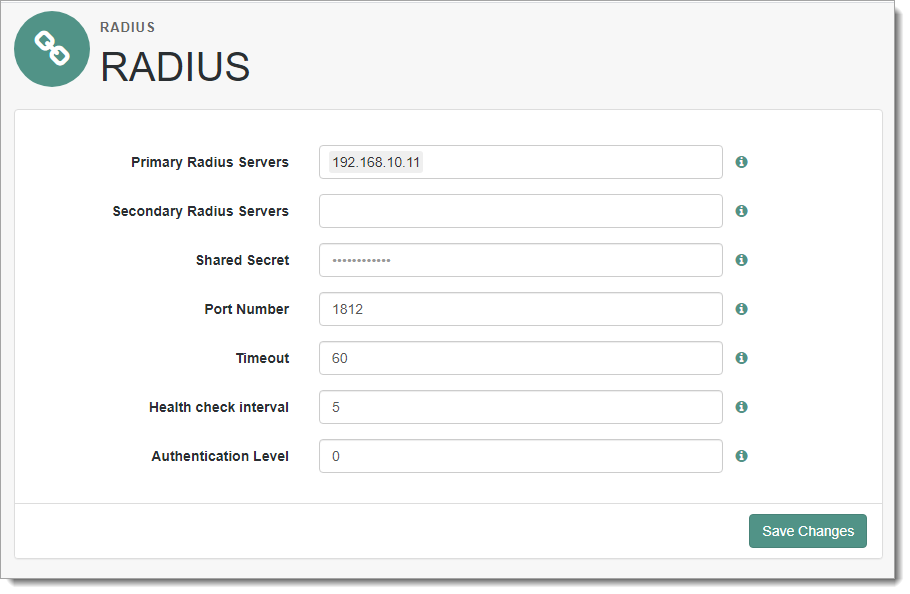
-
Click Save.
-
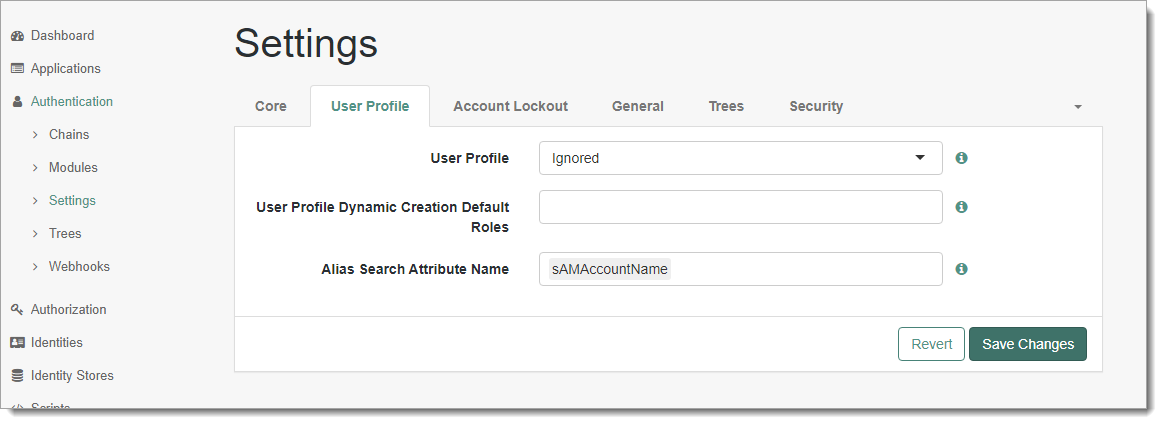
In the Authentication section select Settings.
-
Select the User Profile tab and in the User Profile section, select Ignored.
-
Click Save Changes.
-
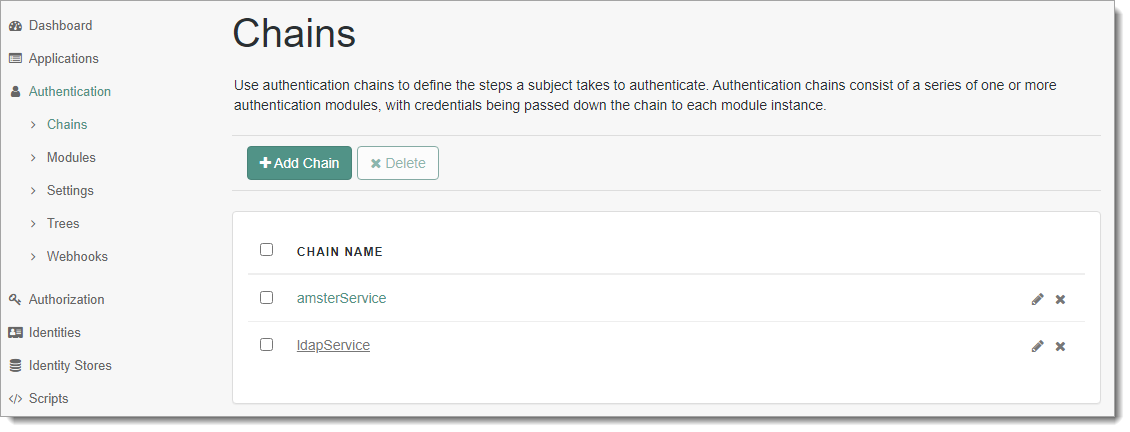
Now you can change the authentication module on the default chain of your Realm. Go to the Authentication section and select Chains. Click on ldapService.
-
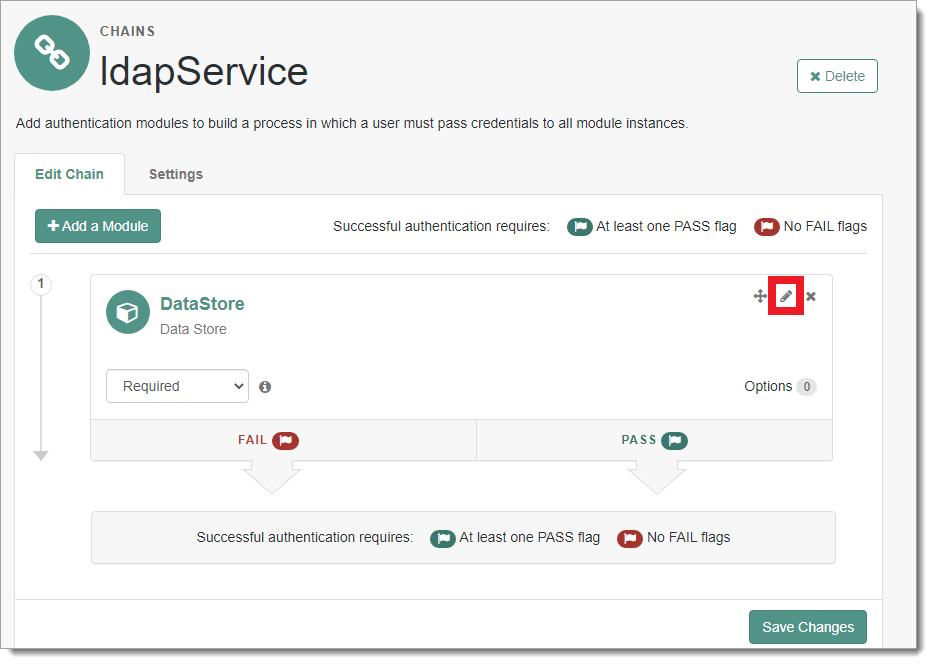
Click the pencil icon to make edits.
-
In the Select Module field, select the authentication module that was previously created and click OK. Click Save Changes.
NoteYou can check your authentication module with a URL that refers to it, like the following example:
http://Openad.example.com:8080/AM-7.1.0/XUI/#login/&authIndexType=module&authIndexValue="enter-authentication-module-name"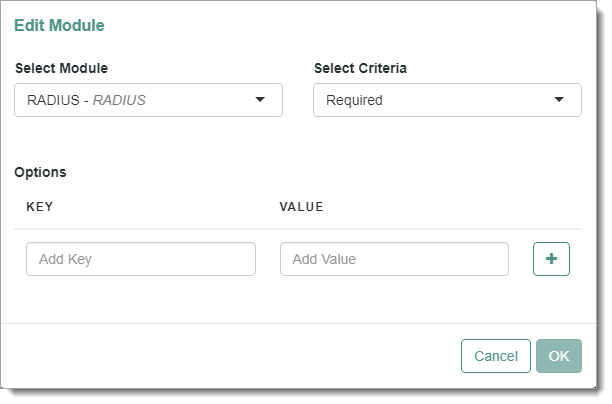
Test your application integration
-
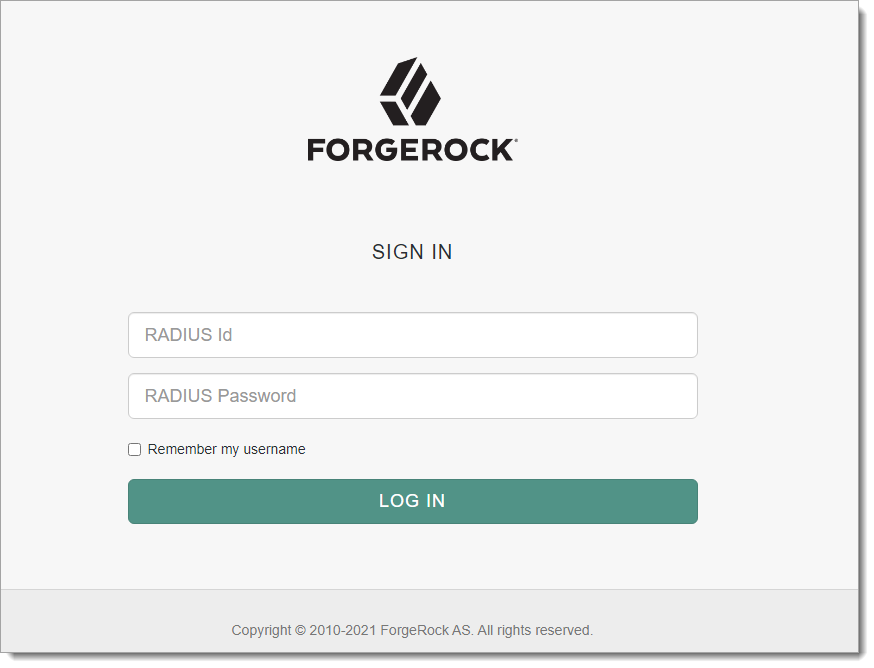
Go to the ForgeRock Access Management Realm you created and enter your credentials.
-
The Workforce Authority Mobile app receives a push notification for your approval to log in.
After approving the authentication request through the app, you will be logged in.
Support
If you have questions or need assistance, contact SecureAuth Support.
Sales
Want to learn more about our MFA solutions? Contact our Professional Services for a demo today.
Disclaimer
All product names, trademarks, and registered trademarks are the property of their respective owners.
All company, product, and service names used in this document are for identification purposes only. The use of these names, trademarks, and brands do not constitute an endorsement by the SecureAuth Corporation.