Okta RADIUS integration
Multi-Factor Authentication (MFA) is an extra layer of security used when logging into websites or apps. Individuals are authenticated through more than one required security and validation procedure that only they know or have access to.
Remote Authentication Dial-In User Service (RADIUS) is a protocol commonly used to authenticate, authorize, and account for user access and actions.
Workforce Authority by SecureAuth offers a simple solution for adding multi-factor authentication (MFA) to Okta via its RADIUS solution. This step by step integration instruction illustrates how to configure both Okta and Workforce Authority appliances using RADIUS.
Prerequisites
-
Workforce Authority RADIUS Agent that is configured and connected to your user directory. For example, Microsoft Active Directory (AD).
For more information, see the Workforce Authority RADIUS Agent deployment guide.
-
User account with administrative privileges for the Okta Dashboard.
Workforce Authority RADIUS Agent configuration
To integrate Workforce Authority with your Okta dashboard, you will need to install an Workforce Authority RADIUS Agent on a machine within your network. This server will receive RADIUS requests from your Okta, check with LDAP server to perform primary authentication, and then contact Workforce Authority cloud service for secondary authentication.
Follow these steps to configure the Workforce Authority RADIUS Agent.
-
Log in to the Workforce Authority RADIUS Agent as an administrator.
-
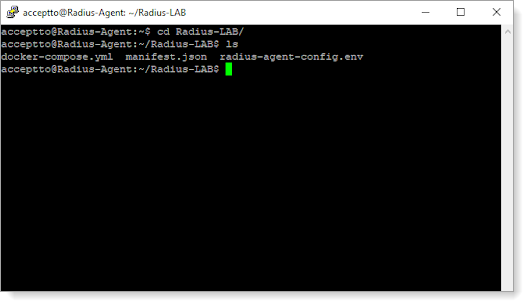
Open the radius-agent-config.env file with an editor.
The file is located in the installed directory of RADIUS Agent. RADIUS clients are configured in this setting.
-
At the end of the radius-agent-config.env file, set the following configuration for the ARA_CLIENTS attribute:
NoteThe values should be separated by semicolons (;).
ARA_CLIENTS = <An optional name for your Okta>; <Internal IP address of your Okta>; <a shared secret>For example, set:
ARA_CLIENTS = Okta;203.0.113.51/32;testing12345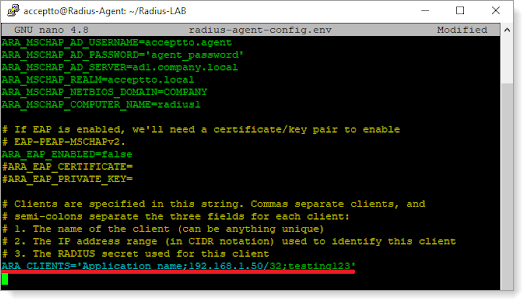
-
Save the file.
-
Run the following command to apply the changes:
docker-compose down && docker-compose up -d
Okta configuration
-
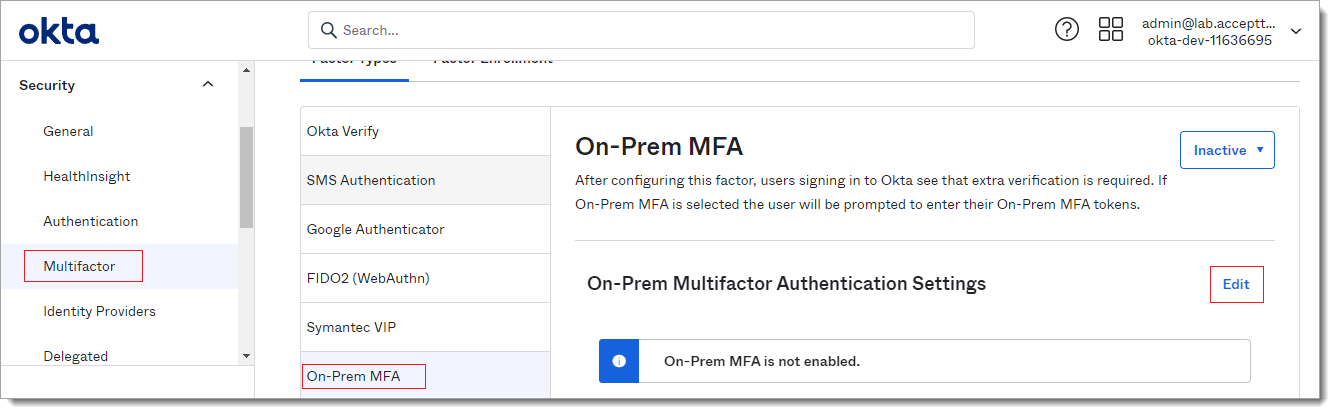
Log in to your Okta organization URL with an administrative account. Then, go to the Security tab and select Multifactor.
-
Go to On-Prem MFA > Edit and click Enable ON-Prem MFA.
-
In the On-Prem Multifactor Authentication Settings section, set the following configurations then click Add New Agent.
Provider Name Optional. Enter a unique name. For example, Workforce Authority MFA, Provider username format Set to Okta username prefix. Hostname Enter the hostname or IP address of the Workforce Authority RADIUS Agent Authentication port Enter the port configured for RADIUS in Workforce Authority RADIUS. The default is 1812. Shared Secret Enter the RADIUS shared key in Workforce Authority RADIUS Agent 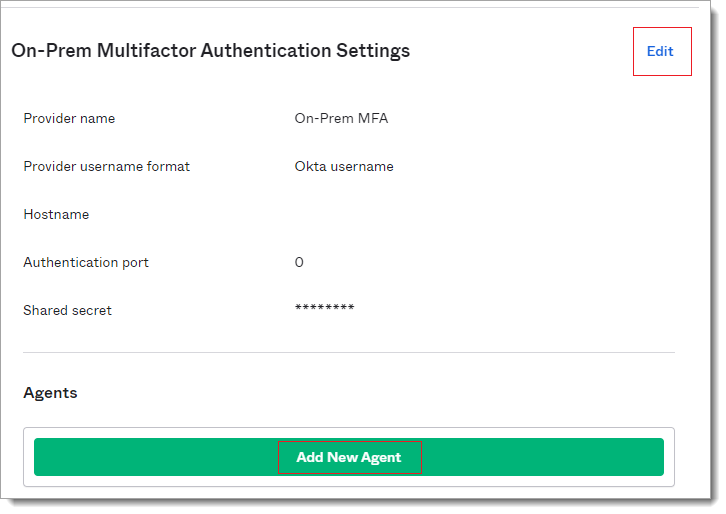
-
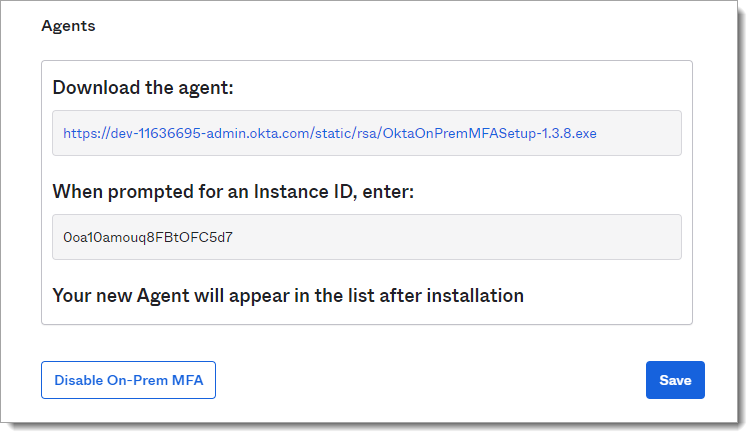
Download the Agent and copy your Instance ID number.
-
Click Save.
Okta Agent installation
-
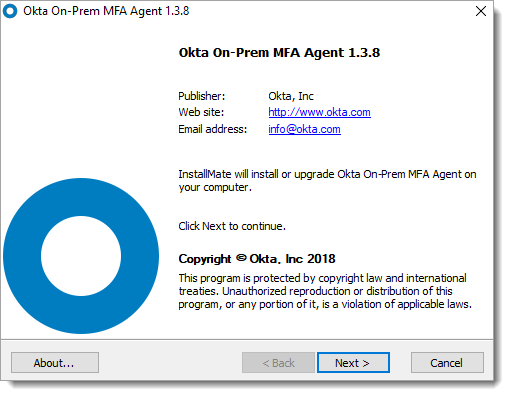
Run the agent you downloaded earlier on a machine that can communicate with Workforce Authority RADIUS Agent through RADIUS protocol. Click Next.
-
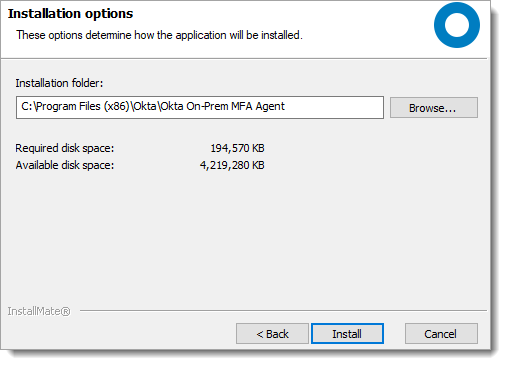
Set the Installation Folder.
-
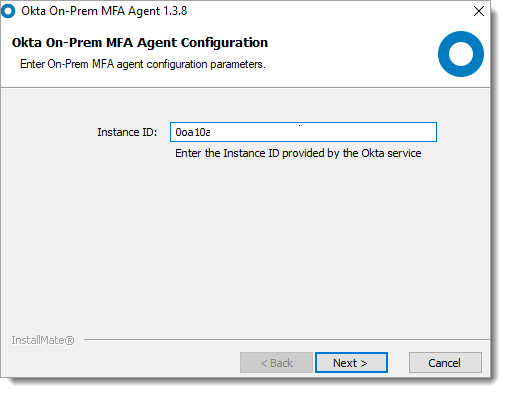
Enter the Instance ID number you got earlier from Okta and click Next.
-
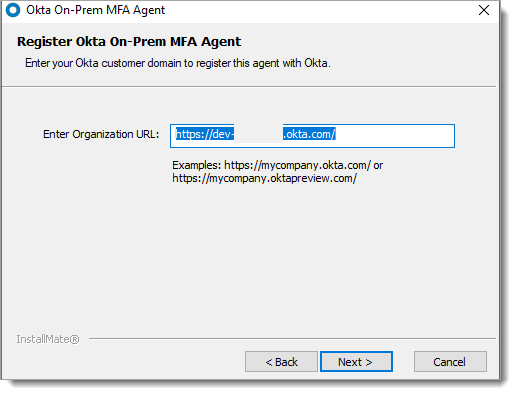
Enter your Okta Organization URL and click Next.
-
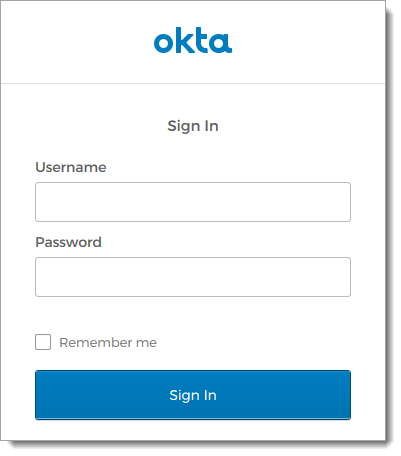
You will be redirected to your Okta instance and need to sign in with your credentials.
-
Select Allow Access.
Okta Groups and Policy configuration
-
Log in to your Okta organization URL with an administrative account. Then, go to the Directory tab and select Groups. Add users to the group that that you want to authenticate with Workforce Authority MFA.

-
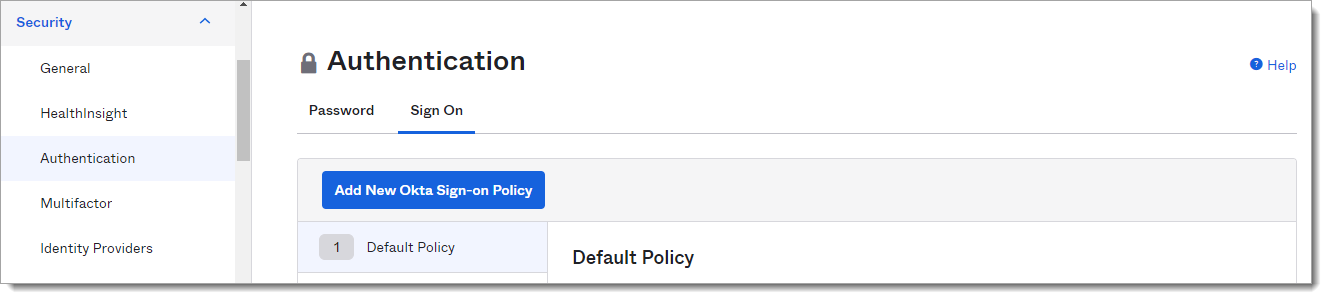
Go to Security and Authentication. Then, select the Sign On tab and click Add New Okta Sign-On Policy.
-
In the Add Policy section, set the following:
Policy Name Enter a unique name. For example, Workforce Authority MFA Assign to Groups Enter the group containing your MFA users. 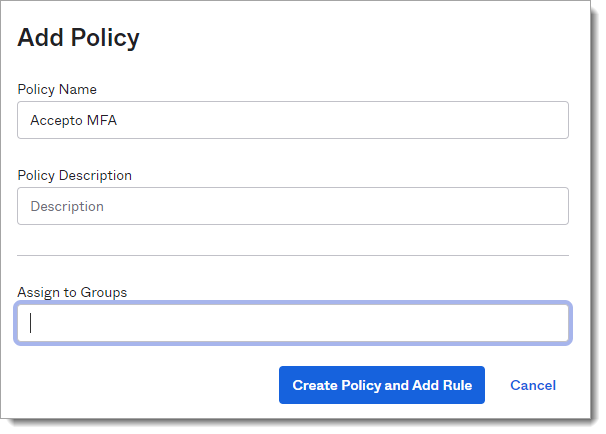
-
Click Create Policy and Add Rule.
-
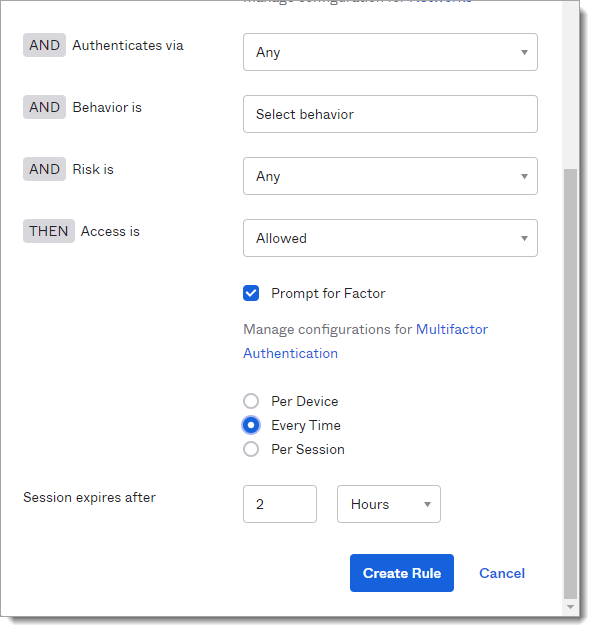
In the Add Rule section, give the rule a name and set up its criteria based on your requirements.
-
Click Create Rule.
Test your application integration
-
Sign in to your Okta organization URL with the credentials needed to pass Workforce Authority MFA authentication.
-
The Set up multi factor authentication window appears. Select Workforce Authority MFA and continue with the proper credentials.
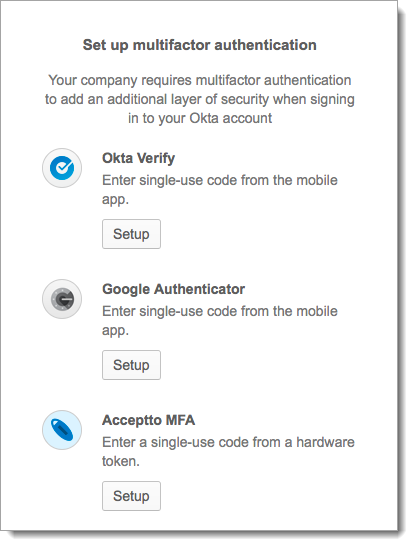
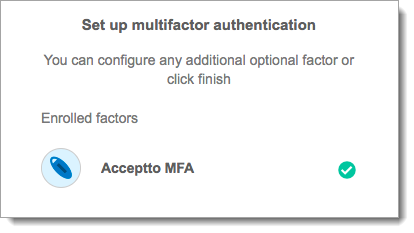
You will get a push notification on your Workforce Authority Mobile app. Accept it and finish the setup.
-
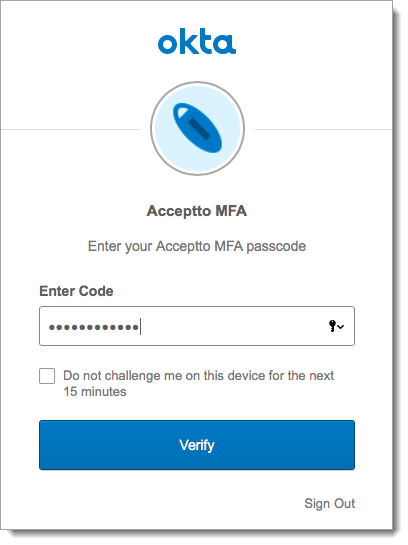
At the next login, you will be redirected to the Workforce Authority MFA window as the second factor of authentication. After providing your passcode (your Active Directory password), you’ll receive a push notification on your Workforce Authority Mobile application to authorize access to your Okta dashboard.
Support
If you have questions or need assistance, contact SecureAuth Support.
Sales
Want to learn more about our MFA solutions? Contact our Professional Services for a demo today.
Disclaimer
All product names, trademarks, and registered trademarks are the property of their respective owners.
All company, product, and service names used in this document are for identification purposes only. The use of these names, trademarks, and brands do not constitute an endorsement by the SecureAuth Corporation.
Okta is either registered trademarks or trademarks of Okta, Inc. and/or one or more of its subsidiaries in the United States and/or other countries.
Microsoft and 'Active Directory' are either registered trademarks or trademarks of Microsoft and/or one or more of its subsidiaries in the United States and/or other countries.