OpenConnect RADIUS integration
Multi-Factor Authentication (MFA) is an extra layer of security used when logging into websites or apps. Individuals are authenticated through more than one required security and validation procedure that only they know or have access to.
Remote Authentication Dial-In User Service (RADIUS) is a protocol commonly used to authenticate, authorize, and account for user access and actions.
OpenConnect is an open-source software application for connecting to virtual private networks (VPN), which implement secure point-to-point connections.
Workforce Authority offers a simple solution for adding MFA to OpenConnect VPN via its RADIUS solution. This step-by-step integration instruction illustrates how to configure the OpenConnect VPN server and Workforce Authority RADIUS MFA authentication solution.
Prerequisites
-
Workforce Authority RADIUS Agent that is configured and connected to your user directory. For example, Microsoft Active Directory (AD).
For more information, see the Workforce Authority RADIUS Agent deployment guide.
-
User account with administrative privileges on an OpenConnect server.
Workforce Authority RADIUS Agent configuration
Follow these steps to configure the Workforce Authority RADIUS Agent.
-
Log in to the Workforce Authority RADIUS Agent as an administrator.
-
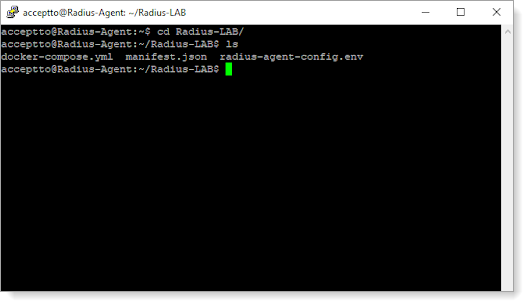
Open the radius-agent-config.env file with an editor.
The file is located in the installed directory of RADIUS Agent. RADIUS clients are configured in this setting.
-
At the end of the radius-agent-config.env file, set the following configuration for the ARA_CLIENTS attribute:
NoteThe values should be separated by semicolons (;).
ARA_CLIENTS=<An optional name for your OpenCo>;<Internal IP address of your OpenConnect>;<a shared secret>For example, set:
ARA_CLIENTS=OpenConnect;203.0.113.50/32;testing12345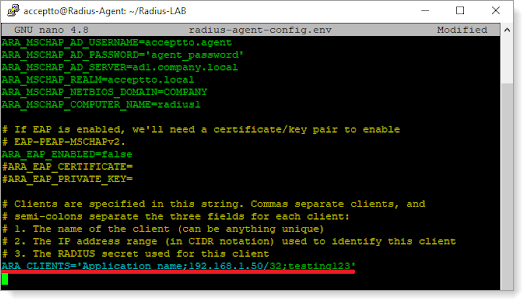
-
Save the file.
-
Run the following command to apply the changes:
docker-compose down && docker-compose up -d
OpenConnect server configuration
In this section, you will configure OpenConnect as a service provider (SP).
-
Log in to OCSERV server with an administrative privilege.
-
Open ocserv.conf with a text editor.
sudo nano /etc/ocserv/ocserv.conf -
Comment all lines starting with "auth =". It should look like this:
#auth = "pam" #auth = "pam[gid-min=1000]" #auth = "plain[passwd=./ocserv.passwd]" #auth = "certificate" #auth = "radius[config=/etc/radiusclient/radiusclient.conf,groupconfig=true]" -
Add the following line:
auth = "radius [config=/usr/local/etc/radcli/radiusclient.conf,groupconfig=true]" -
If you need RADIUS accounting, in the Accounting methods available section, add the following line:
acct = "radius [config=/usr/local/etc/radcli/radiusclient.conf,groupconfig=true]" -
Save and exit.
-
Run the following command for the changes to take effect.
sudo systemctl restart ocserv -
Move to radcli etc folder and open radiusclient.conf with a text editor.
nano radiusclient.conf -
Configure RADIUS settings according to your environment.
nas-identifier "Enter name of your OCSERV" authserver "Enter Workforce Authority RADIUS Agent server IP" servers /etc/radcli/servers dictionary /etc/radcli/dictionary default_realm radius_timeout "60" -
Save and exit.
-
Open servers file with text editor.
nano servers -
Enter the Workforce Authority RADIUS Agent and secret like the following:
203.0.113.55 testing 123 -
Save and exit.
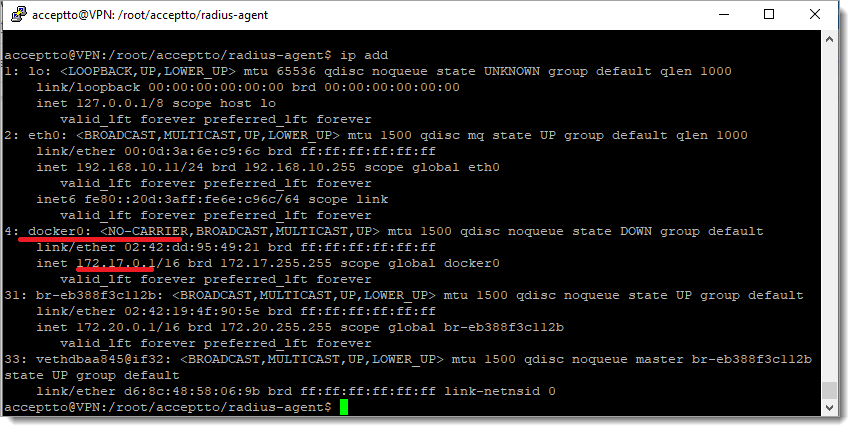
NoteIf you installed Workforce Authority RADIUS Agent and OCSERV on the same server, in the servers file you must enter the docker IP address of Workforce Authority RADIUS Agent. You can find the IP address with a command like the one in the screenshot below.
Test your application integration
-
On the OpenConnect client, enter the OCSERV server address and enter your username and password.
-
The Workforce Authority Mobile app receives a push notification for your approval to log in to the VPN.
Support
If you have questions or need assistance, contact SecureAuth Support.
Sales
Want to learn more about our MFA solutions? Contact our Professional Services for a demo today.
Disclaimer
All product names, trademarks, and registered trademarks are the property of their respective owners.
All company, product, and service names used in this document are for identification purposes only. The use of these names, trademarks, and brands do not constitute an endorsement by the SecureAuth Corporation.