PingFederate IdP factor MFA integration
Workforce Authority integrates with PingFederate to enable increased security with Workforce Authority's intelligent Multi-factor Authentication. This integration uses PingFederate's IdP adapter feature to enable Workforce Authority intelligent MFA. This allows administrators to configure their PingFederate SSO applications to require Workforce Authority's Smart MFA before authenticating users.
Prerequisites
-
Configured Workforce Authority instance and user account with administrative privileges for Workforce Authority.
-
User account with administrative privileges for the PingFederate admin panel.
-
Workforce Authority SAML metadata XML file for your account.
-
Workforce Authority PingFederate IdP Adapter plugin
Install the Workforce Authority PingFederate IdP Adapter plugin
-
Download the Workforce Authority PingFederate IdP Adapter plugin JAR file from the Workforce Authority Download Center.
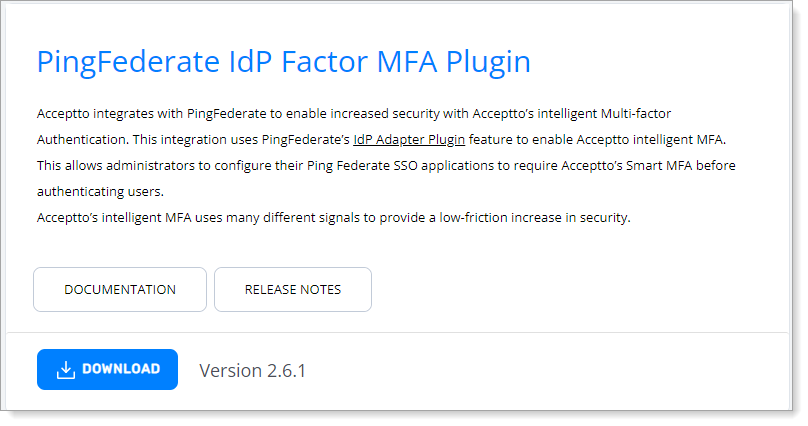
-
Install the JAR file in the deploy directory for your PingFederate instance.
-
Restart the PingFederate server.
Add a new IdP Adapter instance
In the PingFederate admin panel, add a new IdP Adapter instance.
-
Download the SAML metadata and certificate for your organization from Workforce Authority.
Metadata download:
https://sso.acceptto.com/<myorganization>/saml/download/metadataView metadata:
https://sso.acceptto.com/<myorganization>/saml/metadataCertificate download:
https://sso.acceptto.com/<myorganization>/saml/download/cert -
Log in to the PingFederate admin panel..
-
Select Authentication > IdP Adapters > Create New Instance.
-
In the Type section, set the following:
Instance Name Enter a unique name. For example, Workforce Authority. Instance Id Enter a unique ID. For example, mfa. Type Set to Workforce Authority IdP Adapter. Parent Instance Set to None. 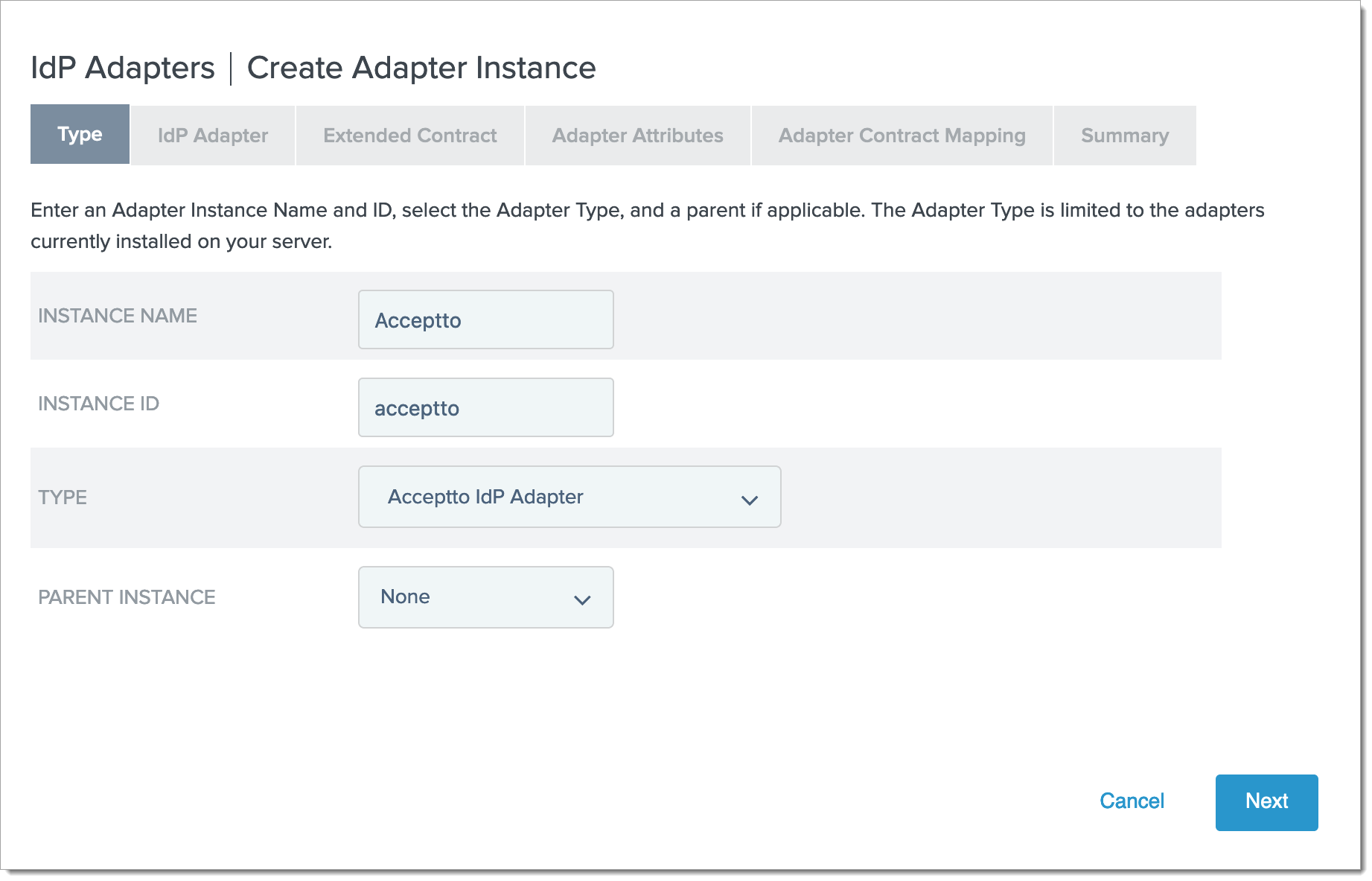
-
Click Next.
-
In the IdP Adapter section, set the following:
Application Issuer ID Enter a unique ID. For example, PingFederate Workforce Authority Plugin. Application Metadata File Upload the Workforce Authority metadata file downloaded in Step 1. SP Certificate Select an existing certificate or click Manage Signing Certificates to create a new one. 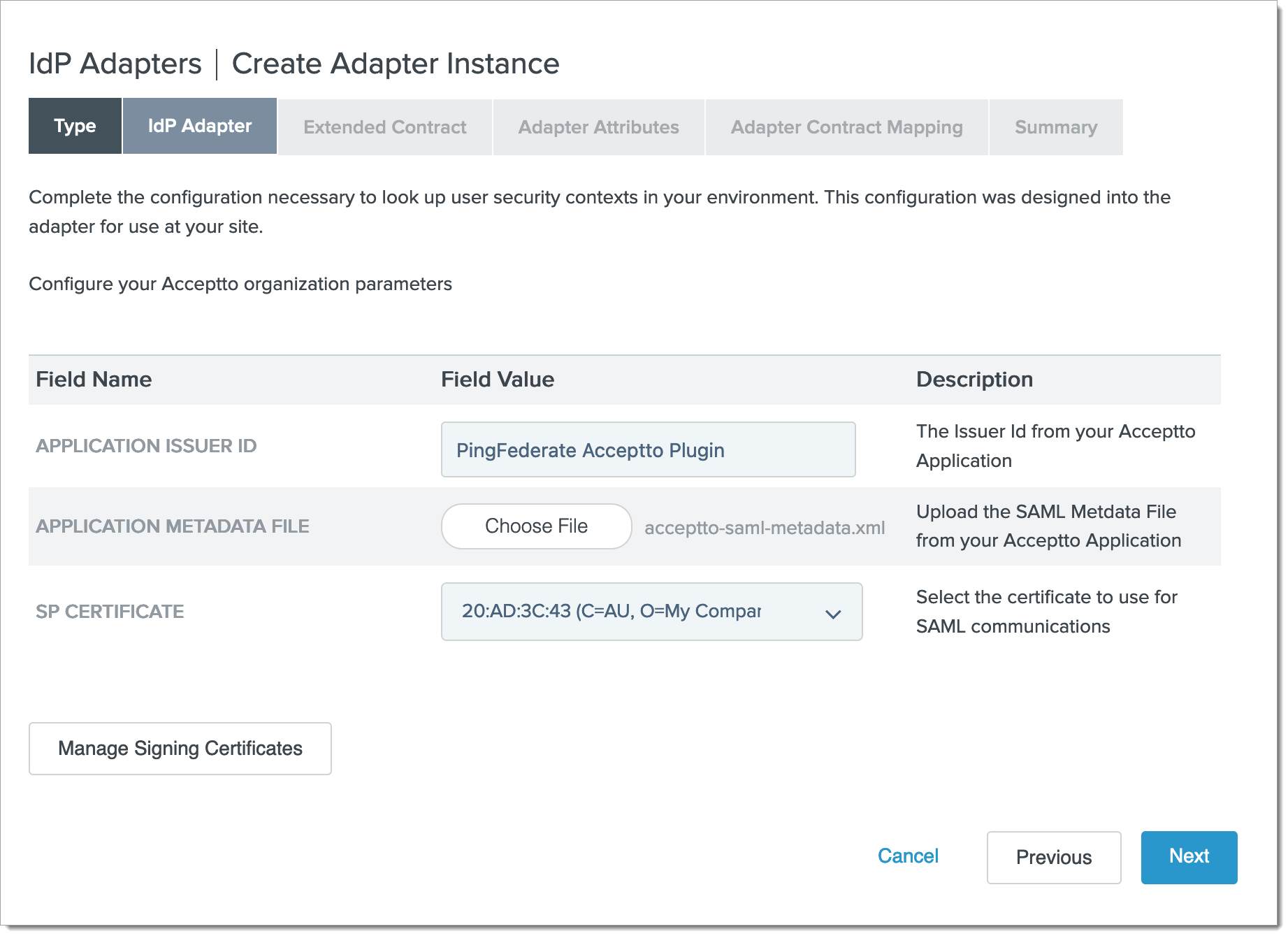
-
Click Next.
-
In the Extended Contract section, click Next.
-
In the Adapter Attributes section, set the following:
Unique User Key Attribute Set to email. email Select the Pseudonym check box. 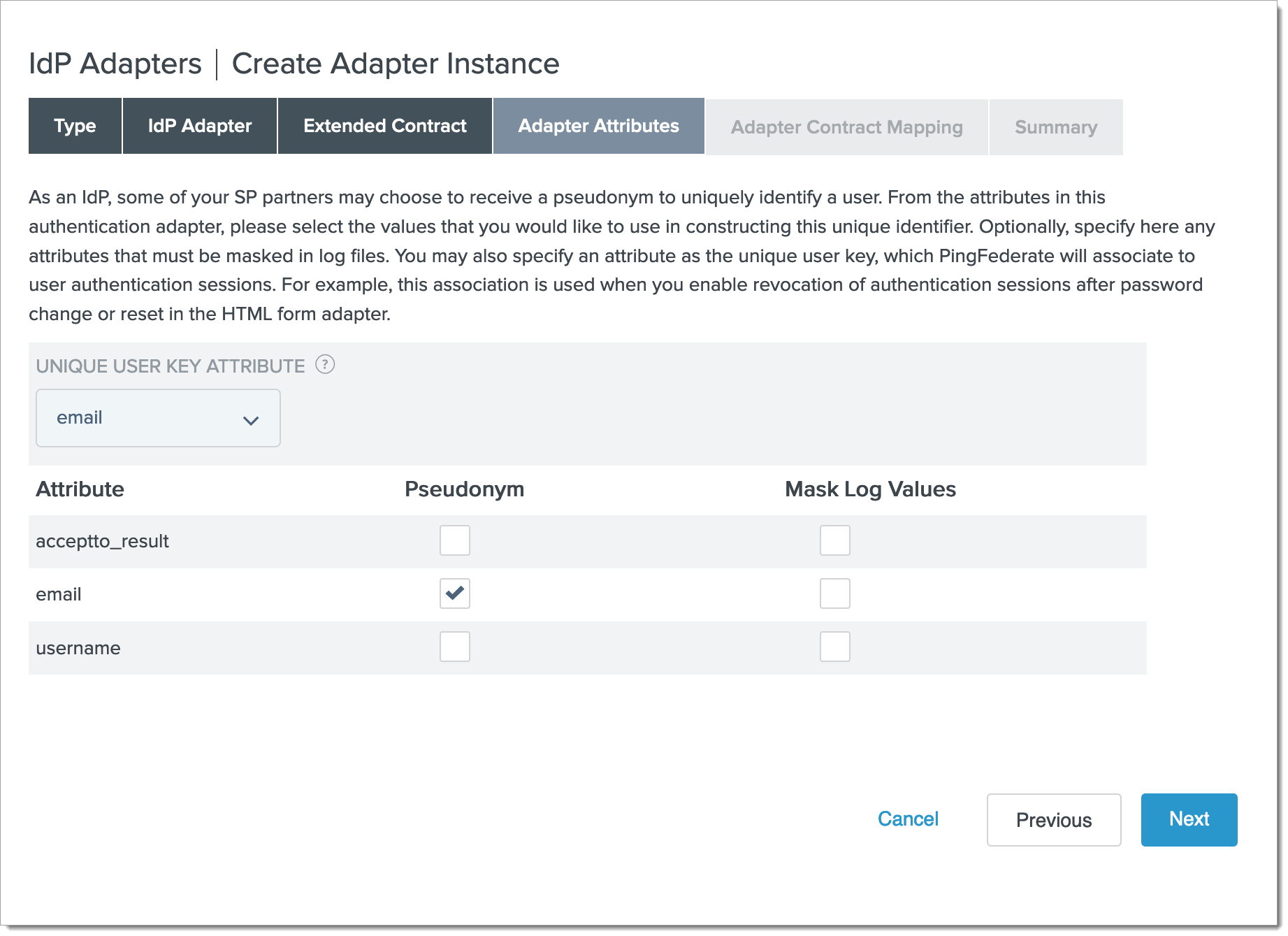
-
Click Next.
-
Click Configure Adapter Contract and do the following:
-
In the Attribute sources & User Lookup section, click Next.
-
In the Adapter Contract Fulfillment section, set the following:
arculix_result Set to Adapter. email Set to Adapter. username Set to Adapter. 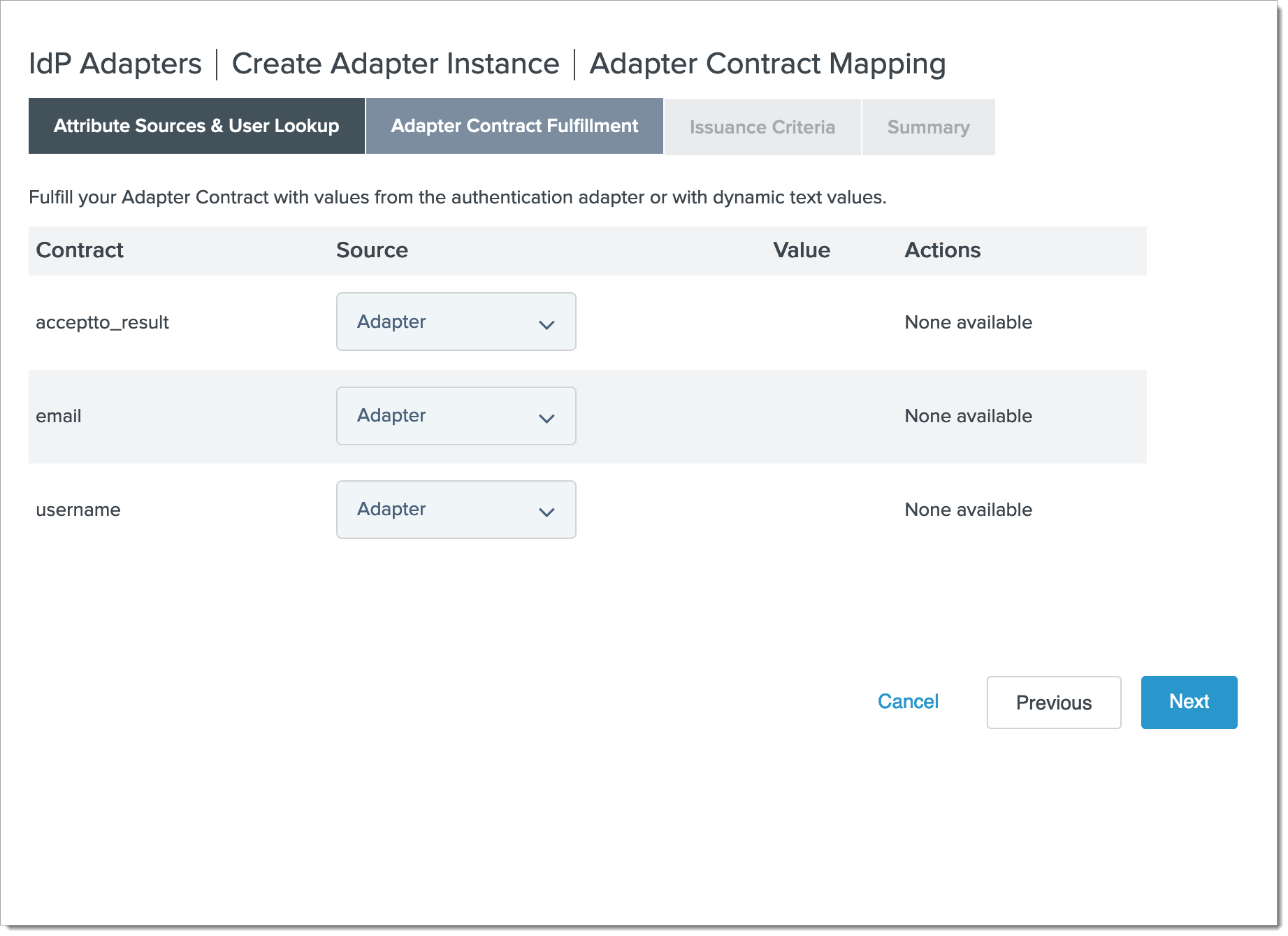
-
Click Next.
-
In the Issuance Criteria section, click Next.
-
Click Done.
-
-
Click Next.
-
Click Save.
Add chained adapter
In order to enable Workforce Authority's MFA after initial authentication, we use a chained adapter.
-
Select Authentication > IdP Adapters > Create New Instance.
-
In the Type section, set the following:
Instance Name Enter a unique name. For example, Chained Workforce Authority. Instance Id Enter a unique ID. For example, chained. Type Set to Composite Adapter. Parent Instance Set to None. 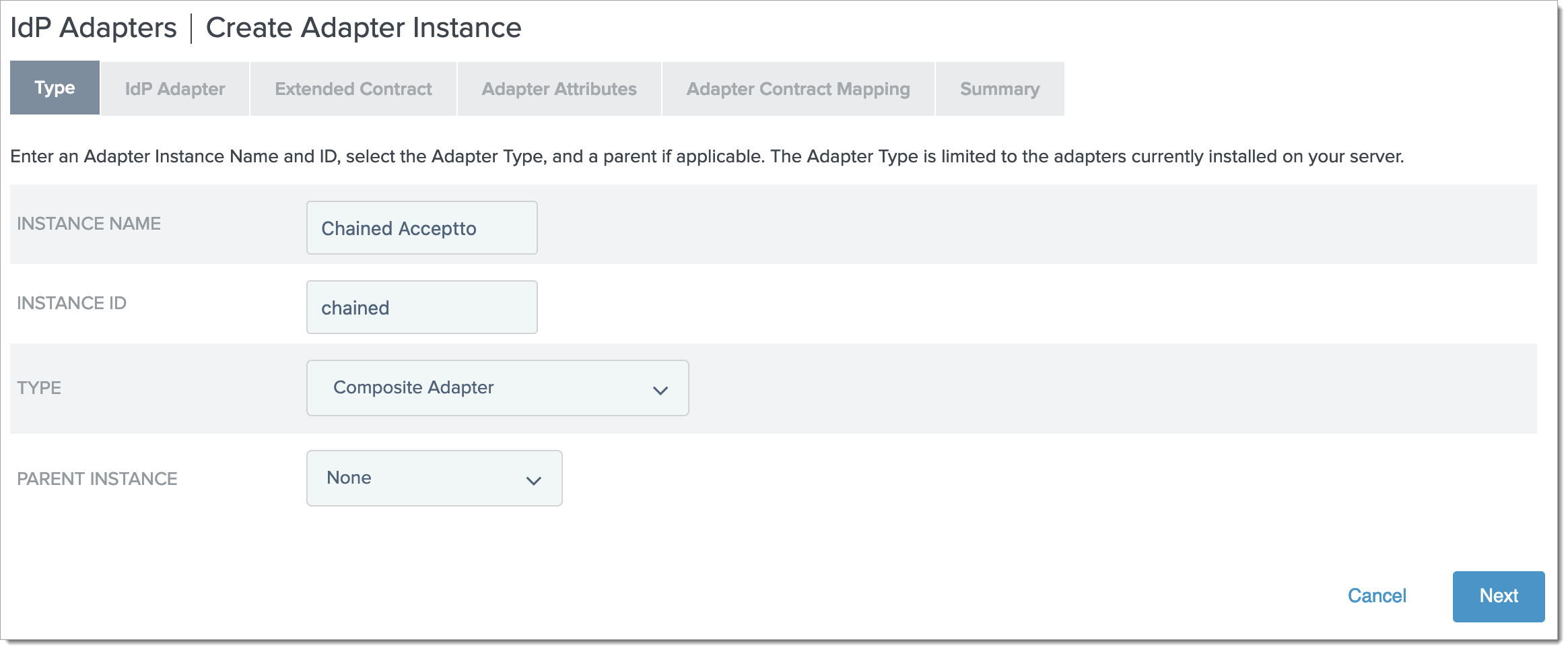
-
Click Next.
-
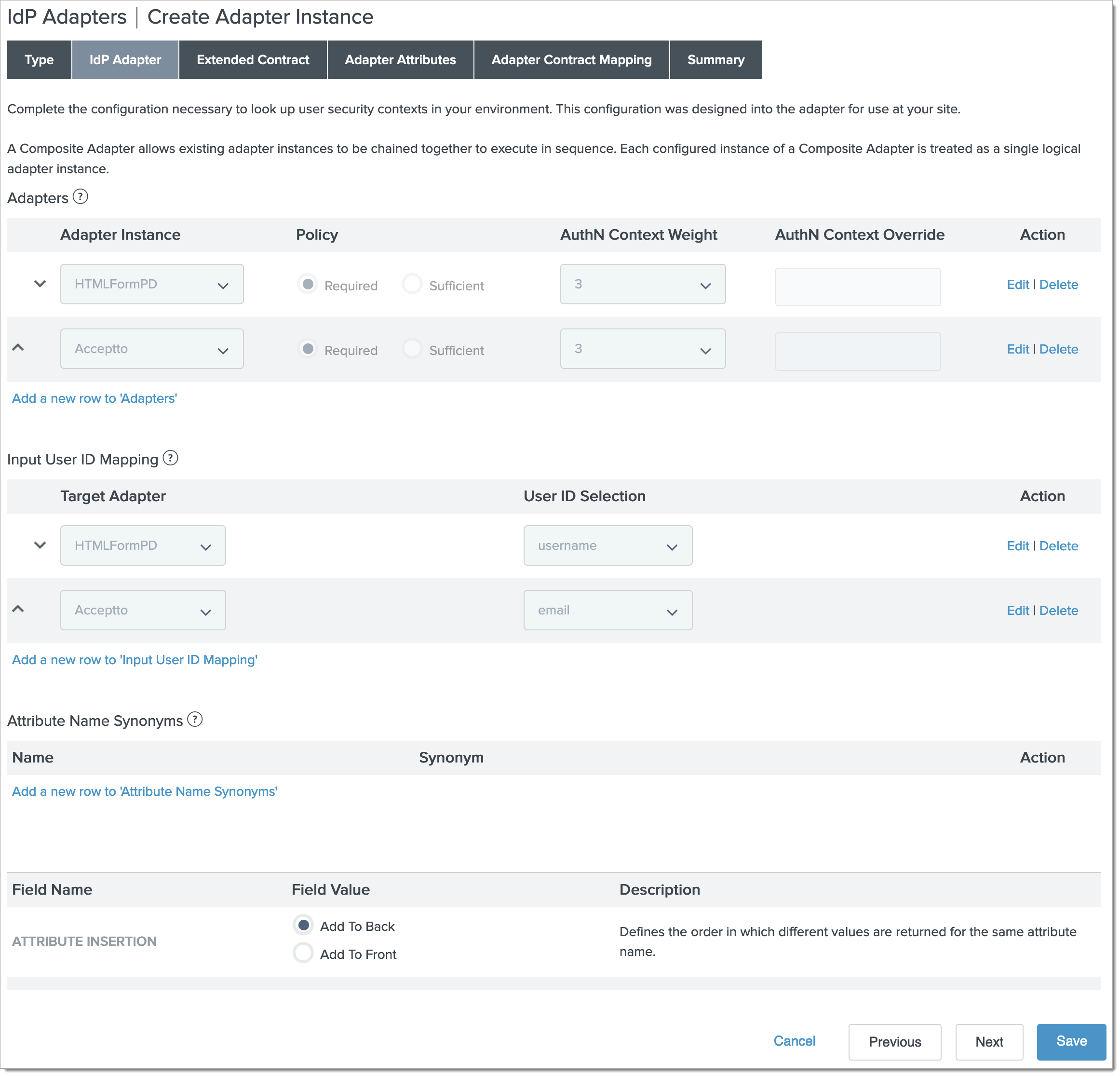
In the IdP Adapter > Adapters section, do the following:
-
Click the Add a new row to 'Adapters' link.
-
Set Adapter Instance to HTMLFormPD (or your primary authentication adapter).
-
Click Update.
-
Click the Add a new row to 'Adapters' link.
-
Set Adapter Instance to your adapter instance. For example, Workforce Authority.
-
Click Update.
-
-
In the IdP Adapter > Input User ID Mapping section, do the following:
-
Click the Add a new row to 'Input User ID Mapping' link and set the following:
Target Adapter Set to HTMLFormPD (or your primary authentication adapter). User ID Selection Set to username. -
Click Update.
-
Click the Add a new row to 'Input User ID Mapping' link and set the following:
Target Adapter Set to to your adapter instance. For example, Workforce Authority. User ID Selection Set to email. -
Click Update.
-
-
Click Next.
-
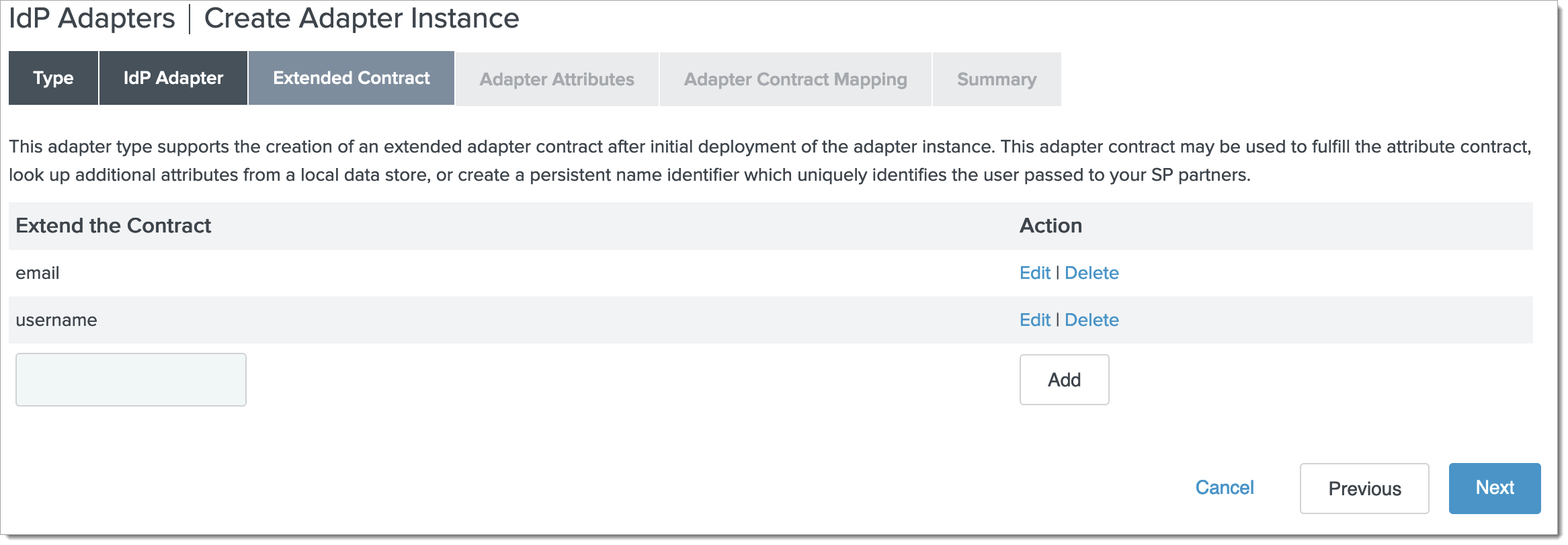
In the Extended Contract section, do the following:
-
Under Extend the Contract, enter username.
-
Click Add.
-
Under Extend the Contract,. enter email.
-
Click Add.
-
-
Click Next.
-
In the Adapter Attributes section, set the following:
Unique User Key Attribute Set to email. email Select the Pseudonym check box. -
Click Next.
-
Click Configure Adapter Contract and do the following:
-
In the Attribute sources & User Lookup section, click Next.
-
In the Adapter Contract Fulfillment section, set the following:
arculix_result Set to Adapter. email Set to Adapter. username Set to Adapter. -
Click Next.
-
In the Issuance Criteria section, click Next.
-
Click Done.
-
-
Click Next.
-
Click Save.
Add application to Workforce Authority
Add PingFederate IdP Factor as a service provider in the Workforce Authority admin panel. Some required information can be found in PingFederate.
-
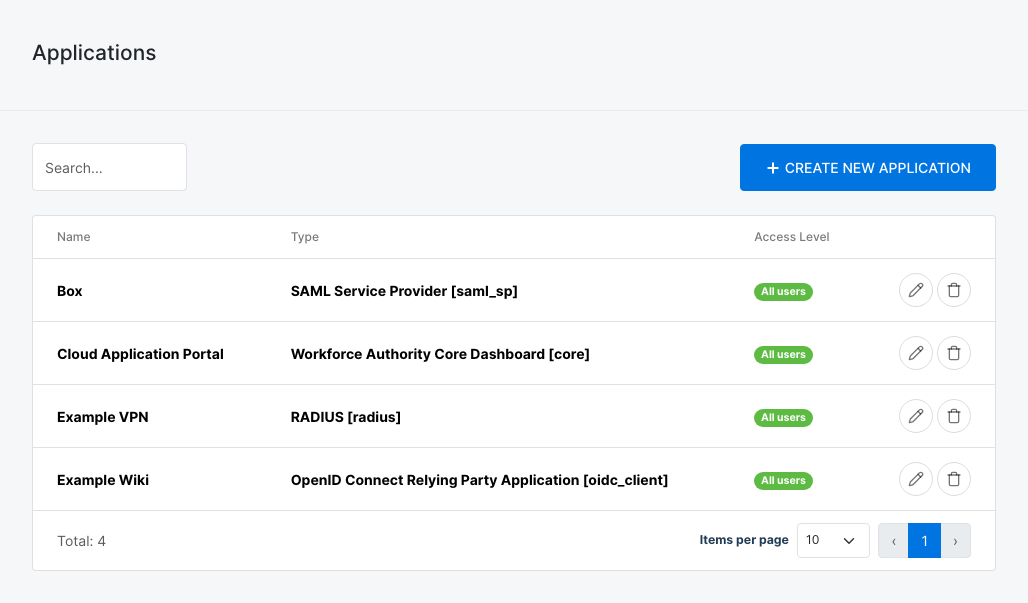
Log in to Workforce Authority with an administrative account and go to Applications.
-
Click Create New Application.
-
In the New Application form, on the General tab, set the following configurations:
Name Set the name of the application. This is the name to display for push notifications, in the Admin panel, Application portal, and audit logs. For example, PingFederate. Type Set to SAML Application. Template Set to SAML Service Provider [saml_sp]. Out of Band Methods Select the allowed methods end users can choose to approve MFA requests. For example, Workforce Authority Mobile app (push notifications), SMS, or Security Key. Message for MFA Requests Optional. Type a message displayed to end users when sending an MFA request via push notification, SMS, or email. 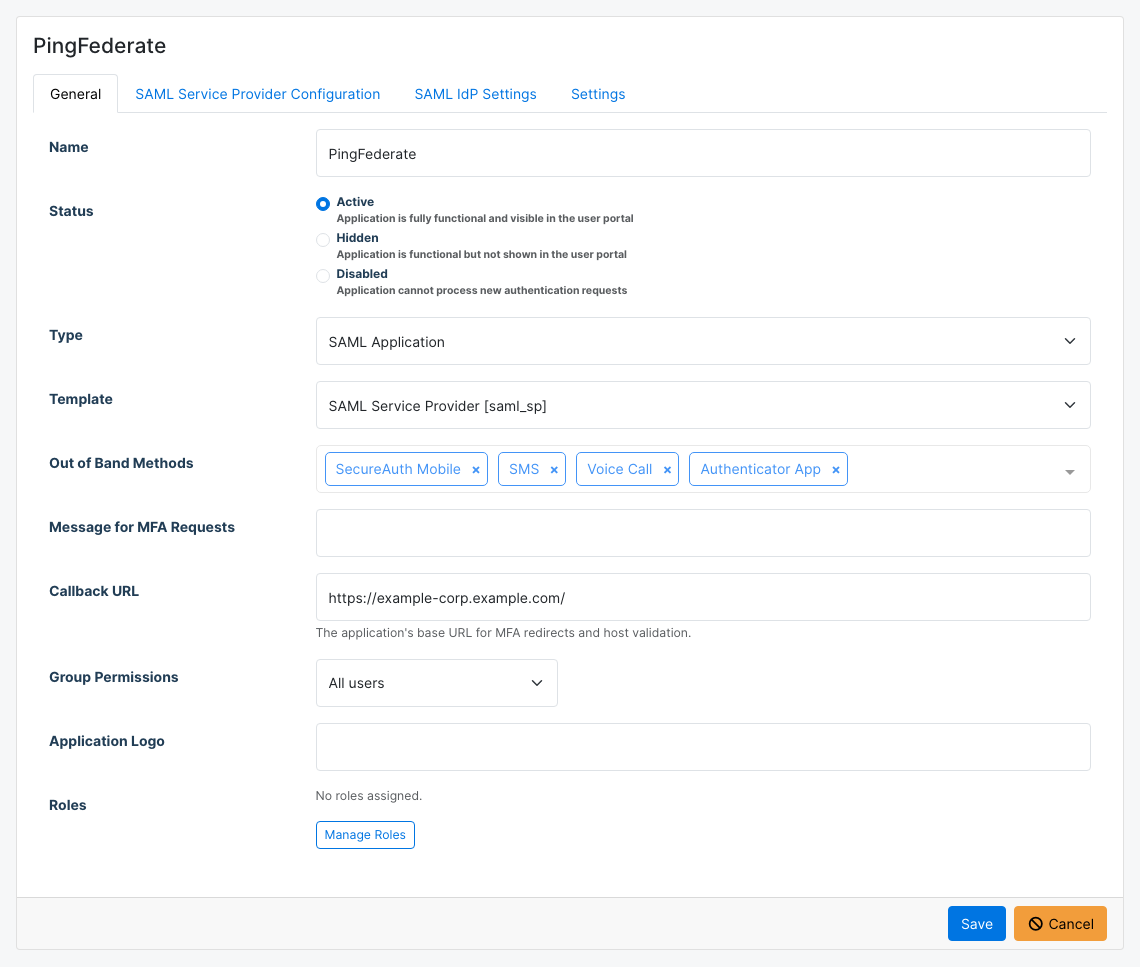
-
Select the SAML Service Provider Configuration tab, and set the following configurations:
Upstream IdP Select the check box. Issuer or Entity ID Enter the Application Issuer ID provided by PingFederate. Log in URL Enter the URL provided by PingFederate. Metadata URL Leave blank. Username Field for Upstream IdP Set to mail. ACS URL Leave blank. Certificate Enter the X.509 public certificate provided by PingFederate. 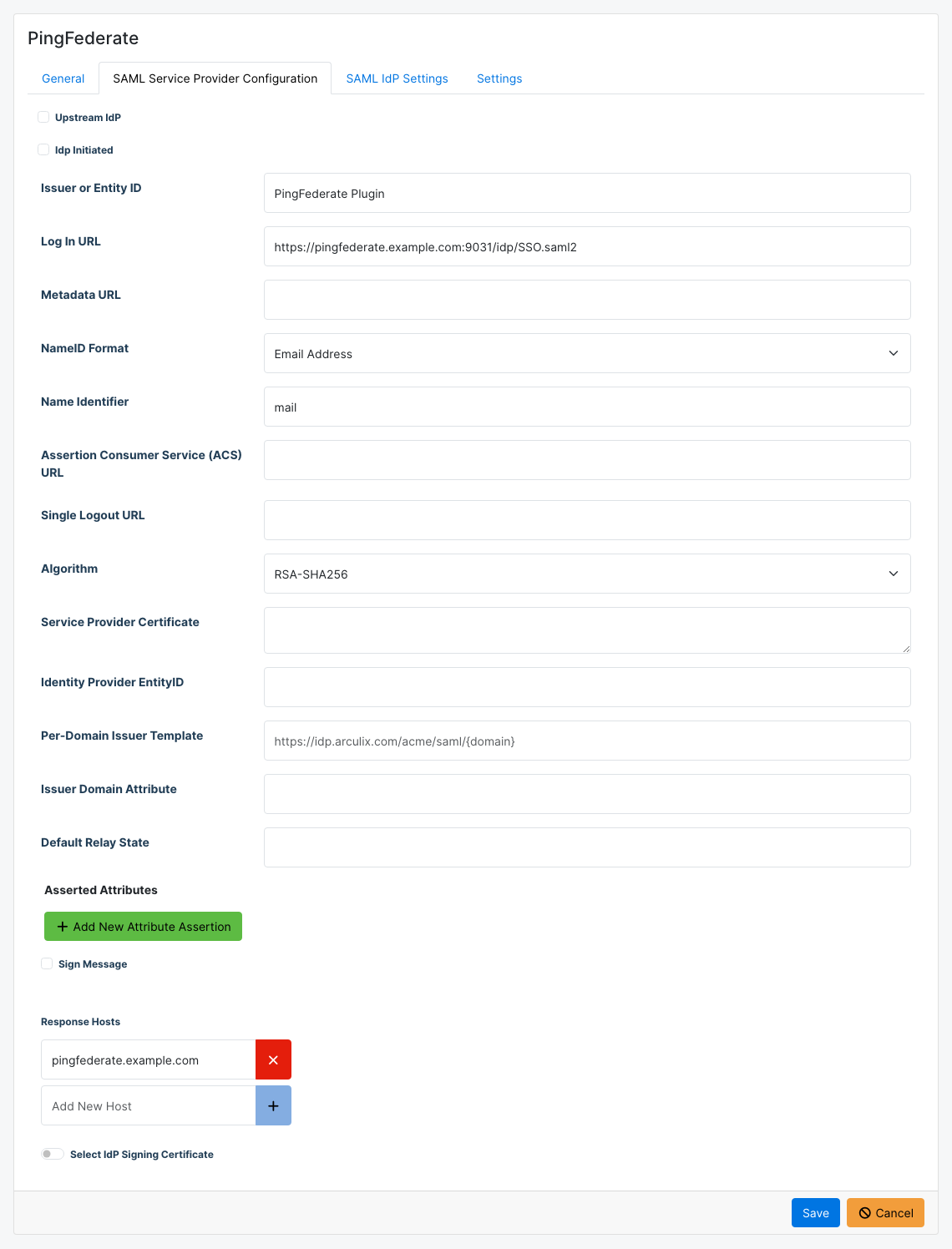
-
Save your changes.
User Experience
-
After the admin has enabled IdP factor MFA, the user will be prompted to add this custom factor on their next login via PingFederate.
-
The user then selects the IdP Factor option and is taken to a QR pairing screen.
-
They can then download the Workforce Authority Mobile application from Google Play Store or Apple App Store.
-
The user opens the mobile application and is prompted to scan the displayed QR code.
-
After scanning the QR code, the user's device is paired.
-
On subsequent authentication attempts, the user will be asked to confirm the IdP factor MFA and be taken to the select MFA option by PingFederate.
-
Upon approval of MFA, the user will be authenticated to their application.