LDAP Agent deployment guide
The Workforce Authority LDAP Agent helps connect an enterprise's Active Directory service with Workforce Authority and other services. It enables authentication and sharing user details for single sign-on (SSO) and more.
You can install the Workforce Authority LDAP Agent in an on-prem server or a cloud environment. Just make sure the Workforce Authority LDAP Agent can connect to the Active Directory in your organization.
Server requirements
Any virtualization platform that is capable of hosting Linux or Windows servers should be suitable, including on-premises solutions such as VMware ESXi and Microsoft Hyper-V, and cloud environments such as Amazon EC2 and Microsoft Azure.
Number of instances
We recommend you provision two or more instances to provide high availability. The LDAP Agent is a stateless service, so there is no limitation for horizontal scaling. However, the system can work with only one instance of the agent if high availability is not a hard requirement.
Supported operating systems
You can install the Workforce Authority LDAP Agent on these operating systems:
-
Microsoft Windows Server 2016 or later, domain-joined
-
Red Hat Enterprise Linux 8 or 9
-
Rocky Linux 8 or 9
-
Ubuntu 18.04 LTS or later
For Active Directory environments, install the agent on Windows. A domain-joined Windows Server lets the agent authenticate to the directory as its own service account, so no directory password is stored in the agent's configuration. See Authentication methods.
Hardware
The minimum hardware requirements for deploying the LDAP Agent are:
| Linux | Windows | |
|---|---|---|
| CPU | 2 CPU cores | 2 CPU cores |
| RAM | 2 GB | 4 GB |
| Storage | 16 GB SSD | 32 GB SSD |
Requirements
Network requirements
All communication with the LDAP Agent is over HTTPS. There is an additional layer of security that provides authenticity above and beyond the HTTPS certificates by signing all communication.
Outbound rules
The agent must reach the Switchboard service for the cloud environment your tenant runs in, over WSS (WebSocket Secure) on port 443:
| Environment | Switchboard host | Base API host |
|---|---|---|
| Main Workforce Authority environment | switchboard.acceptto.com |
mfa.acceptto.com |
| SA Connect US | switchboard.services.us.connect.secureauth.com |
workforce.services.us.connect.secureauth.com |
| SA Connect EU | switchboard.services.eu.connect.secureauth.com |
workforce.services.eu.connect.secureauth.com |
Set the environment with SwitchboardURL (or ALA_SWITCHBOARD_URL). If you enable directory synchronization, its endpoints must point at the same environment — see Active Directory synchronization.
Additionally, your operating system or deployment environment may require external services to be reachable to install components and receive software updates. Please consult your operating system vendor for details.
If you choose to use the Docker-based deployment method, the following outbound access will be needed to install and manage Docker:
| Service | Protocol | Port Numbers | Host |
|---|---|---|---|
| Docker updates | TCP | 80, 443 | download.docker.com |
| Docker Compose download | TCP | 80, 443 | github.com |
Internal network rules
The following internal services provided by the customer must be reachable by the agent:
| Service | Protocol | Port Numbers | Service |
|---|---|---|---|
| LDAPS | TCP | 636 | Secure LDAP service |
| LDAP | TCP | 389 | Non-secure LDAP service |
| DNS | UDP | 53 | DNS server |
Use of non-secure LDAP isn't recommended, but is available for rare situations where the customer can guarantee protection of the data in transit by other means (e.g. physical security controls)
User directory (AD) requirements
The Workforce Authority LDAP Agent communicates with the user directory using the LDAP protocol. Before deployment, provision a service account for the agent. What that account needs depends on which features you enable:
- Directory queries. Read access to the directory.
- Password reset. Permission to reset passwords. This can be the same account, or a separate one.
- Directory synchronization. The Replicating Directory Changes permission on the domain partition.
Authentication methods
The agent binds to Active Directory one of two ways:
| Method | Platform | Credentials in configuration |
|---|---|---|
| Kerberos/SSPI | Windows only | None — the agent authenticates as its Windows service account |
| SIMPLE | All platforms | Bind user and password stored in the agent's configuration |
On Windows, leave the bind user and password empty and the agent authenticates with Kerberos/SSPI as the account the service runs under. Nothing about the directory account is written to disk, Windows manages the credential, both sides of the connection authenticate each other, and channel binding protects against relay attacks — which Windows Server 2025 and later require. Password reset and synchronization then work with the service account's own permissions, needing no further configuration.
On Linux, Kerberos/SSPI is not available, so a bind user and password are required.
Information to prepare
| Name | Required | Description |
|---|---|---|
| URL | Yes | The LDAP URL to use when performing LDAP queries. The URL must begin with ldap:// or ldaps:// and may include an optional port number to override the defaults of port 389 for ldap and 636 for ldaps. Examples include ldaps://ldap.company.com/ and ldaps://ad1.example.org:5000/ |
| Bind User | On Linux | The user used when binding to the LDAP server. This may be a DN such as CN=John Doe,CN=Users,DC=company,DC=com or, in the case of Active Directory, a name in user@domain format such as johndoe@company.com. Leave empty on Windows to use Kerberos/SSPI. |
| Bind password | On Linux | The password of the user used to bind to the LDAP server. Leave empty on Windows to use Kerberos/SSPI. |
| Base DN | Yes | The Base DN used when performing LDAP queries. All relevant users and groups must be descendants of this DN. Example: DC=company,DC=com. |
| TLS Trusted CAs | No | A list of certificates in PEM format representing trusted certificate authorities (CAs) to be used when verifying the LDAP server's certificate. These could include an enterprise CA used to issue certificates to LDAP servers, or even the certificate of the LDAP server itself. Default: Use the operating system's list of trusted CAs. |
Pre-installation checklist
Please use this checklist to prepare for the installation:
-
The required servers or virtual machines should be provisioned.
-
The required firewall rules are in place.
-
An Active Directory read-only account has been provisioned for the agent.
-
The Active Directory LDAP service is reachable from the LDAP Agent hosts within the network.
-
Optional. If secure LDAP (LDAPS, port 636) is used, a certificate or certificate chain is available which may be used to verify the connection to the server. (See TLS Trusted CAs, above.)
Get LDAP Agent connector information
You will need to copy the Workforce Authority LDAP Agent connector ID and shared secret for the installation.
-
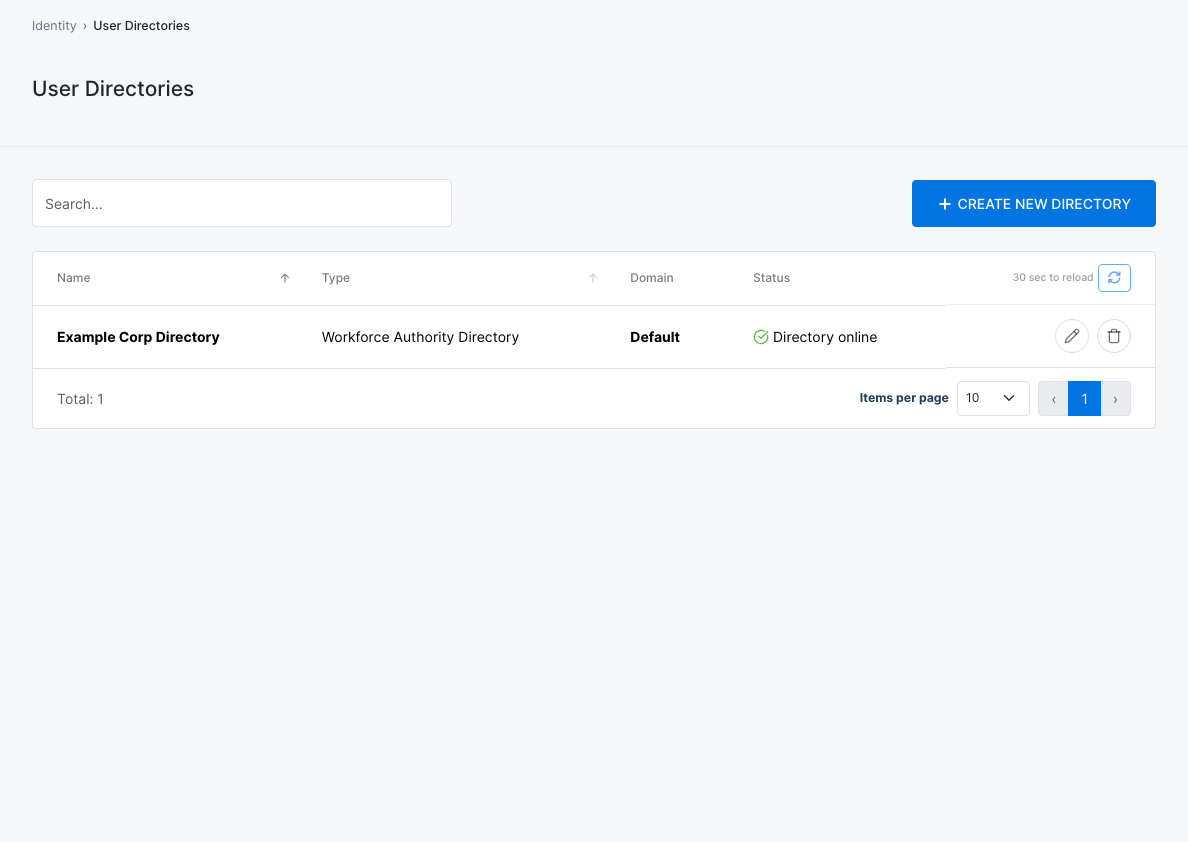
Log in to Workforce Authority with administrative privileges and go to User Directories.
-
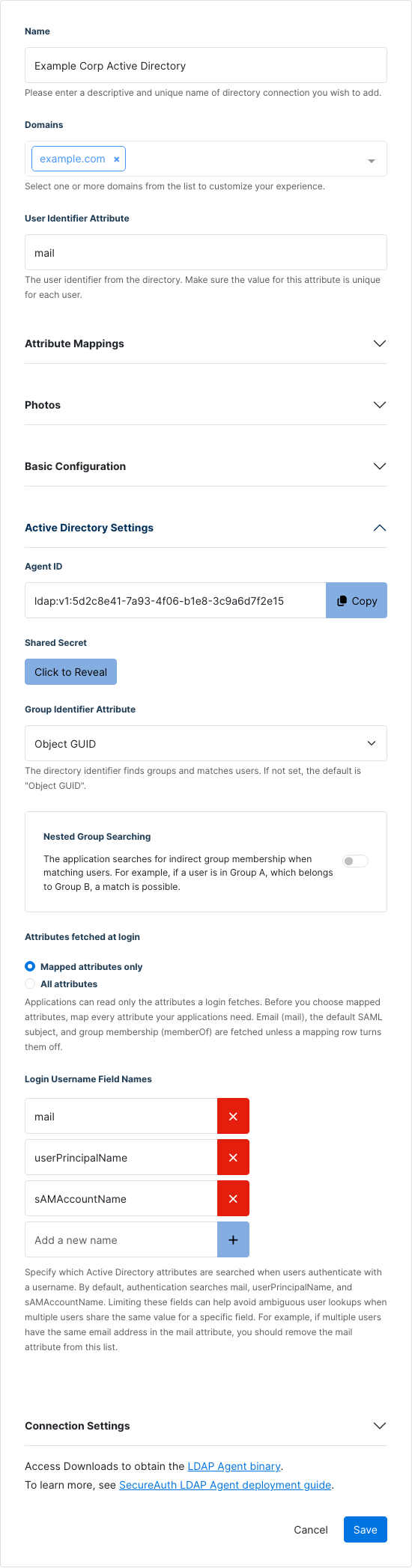
Add or edit a Microsoft Active Directory. On the saved directory, expand Active Directory Settings and copy the Agent ID and Shared Secret.
Installation methods
You can install the LDAP Agent using one of the following methods. A separate package is available for each.
Find the download package in the Downloads section of the admin console, accessible from the left navigation menu.
-
Linux/RPM. Install the LDAP Agent using a standard RPM package for Linux environments.
-
Linux/Docker. Use a Docker image, packaged with supporting installation scripts, for flexible deployment on Docker-supported systems.
-
Windows. A Windows Installer (MSI) package for deploying the LDAP Agent on Windows Server environments.
The following sections describe each installation method in detail.
Linux / RPM package
The LDAP Agent RPM package is named secureauth-ldap-agent-X.Y.Z-1.x86_64.rpm, where X.Y.Z is the version number.
When you install the agent via RPM, it integrates with systemd for service management, including automatic launch at boot and logging through syslog.
By default, agent logs are written to /var/log/messages automatically. Log locations may vary based on your organization's infrastructure.
Installing
The package may be installed using:
rpm -ivh secureauth-ldap-agent-X.Y.Z-1.x86_64.rpm
After installation, the customer should configure the agent using the YAML configuration file in /etc/secureauth/ldap-agent.conf. See the LDAP Agent configuration section below for full details on configuring the LDAP Agent.
If an ldap-agent.env file is present in the /etc/secureauth directory, it will be treated as an environment-based configuration file and used instead of the YAML ldap-agent.conf file. This is only meant to provide backwards compatibility when migrating from a Docker-based deployment to an RPM-based deployment. SecureAuth recommends using the YAML ldap-agent.conf configuration for RPM deployments whenever possible.
After configuration, you can test the agent's connectivity to the LDAP server using the following commands. If you've used the YAML configuration (ldap-agent.conf), run the following command to test your installation:
ldap-agent -config /etc/secureauth/ldap-agent.conf -test
If you have chosen to use the environment-based configuration (ldap-agent.env) instead of ldap-agent.conf, run the following command to test your installation:
( set -a && source /etc/secureauth/ldap-agent.env && ldap-agent -test )
Parentheses are part of the above command -- make sure they are included.
You should see diagnostics output similar to the following:
Using configuration: Config(AgentID=ldap:v1:f6ac662c-0c4f-45b2-8721-13388db62f8e,SharedSecret=✓,
  SwitchboardURL=wss://switchboard.acceptto.com,LogLevel=info,AuthenticationTimeout=5s,
  RequestTimeout=10s,RequestWorkers=500,LDAPURLs=[ldaps://ad1.example.com/],
  LDAPBindUser=abe.lincoln@example.com,LDAPBindPass=*****,LDAPBaseDN=dc=example,dc=com,
  LDAPTLSDisableVerification=false,LDAPTLSTrustedCAs=✓,LDAPTLSServerNames=[])
Healthy: true
LDAP query time: 22 ms
After a successful connectivity test, the agent should be enabled in systemd to arrange for its launch when the server boots:
systemctl enable secureauth-ldap-agent
Then, start the agent:
systemctl start secureauth-ldap-agent
Upgrading
The agent may be upgraded to a newer version by using the -U option of RPM instead of -i:
rpm -Uvh secureauth-ldap-agent-X.Y.Z-1.x86_64.rpm
Removing
The package may be removed using:
rpm -e secureauth-ldap-agent
Any running LDAP Agent instance will be shut down. Any modified configuration file will be renamed and preserved with a .rpmsave extension.
Linux / Docker package
Use the Docker installation method to deploy the LDAP Agent on any Linux system that supports Docker.
Docker 19.3.0 or higher and Docker Compose 1.26 or higher are required. You can use the included install-docker.sh script to install these components if they are not already present.
The Docker package is provided as an archive: ldap-agent-X.Y.Z.tar.xz, where X.Y.Z is the version number. It includes:
-
docker-compose.yml- Configuration file for launching the LDAP Agent container. -
install-docker.sh- Script to install Docker on supported Linux hosts. -
install.sh- Script to install the LDAP Agent. -
ldap-agent-image.tar- Docker image for the LDAP Agent. -
manifest.json- Metadata about this release (informational only, not used during installation).
SecureAuth will provide this archive along with a configuration file customized for your environment.
Installing
To install the Workforce Authority LDAP Agent, first upload the provided ldap-agent-X.Y.Z.tar.xz archive to the server. (Where X.Y.Z, here and elsewhere in the installation instructions, is the version of this release.) On the server, find the archive and extract it using the following command:
tar -xvJ -f ldap-agent-X.Y.Z.tar.xz
Note that the extraction will create an ldap-agent-X.Y.Z directory containing the installation assets. Change to this directory:
cd ldap-agent-X.Y.Z
If this server does not have Docker and Docker Compose installed, they can be installed using the provided helper script:
sudo ./install-docker.sh
(Note the use of sudo, as this step requires root access.)
If this is a new installation, SecureAuth will provide an ldap-agent-config.env configuration file template pre-configured with any credentials needed to pair your agent with Workforce Authority. You should edit this file using an editor of your choice (vi, vim, nano, or whatever editor may be available in your Linux system):
vi ldap-agent-config.env
This configuration file supplies settings in the form of environment variables. See the LDAP Agent configuration section below for full details on configuring the LDAP Agent.
Finally, to install the agent, run the install.sh script from a user account with sufficient privileges to manage Docker:
sudo ./install.sh
Note that sudo is used in the above example to run the script as root, which should always have Docker privileges.
The installation process needs a destination directory where it can store agent assets such as the configuration file. It will suggest a default path, but you can provide an alternate location if desired.
After the LDAP Agent is installed, you can test connectivity from the agent to Active Directory:
-
Change to the installed directory as the
rootuser. -
Execute the following command:
docker-compose exec ldap-agent ./ldap-agent -test
You should see diagnostics output similar to the following:
Using configuration: Config(AgentID=ldap:v1:f6ac662c-0c4f-45b2-8721-13388db62f8e,SharedSecret=✓,
  SwitchboardURL=wss://switchboard.acceptto.com,LogLevel=info,AuthenticationTimeout=5s,
  RequestTimeout=10s,RequestWorkers=500,LDAPURLs=[ldaps://ad1.example.com/],
  LDAPBindUser=abe.lincoln@example.com,LDAPBindPass=*****,LDAPBaseDN=dc=example,dc=com,
  LDAPTLSDisableVerification=false,LDAPTLSTrustedCAs=✓,LDAPTLSServerNames=[])
Healthy: true
LDAP query time: 22 ms
After installation, the extracted contents of the archive are no longer needed and may be removed:
cd ..
rm -rf ldap-agent-X.Y.Z
Upgrading
Upgrading to a newer version of the LDAP Agent works mostly the same as performing a fresh installation: extract the provided archive and run its install.sh script. Note the following minor differences:
-
If an LDAP Agent is currently present on the system, its installation directory will be suggested as the destination for installing the new agent.
-
If the destination directory has an existing configuration file, it will be preserved instead of overwritten.
-
Any currently running agent will be stopped before starting the new agent.
Removing
The LDAP agent may be removed by shutting down the Docker container, then removing the installed files from the system. First, change directory to the installed location, then use Docker Compose to shut down the agent:
cd /root/secureauth/ldap-agent
docker-compose down
You will see output similar to the following:
Stopping ldap-agent ... done
Removing ldap-agent ... done
Removing network ldap-agent_default
After the container is shut down in this way, it will not restart when the system reboots. If the agent shutdown is meant to be temporary, you can run docker-compose up -d in the installation directory at a future time to restart the agent. To remove the agent permanently, simply remove the installation directory entirely.
Windows package
The LDAP Agent for Windows is provided as a Windows Installer package: LDAP-Agent-X.Y.Z.msi, where X.Y.Z is the version number.
Installing
Download the latest version of the Workforce Authority LDAP Agent to a Windows Server that is prepared for installation. This server can be a member server in your Active Directory domain or a domain controller.
-
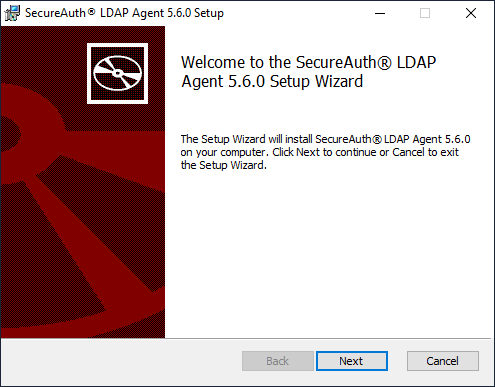
Login to Windows with a user account with administrative privileges, run the downloaded package, and click Next.
-
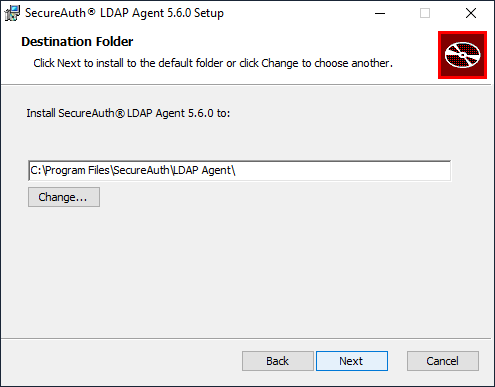
Select your installation folder and click Next.
-
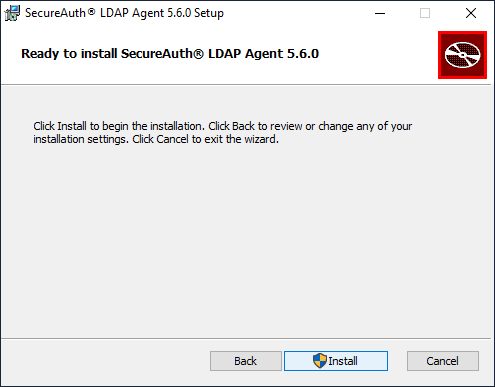
Click Install. If Windows asks whether to allow the installer to make changes, click Yes.
-
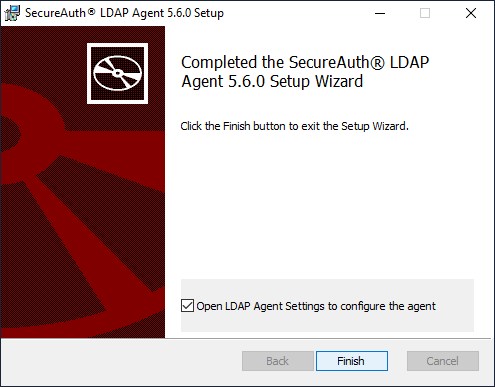
When the installation finishes, leave Open LDAP Agent Settings to configure the agent selected and click Finish. If Windows asks again whether to allow changes, click Yes. LDAP Agent Settings opens.
On a new install, the installer doesn't start the agent. The agent can't run without its configuration, so you start it from Settings in step 9.
-
In SecureAuth LDAP Agent Settings on the General tab, set the following configurations.
Environment The cloud environment your tenant runs in. SA Connect US, SA Connect EU and SA Connect AU point the agent at that region's SA Connect service. SecureAuth Workforce Authority points it at the main Workforce Authority environment, and is the default. Settings shows Custom when the saved Switchboard URL matches none of these. Choose Custom to enter a Switchboard URL of your own. Base DN The Base DN used when performing LDAP queries. All relevant users and groups must be descendants of this DN. For example: DC=company,DC=comURL An LDAP URL to use when performing LDAP queries. The URLs must begin with ldap://orldaps://and can include an optional port number to override the defaults of port 389 for LDAP and 636 for LDAPS. For example,ldaps://ldap.company.com/orldaps://ad1.example.org:3269/.Agent ID Unique identifier of the LDAP agent. This is the value provided in Workforce Authority. See Get LDAP Agent connector information. Shared Secret Key The 256-bit (32 byte) shared secret used to sign messages sent between this agent and Workforce Authority. This should be represented as a Base64 string. This is the value provided in Workforce Authority. See Get LDAP Agent connector information. Log Level Log events generated by the agent must be at least this severity before being sent to the event log. The supported severity thresholds, from most severe to least severe, are fatal,error,warning,info, anddebug. The default value isinfo. SecureAuth recommends leaving the log level set to this default, unless you have a specific need to increase or decrease log output.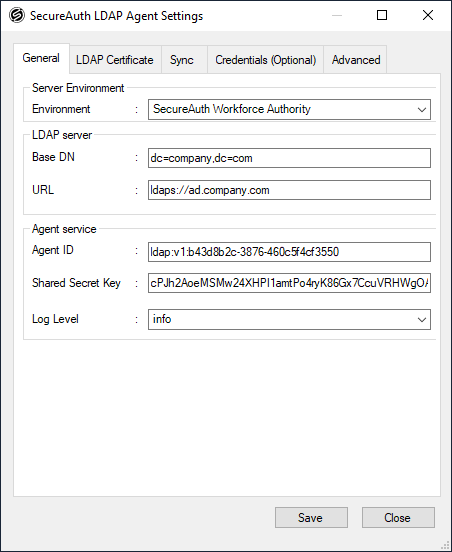
-
On the Credentials (Optional) tab, set the LDAP Bind Credentials (Optional) only if you need them.
Leave User Name and Password empty to bind with Kerberos/SSPI as the account the service runs under. That is the recommended configuration on a domain-joined server, and it keeps the directory password out of the agent's configuration entirely. Fill them in only where Kerberos is unavailable. See Authentication methods.
User Name Optional. User account to connect to the LDAP server, in user@domain format like johndoe@company.com. This should be a new account with read-only access to the directory and provisioned for the agent and used for binding.Password Optional. Password associated with the user account. -
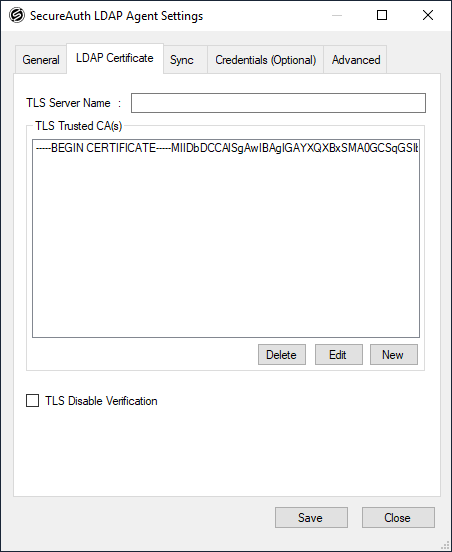
On the LDAP Certificate tab, include the certificate.
Include one or more trustworthy certificates when verifying the certificate of an LDAPS server. It can be the server's certificate itself, or preferably, the certificate an enterprise CA used to issue the server's certificate. (See TLS Trusted CAs in User directory (AD) requirements, above.)
TipYou can use an LDAPS connection without providing a trusted certificate if the LDAP Agent server is a domain member and you have an internal certificate authority configured in your network.
-
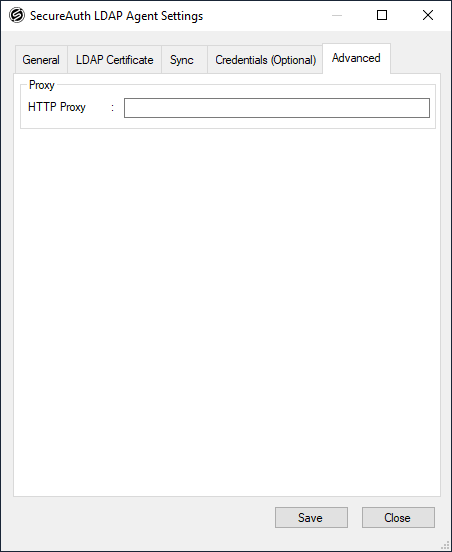
On the Advanced tab, to establish communication through a proxy server between the LDAP Agent and Workforce Authority, enter the proxy address and port.
-
After entering all communication parameters, click Save, then OK. Settings asks whether to start the LDAP Agent service. Click Yes, then OK.
If you click No, the service starts the next time Windows starts. You can also start it from Services, or with
ldap-agent.exe -start(see Managing the service from the command line).
Test connection
After the LDAP Agent is installed, you can test connectivity from the agent to your LDAP server:
-
Open a command prompt window and navigate to the installation folder.
-
Execute the following command at the command prompt:
ldap-agent.exe -test -
You should see diagnostics output similar to the following:
C:\Program Files\SecureAuth\LDAP Agent>ldap-agent.exe -test
Using configuration: Config(AgentID=ldap:v1:f6ac662c-0c4f-45b2-8721-13388db62f8e,SharedSecret=✓,
  SwitchboardURL=wss://switchboard.acceptto.com,LogLevel=info,AuthenticationTimeout=5s,
  RequestTimeout=10s,RequestWorkers=500,LDAPURLs=[ldaps://ad1.example.com/],
  LDAPBindUser=abe.lincoln@example.com,LDAPBindPass=*****,LDAPBaseDN=dc=example,dc=com,
  LDAPTLSDisableVerification=false,LDAPTLSTrustedCAs=✓,LDAPTLSServerNames=[])
Healthy: true
LDAP query time: 22 ms
Managing the service from the command line
The installer is the usual route, but the agent can also install and manage its own Windows service. Run PowerShell as Administrator from the installation folder:
.\ldap-agent.exe -config config.yaml -test         # check connectivity before installing
.\ldap-agent.exe -config config.yaml -foreground   # run in the foreground, Ctrl+C to stop
.\ldap-agent.exe -config config.yaml -install      # install the service
.\ldap-agent.exe -start                            # start it
.\ldap-agent.exe -stop                             # stop it
.\ldap-agent.exe -remove                           # uninstall it
Only -install, -test and -foreground take -config; -install records the path in the service, and -start, -stop and -remove find the service by name. The service is registered as Acceptto LDAP Agent, and writes to the Windows Application event log under the same source. Services shows it as SecureAuth LDAP Agent.
If you are installing the Workforce Authority LDAP Agent on the same server as the Active Directory domain controller with which it will communicate, and IPv6 is enabled on this server, use the IPv4 localhost address (“127.0.0.1”) or the IPv4 address of the server when configuring the LDAP URL. (Using the hostname in this situation may result in the agent trying the IPv6 address before failing over to IPv4, adding needless latency to transactions.)
If you want to change the configuration of the Workforce Authority LDAP Agent you can find the ConfigUI in the installation path or you can search for SecureAuth in the Windows Start menu to find SecureAuth LDAP Agent Settings.
Upgrading
To upgrade, run the new LDAP Agent package and follow steps 1, 3 and 4 of Installing, above. The upgrade skips the Destination Folder page of step 2, and keeps your setup:
- It installs into the current installation folder. An agent in
C:\Program Files\Acceptto\LDAP Agentstays there. - It keeps the configuration file (
ldap-agent.conf) and the service, including the account the service runs as. - It stops the service before replacing its files. Afterwards it starts the service again if the service's startup type is Automatic and the configuration file exists. Otherwise the service stays stopped.
- If the upgrade fails, Windows restores the previous version.
Your configuration is already in place, so you can clear Open LDAP Agent Settings to configure the agent on the last page.
Removing
The LDAP Agent may be removed the same way as most Windows applications:
-
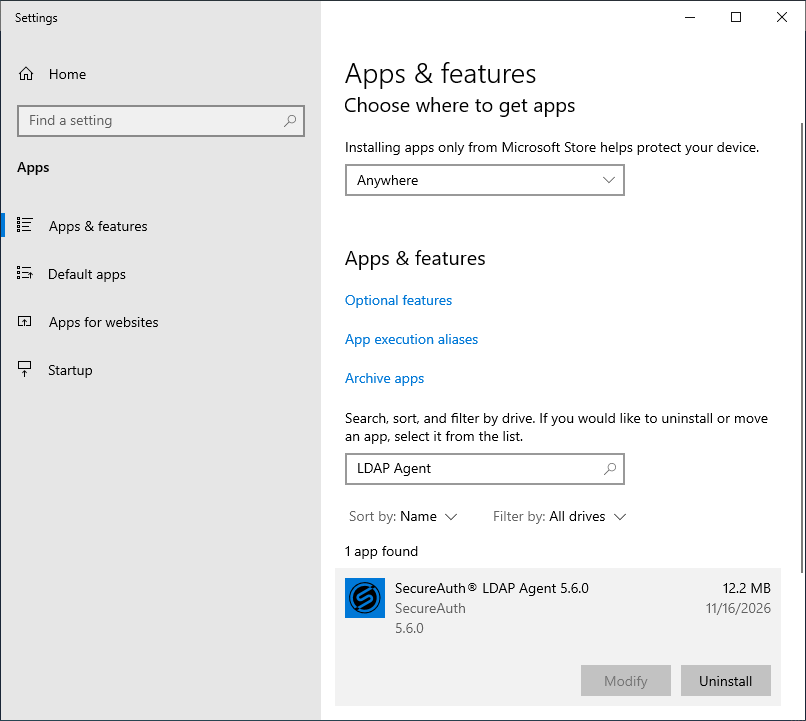
In Windows Settings, select Apps, then select the LDAP Agent:
-
Click the Uninstall button, and confirm.
-
The LDAP Agent will be removed from the system.
The agent's configuration file (ldap-agent.conf) will remain in the installation directory, and will be used if another LDAP Agent is installed in the same directory in the future.
A new install goes to C:\Program Files\SecureAuth\LDAP Agent by default. If you removed an agent from C:\Program Files\Acceptto\LDAP Agent, choose that folder on the Destination Folder page, or move ldap-agent.conf to the new one.
LDAP Agent configuration
The Workforce Authority LDAP Agent may be configured using either a YAML-based configuration file (ldap-agent.conf) or environment variables. After making any configuration changes, the agent should be restarted for the changes to take effect.
You can obtain the AgentID and SharedSecret parameters in Workforce Authority. Log in to Workforce Authority and navigate to Connectors from the left side menu. (Admin access is required.)
Use of environment variables to configure the LDAP Agent is primarily intended for Docker-based deployments. In the Docker world, using environment variables for configuration is a common convention, while mapping a YAML configuration into the container can require extra steps. For customers using the Linux/RPM and Windows deployment methods, we highly recommend use of the YAML configuration.
Windows administrators are encouraged to use the supplied configuration tool instead of editing the YAML configuration directly.
Configuration file templates
The following configuration files are templates for a minimal configuration setup. You may add more parameters as specified in the Required configuration options section.
YAML configuration file
# Login to https://mfa.acceptto.com and go to the "Connectors" page to get the
# "Agent ID" and "Shared Secret" parameters.
AgentID: CHANGE_ME
SharedSecret: CHANGE_ME

# The LDAP parameters used to reach Active Directory
LDAPURLs:
    - ldaps://example.com/
LDAPBindUser: administrator@example.com
LDAPBindPass: verysecret
LDAPBaseDN: dc=example,dc=com

# If using LDAPS and the LDAP server's certificate is not issued by a public
# certificate authority, a trusted root CA or the LDAPS certificate itself may
# provided here to establish trust.
#
# LDAPTLSTrustedCAs: |
#     -----BEGIN CERTIFICATE-----
#     MIIFdzCCA1+gAwIBAgIUPhmZ5ytNQDJ1gqIYtPWXsFSXbm8wDQYJKoZIhvcNAQEL
#     BQAwYzELMAkGA1UEBhMCVVMxDzANBgNVBAgMBk9yZWdvbjERMA8GA1UEBwwIUG9y
#     ...
#     nRFv5H77DMo15HfFgGsy7zCt7OrIHl/G/PVLce4/4T+cLjahHDbn5J6Cz9DWNYYq
#     jRgO45686HIchzfyTpPRbdt+S7TA+1ToUX5nlnCFhsgcCwBuPqCozNBvTbYN7xdq
#     fkATtpM5lE4Ip7Y=
#     -----END CERTIFICATE-----
Environment-based (.env) configuration file
######################################################################
# To use this configuration, source this script into your bash shell:
#   ( set -a && source /etc/secureauth/ldap-agent.env && ldap-agent -test )
######################################################################

# Login to https://mfa.acceptto.com and go to the "Connectors" page to get the
# "Agent ID" and "Shared Secret" parameters.
ALA_AGENT_ID=CHANGE_ME
ALA_SHARED_SECRET=CHANGE_ME

# The LDAP parameters used to reach Active Directory
ALA_LDAP_URLS='ldap://example.com/'
ALA_LDAP_BIND_USER='administrator@example.com'
ALA_LDAP_BIND_PASS='verysecret'
ALA_LDAP_BASE_DN='dc=example,dc=com'

# If using LDAPS and the LDAP server's certificate is not issued by a public
# certificate authority, a trusted root CA or the LDAPS certificate itself may
# provided here to establish trust.
#
# ALA_LDAP_TLS_TRUSTED_CAS='
# -----BEGIN CERTIFICATE-----
# MIIFdzCCA1+gAwIBAgIUPhmZ5ytNQDJ1gqIYtPWXsFSXbm8wDQYJKoZIhvcNAQEL
# BQAwYzELMAkGA1UEBhMCVVMxDzANBgNVBAgMBk9yZWdvbjERMA8GA1UEBwwIUG9y
# ...
# nRFv5H77DMo15HfFgGsy7zCt7OrIHl/G/PVLce4/4T+cLjahHDbn5J6Cz9DWNYYq
# jRgO45686HIchzfyTpPRbdt+S7TA+1ToUX5nlnCFhsgcCwBuPqCozNBvTbYN7xdq
# fkATtpM5lE4Ip7Y=
# -----END CERTIFICATE-----
# '
Required configuration options
The following configuration items are required for the agent to start:
| YAML Key | Environment Variable | Description |
|---|---|---|
AgentID |
ALA_AGENT_ID |
The unique identifier used to identify the agent. Obtain this value by editing the Active Directory entry under User Directories after configuring it as a data store connection in Workforce Authority. |
SharedSecret |
ALA_SHARED_SECRET |
The 256-bit (32 byte) shared secret, represented as a Base64 string, used to sign messages sent between this agent and Workforce Authority. Obtain this value by editing the Active Directory entry under User Directories after configuring it as a data store connection in Workforce Authority. |
LDAPURLs |
ALA_LDAP_URLS |
A list of LDAP URLs to use when performing LDAP queries. The URLs must begin with ldap:// or ldaps:// and may include an optional port number to override the defaults of port 389 for ldap and 636 for ldaps. Examples include ldaps://ldap.company.com/ and ldaps://ad1.example.org:5000/. If provided via environment variable, multiple URLs may be separated by commas. Only the first URL is currently used. A future release may use additional LDAP URLs to round-robin outgoing connections or provide failover when one is not responding. |
LDAPBindUser |
ALA_LDAP_BIND_USER |
The user used when binding to the LDAP server. Required on Linux, optional on Windows — leave it empty on Windows to bind with Kerberos/SSPI as the service account. This may be a DN such as CN=John Doe,CN=Users,DC=company,DC=com or, in the case of Active Directory, a name in user@domain format such as johndoe@company.com. A new account with read-only access to the directory should be provisioned for the agent and used for binding. |
LDAPBindPass |
ALA_LDAP_BIND_PASS |
The password of the user used to bind to the LDAP server. Required on Linux, optional on Windows. |
LDAPBaseDN |
ALA_LDAP_BASE_DN |
The Base DN used when performing LDAP queries. All relevant users and groups must be descendants of this DN. Example: DC=company,DC=com. |
Optional configuration options
The following configuration items are optional, and may be used to further guide the behavior of the agent:
| YAML Key | Environment Variable | Description |
|---|---|---|
LDAPTLSTrustedCAs |
ALA_LDAP_TLS_TRUSTED_CAS |
A list of certificates in PEM format representing trusted certificate authorities (CAs) to be used when verifying the LDAP server's certificate. These could include an enterprise CA used to issue certificates to LDAP servers, or even the certificate of the LDAP server itself. Default: Use the operating system's list of trusted CAs. |
LDAPTLSServerNames |
ALA_LDAP_TLS_SERVER_NAMES |
If the hostname in an LDAP URL does not exactly match the hostname embedded in the certificate presented by the LDAP server, verification will fail. This option may be used to specify the hostname we expect to find in the LDAP server's certificate. If used, one such hostname should be provided for each configured LDAP URL, and in exactly the same order. Default: Use the hostname as provided in the URL. |
LDAPTLSDisableVerification |
ALA_LDAP_TLS_DISABLE_VERIFICATION |
Disable verification of the server certificate provided by the LDAP server. Leaves the agent open to machine-in-the-middle attacks; provided for development and debugging only. Default: false |
LogLevel |
ALA_LOG_LEVEL |
Specify the level of logging desired. Must be one of panic, fatal, error, warn, info, debug, or trace. Default: info |
SwitchboardURL |
ALA_SWITCHBOARD_URL |
The URL used to communicate with the SecureAuth Switchboard service. Set this to the environment your tenant runs in — see Outbound rules. Default: https://switchboard.acceptto.com |
AuthenticationTimeout |
ALA_AUTHENTICATION_TIMEOUT |
How long the agent waits for the authentication to complete. Format: {number}{unit} (e.g. 5s, 1m). Default: 5 seconds |
RequestTimeout |
ALA_REQUEST_TIMEOUT |
Timeout for LDAP connection requests. Format: {number}{unit} (e.g. 5s, 1m). Default: 5 seconds |
RequestWorkers |
ALA_REQUEST_WORKERS |
Number of concurrent workers processing incoming requests, including LDAP lookups. Default: 500 |
HTTPProxy |
ALA_HTTP_PROXY |
URL of the proxy server used for outbound HTTP and HTTPS traffic. Equivalent to setting HTTP_PROXY and HTTPS_PROXY environment variables. |
LDAPResetPasswordBindUser See note below. |
ALA_LDAP_RESET_PASSWORD_BIND_USER |
The user account for performing password reset operations on Active Directory. Required on Linux, optional on Windows. |
LDAPResetPasswordBindPass See note below. |
ALA_LDAP_RESET_PASSWORD_BIND_PASS |
The password associated with the LDAPResetPasswordBindUser. Required on Linux, optional on Windows. |
-
Change password and reset password methods are supported only when using LDAPS (LDAP over SSL) connections.
-
On Windows, password reset uses the service account through Kerberos/SSPI. Grant that account password reset permission in Active Directory and leave these two options empty.
-
On Linux, password reset requires
LDAPResetPasswordBindUserandLDAPResetPasswordBindPass. The agent binds with those credentials to perform the reset, so that user needs the necessary permissions on the LDAP server. Without them the method returns anoperation_not_supportederror.
Accessing LDAPS servers via a load balancer
Some customers will provide a pool of LDAPS servers behind a load balancer. Thus, the agent will be configured with a single specific URL which points to the load balancer, but each backend LDAPS server may present a different certificate with a different hostname embedded. This can prevent certificate verification from working if we connect to the load balancer and expect a certificate that matches either the load balancer's address or a single item in LDAPTLSServerNames which corresponds to the single LDAPS URL.
Potential remedies include:
-
Terminate TLS at the load balancer, so the agent always sees a single certificate. This certificate's subject would need to match either the load balancer's address, or the configured entry in
LDAPTLSServerNames. -
Ensure that each pooled LDAPS server has a certificate with the same name (for example, by using the same certificate on each), and configure this name in
LDAPTLSServerNamesif it is not the load balancer address. -
If the customer needs discrete certificates for each LDAPS server with different hostnames, perhaps a Subject Alternate Name (SAN) with the load balancer's address could be added to each certificate.
Active Directory synchronization
The LDAP Agent can synchronize users and groups from Active Directory into the Workforce Authority cloud directory. It uses Microsoft's DirSync control, so after the first pass it transfers only what changed — creations, updates and deletions — rather than re-reading the directory each time.
Synchronization is disabled by default.
Synchronization prerequisites
-
Replicating Directory Changes permission. The account the agent binds with must hold this permission on the domain partition. Grant it with:
dsacls "DC=company,DC=com" /G "DOMAIN\SyncServiceAccount:CA;Replicating Directory Changes"To see which accounts already hold it:
dsacls "DC=company,DC=com" | Select-String "Replicating Directory Changes"On Windows this is the service account, and no bind credentials go in the configuration. On Linux it is the account named by
Sync.LDAPBindUser. -
A specific domain controller, not a load balancer. The DirSync cookie that tracks progress is issued by one domain controller and is meaningless to another, so a balanced URL can produce duplicate events or an unexpected full resynchronization. Point
Sync.LDAPURLat a host such asldaps://dc1.company.com:636. -
A partition root as the Base DN. DirSync cannot search from an organizational unit, so
Sync.LDAPBaseDNmust be a partition root such asDC=company,DC=com.
Synchronization options
| YAML Key | Environment Variable | Description | Default |
|---|---|---|---|
Sync.Enabled |
ALA_SYNC_ENABLED |
Enable Active Directory synchronization. | false |
Sync.LDAPURL |
ALA_SYNC_LDAP_URL |
LDAP URL for synchronization. Use a specific domain controller, not a load balancer. | First URL from LDAPURLs |
Sync.LDAPBindUser |
ALA_SYNC_LDAP_BIND_USER |
Bind user for synchronization, which must hold the Replicating Directory Changes permission. Required on Linux, optional on Windows. | Value of LDAPBindUser |
Sync.LDAPBindPass |
ALA_SYNC_LDAP_BIND_PASS |
Password for the synchronization bind user. Required on Linux, optional on Windows. | Value of LDAPBindPass |
Sync.LDAPBaseDN |
ALA_SYNC_LDAP_BASE_DN |
Base DN for synchronization. Must be a partition root. | Value of LDAPBaseDN |
Sync.CookieFilePath |
ALA_SYNC_COOKIE_FILE_PATH |
Where to persist the DirSync cookie. | A platform-specific configuration directory |
Sync.PollInterval |
ALA_SYNC_POLL_INTERVAL |
How long to wait between passes once the agent has caught up. | 60s |
Sync.CatchupInterval |
ALA_SYNC_CATCHUP_INTERVAL |
How long to wait between passes while more changes remain. | 30s |
Sync.TokenEndpoint |
ALA_SYNC_TOKEN_ENDPOINT |
OAuth token endpoint used to authenticate synchronization. | https://mfa.acceptto.com/api/agent/v1/oauth/token |
Sync.SyncEndpoint |
ALA_SYNC_ENDPOINT |
Endpoint that receives the synchronized data. | https://mfa.acceptto.com/api/agent/v1/sync |
Both endpoints must name the same environment as SwitchboardURL:
| Environment | Token endpoint | Sync endpoint |
|---|---|---|
| Main Workforce Authority environment | https://mfa.acceptto.com/api/agent/v1/oauth/token |
https://mfa.acceptto.com/api/agent/v1/sync |
| SA Connect US | https://workforce.services.us.connect.secureauth.com/api/agent/v1/oauth/token |
https://workforce.services.us.connect.secureauth.com/api/agent/v1/sync |
| SA Connect EU | https://workforce.services.eu.connect.secureauth.com/api/agent/v1/oauth/token |
https://workforce.services.eu.connect.secureauth.com/api/agent/v1/sync |
Example synchronization configuration
The endpoints default to the main Workforce Authority environment, so on that environment you can leave them out.
On Windows, the service account supplies the credentials too, which makes the configuration short. Add to the YAML configuration file:
Sync:
  Enabled: true
  LDAPURL: ldaps://dc1.company.com:636
On Linux, add the equivalent to the environment file, including the bind credentials:
ALA_SYNC_ENABLED=true
ALA_SYNC_LDAP_URL=ldaps://dc1.company.com:636
ALA_SYNC_LDAP_BIND_USER=sync-service@company.com
ALA_SYNC_LDAP_BIND_PASS=<your-sync-password>
ALA_SYNC_COOKIE_FILE_PATH=/data/dirsync-cookie.json
On SA Connect US or SA Connect EU, add both endpoints from the table above. They must name the same environment as SwitchboardURL:
ALA_SYNC_TOKEN_ENDPOINT=https://workforce.services.us.connect.secureauth.com/api/agent/v1/oauth/token
ALA_SYNC_ENDPOINT=https://workforce.services.us.connect.secureauth.com/api/agent/v1/sync
Persisting the cookie under Docker
The DirSync cookie records how far synchronization has progressed. Losing it costs a round-trip rather than data — the server returns the correct state on the next request — but a container that starts fresh every time pays that cost on every restart. Mount a volume for it:
services:
  ldap-agent:
    volumes:
      - ldap-agent-data:/data

volumes:
  ldap-agent-data:
Then set ALA_SYNC_COOKIE_FILE_PATH=/data/dirsync-cookie.json.
Monitoring synchronization
Organization administrators can follow synchronization from the dashboard, without access to the agent host. Go to User Directories, open the Active Directory entry, and find the Sync Status card. The card appears once synchronization is configured on that directory, and refreshes itself every 60 seconds; the control in its header refreshes it immediately.
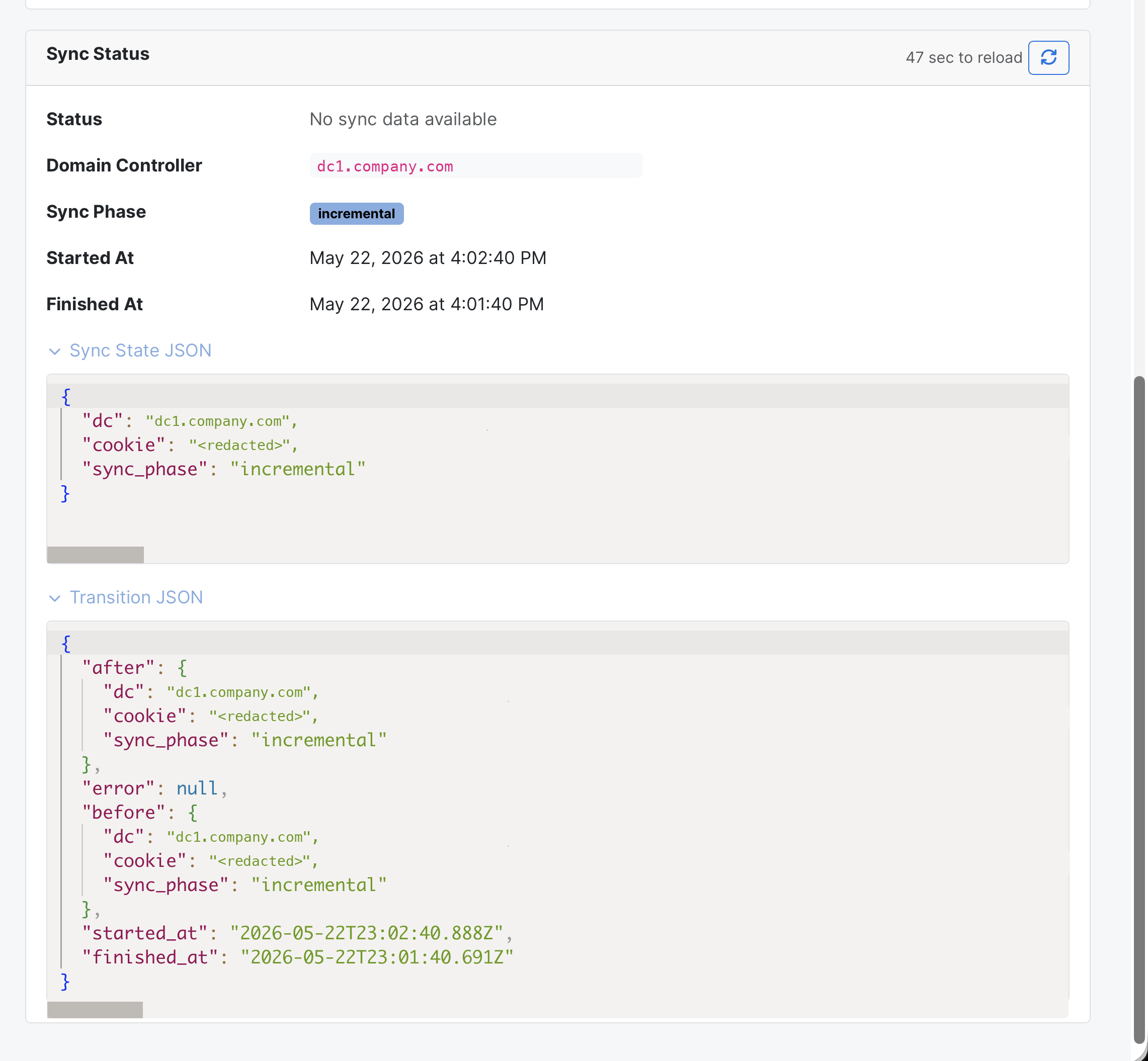
Captured while a pass was in progress. The domain controller and the synchronization cookies have been replaced with placeholders.
| Field | What it tells you |
|---|---|
| Status | Sync in progress... while a pass is running, Completed when the last pass finished and its result matches the directory's recorded state, Failed when the last pass returned an error, and No sync data available before the agent has reported anything. |
| Domain Controller | The domain controller the agent read from. |
| Sync Phase | initial during the first full pass, incremental once the agent is only collecting changes. |
| Started At / Finished At | When the most recent pass began and ended. A start time with no finish time means it is still running. |
| Error | The failure reported by the most recent pass. Shown only when the status is Failed. |
| Sync State JSON / Transition JSON | The raw payloads behind the summary above, each behind a toggle. Useful when reporting a problem to support. |
Reading the card:
-
initial moving to incremental is the normal progression. The first pass reads the whole directory, so on a large one it can stay in initial for a while; that is progress, not a stall.
-
If the Domain Controller value changes from one pass to the next, expect the phase to return to initial. The cookie that tracks progress is issued by one domain controller and means nothing to another, so the agent starts over. A synchronization URL pointing at a load balancer rather than one host is the usual cause — see Synchronization prerequisites.
-
Failed with an error naming permissions usually means the bind account lacks Replicating Directory Changes. An error about the search base usually means the base DN is an organizational unit rather than a partition root. If the agent authenticates but nothing arrives, check that the token and sync endpoints name the same environment as
SwitchboardURL.
Running more than one agent with synchronization
Enable synchronization on one agent only.
Agents that all synchronize will contend: when one of them updates the cloud state, the others see a mismatch and resynchronize. No data is lost, but the agents spend their time repeating each other's work. Run as many agents as you like for query redundancy, enable Sync.Enabled on a single designated one, and turn it on elsewhere only if that instance fails.
Agent status
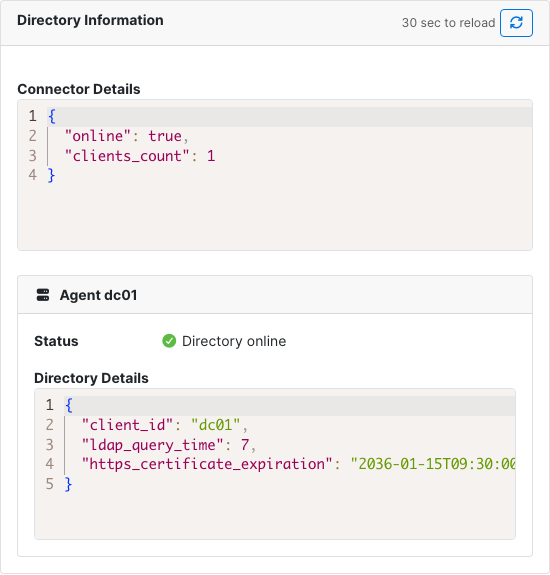
You can check the status of your agents in Workforce Authority.
-
Log in to Workforce Authority with administrative privileges and go to User Directories.
-
Edit an existing Active Directory and view the status of its LDAP Agents in the Directory Information panel.
Frequently asked questions (FAQs)
How many users can a single Workforce Authority LDAP Agent serve?
Authentications are not compute intensive and a single Workforce Authority LDAP Agent can generally serve thousands of users. We are able to provide more precise estimates after reviewing your specific needs.
Once the LDAP Agent requirements are met, what is the typical deployment and configuration effort to connect to Active Directory?
A typical remote or on-site deployment session takes our engineering team two hours start to finish. That is assuming all requirements are met and the team is ready to deploy and configure the agent.
Would we need dedicated VMs for development and staging as well?
Yes. While a single Workforce Authority LDAP Agent instance can access development and staging directories stored in separate domains within an Active Directory forest (e.g. by using an Active Directory global catalog), we recommend using separate agent instances for development, staging, and production to maintain proper segregation between these deployments.
Does the Workforce Authority LDAP Agent support multiple Active Directory domains and forests?
Yes. A single LDAP Agent may support multiple domains in a forest by using the Active Directory global catalog. Alternatively, multiple agents (or multiple load balanced agent groups) may be deployed -- each configured to serve users from specific domains. In this way, customers with multiple distinct forests may be easily accommodated.
What kind of information does the LDAP Agent send to Workforce Authority?
The LDAP Agent acts as a worker waiting for commands from Workforce Authority such as performing live user authentications, user lookups and checking the user group membership while enforcing Workforce Authority group policies.