OneLogin SAML integration
Multi-Factor Authentication (MFA) is an extra layer of security used when logging into websites or apps. Individuals are authenticated through more than one required security and validation procedure that only they know or have access to.
Security Assertion Markup Language (SAML) is a protocol for authenticating to web applications. SAML allows federated apps and organizations to communicate and trust one another’s users.
Workforce Authority integrates with OneLogin to provide better security through Workforce Authority's intelligent MFA. Workforce Authority's intelligent MFA uses many different signals to improve security while reducing friction.
This integration uses OneLogin's Trusted IdP feature to improve the security of users' logins to the OneLogin portal.
Prerequisites
-
Configured Workforce Authority instance and user account with administrative privileges for Workforce Authority.
-
Configured Workforce Authority LDAP Agent.
For more information, see the Workforce Authority LDAP Agent deployment guide.
-
User account with administrative privileges for OneLogin.
Workforce Authority SAML configuration as an Identity Provider (IdP)
In this section, you'll add an application for OneLogin and set the SAML configuration settings. This will be the Identity Provider (IdP) side of the configuration.
-
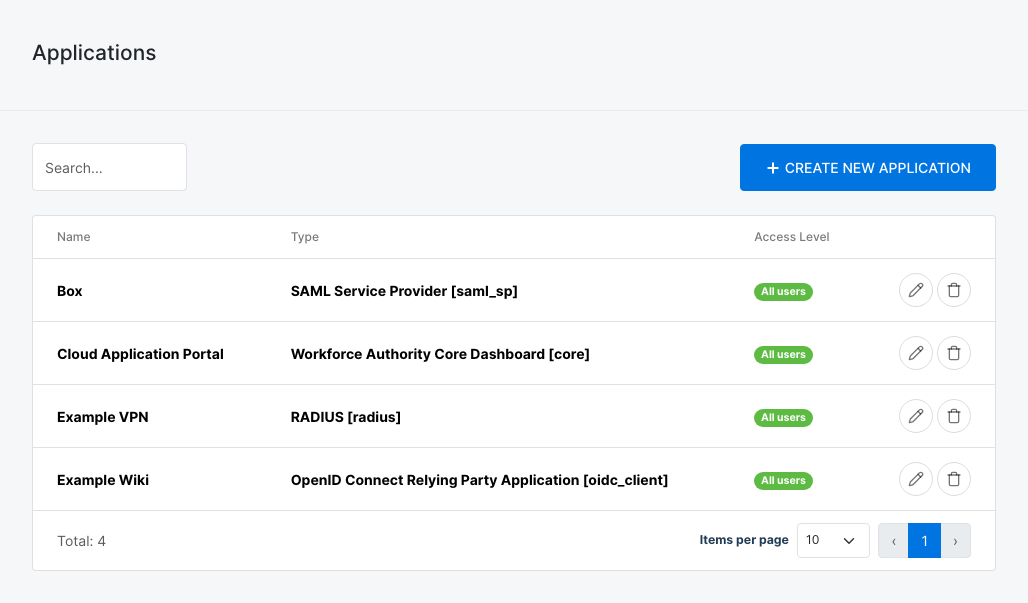
Log in to Workforce Authority with an administrative account and go to Applications.
-
Click Create New Application.
-
In the New Application form, on the General tab, set the following configurations:
Name Set the name of the application. This is the name to display for push notifications, in the Admin panel, Application portal, and audit logs. For example, OneLogin. Type Set to SAML Application. Template Set to SAML Service Provider [saml_sp]. Out of Band Methods Select the allowed methods end users can choose to approve MFA requests. For example, Workforce Authority Mobile app (push notifications), SMS, or Security Key. Message for MFA Requests Optional. Type a message displayed to end users when sending an MFA request via push notification, SMS, or email. 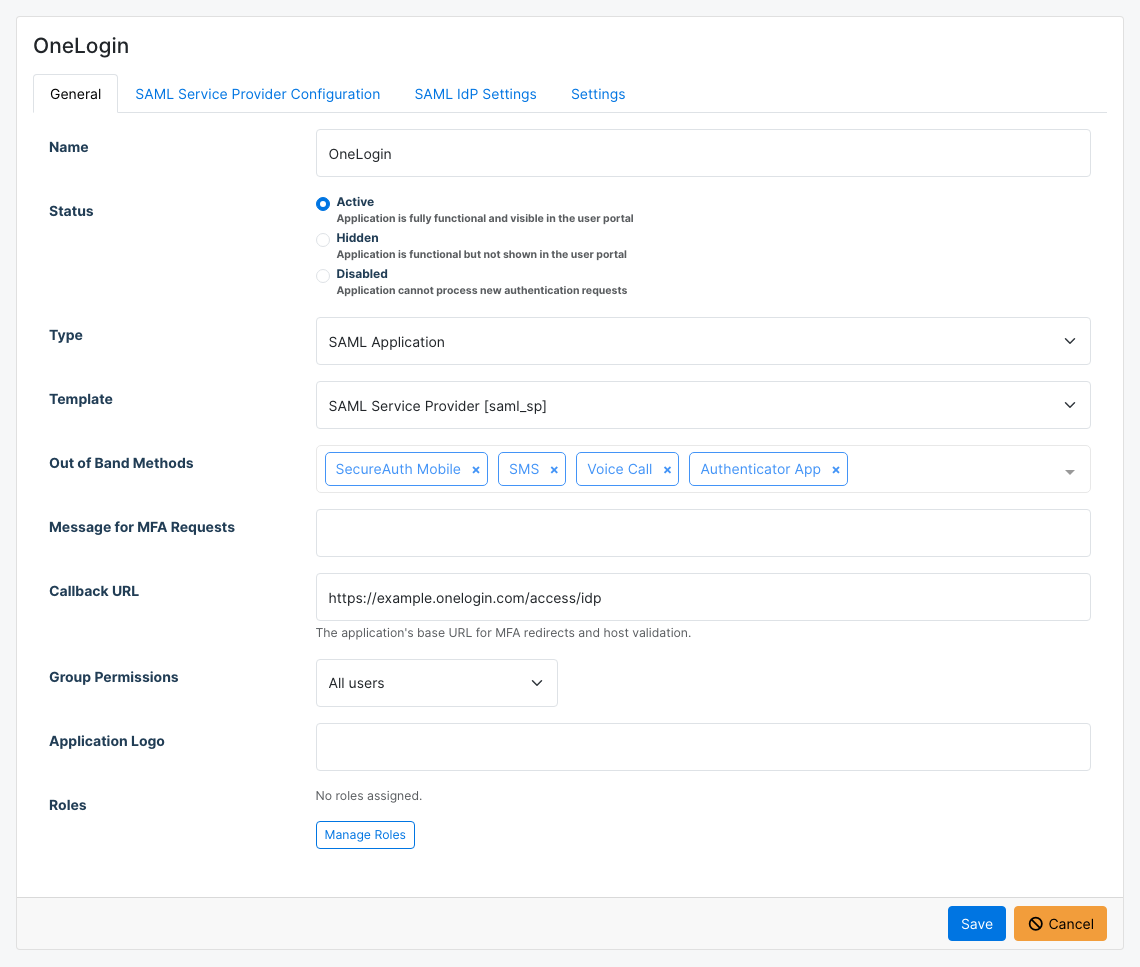
-
Select the SAML Service Provider Configuration tab, and set the following configurations:
Issuer or Entity ID Enter the Issuer/EntityID of your OneLogin instance. This value is available in the Trusted IdP section of your OneLogin tenant as SP Entity ID. Log in URL The URL used to login to your OneLogin portal. For example, https://example.onelogin.com.NameID Format Set to Email Address. Name Identifier Set to mail, the attribute that holds the user's email address.ACS URL Enter the URL on the service provider where the identity provider will redirect to with its authentication response. It should end at access/idp. For example, https://example.onelogin.com/access/idp.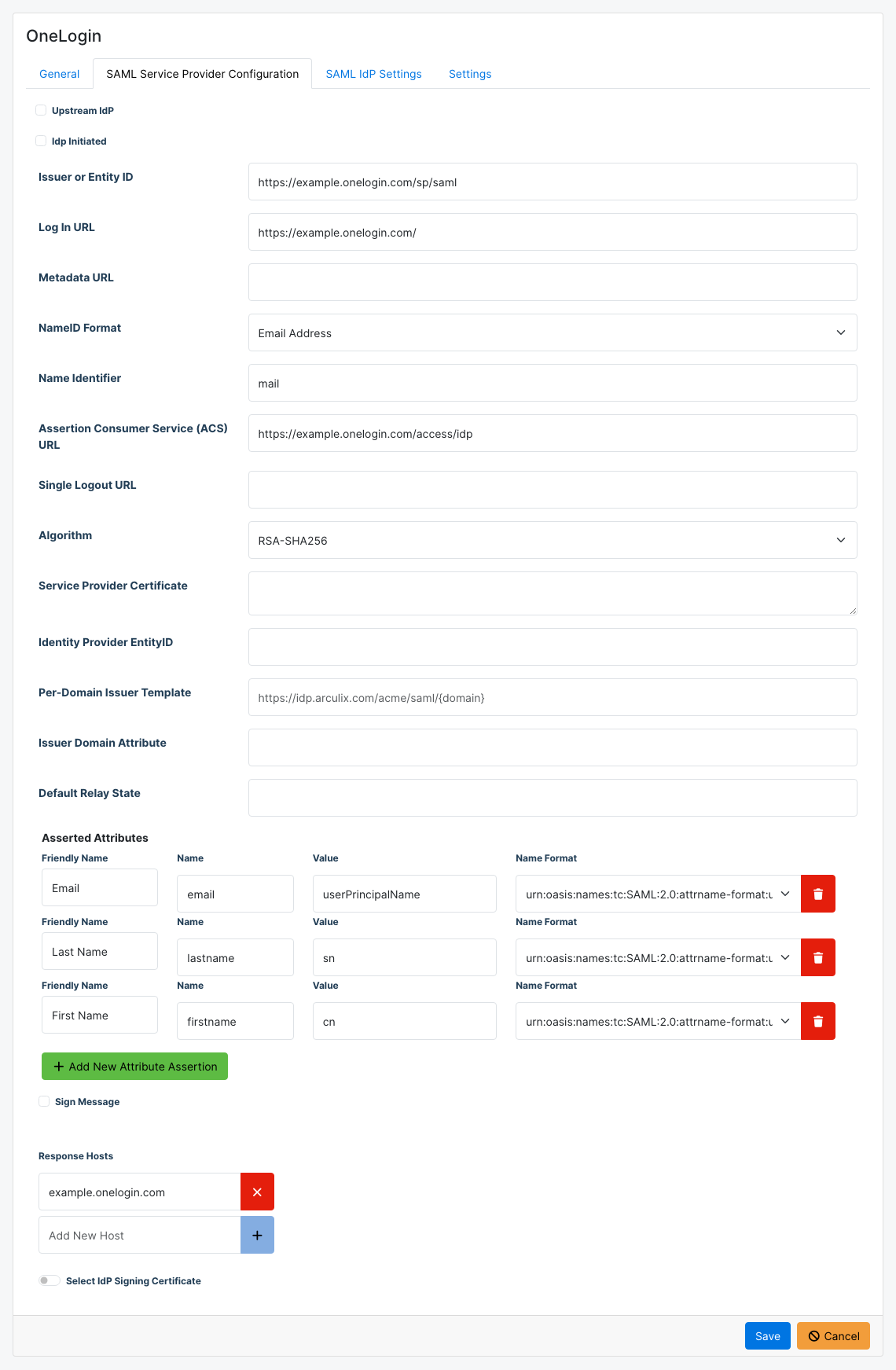
-
Click the Add New Attribute Assertion button and create the three attributes as shown in the table below.
This is mandatory if you want to enable the just-in-time provisioning feature on OneLogin.
Friendly Name Name Value Email email userPrincipalName Last Name lastname sn First Name firstname cn -
Save your changes.
OneLogin configuration
In this section, you'll configure OneLogin as a service provider (SP).
-
Download the SAML metadata and certificate for your organization from Workforce Authority.
Metadata download:
https://sso.acceptto.com/<myorganization>/saml/download/metadataView metadata:
https://sso.acceptto.com/<myorganization>/saml/metadataCertificate download:
https://sso.acceptto.com/<myorganization>/saml/download/cert -
In OneLogin, go to Authentication > Trusted IdPs and click New Trust.

-
Under Trusted IdPs, click the gray area and provide a name for the Trusted IdP configuration.

-
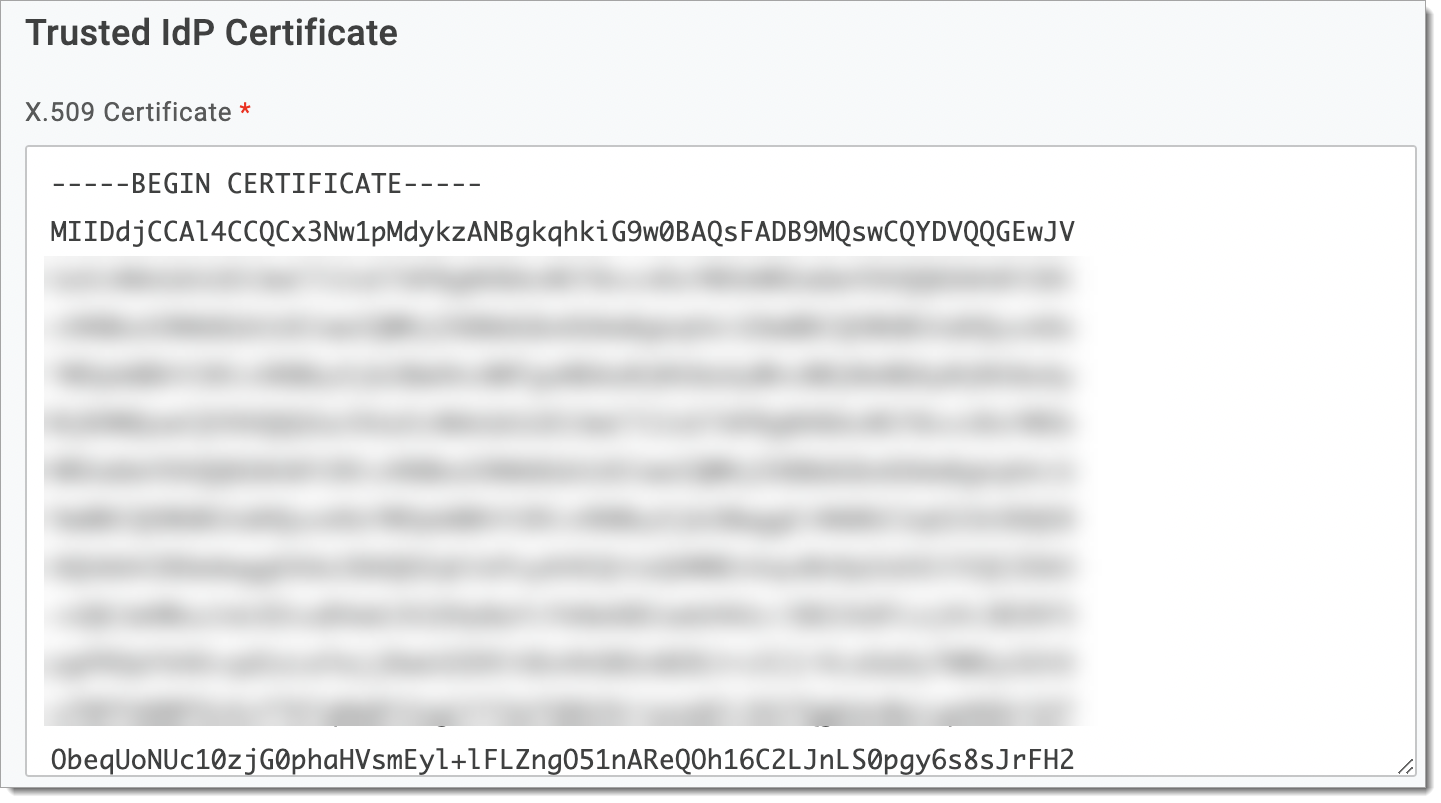
Scroll down to the Trusted IdP Certificate section, and paste the content of the Workforce Authority certificate you downloaded earlier.
-
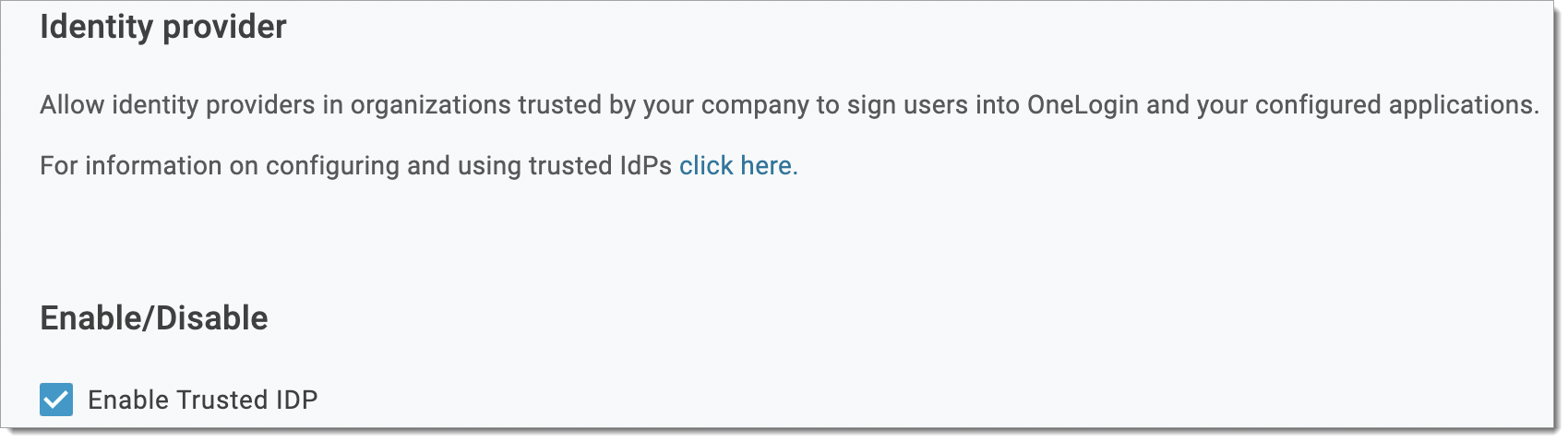
Scroll up to the Enable/Disable field, and select the Enable Trusted IDP check box.
-
If you want to represent this Trusted IdP as an authentication option on the tenant’s login page via an icon, go to Login Options and select the Show in Login check box. Provide a URL to a suitable icon.
-
In the Configurations section, in the Issuer field, enter the EntityID of your Workforce Authority tenant (located in the metadata file you downloaded)
-
Set the Email Domains field.
This automatically invokes this Trusted IdP when a user enters their email address at login.
-
Select the Sign users into OneLogin check box.
This allows inbound identities from the Workforce Authority to be matched to local user accounts within the OneLogin tenant, via responses to the
/access/idpendpoint. -
In the User Attribute section, set the User Attribute Mapping to Email.
-
In the Protocol section, select SAML.
-
In the SAML Configurations section, set the following configurations.
IdP Login URL Set to the SSO login URL of your Workforce Authority tenant (located in the downloaded Workforce Authority metadata file). For example, https://sso.acceptto.com/acceptto/samlSP Entity ID This is a dynamically-generated, read-only value that must be registered at Workforce Authority for use as the Issuer or Entity ID. IdP Logout URL Set to the logout URL of your Workforce Authority tenant (located in the downloaded Workforce Authority metadata file). For example, https://sso.acceptto.com/<myorganization>/saml/logout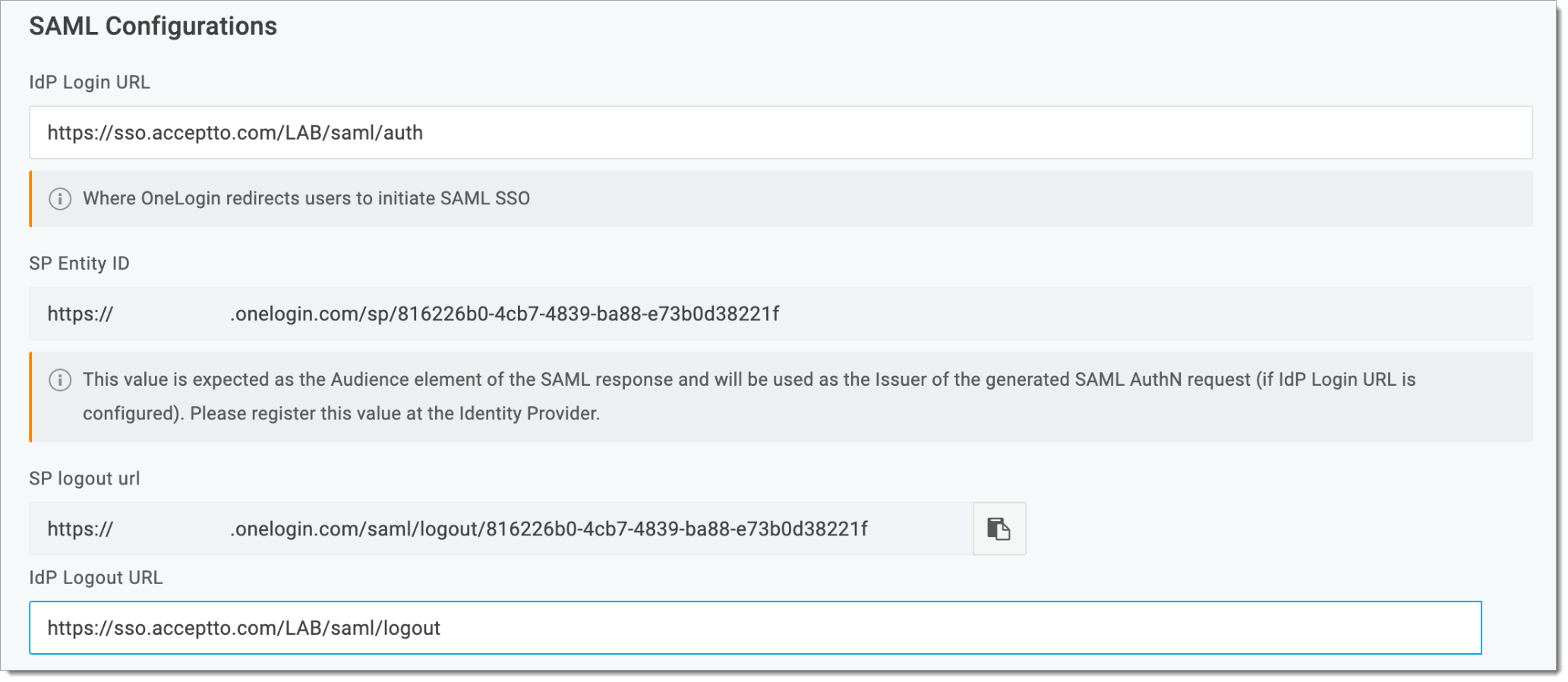
-
If you want to create/update user accounts seamlessly at the time of login, based on attributes received from Workforce Authority, go to the JIT tab.
-
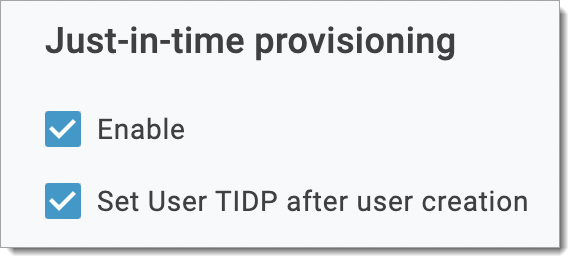
In the Just-in-time provisioning section, select the following options.
-
Enable – Select this check box.
-
Set User TIDP after user creation – If you want the user record to reflect the Trusted IdP that was used in account creation, select this check box.
-
-
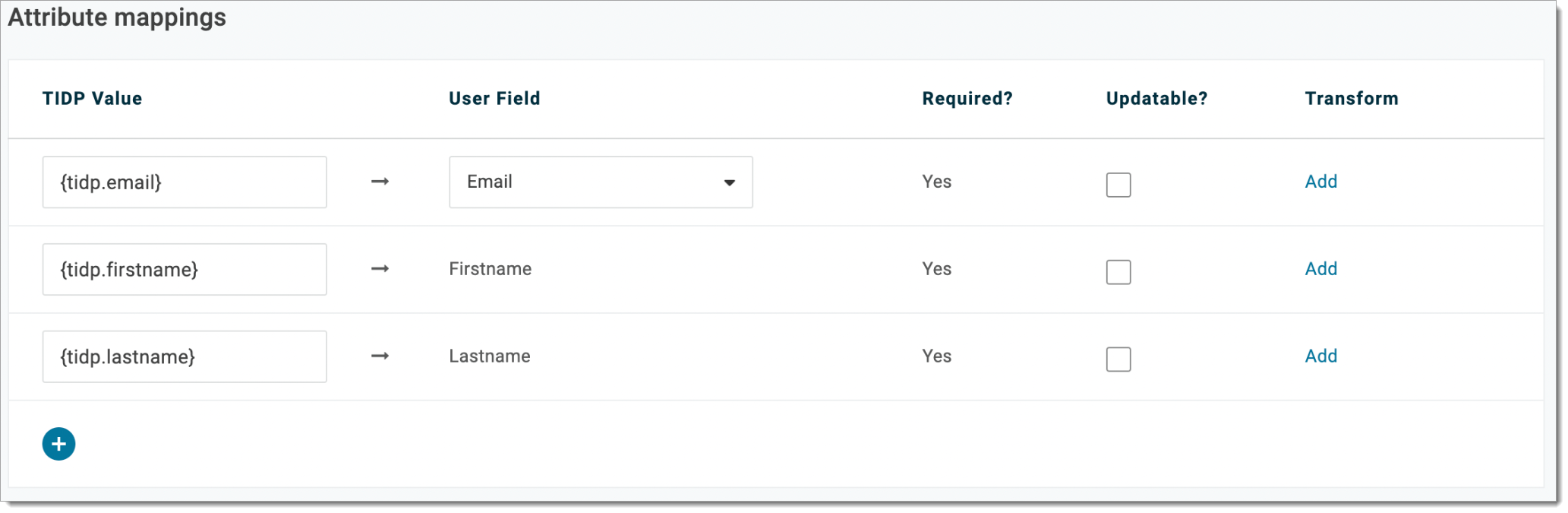
In the Attribute mappings section, create mappings based on the attribute assertions you created earlier in the previous section.
-
TIDP value – Make sure to use the the
{tidp.value}format. -
Required – Set this to require that attribute.
-
Updatable – Select this check box to update the user record with new information when it comes in from Workforce Authority.
-
-
Save your changes.
-
You can make Workforce Authority the default IdP by selecting the Set as default Trusted IdP option in your newly created Trusted IP section.
Test your application integration
-
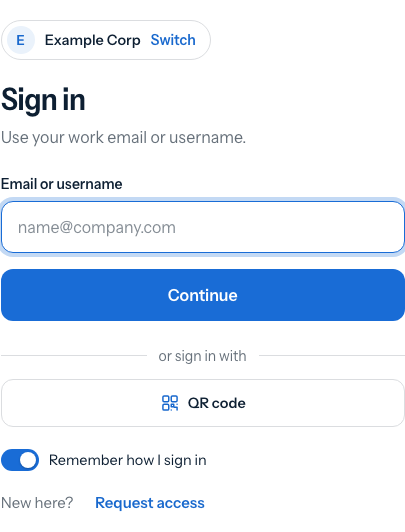
In a browser, go to your OneLogin URL and enter your username.
-
You will be redirected to the Workforce Authority SSO page.
-
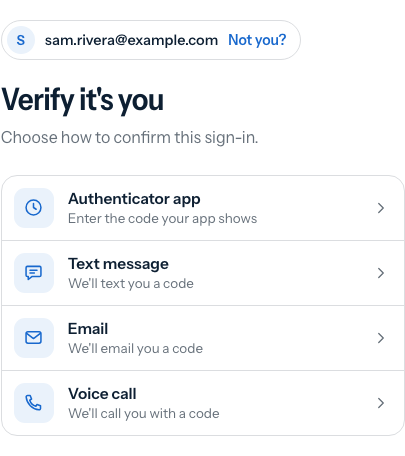
After successful authentication, select your preferred MFA method to approve access to the OneLogin application.
-
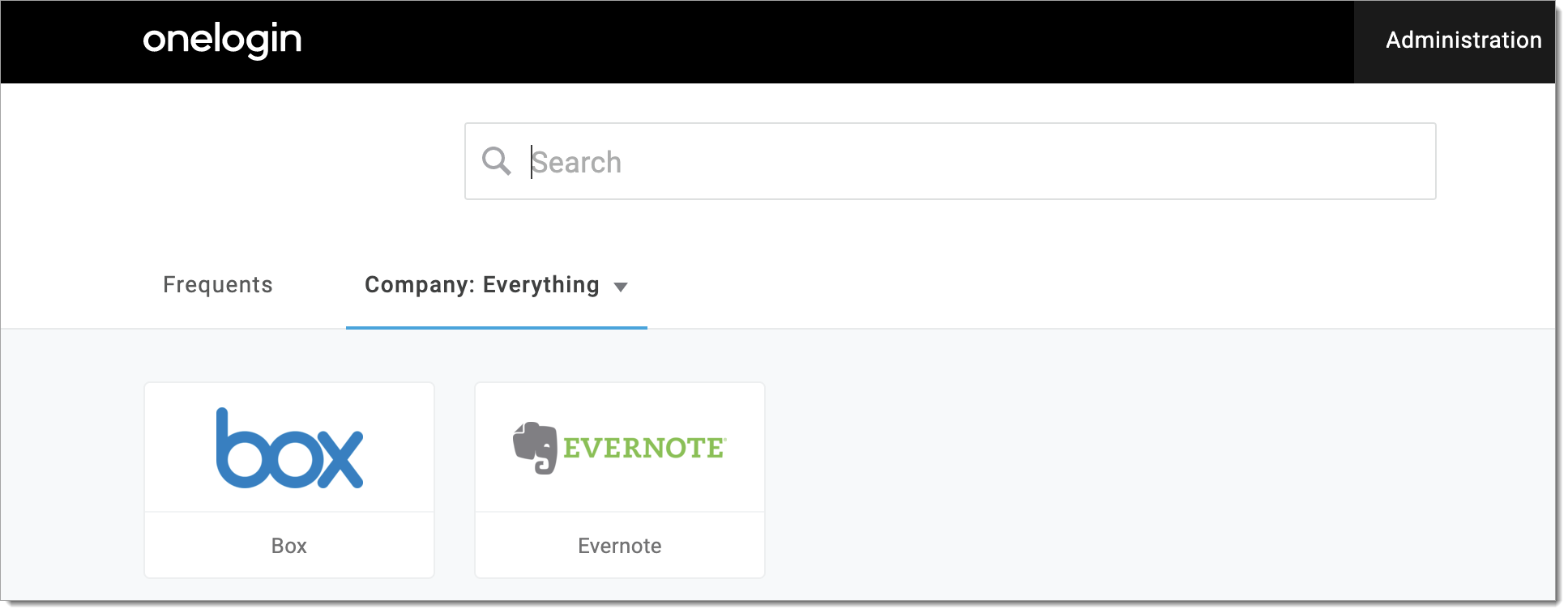
You will be redirected to your OneLogin portal.
Support
If you have questions or need assistance, contact SecureAuth Support.
Sales
Want to learn more about our MFA solutions? Contact our Professional Services for a demo today.
Disclaimer
All product names, trademarks, and registered trademarks are the property of their respective owners.
All company, product, and service names used in this document are for identification purposes only. The use of these names, trademarks, and brands do not constitute an endorsement by the SecureAuth Corporation.