Connect an Active Directory
Connect a Microsoft Active Directory (AD) to Workforce Authority through the admin console. Connecting AD allows you to manage user access to resources through your existing Active Directory.
Prerequisites
-
Workforce Authority LDAP Agent installed, configured, and online
-
To enable password management features, use LDAPS and configure appropriate service credentials
Add an AD user directory
-
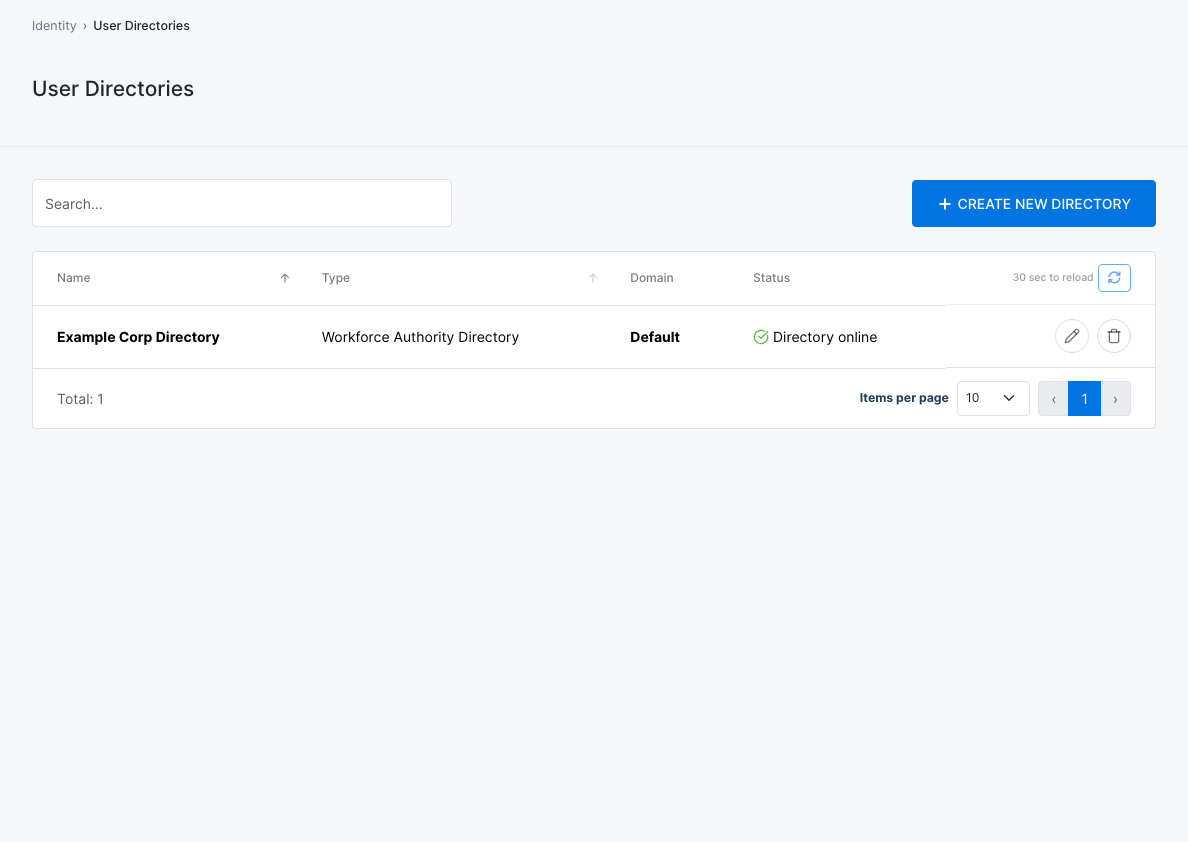
In Workforce Authority, click User Directories > Create New Directory.
-
Select Microsoft Active Directory and configure the basic settings.
Name Enter a unique name to identify this AD connection. Domains Add one or more domains. User Identifier Attribute Enter the attribute used to uniquely identify users. Default: mail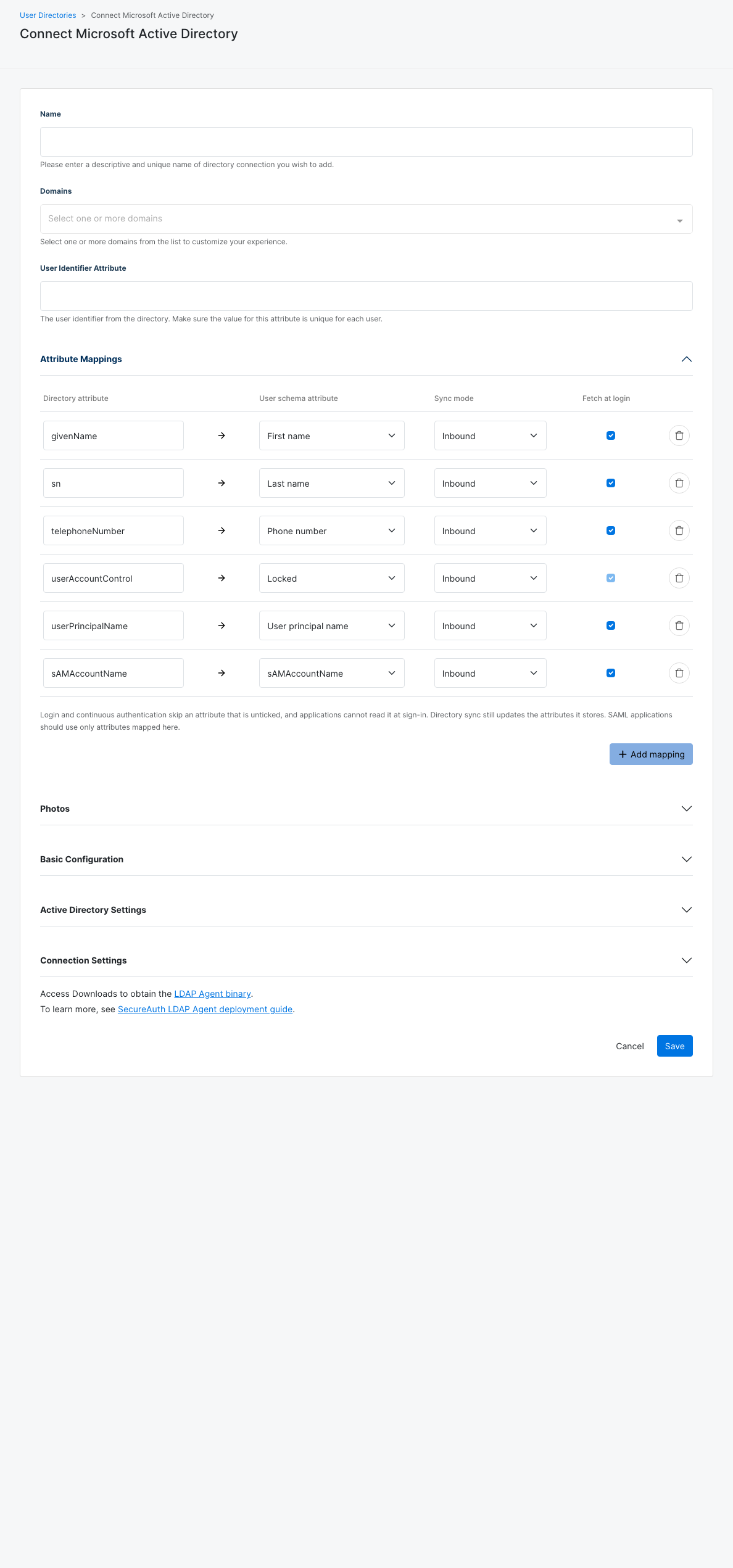
-
Save the directory, then open it again from the User Directories list.
The agent ID and shared secret appear only on a saved directory.
-
Expand Active Directory Settings and configure the following settings.
Agent ID Auto-filled identifier for this AD connection. Shared Secret Used to securely communicate with the LDAP Agent. Click Click to Reveal to show it. Group Identifier Attribute Enter the attribute used to identify groups and match users to groups. Default: Object GUIDNested Group Searching Enable this to match users to groups through nested (indirect) group membership. For example: If a user is in Group A, and Group A is a member of Group B, the user will match to Group B. Attributes fetched at login Choose what a login reads from Active Directory. Mapped attributes only fetches the attributes you mapped and leaves the rest in the directory. All attributes fetches the whole user entry. Either way, a mapped attribute whose Fetch at login box is unticked is left out. The photo is fetched at login only when Fetch the photo at login is on in the Photos section. Applications can read only the attributes a login fetches, so map every attribute your applications need first. A SAML application that asserts an attribute the login doesn't fetch is refused when you save it, and so is a change here that stops fetching an attribute a SAML application reads. Email ( mail), the default SAML subject, and group membership (memberOf) are fetched unless a mapping row turns them off. Default: Mapped attributes only for a new directory; a directory created before this setting existed fetches all attributes.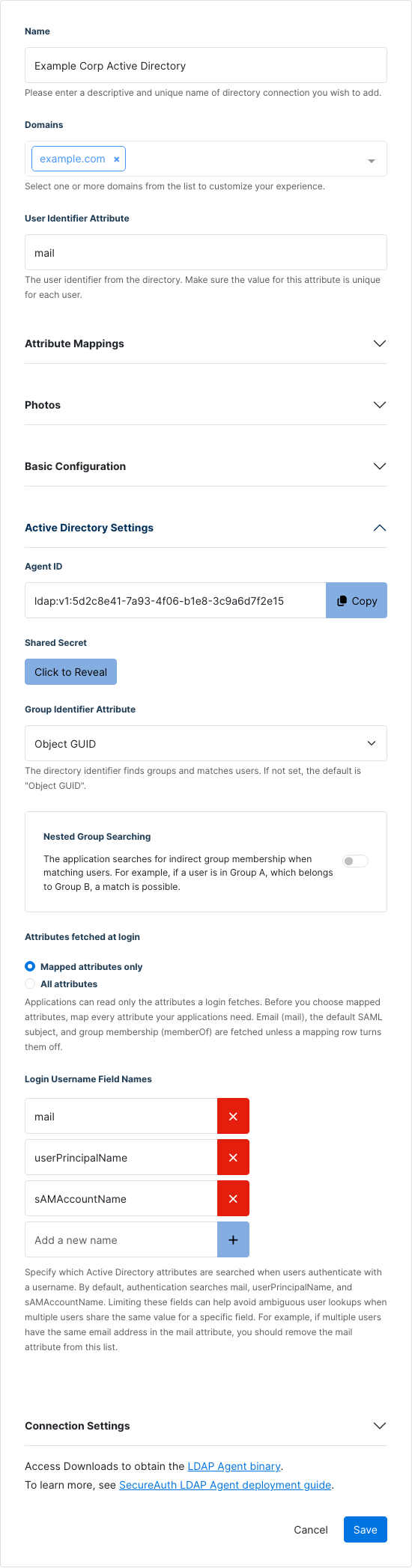
-
Expand Basic Configuration and enable the password options your users need.
Enable Change Password Allow users to change their own AD password by entering their current password and a new one. Note: Requires LDAP Agent with password change support Enable Reset Password Allow users to reset their AD password through a password reset flow. Note: Requires LDAP Agent with password reset support and proper bind credentials configured. 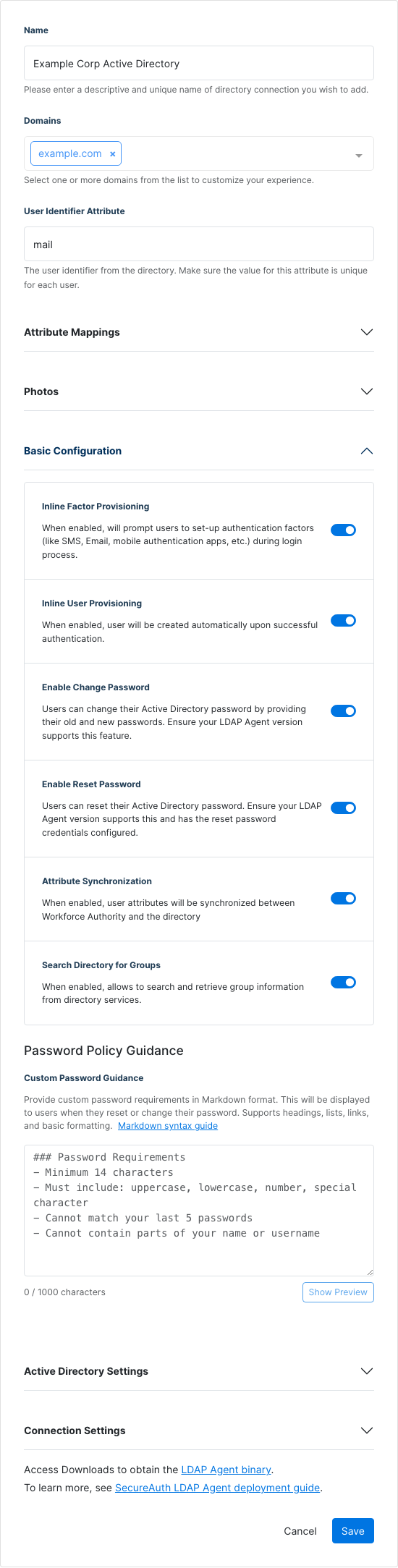
-
Expand Connection Settings and configure the following settings.
Agent heartbeat timeout Set the interval (in seconds) between heartbeat requests to the LDAP Agent. Default: 35 seconds Agent Cache Enable this to temporarily cache agent service responses. Helps maintain functionality during brief network interruptions. Agent Cache Duration Appears once Agent Cache is on. Set how long cached responses remain valid. Enter values in hours and minutes. Default: 25 hours Use case: Supports users who login daily, even during service disruptions. Circuit breaker Enable this to temporarily stop requests to a target service when repeated errors are detected. Prevents excessive retry attempts when the service is down. 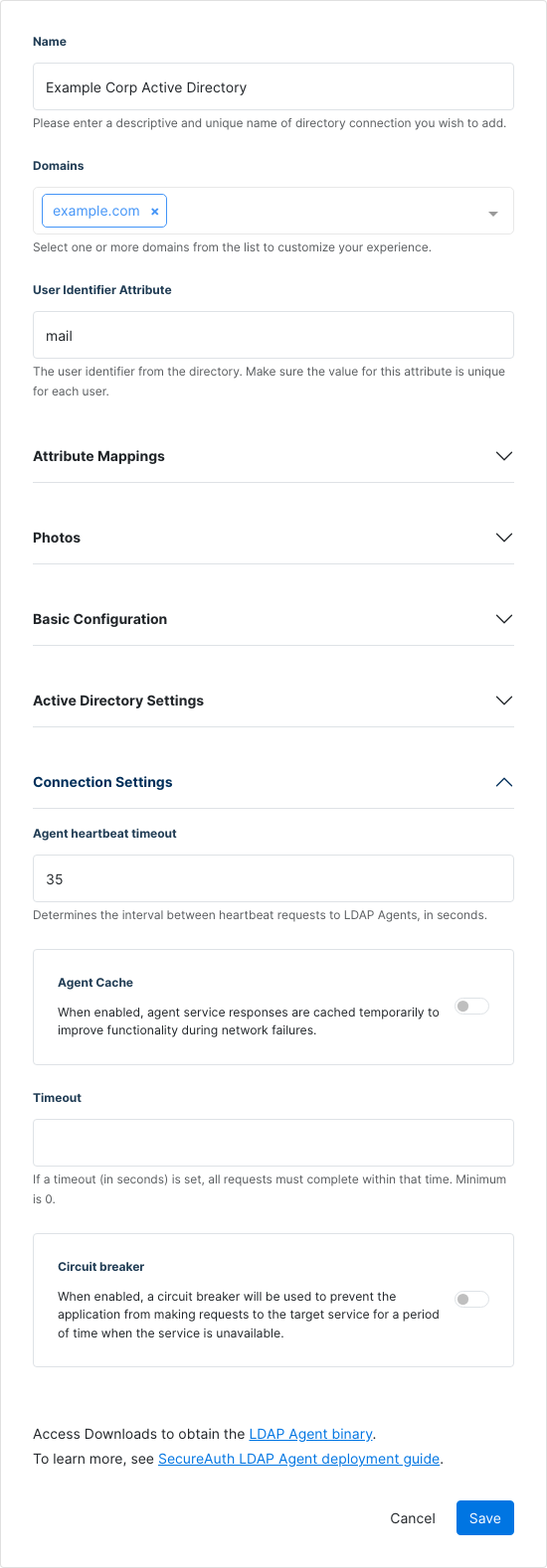
-
Save your changes.
Verify connection and capabilities
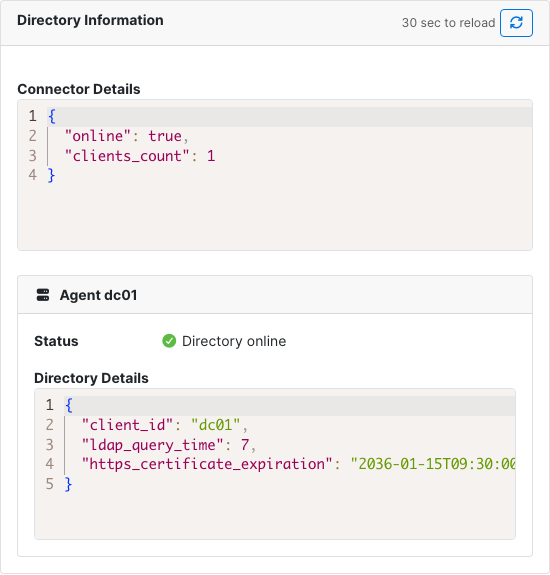
After configuration, confirm the Directory Information panel shows the directory as online and check the Directory Details.