Configure SecureAuth as a Microsoft Entra ID external authentication method (EAM)
External Authentication Method (EAM) is a feature in Microsoft Entra ID that lets users use different multi-factor authentication (MFA) providers for signing in. This means that instead of using Microsoft's MFA options, your organization can choose and integrate Workforce Authority as an MFA provider to meet your security needs.
To set up Workforce Authority as an EAM provider, the following is an outline of tasks to complete.
Task A: Configure Workforce Authority application in Microsoft Entra
Create an Enterprise application for Workforce Authority integration in Microsoft Entra.
You will need the Application ID generated by Microsoft Entra for Workforce Authority configuration.
Task B: Configure Microsoft Entra OIDC application in Workforce Authority
Create an OIDC application for Microsoft Entra integration in Workforce Authority.
You will need the UID and OIDC Provider Configuration generated by Workforce Authority for further Microsoft Entra configuration.
Task C: Configure Conditional Access policy in Microsoft Entra
Create a new Conditional Access policy to enable MFA for users and applications.
Task D: Add external MFA method in Microsoft Entra
Register Workforce Authority as your external authentication provider in Microsoft Entra.
Task A: Configure Workforce Authority application in Microsoft Entra
In this task, you will create an application for Workforce Authority in Microsoft Entra. Save its identifying information to complete integration between Workforce Authority and Microsoft Entra.
This task is completed in the Microsoft Entra admin center. For up-to-date, detailed instructions, refer to Microsoft's documentation for the Microsoft Entra application gallery and reach out to their support resources.
-
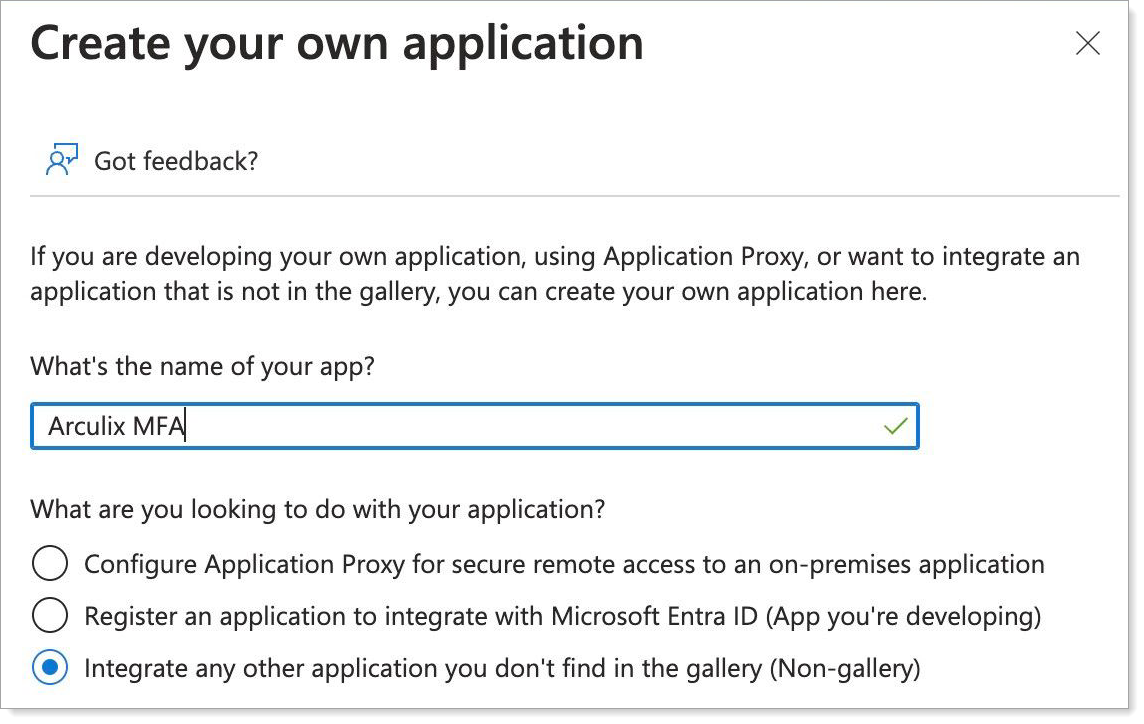
Log in to your Microsoft Entra admin account and create a new Enterprise application for Workforce Authority.
Select the option to Integrate any other application you don't find in the gallery (Non-gallery).
-
Copy the Application ID for Workforce Authority configuration.
Task B: Configure Microsoft Entra OIDC application in Workforce Authority
In this task, you will create an OIDC application for Microsoft Entra in Workforce Authority. To learn more about integrating an OIDC application with Workforce Authority, see Connect any OAuth or OIDC app.
-
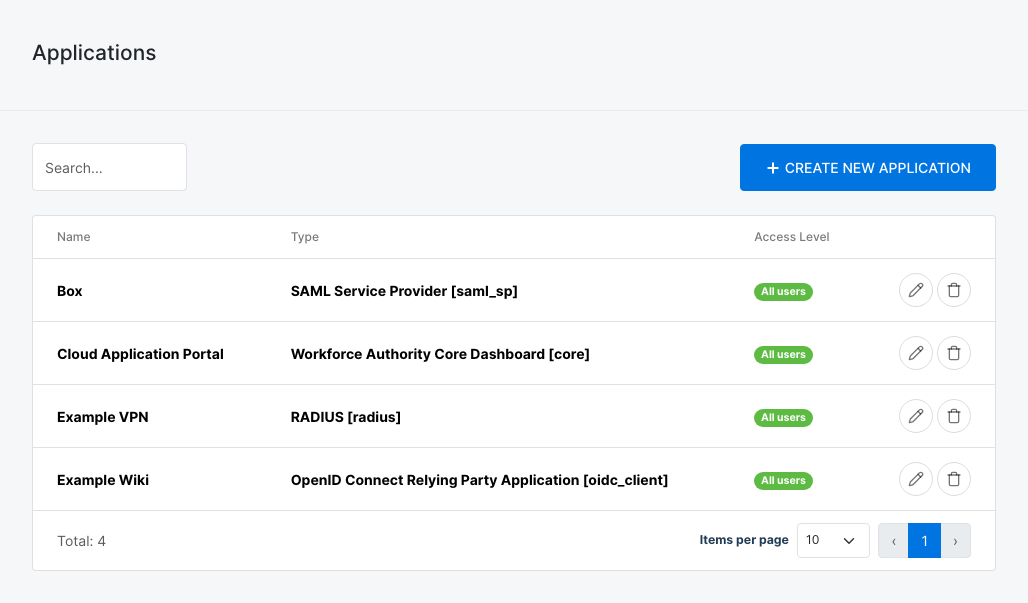
Log in to Workforce Authority with an administrative account and go to Applications.
-
Click Create New Application.
-
In the New Application form, on the General tab, set the following configurations:
Name Set the name of the application. This is the name to display for push notifications, in the Admin panel, Application portal, and audit logs. For example, EntraID EAM. Type Set to OAuth/OIDC Application. Template Set to OpenID Connect Relying Party Application [oidc_client]. Out of Band Methods Select the allowed methods end users can choose to approve MFA requests. For example, Workforce Authority Mobile app (push notifications), SMS, or Security Key. Message for MFA Requests Optional. Type a message displayed to end users when sending an MFA request via push notification, SMS, or email. 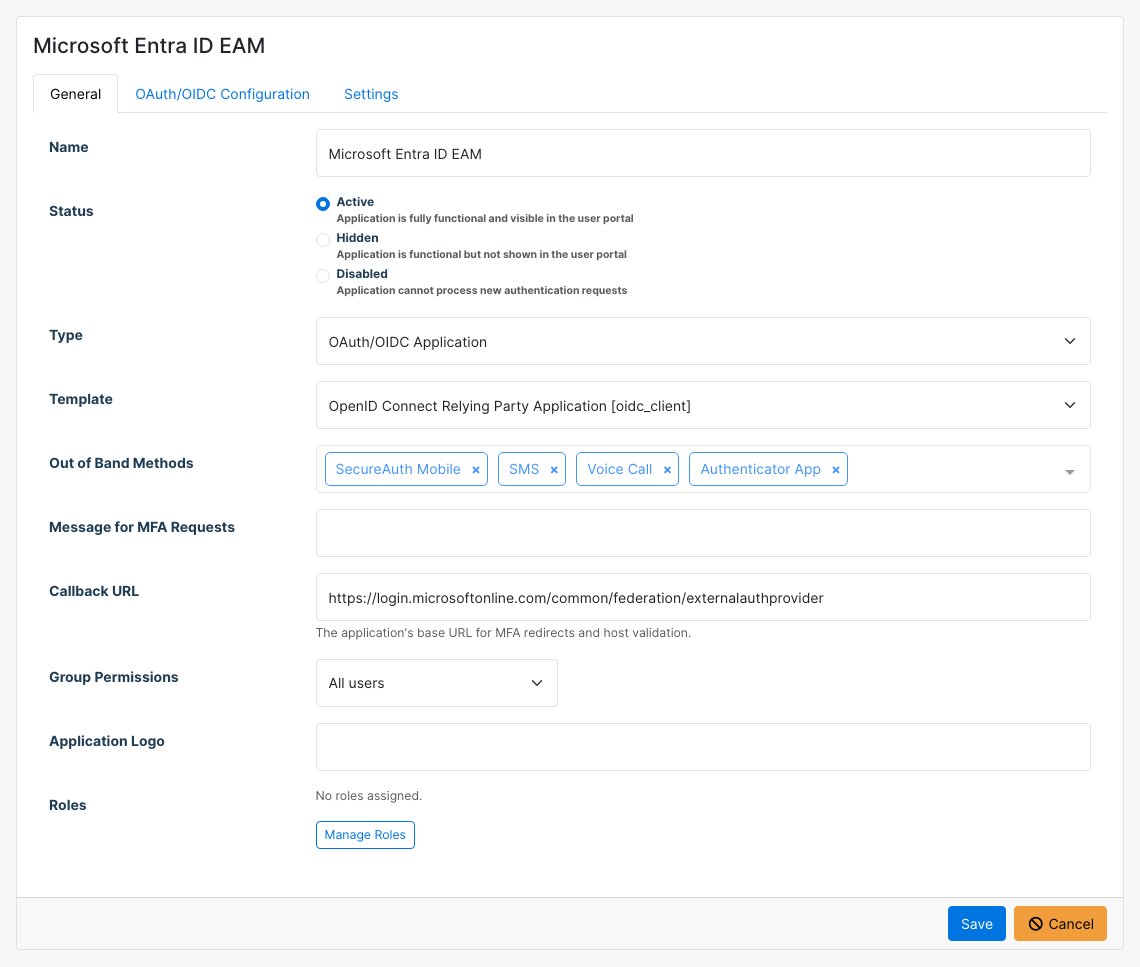
-
Select the OAuth/OIDC Configuration tab, and set the following configurations:
Login Redirect URLs Enter the redirect URL (Redirect_uri) that Workforce Authority will use to send back the authorization code. For Microsoft Entra, it is usually: https://login.microsoftonline.com/common/federation/externalauthproviderSee Microsoft's documentation for Microsoft Entra multifactor authentication external method provider reference for a full list of possible redirect URLs.Client Settings Application Type Set to Web application. Grant Type Set to Implicit. Microsoft Entra ID requires and only supports the Implicit grant type. Upon login, the application redirects to Workforce Authority for authentication. Entra ID asks Workforce Authority for a user identity token and expects the response to be sent back in a secure form. The user completes MFA through Workforce Authority and it sends the identity token back to Entra ID to complete the login. Authentication Method Set to None. Access Token Type Set to JWT. Scopes and Claims Scopes Select the following scopes: Session Access Token Timeout Set how long the access token is valid for before it times out. By default this set to 1 minute. Refresh Token Timeout Set how long the refresh token is valid for before it times out and requires the user to reauthenticate. By default this is set to 1 day. 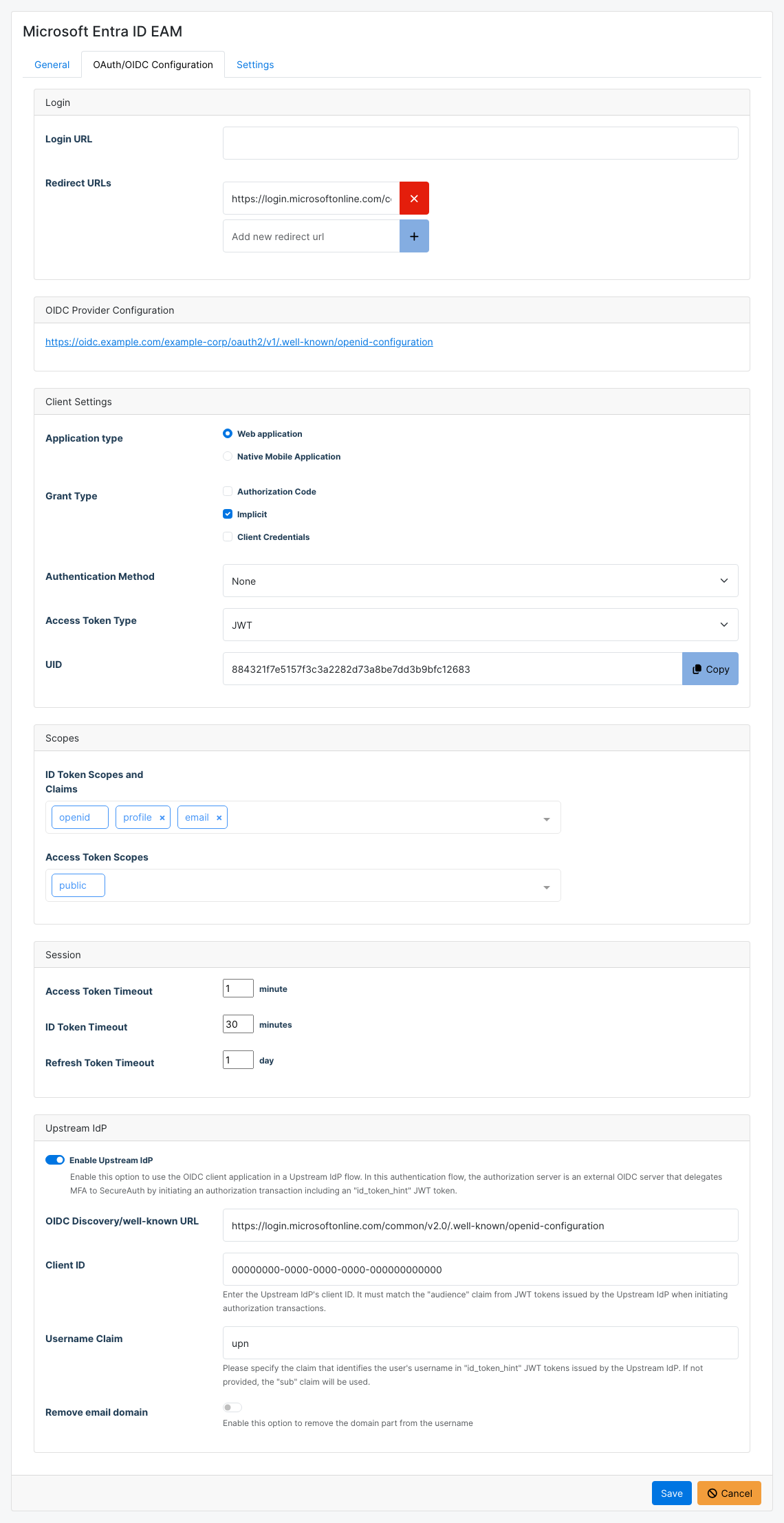
-
Slide the Enable Upstream IdP toggle to On and set the following configurations:
OIDC Discovery/well-known URL Enter the OIDC Discovery URL for your Microsoft Entra instance. For global EntraID customers, this is usually: https://login.microsoftonline.com/common/v2.0/.well-known/openid-configurationReach out to Microsoft support for questions about your specific setup.Client ID Enter the Application ID provided by Microsoft Entra. Username Claim Enter the claim that identifies the user's username in "id_token_hint" JWT tokens issued by the Upstream IdP. The claim should match to a unique user’s username in Workforce Authority. -
Save your changes.
-
Edit the configured OIDC application and select the OAuth/OIDC Configuration tab.
-
Copy the UID value.
You will need this for further Microsoft Entra configuration.
-
On the same tab, copy the OIDC Provider Configuration value.
You will need this for further Microsoft Entra configuration.
Task C: Configure Conditional Access policy in Microsoft Entra
In this task, you will return to your Microsoft Entra admin center to create a new Conditional Access policy. This will allow you to redirect users to Workforce Authority for authentication as an EAM for applications.
This task is completed in the Microsoft Entra admin center. For up-to-date, detailed instructions, refer to Microsoft's documentation for Tutorial: Secure user sign-in events with Microsoft Entra multifactor authentication and reach out to their support resources.
-
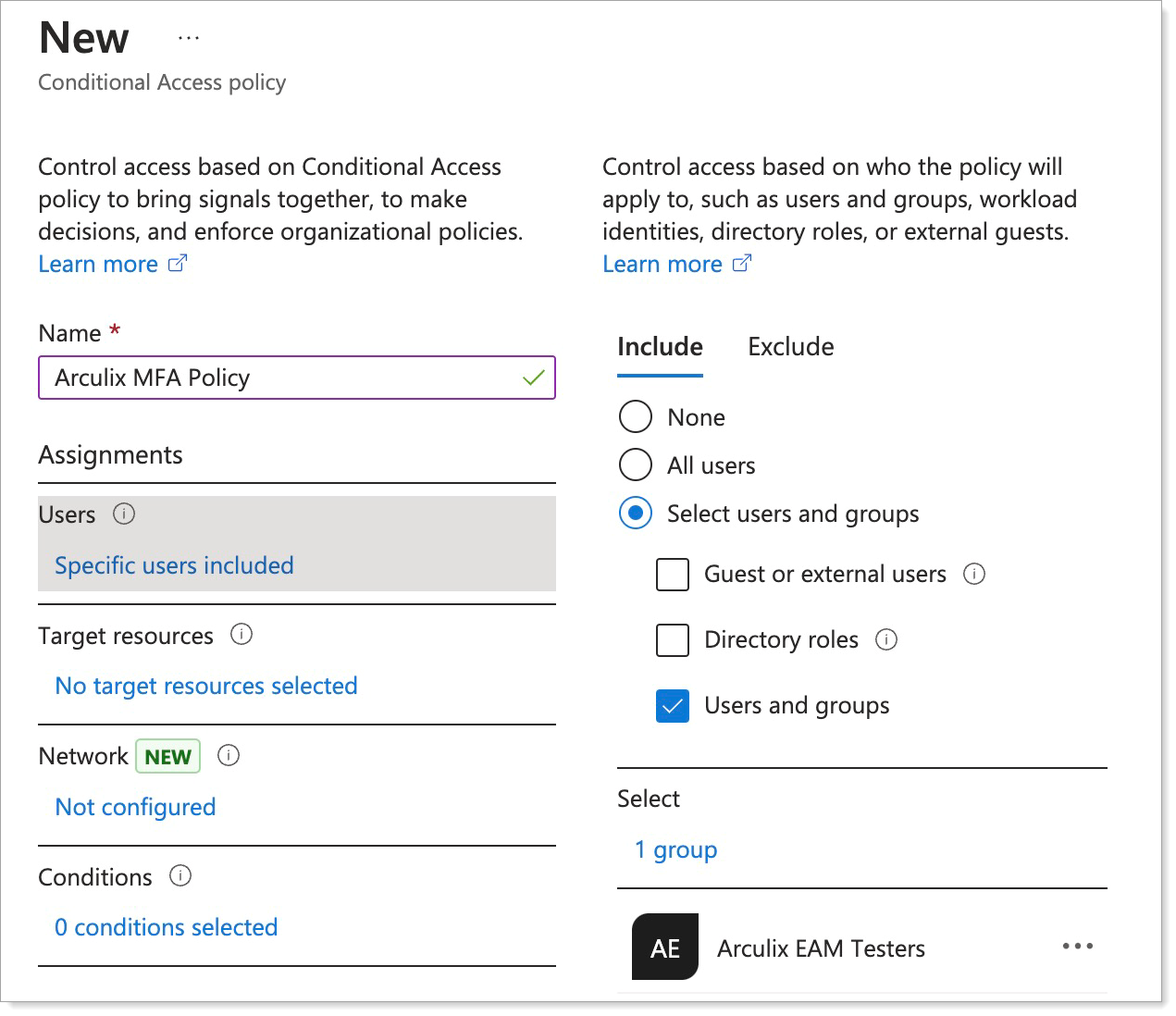
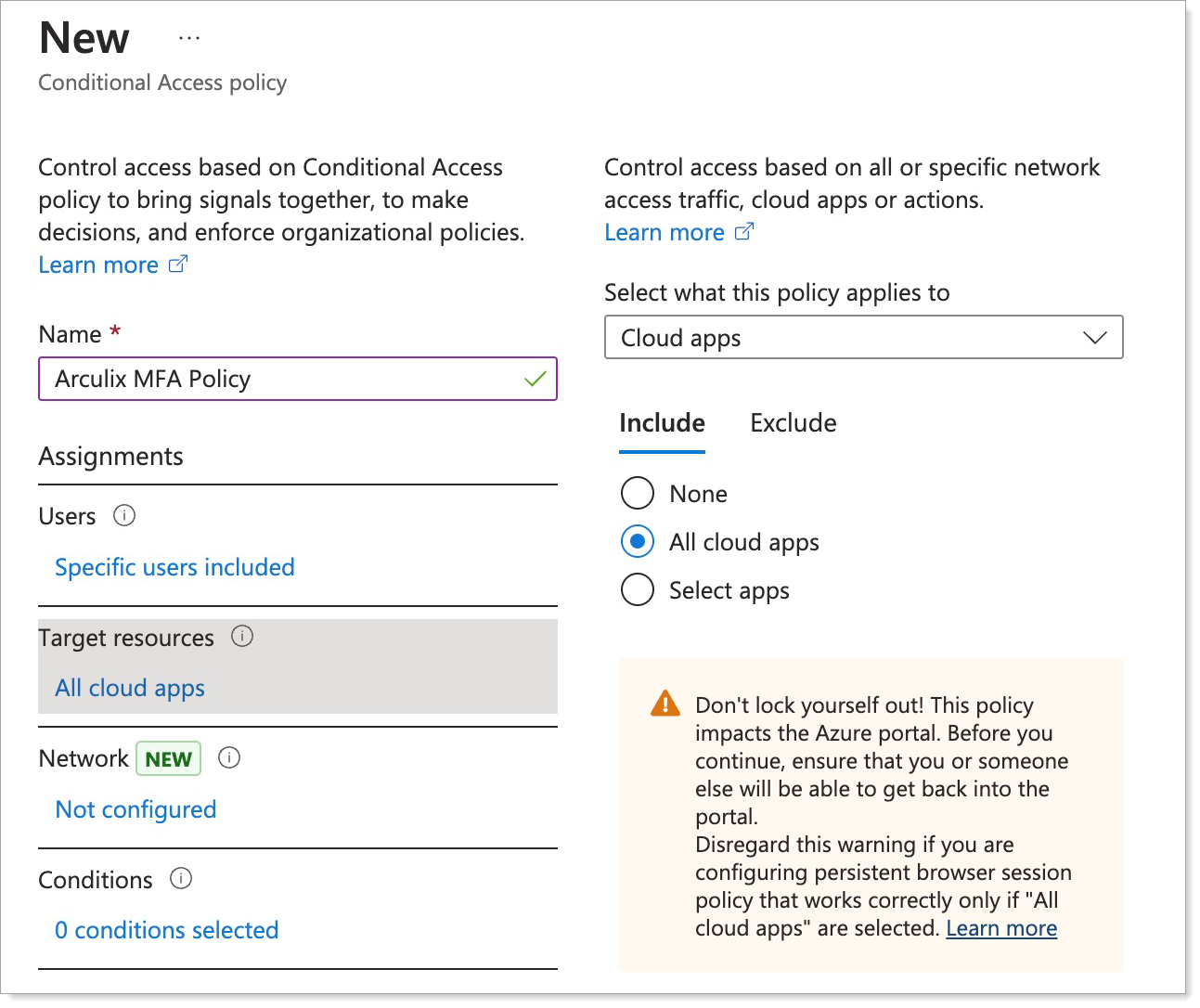
In the Microsoft Entra admin center, create a new policy for Conditional Access.
-
Select which users, groups, and applications to apply the policy to.
-
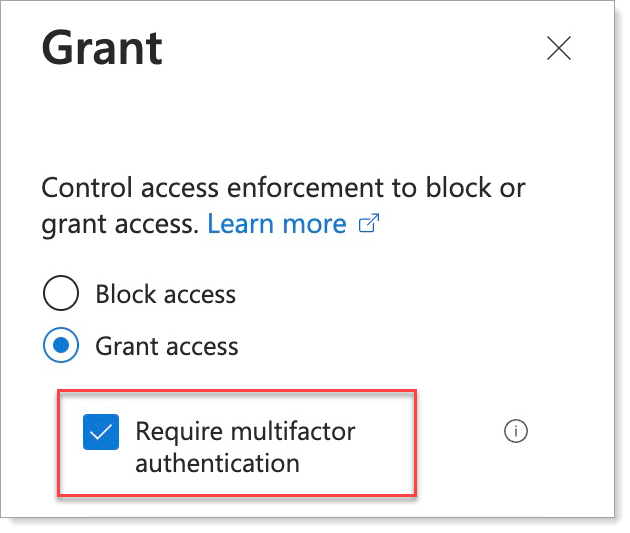
In the Grant section, select Grant access and the Require multifactor authentication check box.
-
Set the Enable policy value to On.
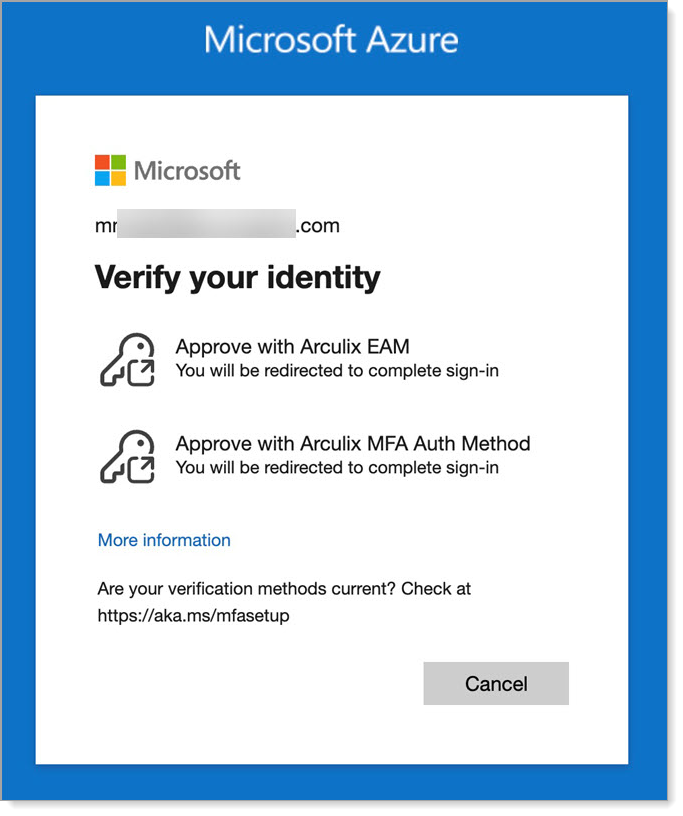
Result: When you log in to Microsoft Azure, you see Approve with Workforce Authority as an MFA option.
Task D: Add external MFA method in Microsoft Entra
In this task, you will configure Workforce Authority as your external authentication provider.
This task is completed in the Microsoft Entra admin center. For up-to-date, detailed instructions, refer to Microsoft's documentation for Manage an external authentication method in Microsoft Entra ID and reach out to their support resources.
-
In the Microsoft Entra admin center, add an external method with the following values:
Client ID Enter the UID of the OIDC application you created in Workforce Authority. Discovery Endpoint Enter the OIDC Provider Configuration for the OIDC application you created in Workforce Authority. App ID Enter the Application ID for the Enterprise application you created in Microsoft Entra for Task A. 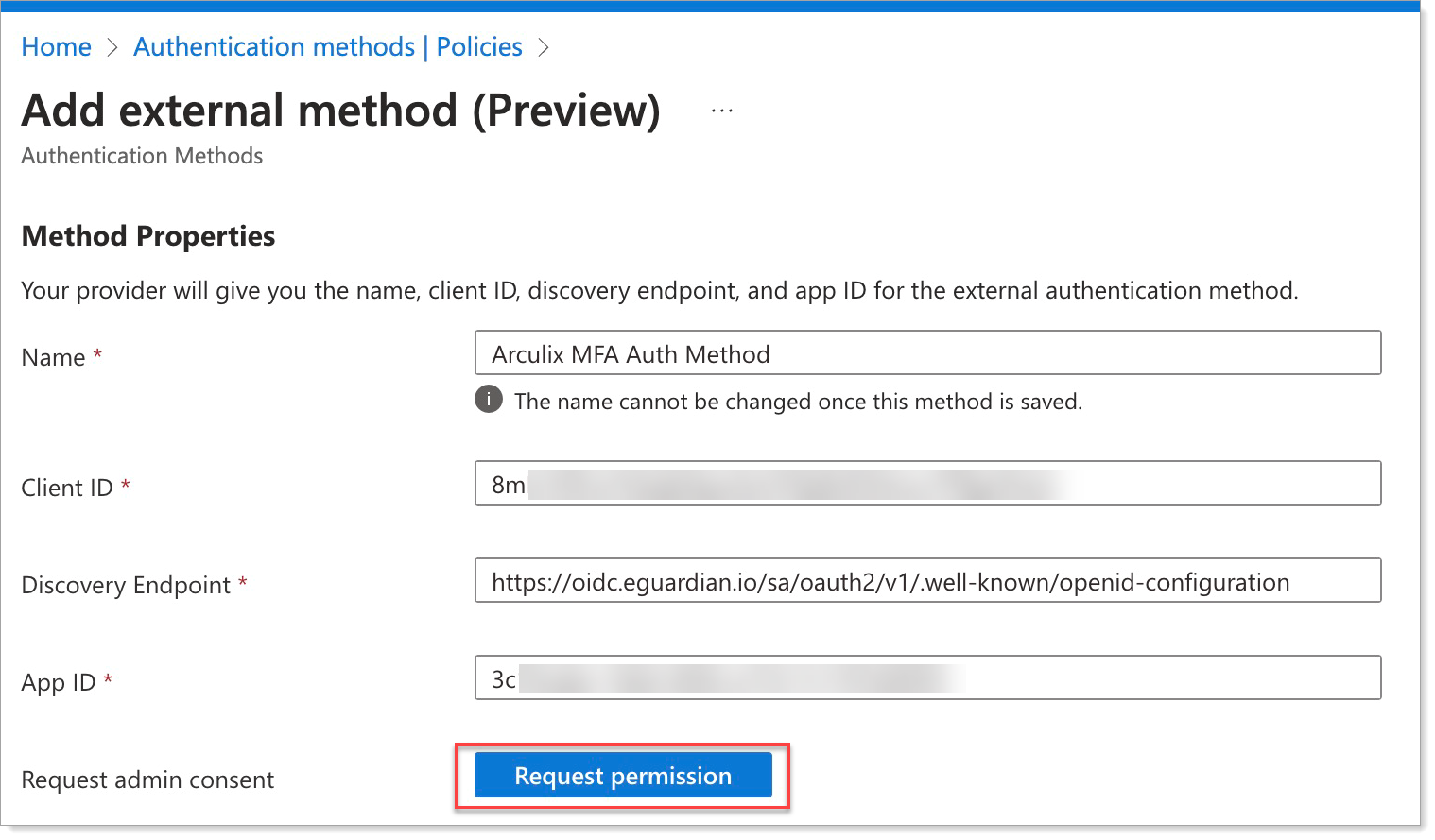
-
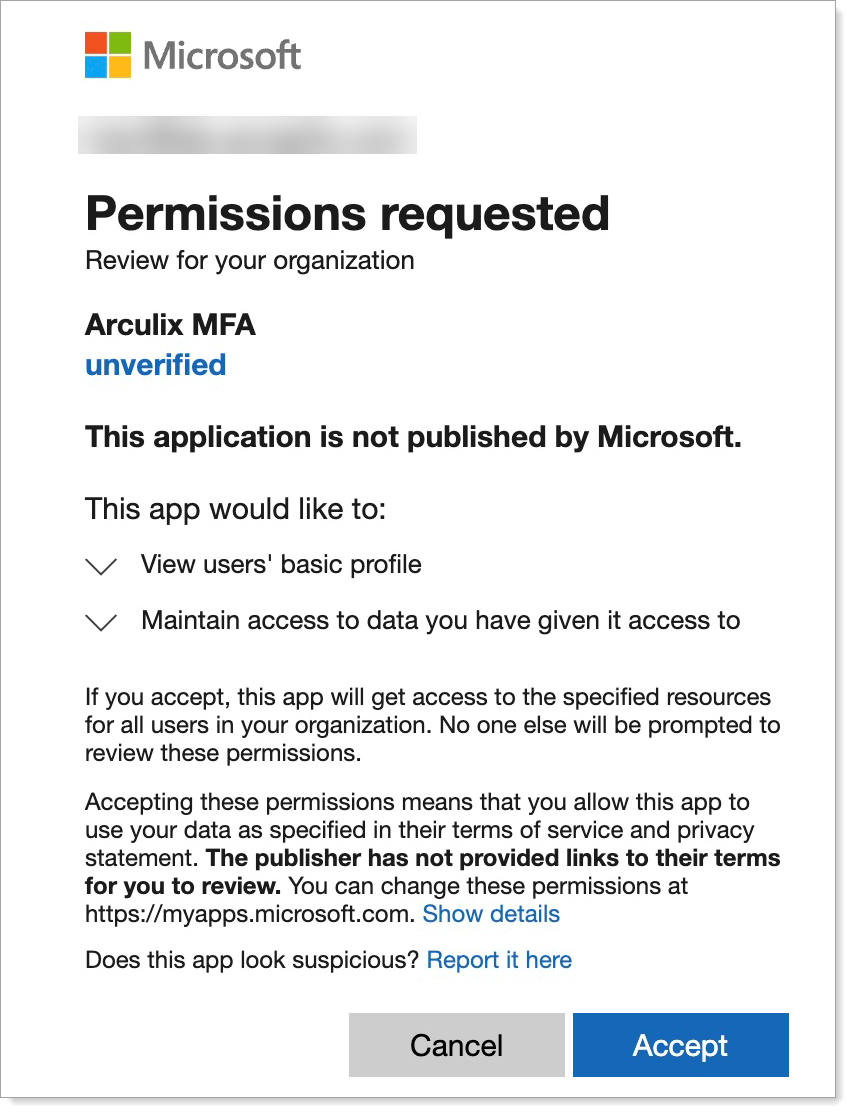
Click Request permission. You will need Microsoft Entra admin access to grant the necessary permissions.
-
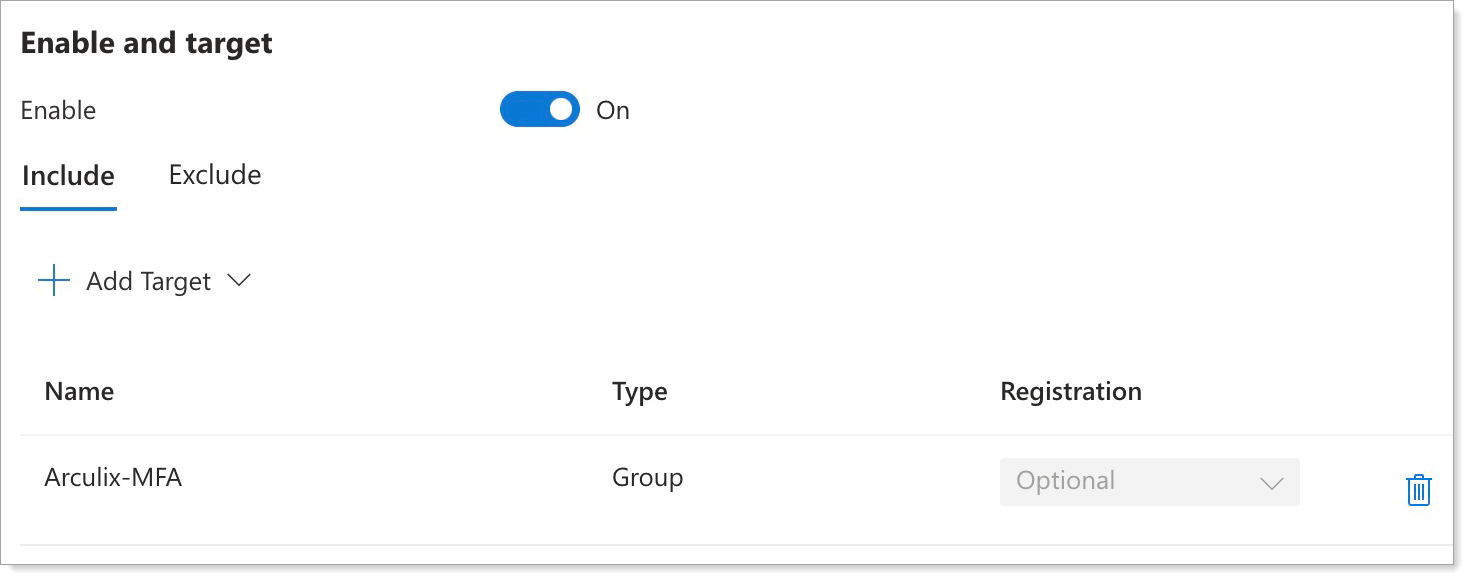
Configure Enable and target to set who to enable this external authentication method for.
Slide the toggle to On and select which users or groups of users to include or exclude.
-
Save your changes.
-
Go to App Registrations and find the Enterprise application you created for Task A. Edit the application's details with the following values:
Redirect URIs Enter the auth URL for your tenant Workforce Authority OIDC provider. For example, https://<your-oidc-server>/<your-tenant-slug>/oauth2/v1/authNOTE: You can also find this value in the Workforce Authority OIDC application you configured by clicking the OIDC Provider Configuration link and finding the value forauthorization_endpoint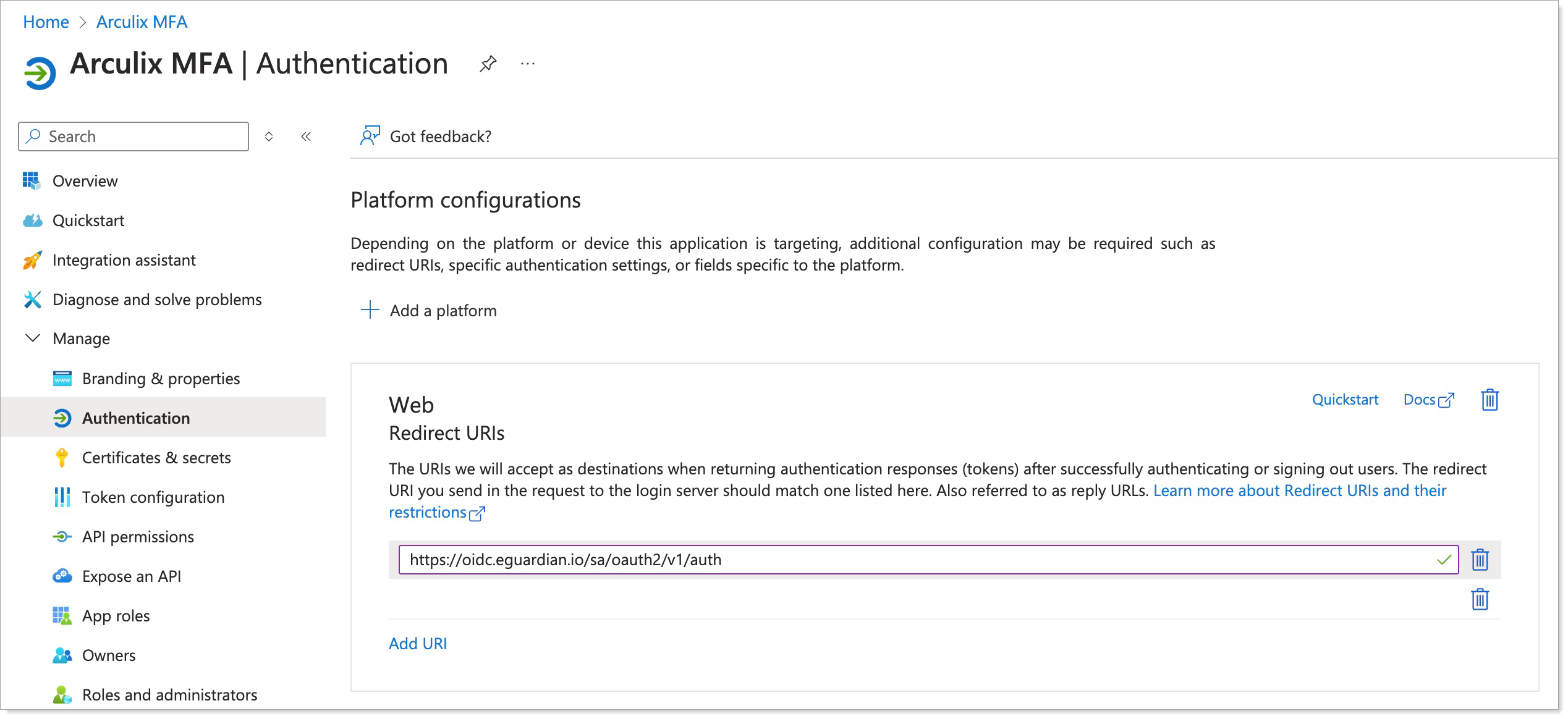
-
Save your changes.
-
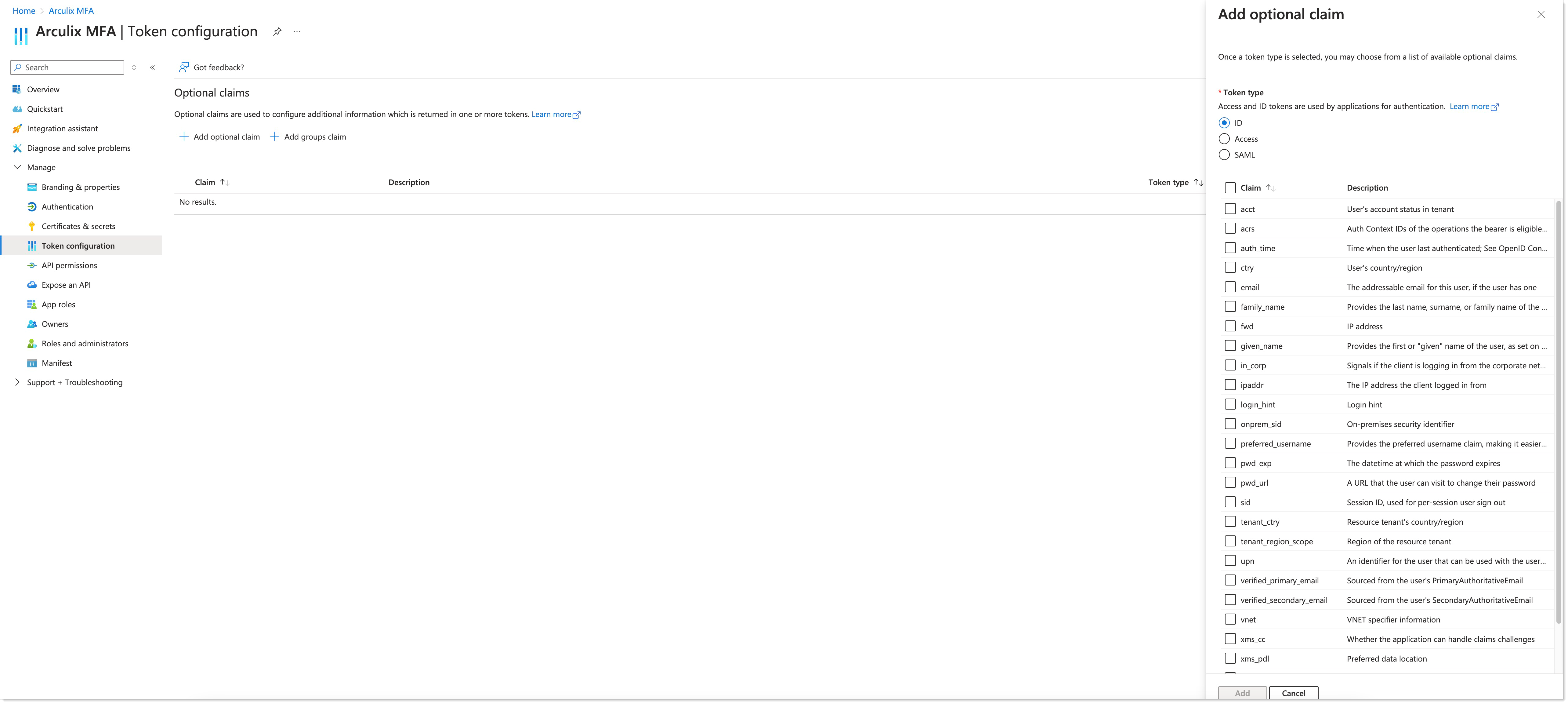
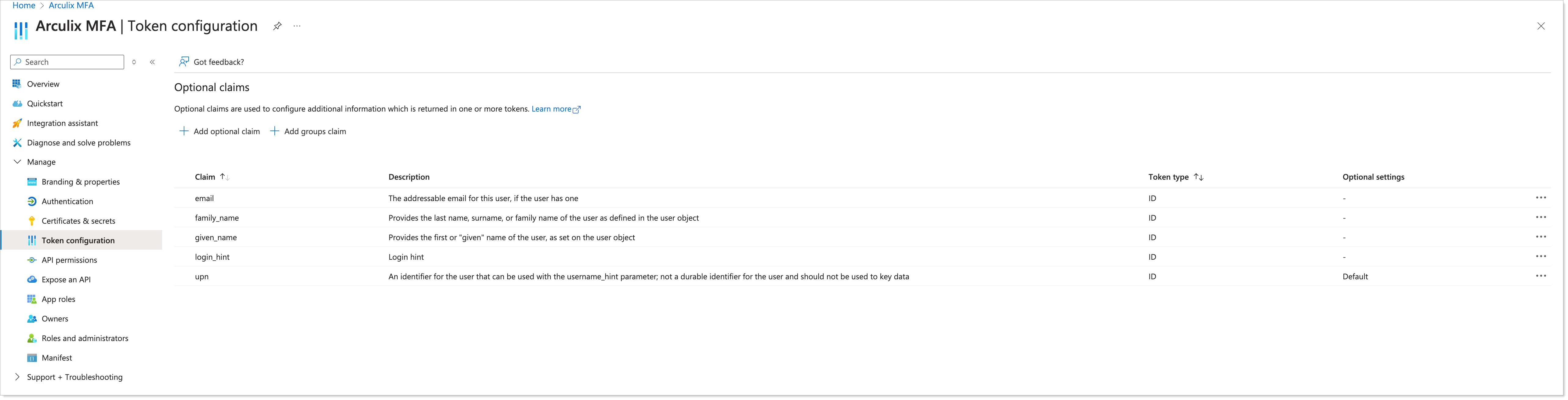
Optional. Under Token Configuration, you can customize the claims that Microsoft Entra will send to Workforce Authority. This can be helpful for matching the Microsoft Entra username with the Workforce Authority username.
For example, if you set Microsoft Entra's
upnas the username in Workforce Authority, you can add a custom claim for it.